Monitor Omni Campaign
Omni Live Monitoring Configuration Guide (Supervisor)
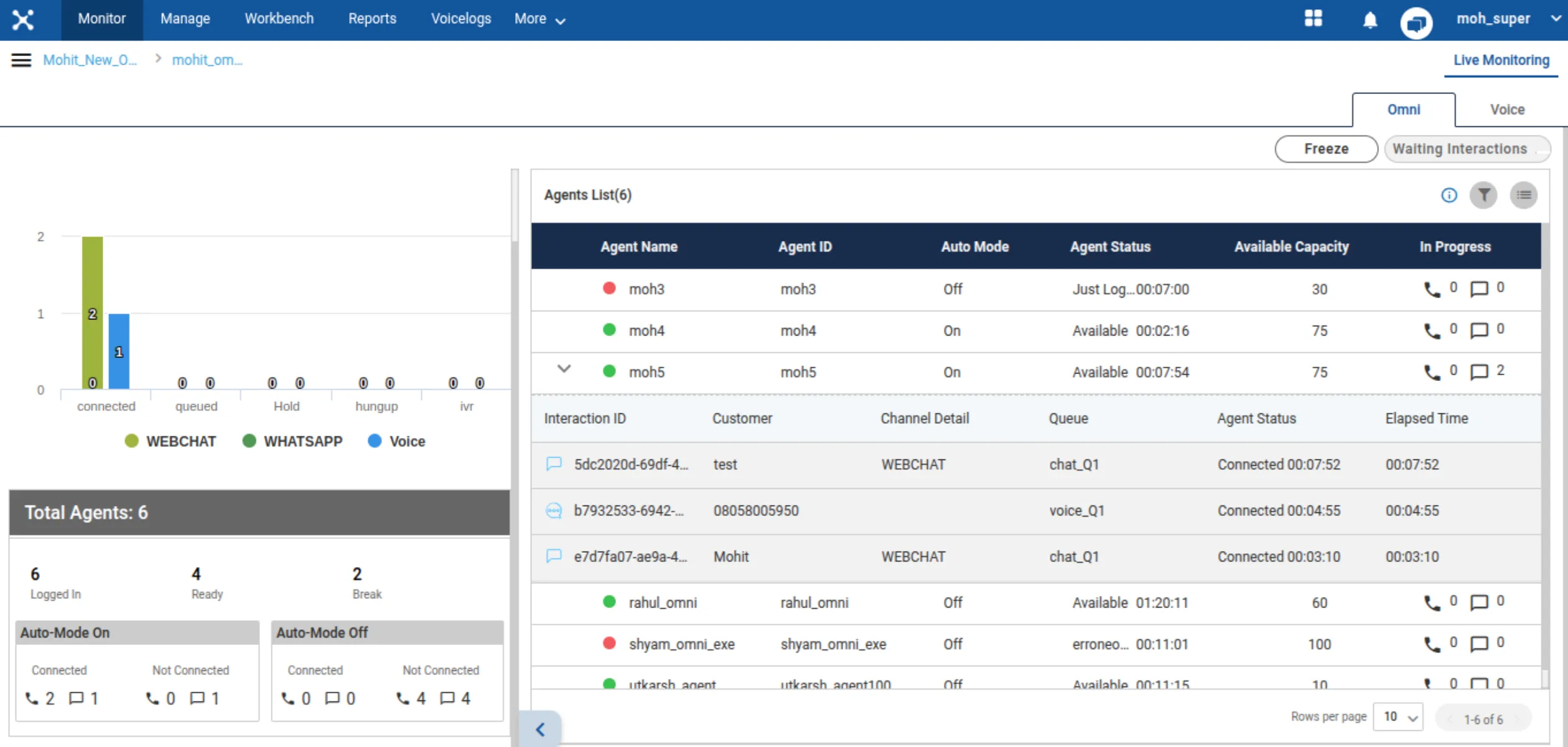
This dashboard provides supervisors with real-time visibility into agent activities and interaction statuses across Omni channels (selected omni campaign). It is designed to track agent availability, interaction loads, and channel-specific performance.
1. Interface Overview
The Live Monitoring dashboard for Omni Campaign is divided into two primary sections:
- Left Panel (Summary & Stats): Displays graphical interaction summaries and aggregate agent statistics (Logged In, Ready, Break, and Auto-Mode connectivity).
- Right Panel (Agent List): A detailed, tabular view of individual agents, their current status, capacity, and active interactions.
Data Refresh Indicators:
- Live Monitoring: The page is labeled "Live Monitoring" in the top right, indicating real-time data updates.
- Freeze Button: Allows the supervisor to pause data refreshing to analyze a specific snapshot in time.
2. Interaction Summary (Left Panel)
This section provides a high-level visual representation of current interaction states.
- Interaction Graph: A bar chart displays the count of interactions in various states.
- States Tracked: Connected, Queued, Hold, Hungup, and IVR.
- Channel Indicators: Color-coded legends distinguish between channels, such as WHATSAPP (Green) and Voice (Blue).
3. Agent Aggregate Stats (Left Panel)
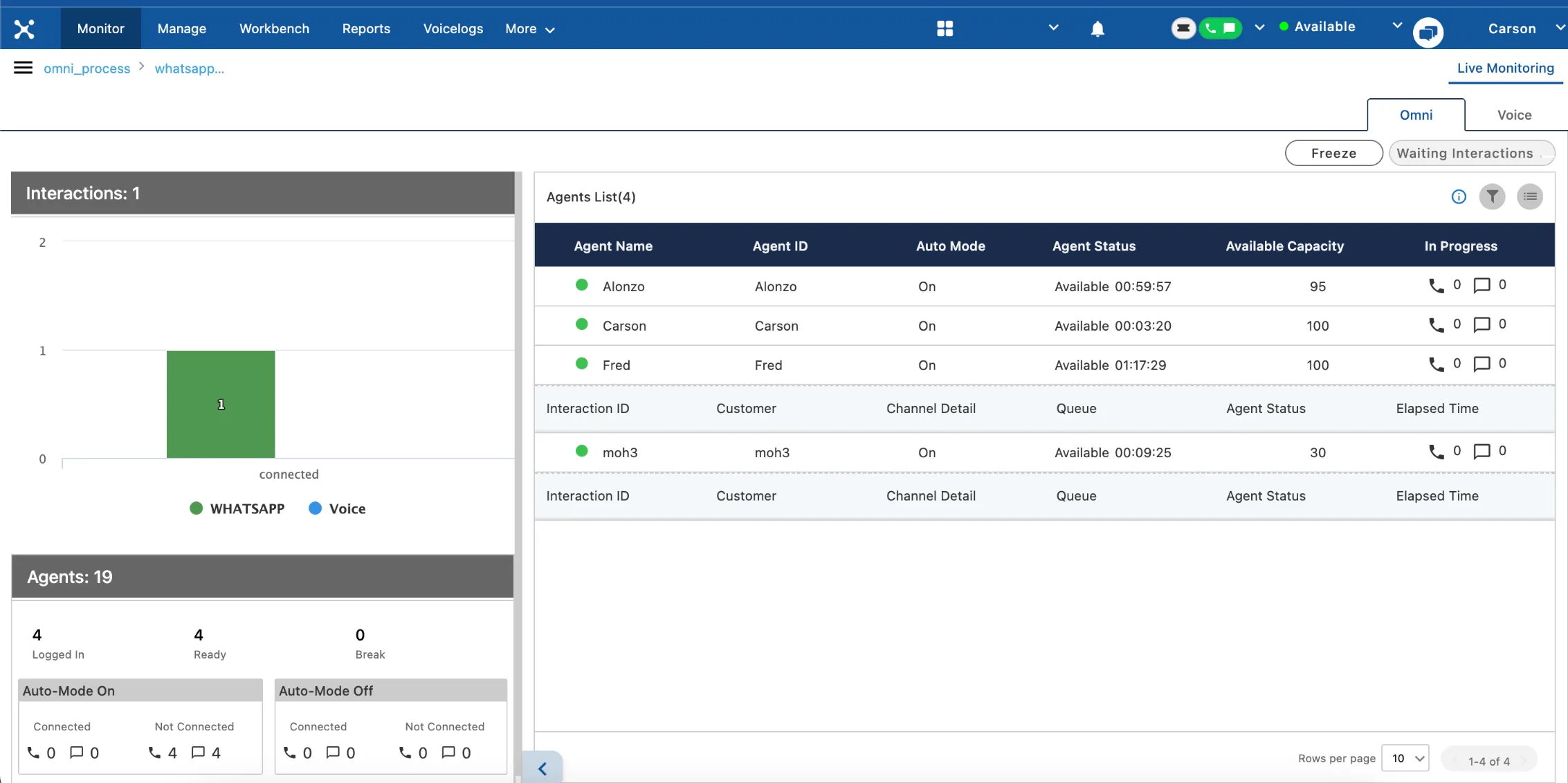
Below the interaction graph, the dashboard summarizes agent availability.
- Total Agents: Displays the total count of agents currently tracked in the campaign.
- Status Counters:
- Logged In: Total agents currently logged into the system.
- Ready: Agents available to accept new interactions.
- Break: Agents currently on break status.
- Auto-Mode Connectivity: A matrix separating agents by "Auto-Mode On" vs. "Auto-Mode Off" and their connection status (Connected vs. Not Connected). It also breaks down counts by channel icons (Voice handset vs. Chat bubble).
4. Agent List & Interaction Details (Right Panel)
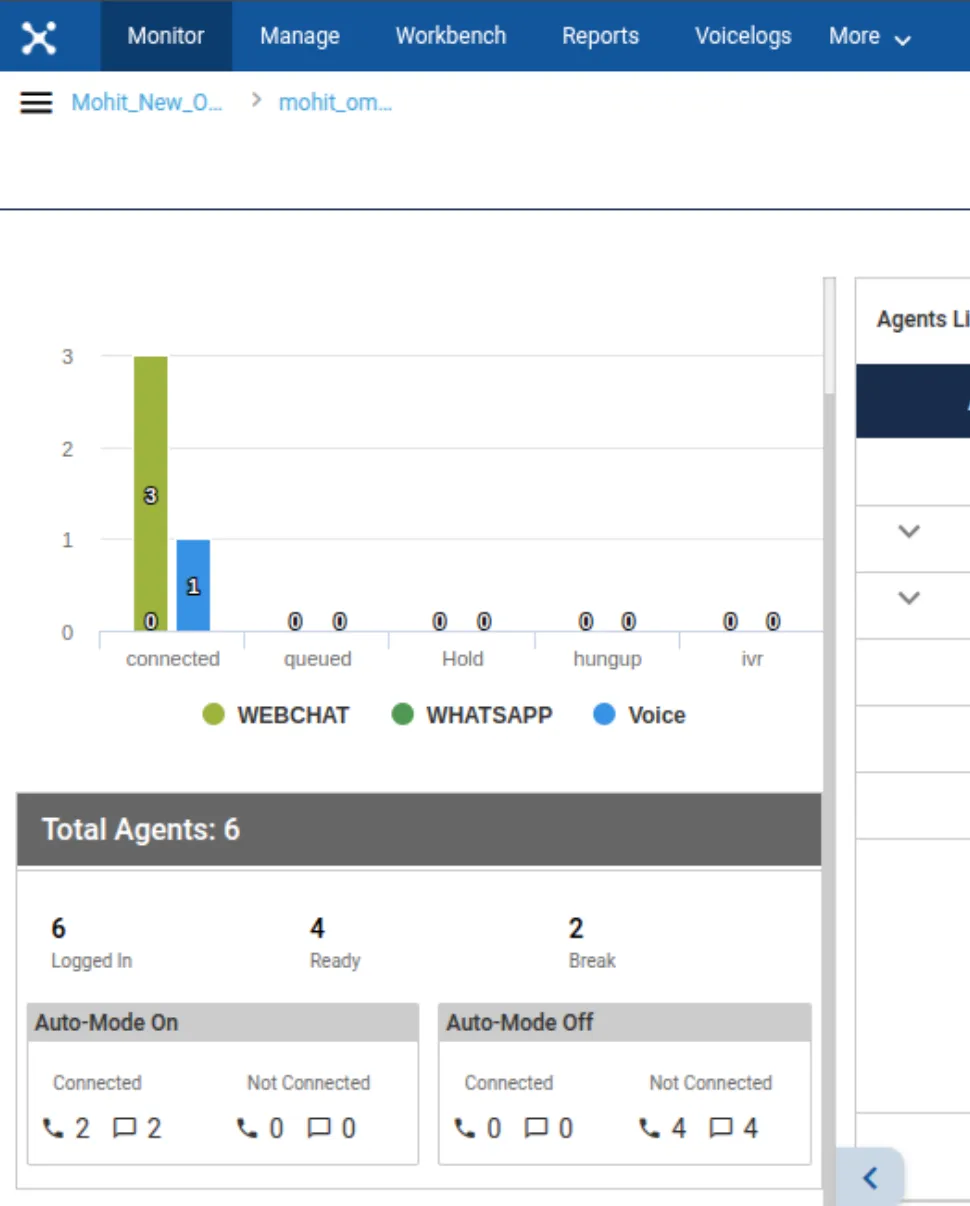
This table provides granular details for every agent.
A. Agent Columns
Column Name | Definition |
|---|---|
Agent Name | Displays the agent's display name along with a status color indicator (e.g., Green for Available/Ready, Red for Busy/Just Logged Out). |
Agent ID | The unique system identifier for the agent |
Auto Mode | Indicates if the agent is in Auto Call/interaction mode (On or Off). |
Agent Status | Shows the agent's current state and duration |
Available Capacity | A numerical score (0-100) indicating the agent's remaining capacity to handle new interactions. |
In Progress | A visual count of active interactions per channel type (Voice icon for calls, Chat bubble for messages). |
B. Interaction Drill-Down
Clicking the arrow next to an agent expands a detailed view of their active interaction.
Field Name | Definition |
|---|---|
Interaction ID | Unique identifier for the specific interaction session |
Customer | The customer's identifier, typically a phone number |
Channel Detail | Additional info on the specific channel used for communication |
Queue | The specific queue handling the interaction |
Agent Status | The status of the agent within that specific interaction (e.g., Connected etc) |
Elapsed Time | Total duration of the current interaction state. |
5. Additional Tools
- Filter & List Options: Icons in the top right of the Agent List allow supervisors to filter agents or change list view settings.
- Pagination: Controls at the bottom right allow navigation through large lists of agents (e.g., "1-4 of 4", "Rows per page 10").
- Channel Tabs: Dedicated tabs for Omni and Voice allow isolation of metrics relevant to specific workflows.