Exotel AI Assist : Userguide
Make Your AI Assist Assistant Available to Agents During Live Calls and Chats
This guide helps you create, configure, and activate a AI Assist Assistant so that agents can use it during live voice calls and chat interactions in the Contact Center. Follow the steps in order. Each step builds on the previous one.
Before You Start
Make sure the following are already set up in your Contact Center account:
- You have Admin access to the Contact Center.
- At least one active campaign exists.
- Agents are already assigned to campaigns.
- Voice or Chat is enabled and working, depending on your use case.
- You can place a real test call or initiate a real chat.
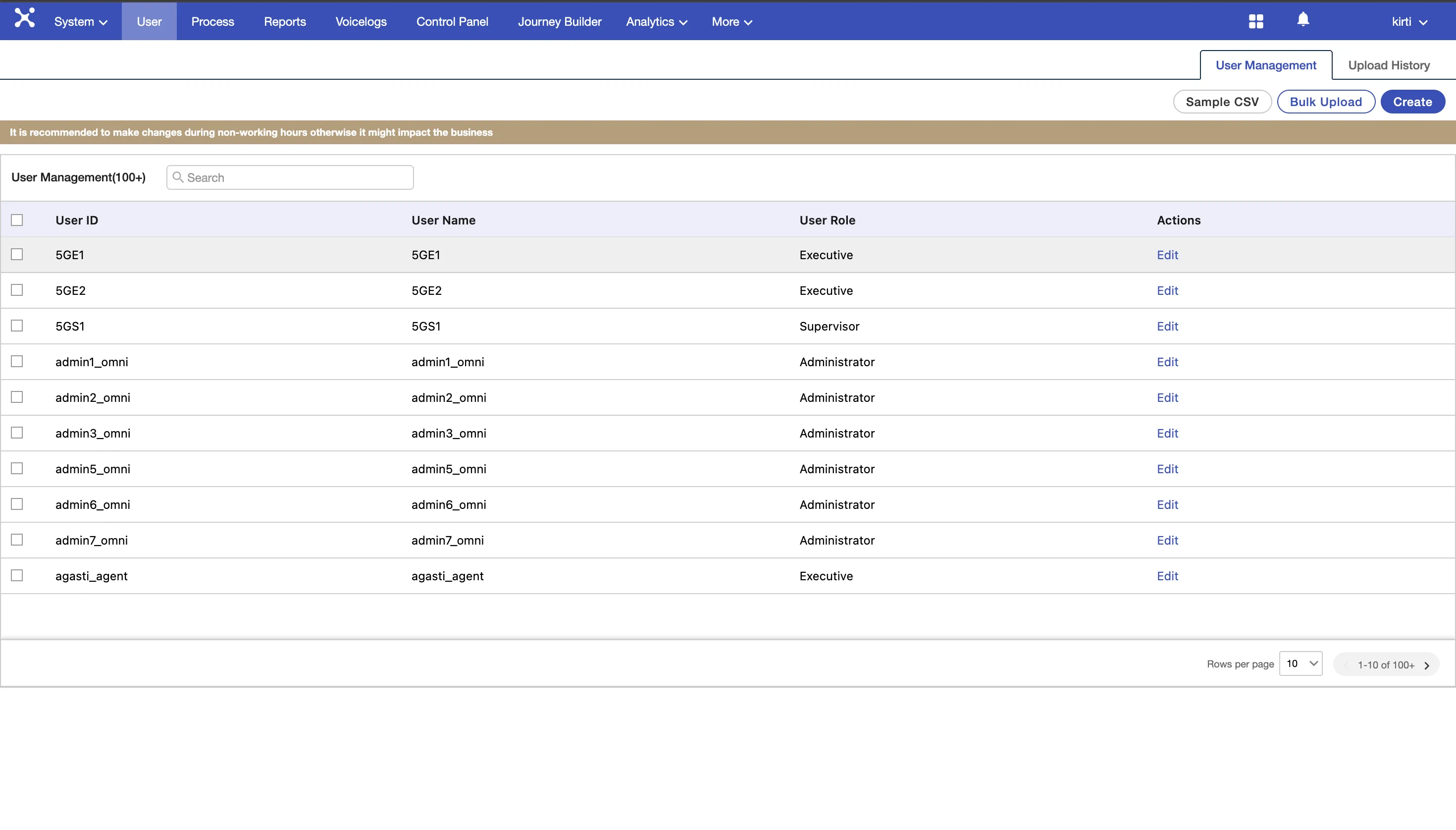
Important: If any of these are missing, complete them first. AI Assist Assistant will not activate unless it is mapped to an active campaign and triggered by a real interaction.
Step 1: Open the AI Assist Assistant Portal
What to do
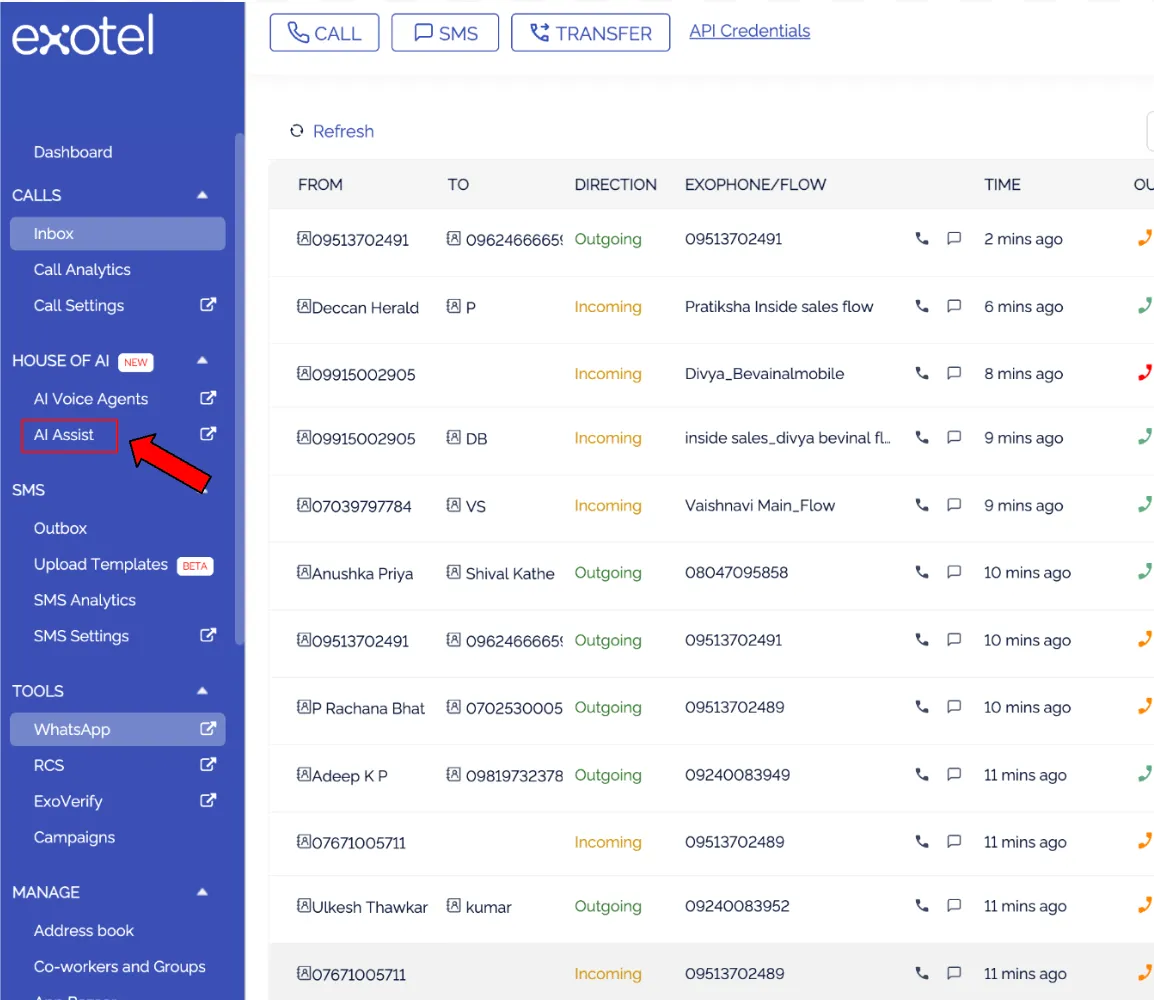
- Log in to the my.in.exotel.com
- Click on AI Assist tab in the left navigation
- It will redirect to https://ai-assist.in.exotel.com/ platform to create AI Assist Assistant.
What happens after this step
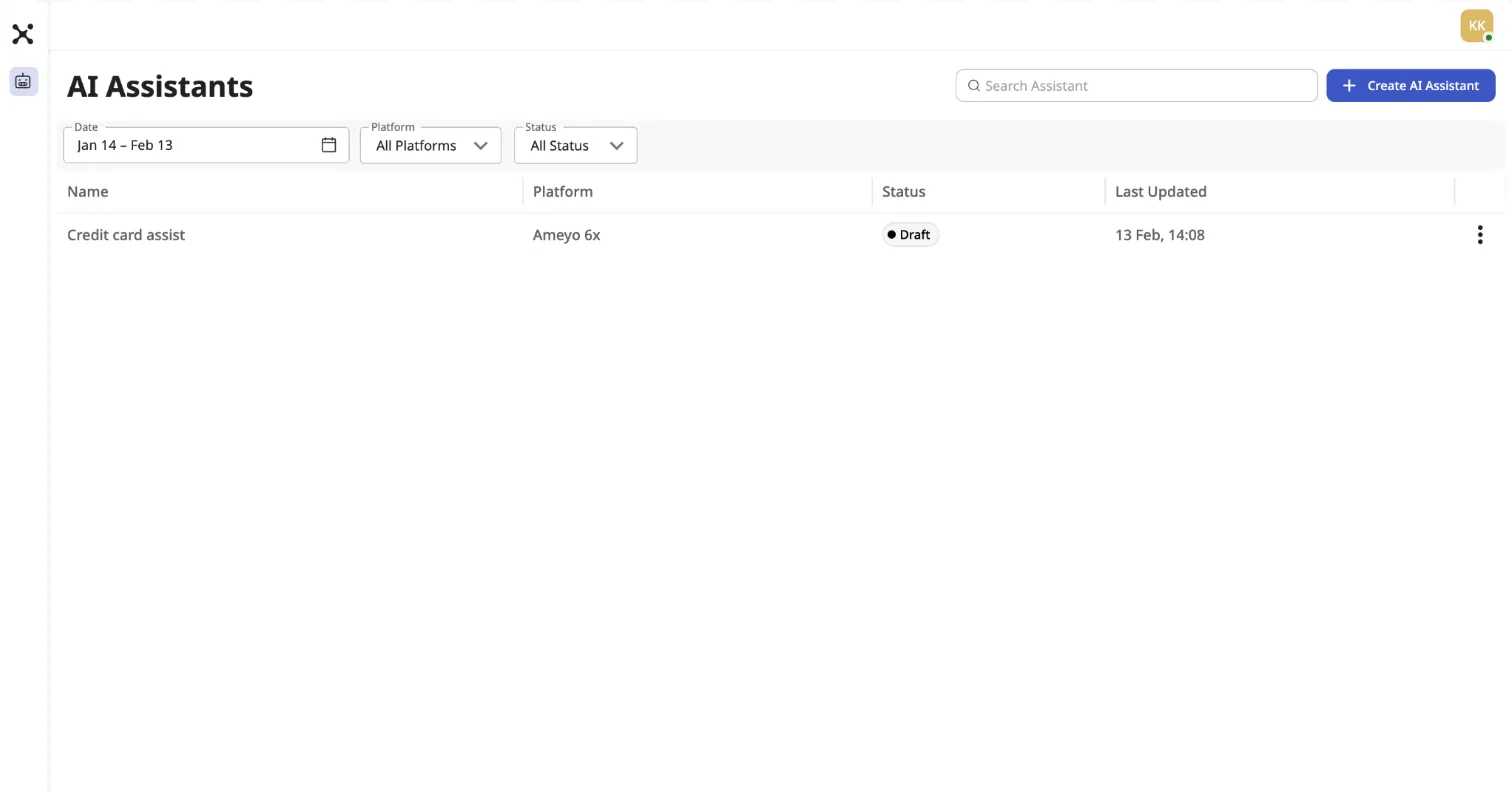
You see AI Assist Portal where AI Assist Assistant settings are set and managed.
Step 2: Create a New AI Assist Assistant
What to do
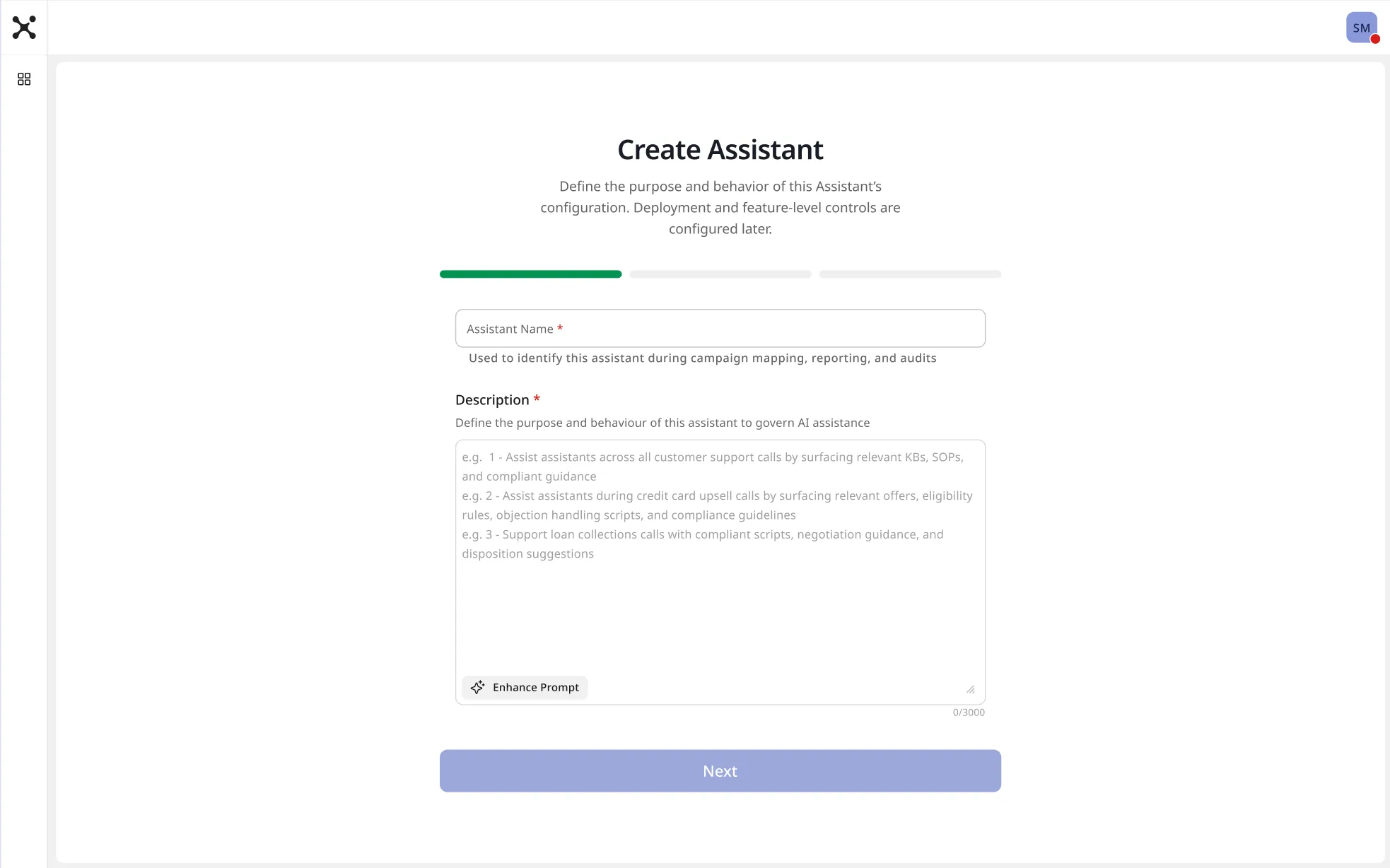
- Click Create Assistant.

- Enter a clear name (example: Voice & Chat Assist – Card Support).
- Define the purpose and behavior of this assistant to govern ai assistance Some examples : 1. Assist agents across all customer support calls by surfacing relevant KBs, SOPs, and compliant guidance. 2. Assist agents during credit card upsell calls by surfacing relevant offers, eligibility rules, objection handling scripts, and compliance guidelines. 3. Support loan collections calls with compliant scripts, negotiation guidance, and disposition suggestions.
- Click Next to proceed.
Step 3: Upload Reference Documents
What this step is for
In this step, you upload reference documents that the AI Assist Assistant uses to surface Smart Replies during live interactions. The quality and relevance of these documents directly determine how the assistant behaves and what it suggests to agents.
What to do
- On the Add reference documents for this Assistant screen, upload documents that are relevant to the assistant’s intended behavior:
- Policies, SOPs, scripts, or FAQs that the assistant should follow
- Content aligned to the use case (for example: card blocking, refunds, delivery issues)
- Upload files by:
- Dragging and dropping them into the upload area, or
- Clicking Browse to select files from your system
- Click Next to continue.
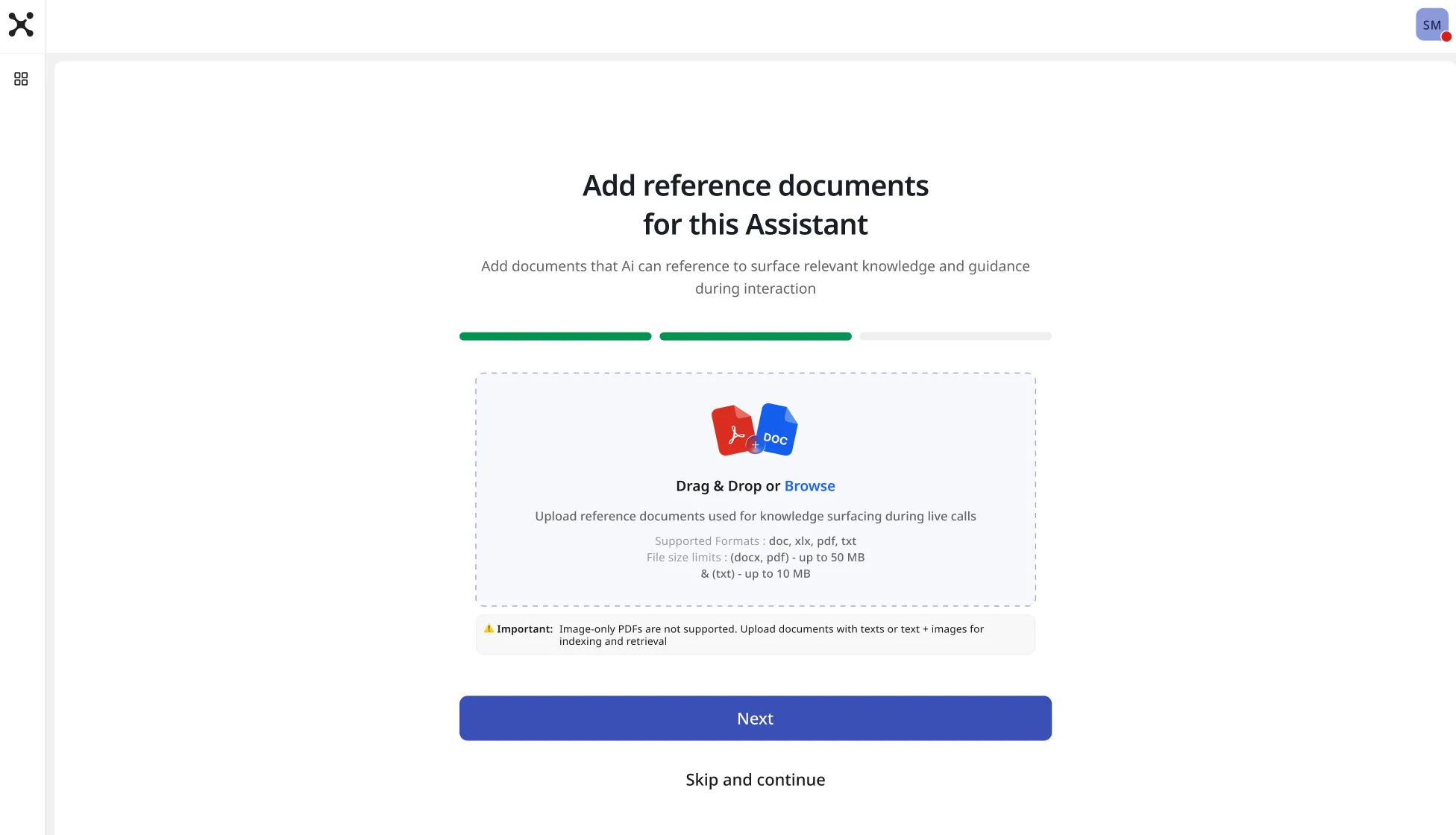
Important guidance on what to upload
For example:
- If the assistant is meant for Card Support, upload card-related SOPs and FAQs.
- If it is for Delivery or Logistics, upload delivery workflows and escalation guides.
Supported file formats and limits
- Supported formats: .doc, .xls, .pdf, .txt
- File size limits:
- .doc, .pdf: up to 50 MB
- .txt: up to 10 MB
Important: Image-only PDFs are not supported. Upload documents that contain readable text (or text + images) so the content can be indexed and used for suggestions.
What happens after this step
- The uploaded documents are indexed.
- During live voice calls or chat interactions, AI Assist Assistant uses this content to:
- Surface Smart Replies
- Guide agents based on the defined behavior of the assistant
Optional: Skip for now
- You can click Skip and continue if documents are not ready.
- KB documents can be added or updated later by editing the AI Assist Assistant configuration.
What to avoid
- Do not upload unrelated or generic documents.
- Do not mix multiple use cases in a single assistant.
- Do not upload outdated or draft content.
- Do not upload scanned or image-only files.
Step 4: Configure Assistant
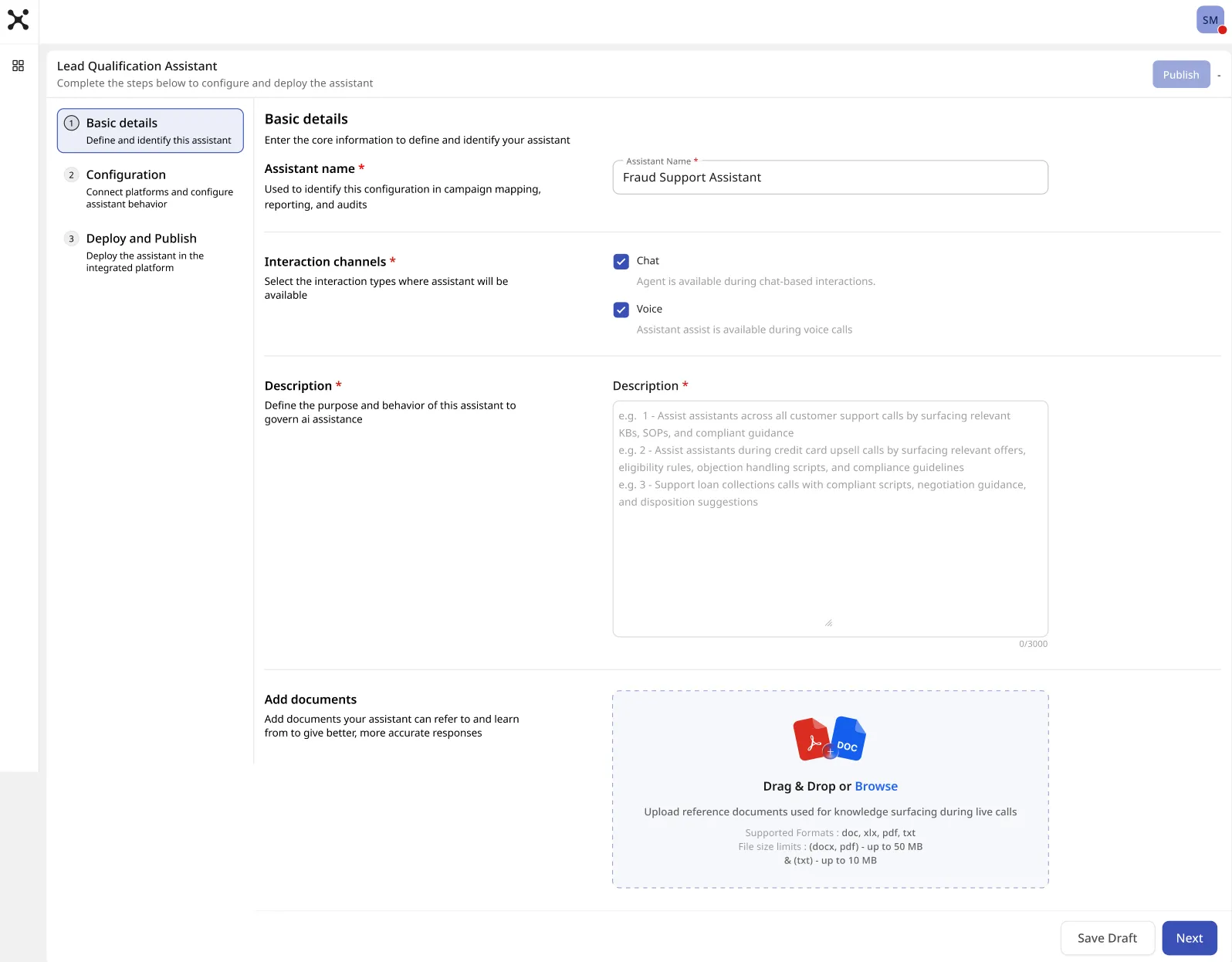
4A. Review Basic Details and Select Channel
What to do
- In Basic Configurations, Select one or both channels:
- Voice
- Review other basic details or Upload/Edit uploaded reference documents.
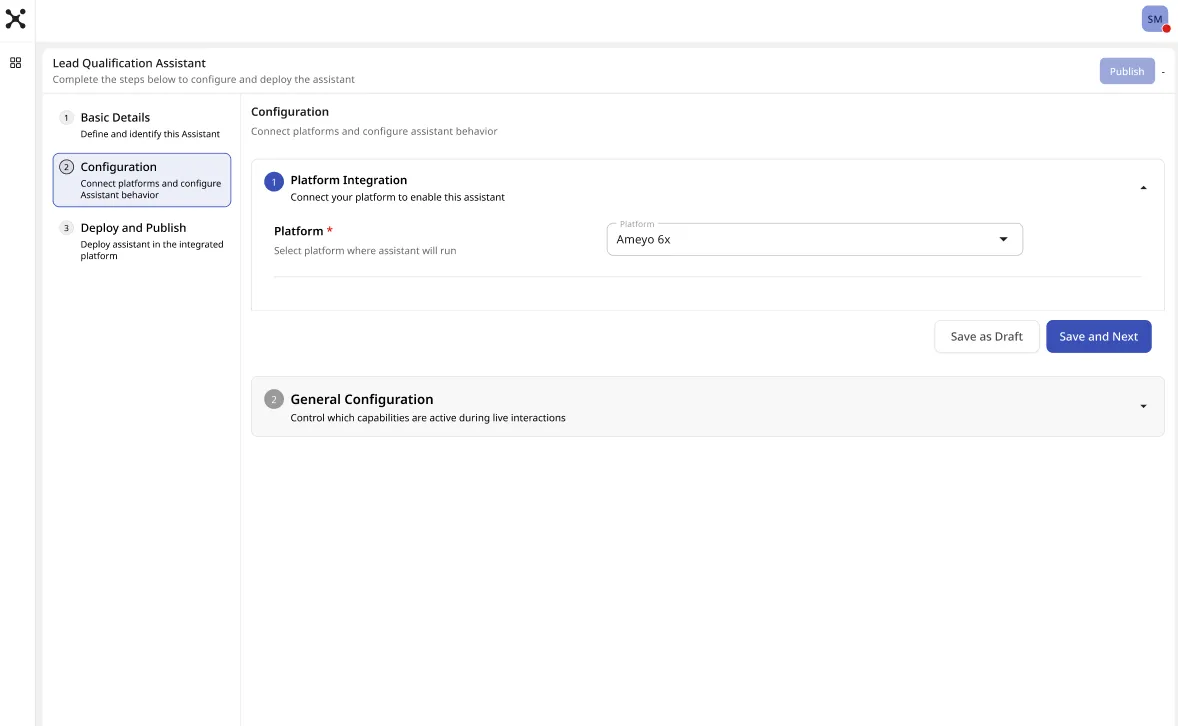
4B. Set Configurations
What to do
- Platform Integration - Select platform to run Assistant and Click on Save and Next.
- General Configuration -
- Enable/Disable Live transcript for Voice Interactions
- What happens after this step
- Agents see live captions only during voice calls.
- Note: Transcript display applies only when Voice is the active channel.
- Enable/Disable Smart replies
- What happens after this step
- Relevant Smart replies appear in real time for the selected channel.
- Enable/Disable Real time customer sentiment
- What happens after this step
- Agent see live sentiment of the customer during the interaction.
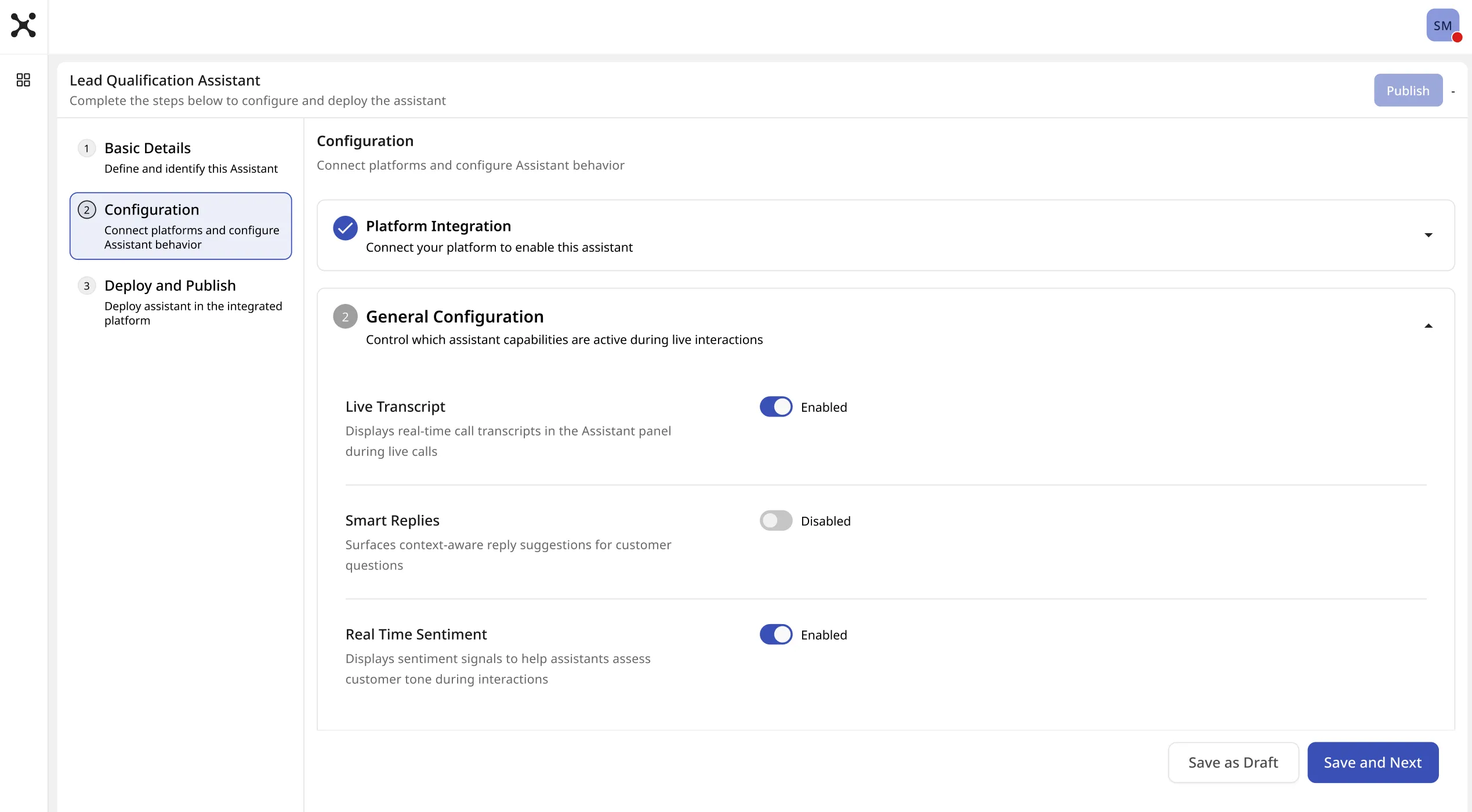
- Click on Save and Next to proceed for deployment.

Step 5: Deploying AI Assist Application
What to do
- Go to Deployment.
- Dowload the Configuration Application.
- Upload the Configuration Application in the Contact Centre. Confirm the placement as 'Top Bar Global' in the contact centre.
- Map the relevant campaign to the assistant URL. This will enable the call streaming for the assistant.
- Now Download the AI Assist Assistant package.
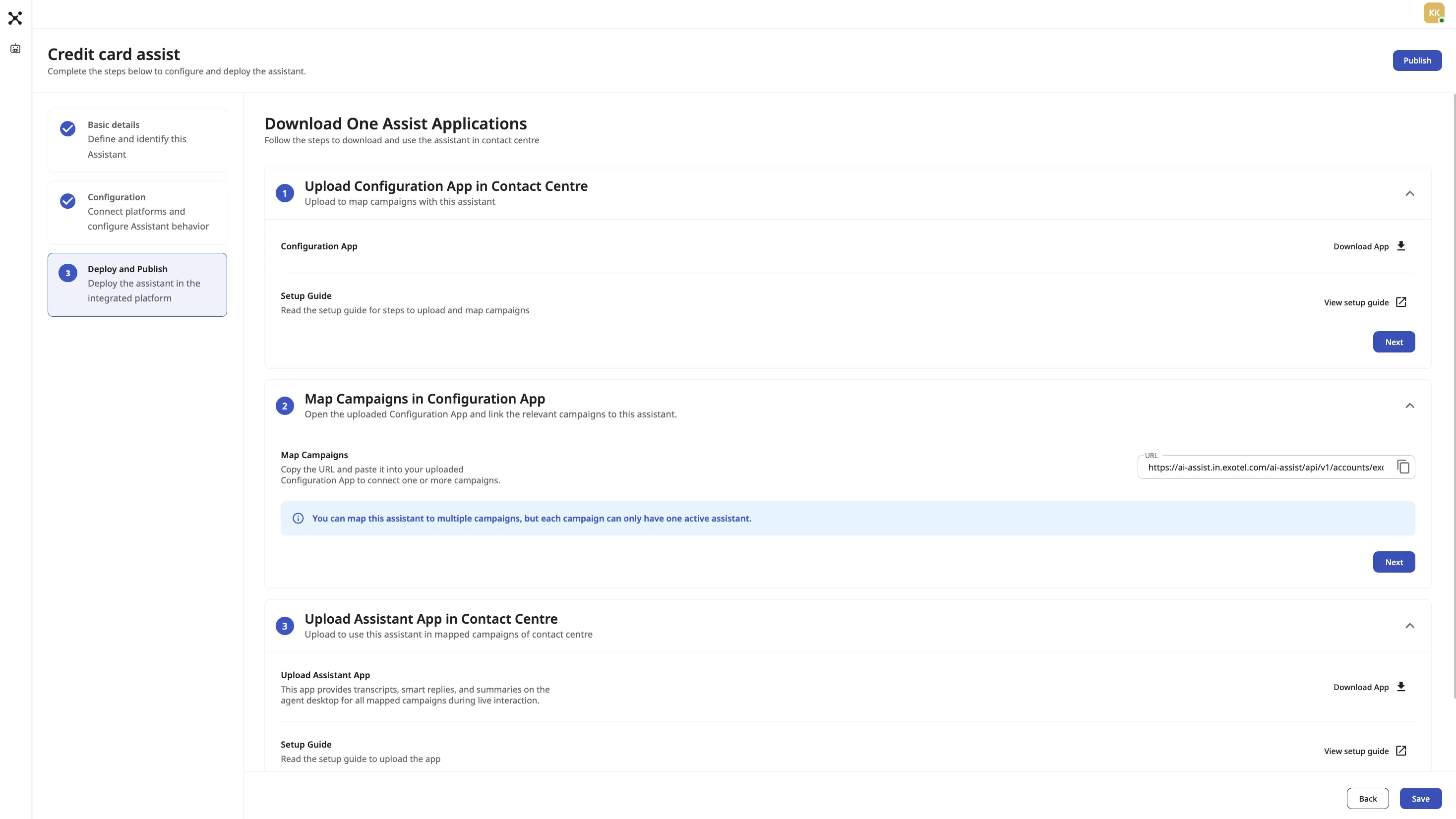
- Upload it into the Contact Center.
- Place the Assistant in the Agent Desktop. Confirm placement as Right-side Panel.
- Map the Assistant with relevant Campaign under respective Process in the Contact Centre.
Step 6: Publish the AI Assist Assistant
What to do
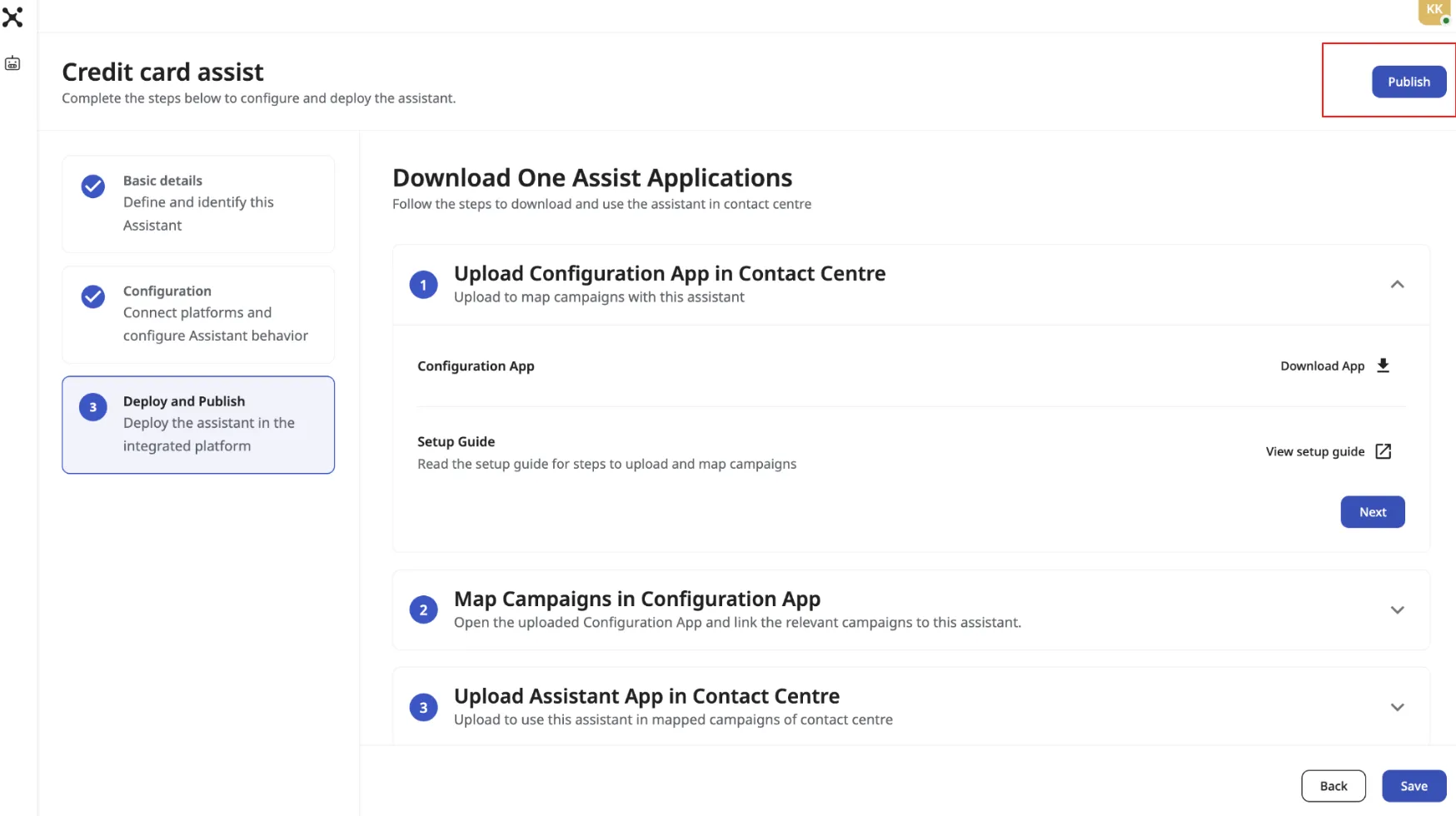
- Publish the Assistant in the AI Assist Portal (https://ai-assist.in.exotel.com/)
What happens after this step
- Once Published, the AI Assist Assistant status will change to "Live."
- The Assistant will then appear in the Agent Desktop for all mapped campaigns within the Exotel Contact Centre.
Agent Experience In Live Interaction
- AI Assist Assistant Panel Behavior: Panel is available in the agent desktop automatically when a call or chat starts.
- Suggestion View (Chat and Voice): Smart Replies shown in the Suggestion tab.
- Agents can copy the suggestion to clipboard.
- Paste directly into chat or use as call guidance.
- Transcript Visibility Rules
- Voice: Transcript is visible.
- Chat: Transcript view is hidden in the AI Assist Panel.
- Real Time Sentiment
- Real time sentiment status like - Displays the customer's current mood as Positive, Neutral, or Negative based on the ongoing conversation.
Testing the Setup
Voice Testing
- Make a real inbound or outbound call.
- Verify transcript, suggestions, and wrap-up.
Chat Testing
- Start a real chat from a mapped queue.
- Verify Smart Suggestions appear.
- Confirm no transcript panel is shown.
Important: Only real voice calls or real chats validate success.