Manage Lists and Contacts
The Lists and Contacts features act as an integrated address book within the New Campaigns Dashboard. Together, they help manage audience data efficiently for all campaigns — including Call, SMS, WhatsApp, and RCS.
Overview
- Lists store collections of customer numbers and associated details.
- Contacts represent individual customers with unique numbers, which can belong to multiple lists.
- Both are accessible from the New Campaigns Dashboard, under the Lists and Contacts tabs.
Create a List
Navigate to the Lists tab on the New Campaigns dashboard.
Click the Create List button on the top right to open the creation pop-up.
Enter a List Name in the provided field.
If you have a CSV file with your contact list, click Browse Files or drag and drop the file into the pop-up.
If you don’t have a list, download the sample CSV file, fill it with your contact data, and upload it.
Click Create List to finish.
A blank list can also be created by providing only a List Name. Contacts can be added later via CSV upload or directly through the Contacts tab.
MacBook users should avoid editing CSV files in the Numbers app, as it can corrupt formatting. Instead, use TextEdit or another plain-text editor to modify and save CSV files.
Please add only numbers in your list. Do not include the country code 91 — the system automatically appends it for Indian numbers.
View Lists
All lists created under Campaigns appear in the Lists tab.
Each list entry displays:
- List Name
- Number of Contacts
- Date Created
Available actions:
- Edit: Modify list name or replace CSV.
- Download CSV: Export the current list.
- Delete: Permanently remove the list.
Search and sort options:
- Search by list name.
- Sort by list name or created date.
Create a Contact
Navigate to the Contacts tab.
Click Create Contact in the top-right corner to open the pop-up.
Provide contact details:
- First Name
- Last Name
- Phone Number
- Email ID
- Company
- Custom Tags (JSON key-value pairs)
- Lists (select one or more existing lists)
Click Create Contact to save the new contact.
Example of Custom Tags JSON format:
{ "key1": "value1", "key2": "value2" }
A contact can belong to multiple lists simultaneously.
View Contacts
The Contacts tab displays all contacts created manually or imported from lists.
- Contacts that belong to multiple lists are shown once (deduplicated by number).
- Each entry includes:
- Contact Name
- Phone Number
- Email ID
- Company
- Associated Lists
- Date Created
- Custom Tags
Available actions:
- Edit Contact: Update details or tags.
- Delete Contact: Permanently remove the record.
Search and filter tools:
- Search by name or number.
- Filter by list name.
Address Book (Classic Dashboard)
Reviewer action required — classic dashboard. The Address Book, Lists, and import/export steps in this and the following section were documented for the older Exotel dashboard. Confirm that this interface (the Address Book page, the Import and Export buttons, the left-pane Lists, drag-and-drop, and the default All / Recent Contacts lists) still matches the current product before publishing. The sections above describe the New Campaigns Dashboard, so the two interfaces may differ.
Short video: View walkthrough
To get started, click on Address Book on the Exotel dashboard.
Adding contacts
In the Browse Contacts section, click the Add contact button and enter contact information like name, email, and company.
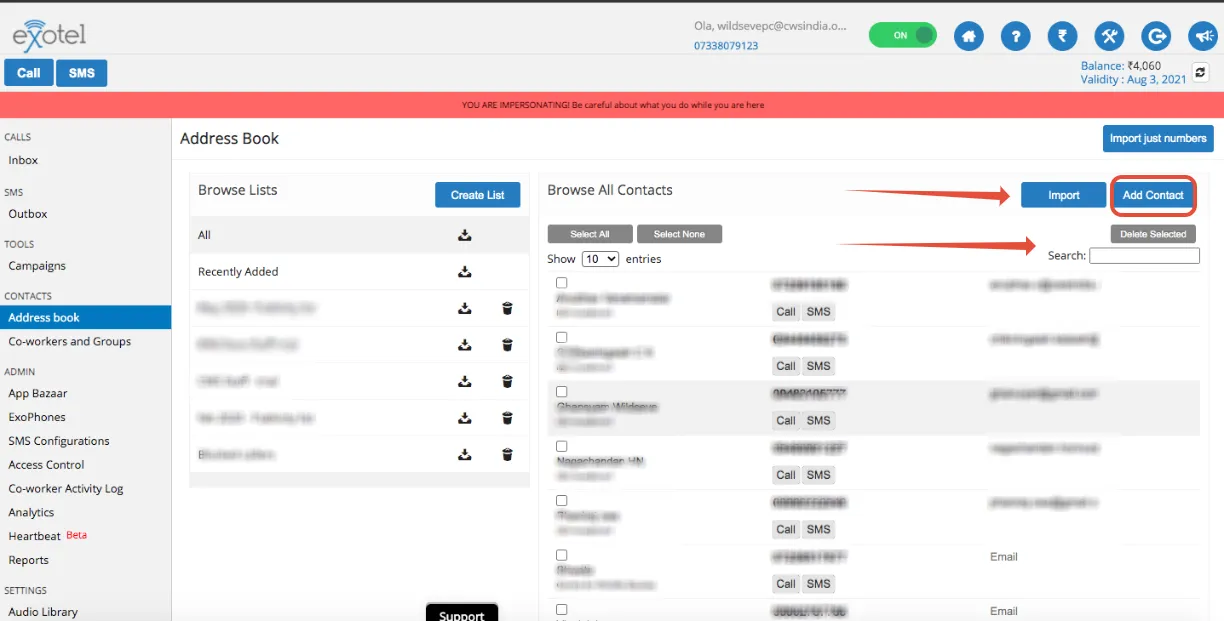
You can search for contacts in the address book by name, phone number, and email.
Lists
All your lists are visible in the left pane of the Address Book page.
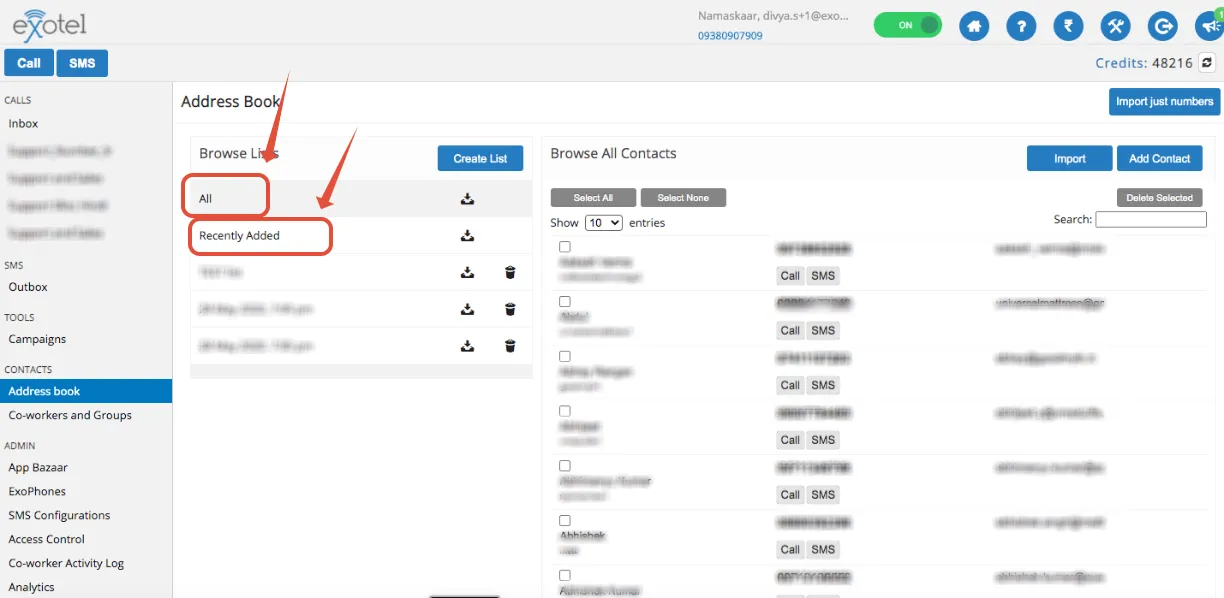
There are two lists named All and Recent Contacts created by default.
- You can add a list using the Add List button and then import your contacts from a CSV file into a list.
- All contacts imported into the lists are also added to the address book by default.
- You can also add your address book contacts into a list by dragging and dropping the contact into the list on the left pane (the contact becomes draggable when the mouse pointer changes).
Import and Export Numbers (Classic Dashboard)
Short video: View walkthrough
Import numbers to a list
To import an excel sheet in a specified format, follow the below steps:
Click on the address book on your Exotel dashboard.
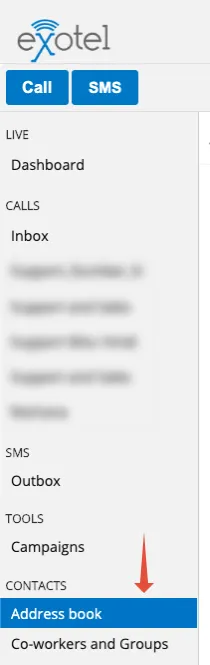
Click on the Import button to import the contacts.

You can either create a new list by giving the name of the list or choose an existing list. By default, the current date-time is used as the list name.
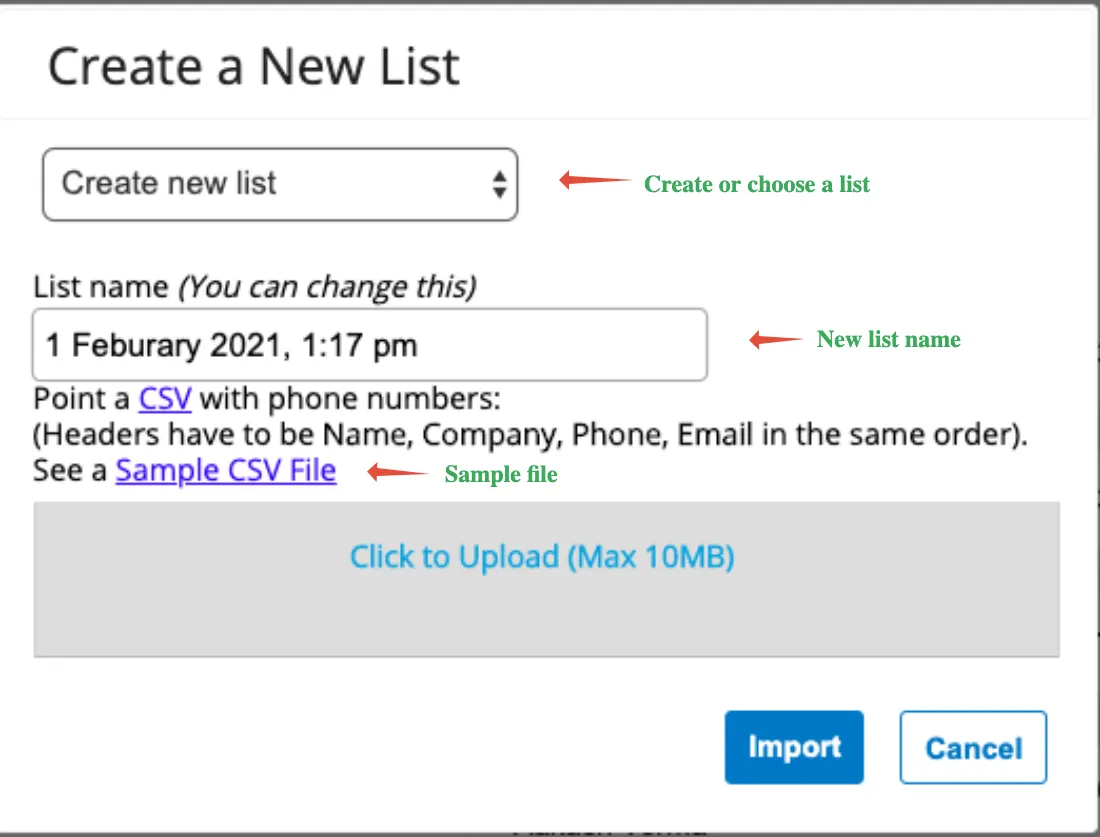
Format of import: The format of the CSV file is Name, Company, Phone, and Email. Refer to Sample_Address_Book.csv for help.
Export numbers from a list
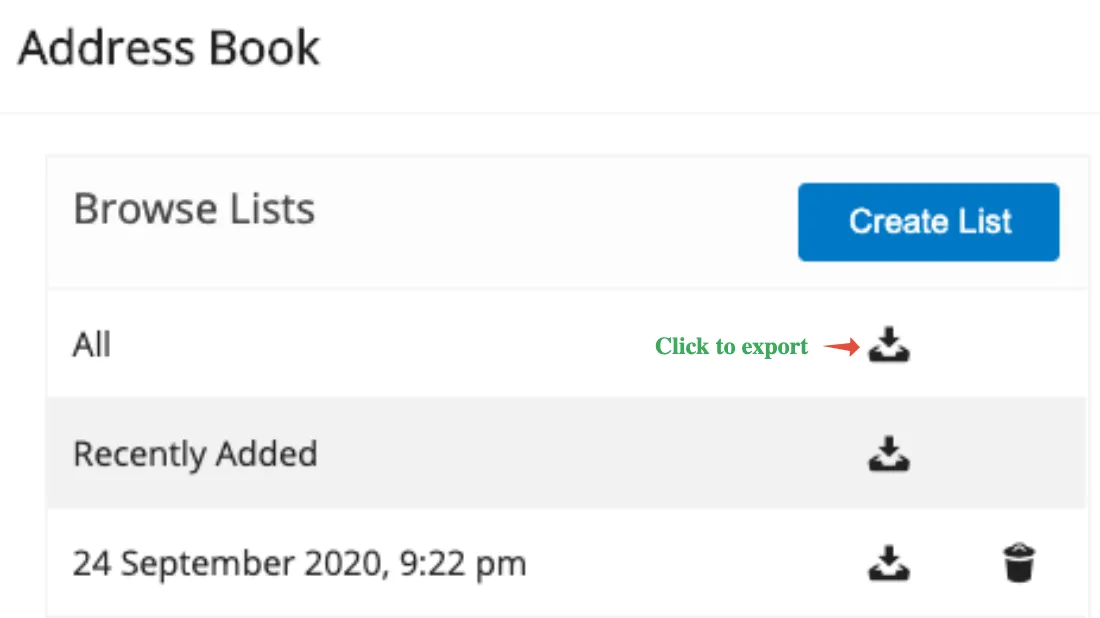
To export numbers from a list of all entries in an address book, use the export button right next to the list in the address book.
If you have any questions or concerns, please connect with us using the chat widget on your Exotel Dashboard or Whatsapp us on 08088919888.
Default Call Capacity
By default, the call capacity for campaigns is 60 calls per minute (CPM). To increase this limit (for faster dialing), please contact your Exotel Account Manager.
Higher call capacity requests are subject to approval and account eligibility.
Limitations
Regulatory and System Constraints
- Allowed Time Frame: Outbound campaign calls are permitted only between 9 AM and 9 PM (IST) per TRAI regulations.
- Languages Supported: Hindi, English, and Bahasa (Indonesia).
- Audience File Limits:
- Maximum 10 variables per audience file.
- File size must be less than 70 MB.
- Scheduling Limit: A maximum of 20 campaigns can be scheduled simultaneously.
- Data Retention:
- Campaign details (including call logs, reports, and stats) are retained for 3 months.
- Older campaigns are automatically removed from the dashboard.
- Reports for expired campaigns cannot be generated from the dashboard.
To retain historical data, download campaign reports weekly or monthly. This ensures long-term access to performance and compliance records.