RCS Campaign
The RCS Campaign feature enables campaign managers to run interactive RCS campaigns with Rich Cards, Images, Videos, GIFs, Carousels, and more. Use the campaigns dashboard to reach your audience and track performance in real time.
Key Benefits
- Dynamic List: Upload your audience list with as few as one column (phone number) to start your campaign. If your RCS templates contain variables, add corresponding columns in your list to map them easily during setup.
- Campaign Execution Control: Archive campaigns you no longer wish to run, pause ongoing campaigns, or resume them later from where they stopped.
- Live Dashboard & Message Details: Each campaign includes a dedicated dashboard showing:
- Campaign summary
- Real-time statistics
- Outbox-level message details
- Campaign Summary: Receive a full campaign summary upon completion, including message-level delivery reports and engagement metrics.
Accessing RCS Campaigns
- Log in to your Exotel Dashboard.
- From the left-hand panel, click Tools → Campaigns.
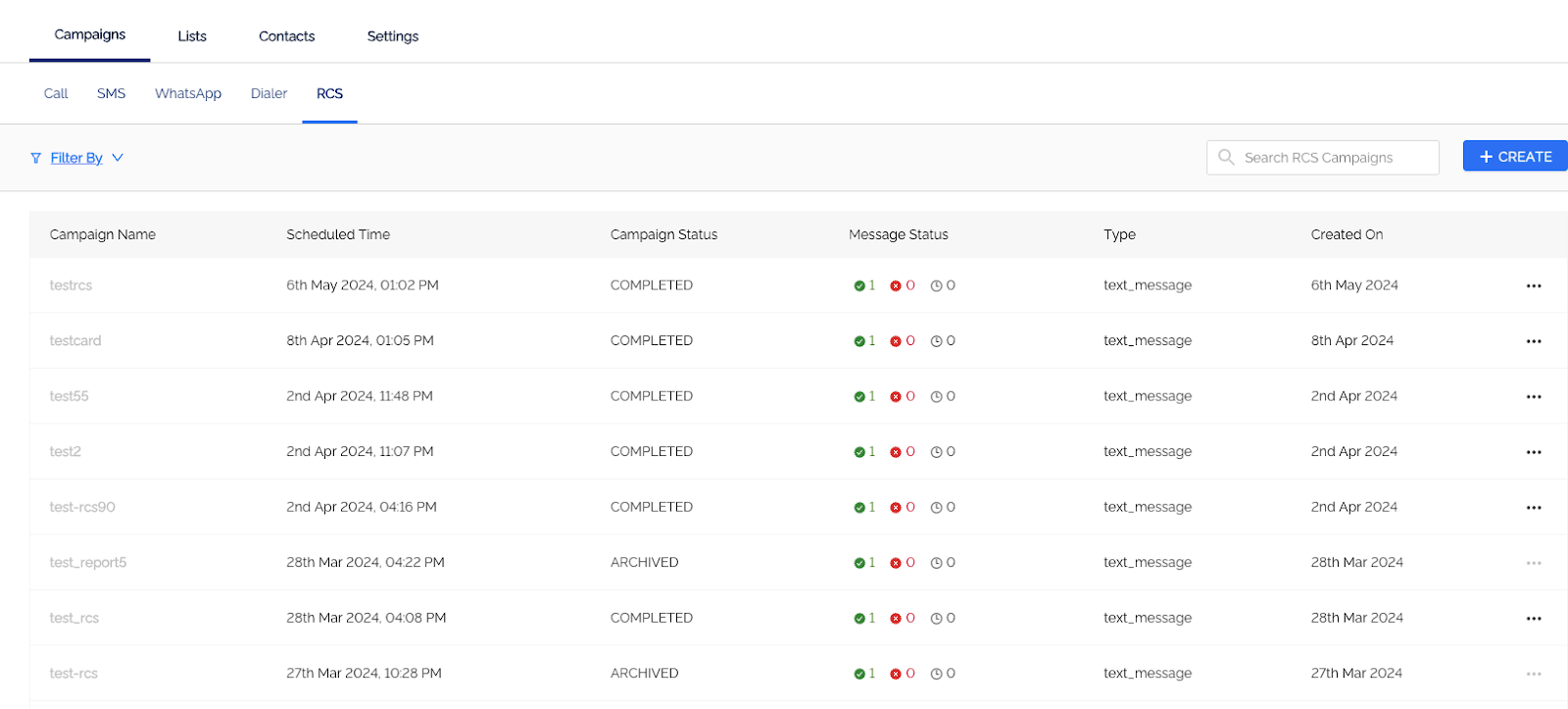
- On the Campaigns page, select RCS Campaign (next to Dialer Campaign).
Prerequisites
Please contact your Account Manager to complete the RCS setup.
- RCS Portal Registration — Your RCS bot must be registered and launched on our partner RCS portal.
- Template Registration — Ensure your templates are approved on the partner portal.
- Dashboard Enablement — RCS is an on-demand feature; request your Account Manager to enable it on your dashboard.
Create an RCS Campaign
Go to Home → Campaigns → RCS and click CREATE to begin.
Your campaign can be created in four simple steps.
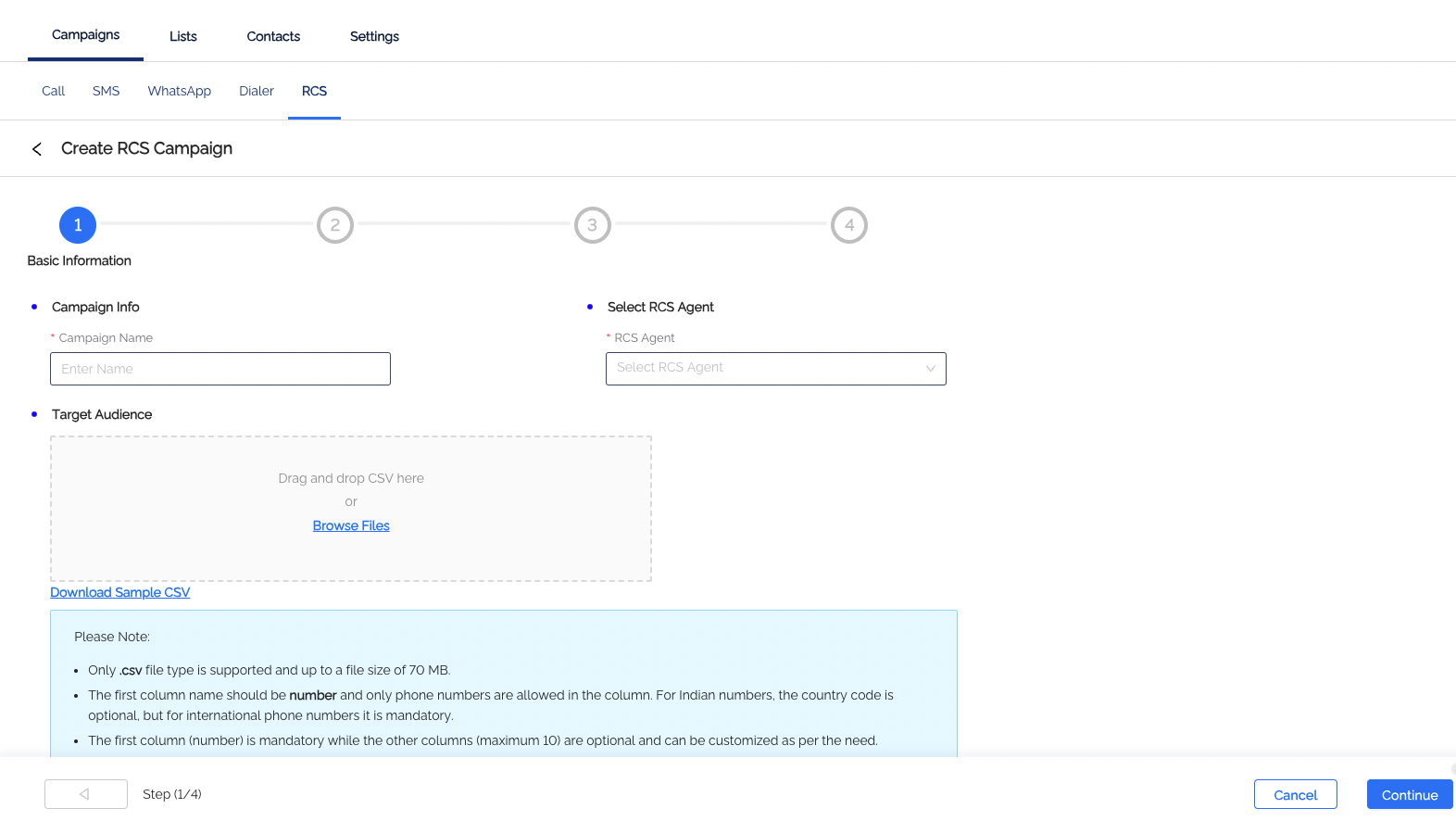
Step 1: Basic Information
- Campaign Name — Enter a name for your campaign.
- Select RCS Agent — Choose your RCS Agent (available once your bot is created on the partner portal).
- Target Audience — Upload your target audience list as a .csv file.
- Click Continue to move to the next step.
CSV Guidelines:
- Only .csv files up to 70 MB are supported.
- The first column must be number (phone numbers only).
- Country code for Indian numbers is optional.
- Add up to 5 additional columns for variables.
Step 2: Template Selection
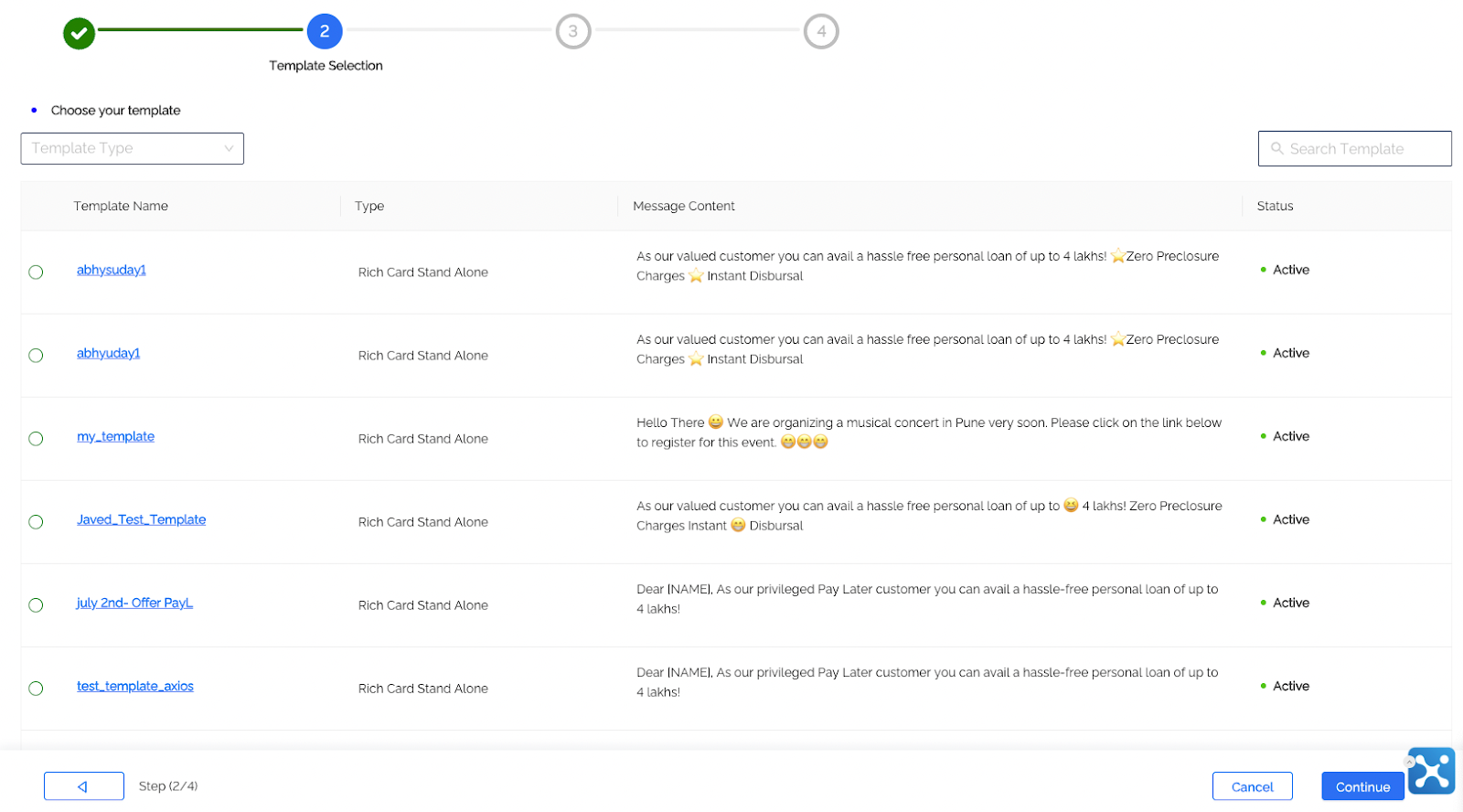
- Choose the template you want to use.
- Search by category (Text, Rich Card, Carousel, etc.) or template name.
- Ensure you select only Active templates.
- Click Continue.
Step 3: Configure Message
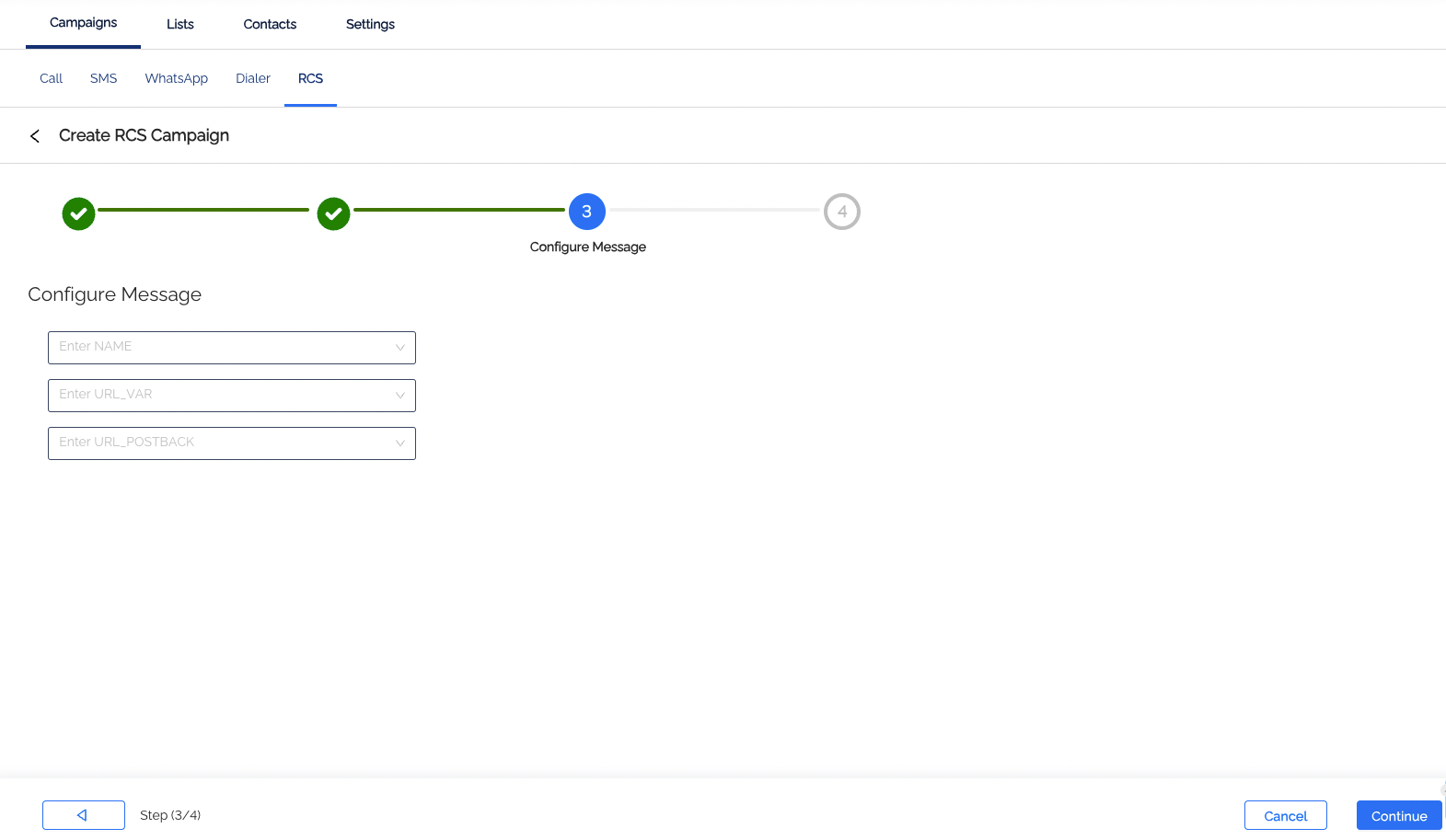
If your template has no variables, click Continue to skip configuration.
If variables are present:
- Open the dropdown beside each variable name.
- Map it to the correct column in your uploaded audience list.
- If no match exists, enter a static value manually.
- Choose a Fallback option — either SMS or WhatsApp.
Step 3.1: SMS Fallback (Optional)
If you select SMS as fallback, an extra step appears. Fill in the following:
- Entity ID
- Binding Chain Details
- SMS Template (select from saved templates or add manually)
- Shorten URL Header
- Enable URL Tracking
Step 3.2: WhatsApp Fallback (Optional)
If you select WhatsApp as fallback, two extra steps appear.
- Fill in
- WABA ID
- WABA Number
- Template Selection
- Configure variables for the selected WhatsApp template.
For more information, see the WhatsApp CampaignWhatsApp Campaign .
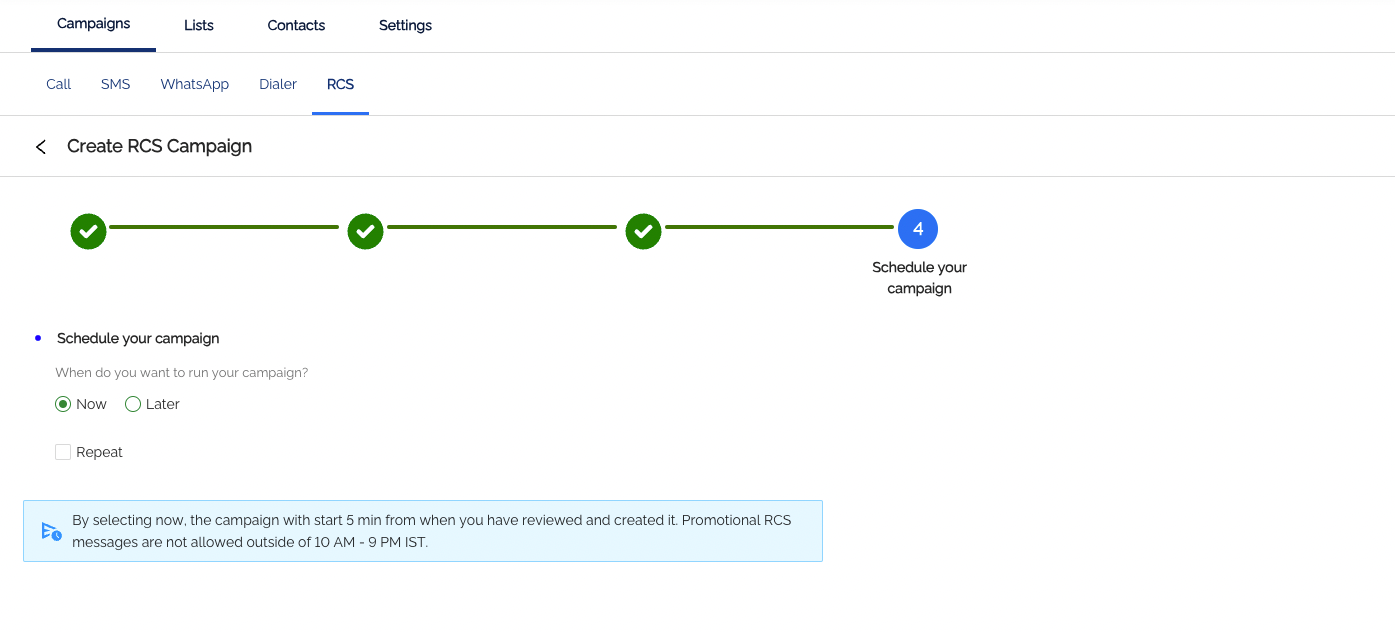
Step 4: Schedule Your Campaign
- Choose when to run your campaign:
- Now — Starts within 10 minutes of creation.
- Later — Specify a start time.
- Repeat — Set a frequency and end date for recurring campaigns.
- Click Create Campaign to schedule it.
Campaign States
After creation, all campaigns appear in the RCS Campaigns page.
State | Description |
|---|---|
Scheduled | Created but not started yet. Can be archived (not restartable). |
In-progress | Actively running. You can pause it. |
Paused | Temporarily stopped. You can resume, force-complete, or archive it. |
Completed | Campaign successfully completed. |
Archived | Read-only mode. View details but cannot edit. |
Campaign Details and Statistics
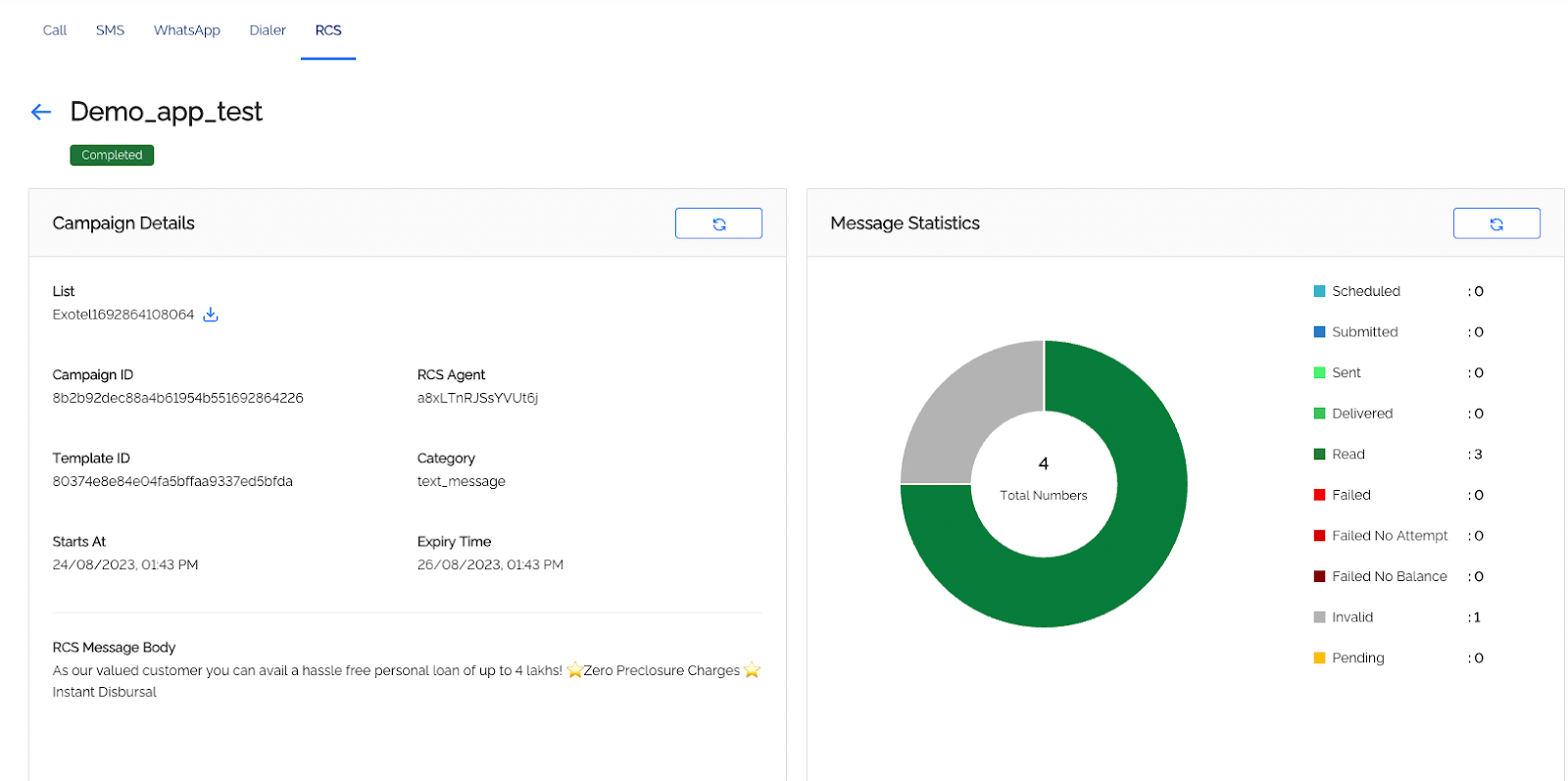
When a campaign is created, you will be able to view detailed stats and analytics for the campaign in the RCS campaigns page. Click a campaign name to open its detail view.
Campaign Details
A comprehensive summary of the campaign with campaign details including:
- Lists
- RCS Agent
- Template ID and Category
- Start and End Time
- Message Content
Campaign Stats
Displays number-level metrics. You can click the refresh icon to update the data (delay of up to 5 minutes).
Status | Meaning |
|---|---|
Scheduled | Numbers queued to send. |
Submitted | Messages submitted from Exotel to RCS. |
Sent | Messages sent via RCS. |
Delivered | Message delivered to user. |
Read | Message read by user. |
Failed | Delivery failed. |
Failed – No Attempt | Campaign stopped or timed out before list completion. |
Failed – No Balance | Insufficient balance. |
Invalid | Invalid phone numbers |
View Message Details
This section lists all messages sent as part of your RCS campaign with details:
- Number
- Name (if saved in address book)
- Detailed Status
- Sent and Delivered Times
- Message SID and Read Time (via action menu)