Operational Workflows
Target Audience:
QA Analysts, Supervisors, Agents
Description:
The day-to-day guide for users actually interacting with the processed data, scoring calls, and managing disputes.
5. Operational Workflows
This section outlines the daily tasks performed by QA Analysts, Supervisors, and Agents to monitor performance, validate scores, and manage data.
5.1. Workflow A: Monitoring & Reviewing Analyzed Calls
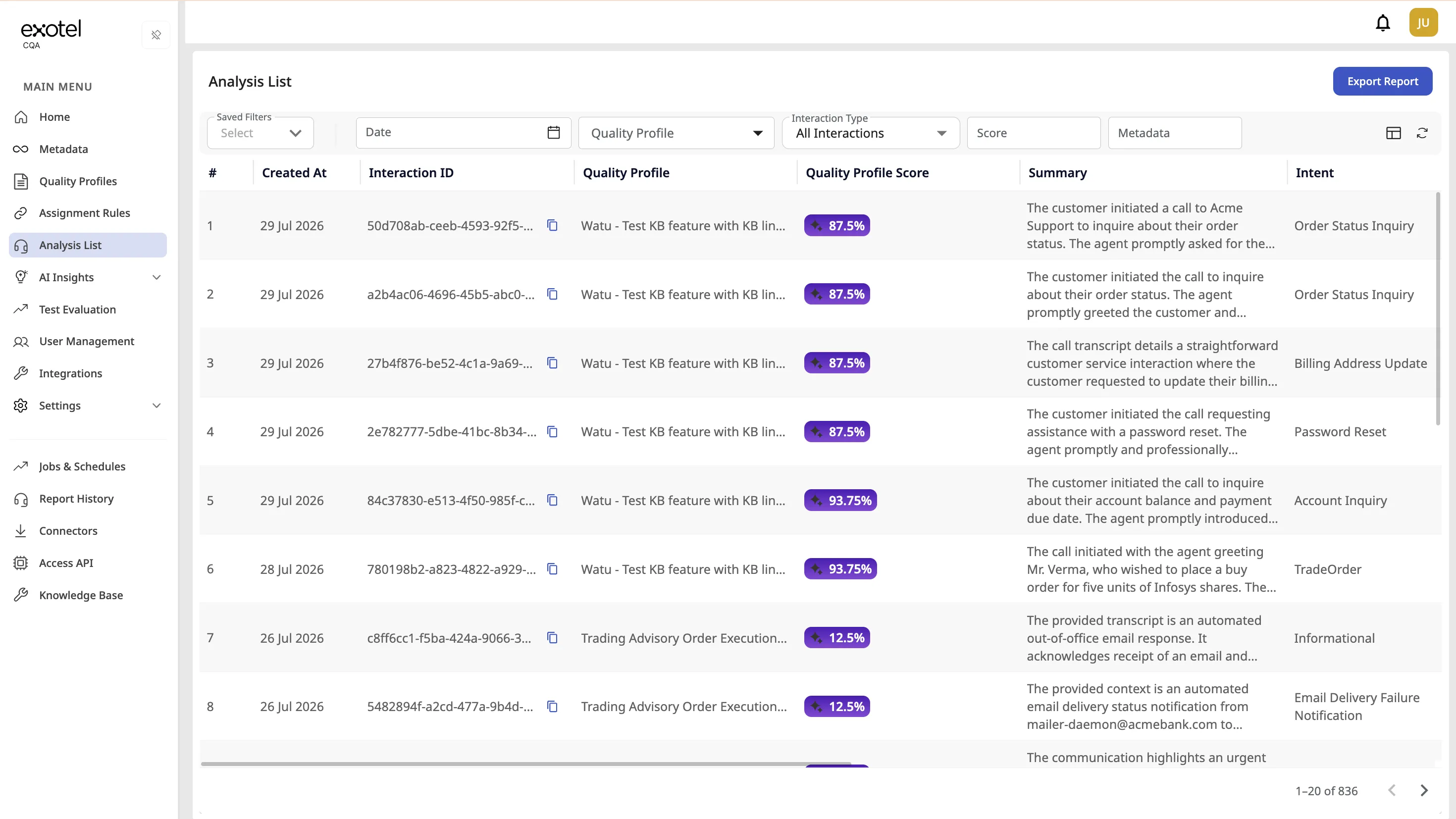
Context: The Analysis List acts as the central log for every call processed by the system. Supervisors use this view to monitor real-time traffic and identify interactions requiring attention.
Steps:
- Navigate: Click Analysis List in the sidebar.
- Filter & Search: Use the filter bar to isolate specific interactions. You can filter by Date, Score, Quality Profile, Metadata (e.g., "Show me calls from Campaign A"), and Interaction Type.
- Interaction Type lets you narrow the list to interactions that need attention:
- Disputed Interactions: Interactions with open or relevant disputes (same pattern as before).
- Critical KPI Failures: Interactions where at least one Critical KPI failed evaluation (per Quality Profile criticality settings).
- Customize View:
- Click the Columns icon to configure which data fields appear in the table. You can show or hide fields like Agent Name, Queue, or Duration to create a view that suits your workflow. This selection is saved for future sessions .
- Export Data:
- Step 1: Set up the job — job name, file format (CSV / Excel), destination connector (email)
- Step 2: Set a schedule — frequency options (One-time, Hourly, Daily, Weekly, Monthly) with start/end dates for recurring schedules
- Step 3: Select data — quality profile, date range, saved filters, and column selection (Base Details, Critical Score Details, KPIs, Metadata, etc.)
Note on Language: For tenants on higher-tier plans, note that the Analysis List always displays the English summary for every interaction, regardless of the original spoken language. To view the transcript and summary in the speaker's native language, click on the Interaction ID to open the detailed view (see Workflow B below).
5.2. Workflow B: Deep-Dive Interaction Review
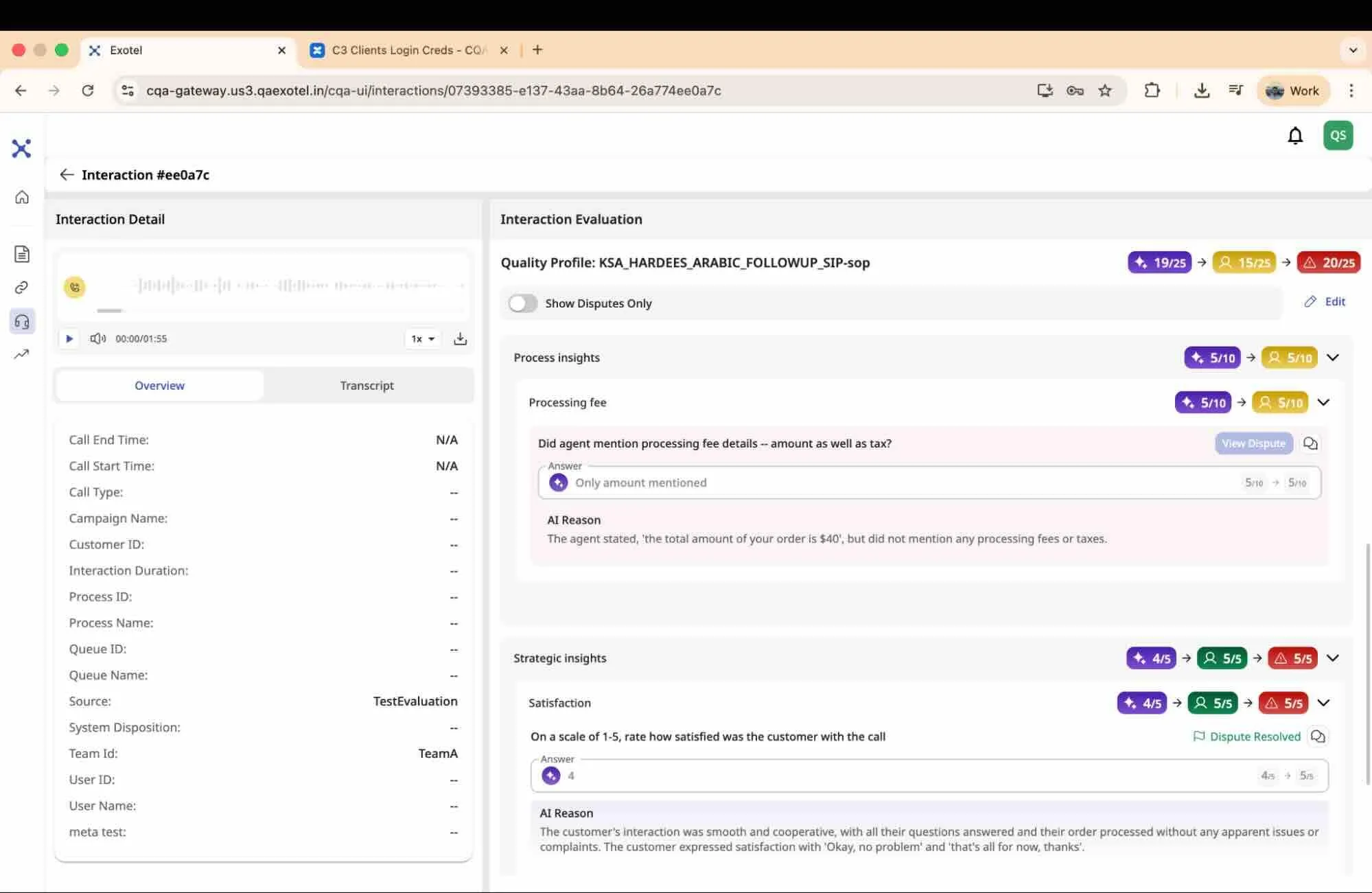
Context: Once a specific call is identified in the Analysis List, Supervisors can drill down to understand why a score was given.
Steps:
- Open Interaction: Click on any Interaction ID in the list to open the detailed Interaction View.
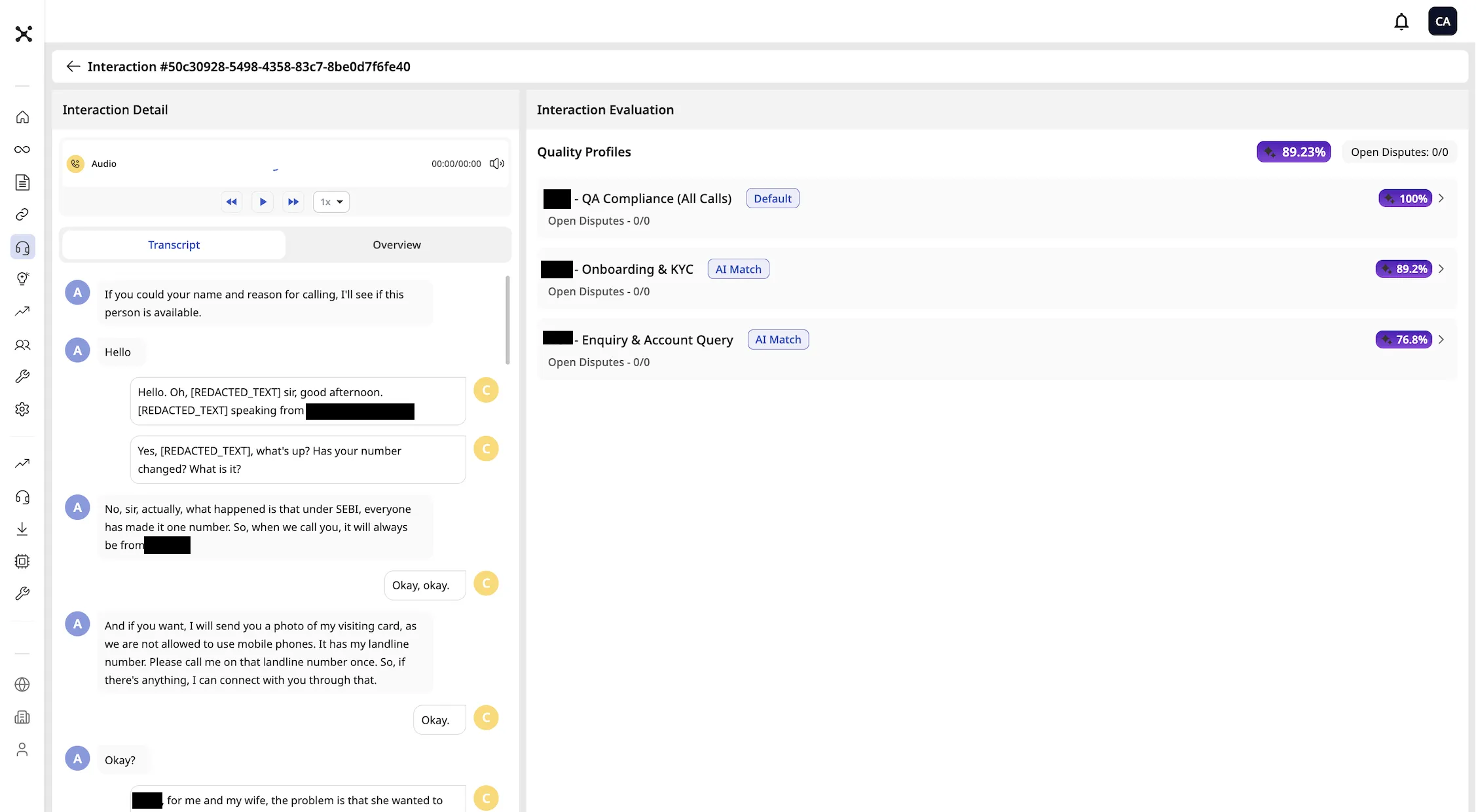
- Multiple Quality Profiles:
- When a call is routed via Smart Assignment (Smarter Assignment), it may be scored against more than one Quality Profile.
- The Analysis List and Interaction detail show results for each profile that was applied to that call.
- Select a Quality Profile to get the detailed view for that interaction.
- Review Media:
- Player: Use the embedded audio player to listen to the call recording.
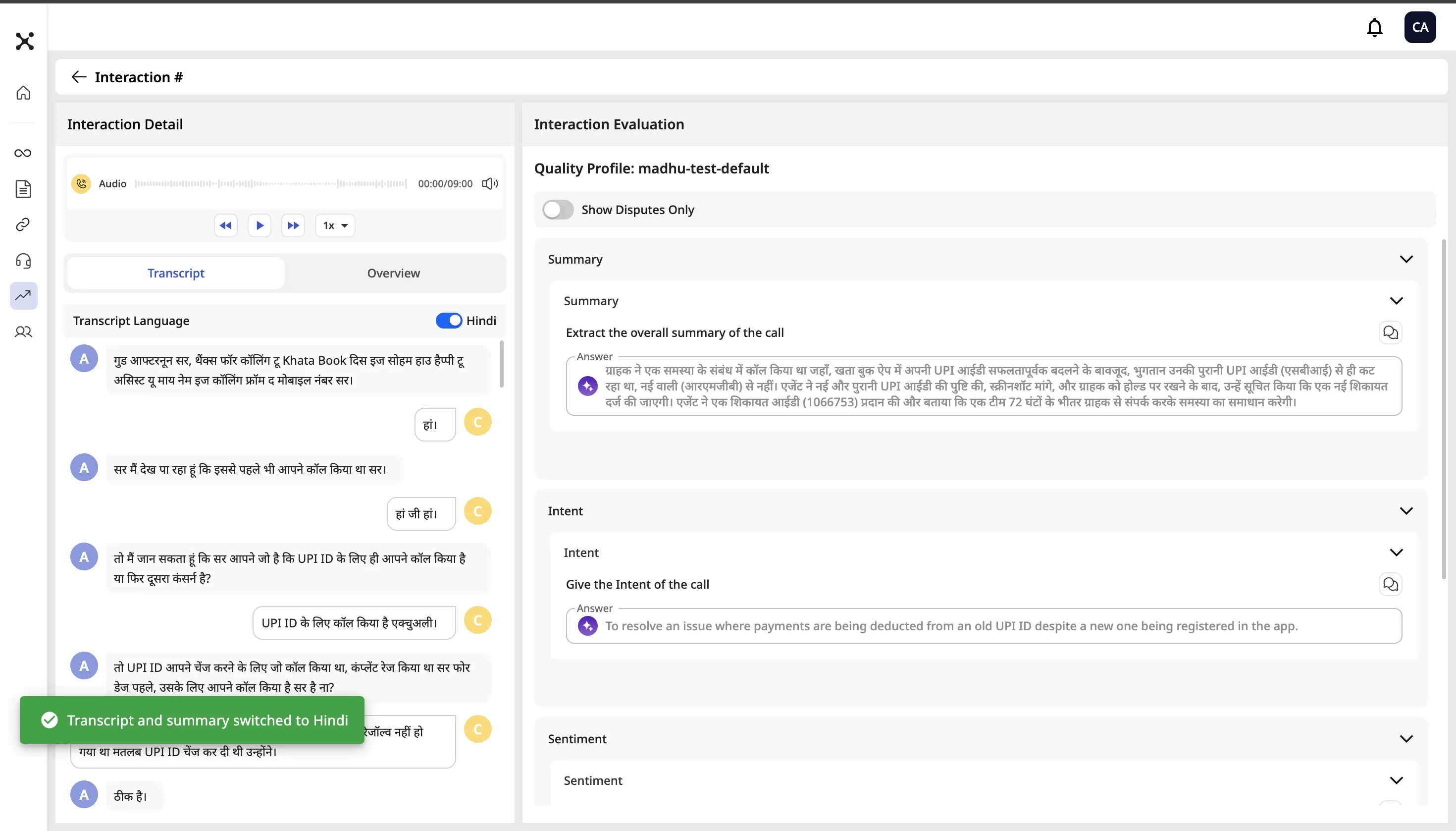
- Transcript: Switch to the Transcript tab to read the speech-to-text log of the conversation. By default, the transcript is displayed in English.
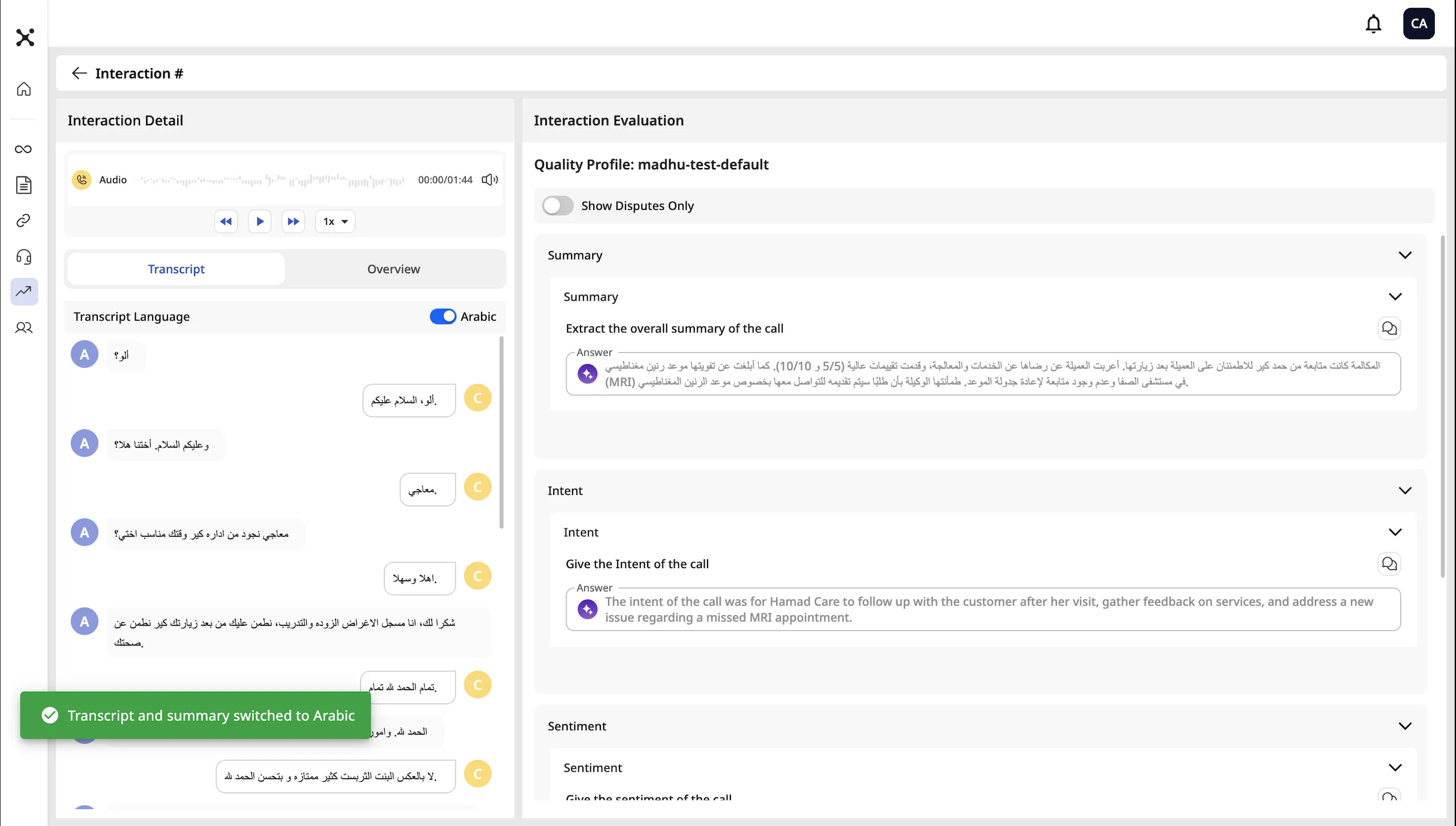
- Language Toggle (requires high-tier plans): A toggle control appears on the Interaction Details page. Click it to switch between the English transcript and the detected native language transcript (e.g., Hindi, Arabic). The toggle label dynamically updates to show the detected language — for example, [ Hindi ] or [ Arabic ].
- RTL Support: When viewing calls in Right-to-Left languages such as Arabic, switching to the native language view automatically applies RTL text formatting for natural reading.
- Summary: The interaction summary also switches language when the toggle is used, providing context in the selected language.
- Note: The language toggle affects Transcripts and Summaries only. AI Reasoning remains in English.
- Analyze Scores:
- Scorecard View: The right panel displays the full scorecard.
- Category Breakdown: View scores aggregated by Category (e.g., "Soft Skills") and Sub-category.
- KPI Details: Expand any Category to see individual KPI results.
- AI Reasoning: Click a specific KPI to see the AI Reason, explaining the logic and evidence from the transcript used to determine the pass/fail result.
- AI Suggestions: For every KPI that scores below the maximum, CQA automatically generates an actionable coaching tip derived from your uploaded Reference Document (SOP). When no SOP is available, the system provides generic best-practice guidance. This transforms CQA from a passive auditing tool into an active coaching platform that closes the feedback loop for agents.
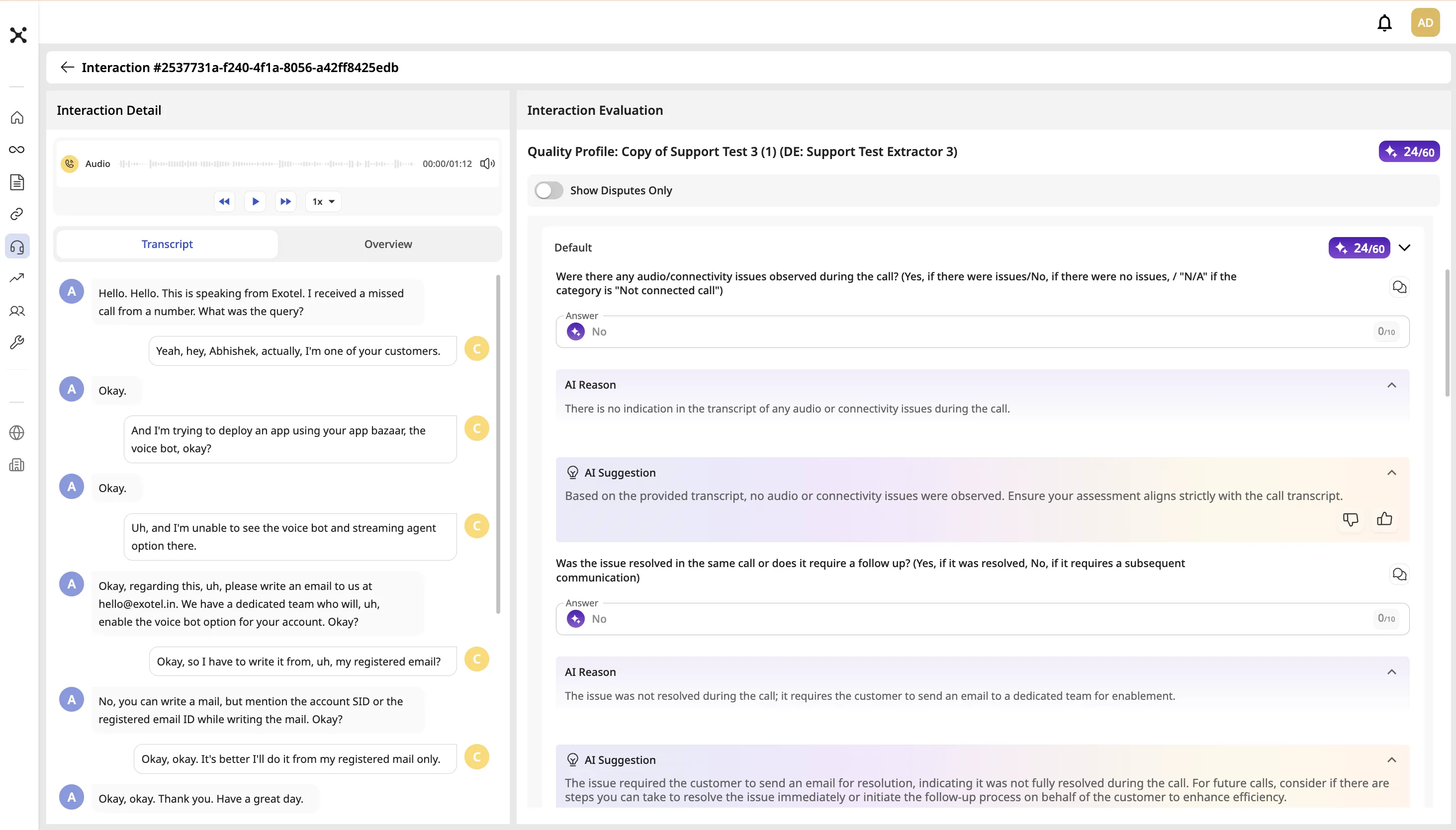
- Disputes: Click on Show Disputes Only to view only the KPIs that have disputes.
5.3. Workflow C: Reviewing Agent Summary (AI Insights)
Goal: Review AI-generated performance summaries at org, team, or agent level — weak checks, coaching priorities, and who needs attention — without opening interactions one by one.
Context: Agent Summary is the agent-performance lens under AI Insights (tabs: Org / Team / Agent Insights). Use it alongside QP Insights (Quality Profile lens) and the Analysis List (interaction lens).
Enablement: Agent Summary is not enabled for every tenant by default. Contact your Customer Success Manager or Support to enable AI Insights for your account. Users also need a role that can open performance insights.
How to open: After enablement, go to AI Insights → Agent Summary.
Period filters: Switch between Yesterday, Last Week, and Last Month.
5.3.1. Org Insights (Admin)
Use this tab for an organization-wide view.
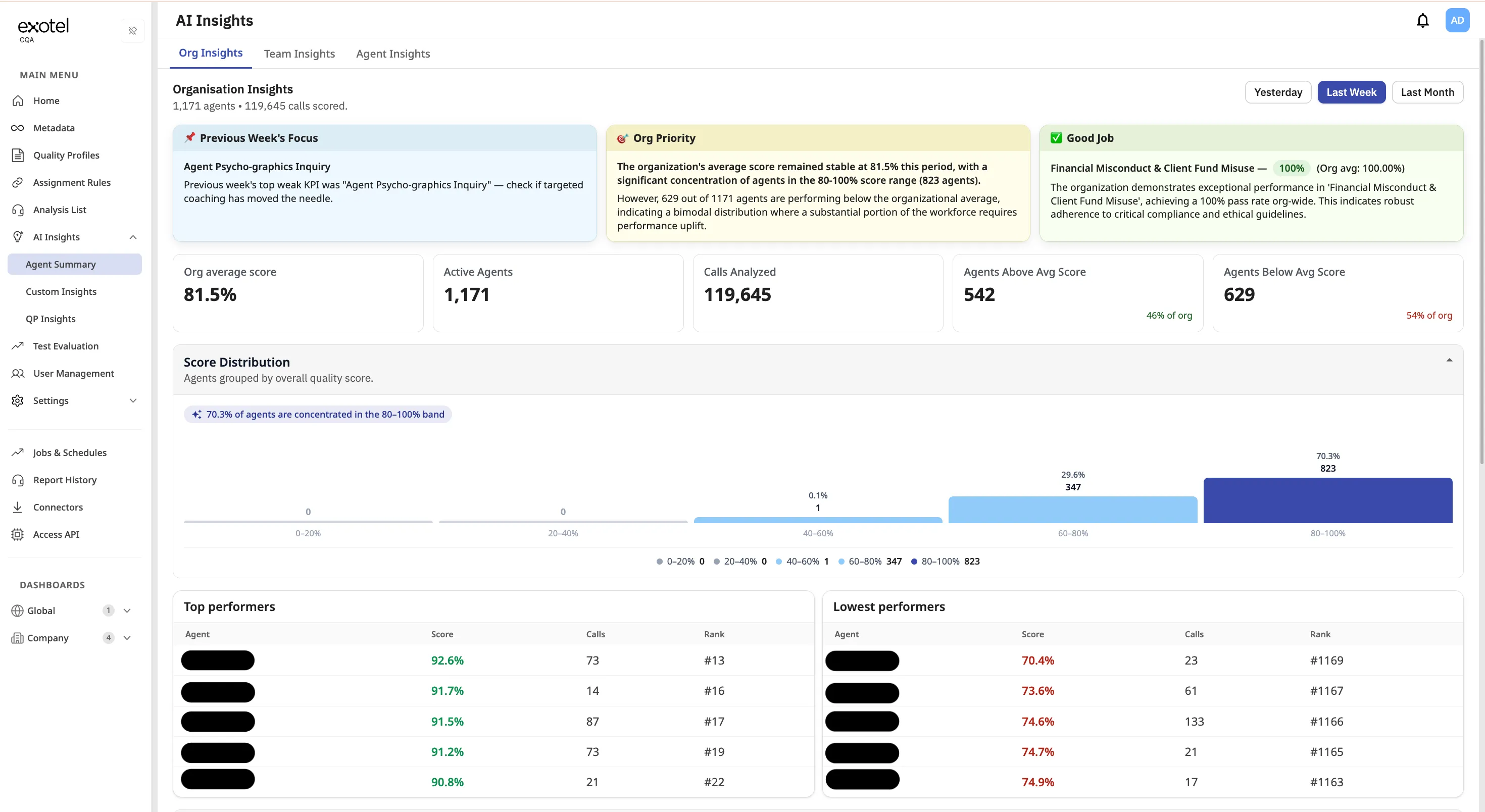
Typical sections:
- Highlight cards (for example previous period focus, org priority, and strengths).
- Metrics such as org average score, active agents, calls analyzed, and agents above/below average.
- Score distribution across score bands.
- Top performers and lowest performers tables.
- Org-wide weak KPIs — expandable rows with coaching guidance (for example “Do this week”).
- Agents who need attention — bottom performers with a minimum number of scored calls.
5.3.2. Team Insights (Supervisor)
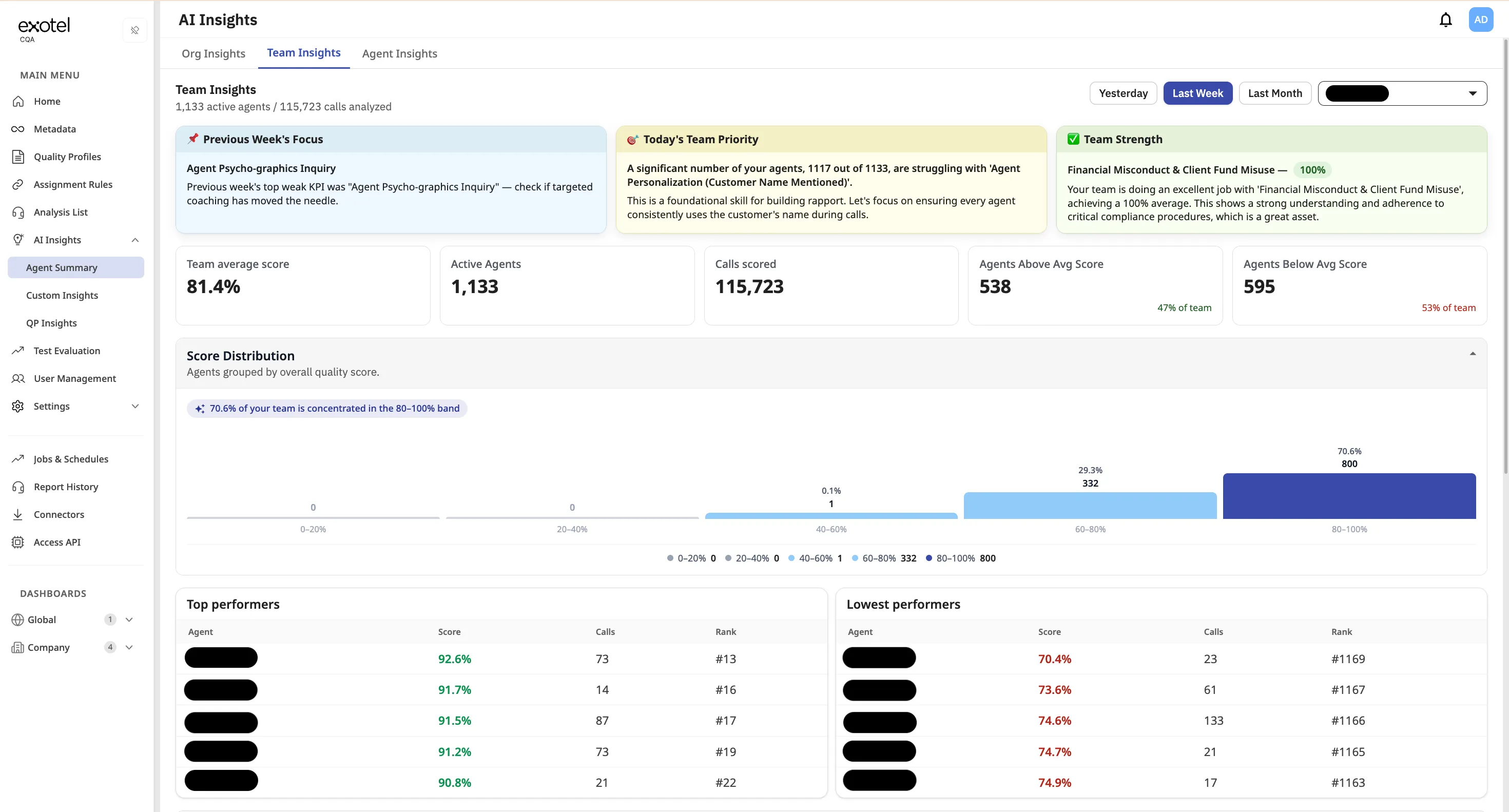
Same pattern as Org Insights, scoped to the supervisor’s team: team priority / strength cards, team metrics, score distribution, and top/lowest performers.
5.3.3. Agent Insights (Agent)
Personalized view for the signed-in agent (supervisors/admins may also open a specific agent via picker where available).
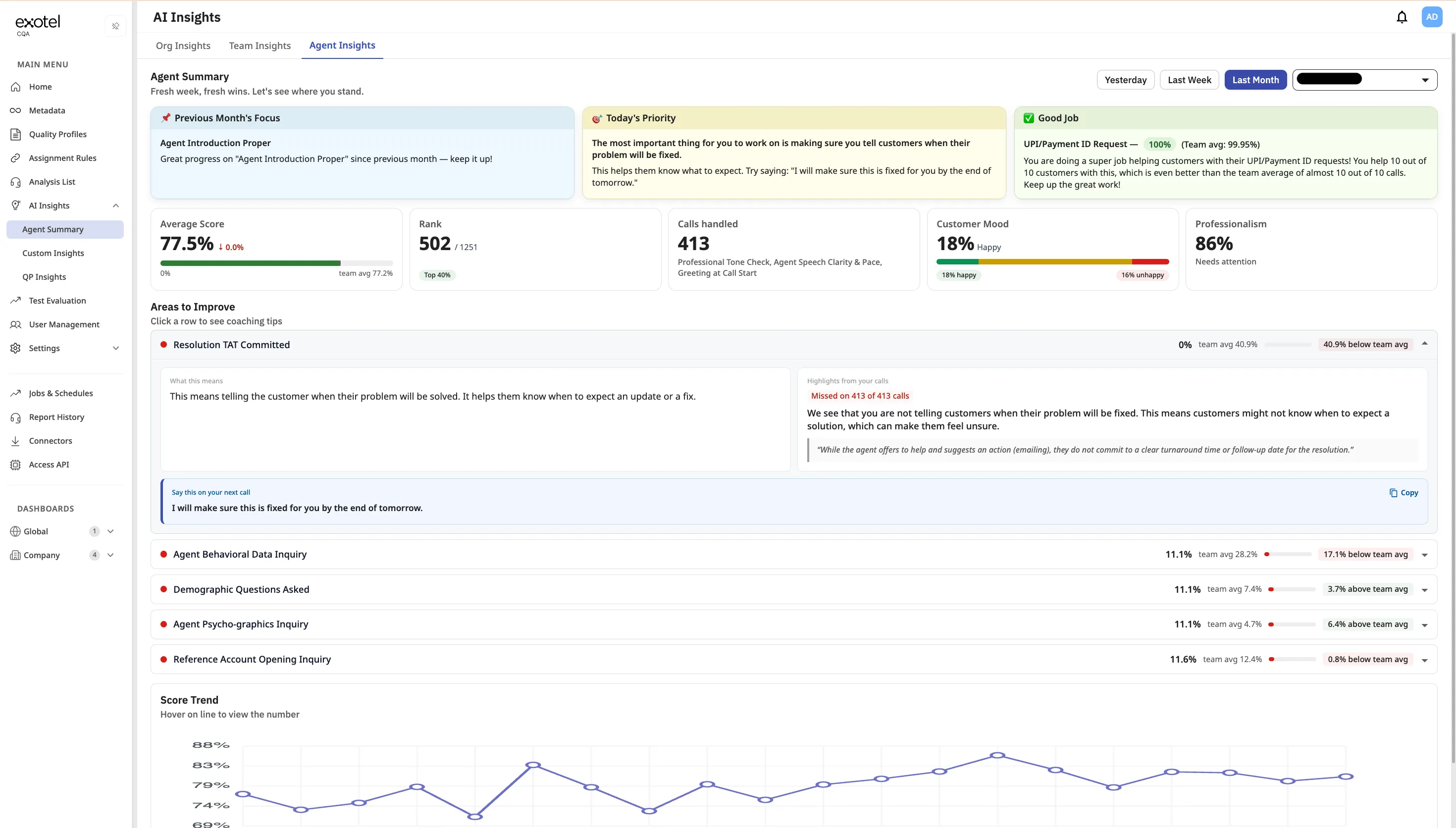
Typical sections:
- Highlight cards (previous period focus, today’s priority, strengths).
- Personal metrics (average score vs team, rank, calls handled, customer mood, professionalism).
- Areas to improve — expandable rows with what the check means, highlights from calls, and copyable “Say this on your next call” coaching lines.
- Score trend chart for the selected period.
5.3.4. Notes
- Summaries are AI-generated. The page shows “AI-generated summary. May contain errors.” Treat coaching as guidance and verify in Analysis List when needed.
- This page does not change Quality Profiles, Assignment Rules, or historical scores — it is a read-only insights surface.
- Sibling nav items such as QP Insights are separate capabilities and may have different enablement.
5.4. Workflow D: Reviewing QP Insights (AI Insights)
Goal: Compare Quality Profile performance portfolio-wide, then drill into one profile for AI coaching — coverage, score trends, weak/top KPIs, and priority insights.
Context: QP Insights is the Quality Profile lens under AI Insights. Use it alongside Agent Summary (agent lens) and the Analysis List (interaction lens).
Enablement: QP Insights is not enabled for every tenant by default. Contact your Customer Success Manager or Support to enable it for your account. You also need a role that can open QP Insights.
How to open: After enablement, go to AI Insights → QP Insights.
Product subtitle: Compare quality profiles portfolio-wide, or drill into one profile at a time.
Period filters: Yesterday, Last Week, or Last Month.
You can also give thumbs up/down feedback on the page to rate the AI summary.
5.4.1. Portfolio tab
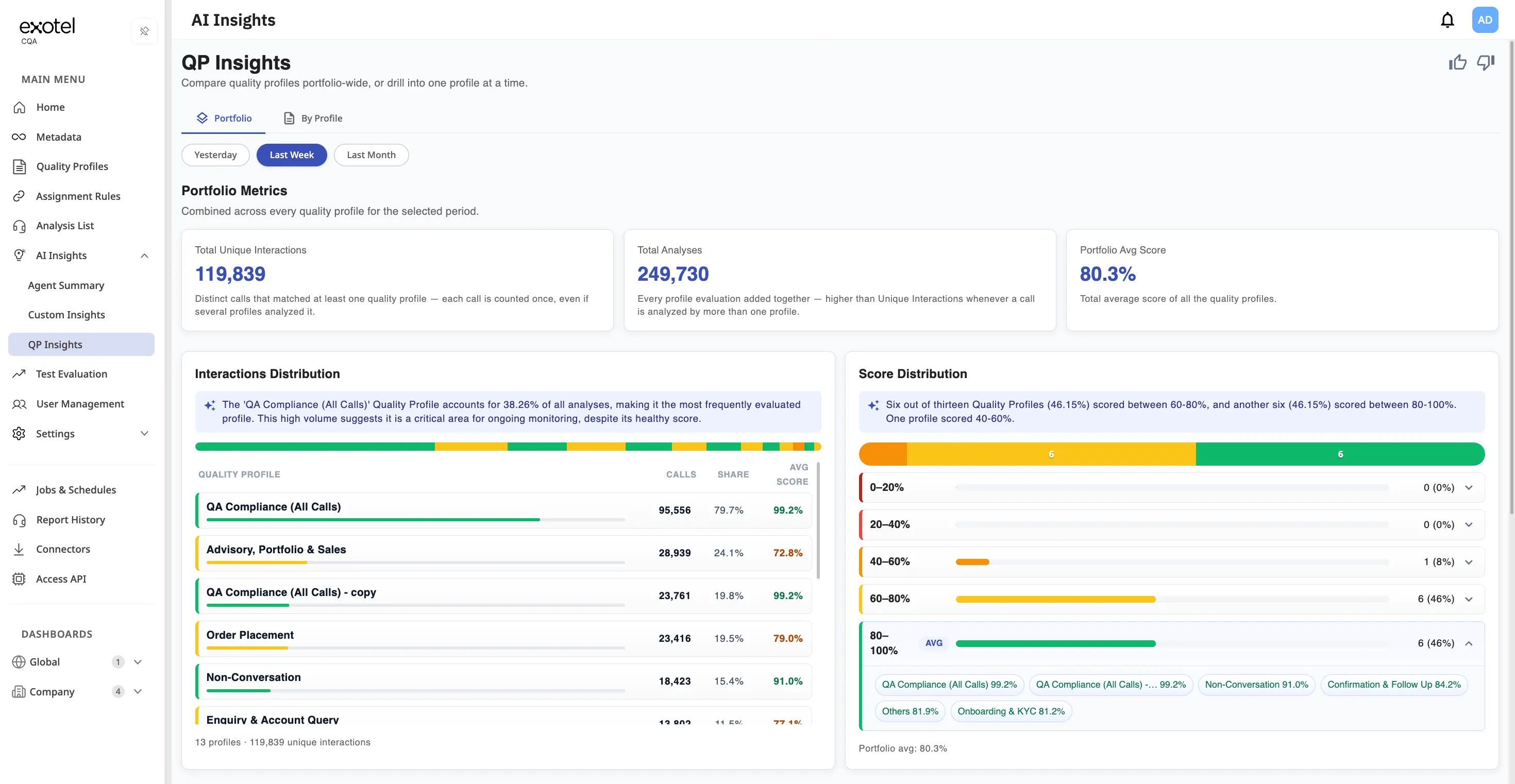
Metric cards
Card | Meaning |
|---|---|
Total Unique Interactions | Distinct calls matched to at least one Quality Profile in the period. |
Total Analyses | Sum of every profile evaluation (can exceed unique interactions when one call is scored by multiple profiles). |
Portfolio Avg Score | Average score across Quality Profiles. |
Interactions Distribution
Table of Quality Profiles with calls, share of unique interactions, and average score — plus an AI insight callout summarizing volume mix (for example which profile drives the most analyses).
Score Distribution
Bands showing how many profiles fall into score ranges (for example 60–80%, 80–100%), with an AI insight summarizing the mix.
QP Health
Card grid per Quality Profile: overall score, period trend (pp), evaluation volume, KPI count, Weak KPI, and Top KPI. Use this to spot underperforming or high-volume scorecards quickly.
Portfolio Insights
Expandable AI findings across profiles (often tagged High Priority) — cross-QP patterns from health, volume mix, and score bands.
5.4.2. By Profile tab
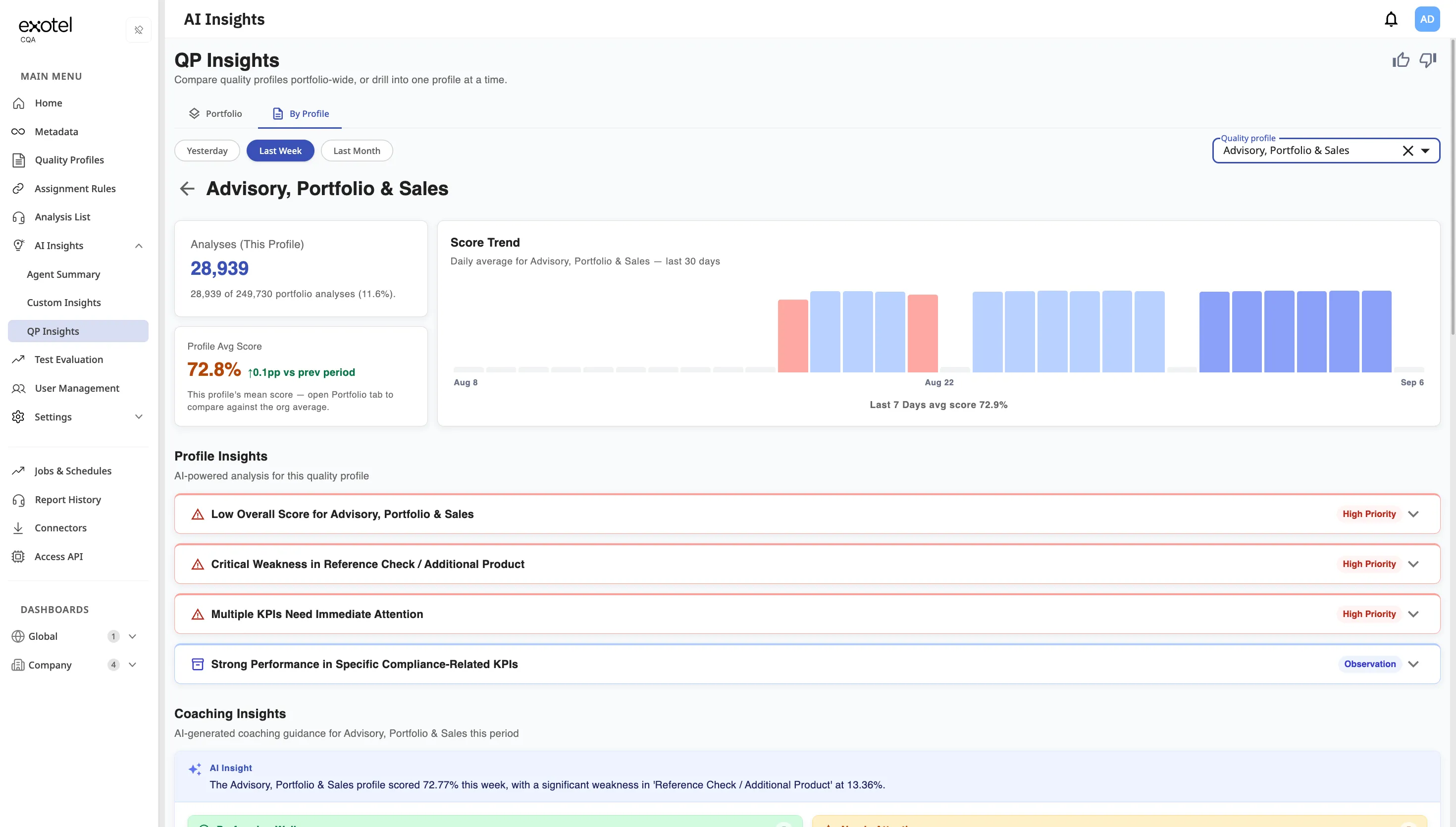
- Select a Quality Profile from the picker.
- Review Analyses (This Profile) — count and share of total portfolio analyses.
- Review Profile Avg Score and period trend.
- Use the Score Trend chart (daily averages for the recent window).
- Open Profile Insights — severity-tagged items such as High Priority or Observation (expandable).
- Read Coaching Insights — AI-generated coaching guidance for that profile and period.
5.4.3. Notes
- Summaries are AI-generated. The page shows “AI-generated summary. May contain errors.”
- This page does not change Quality Profiles or Assignment Rules — it is read-only analytics.
- Especially useful when Smarter Assignment routes traffic across many profiles — Portfolio distribution makes unused or overloaded scorecards visible.
5.5. Workflow E: Ad-Hoc Testing (Test Evaluations)
Context: Use this workflow to test a new Quality Profile before going live, or to analyze a specific offline batch of recordings that weren't processed automatically.
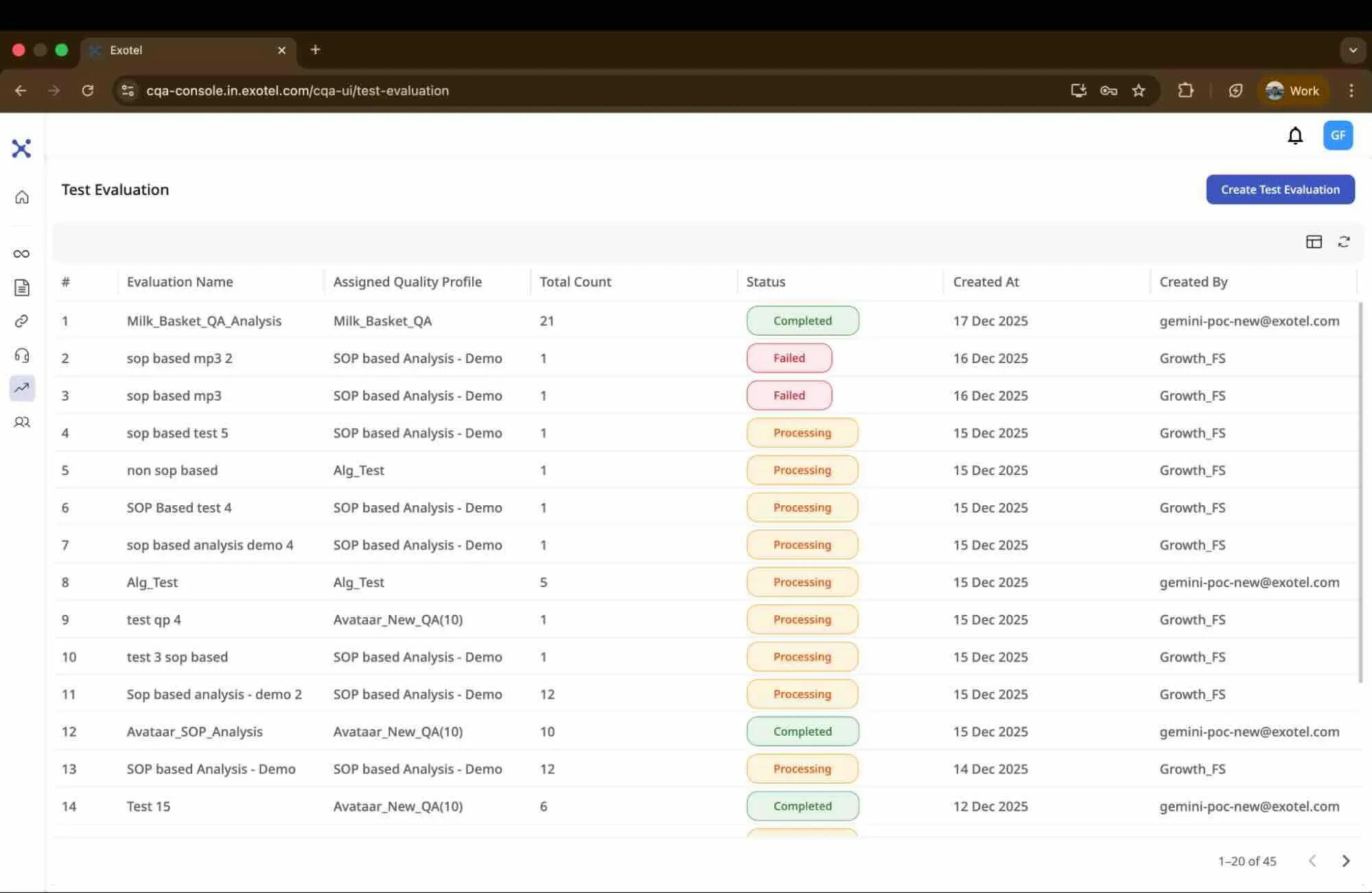
Steps:
- Navigate: Click Test Evaluation in the sidebar.
- Create New: Click the button to start a new test.
- Configuration:
- Name: Give your test a unique name (e.g., "Oct Sales Audit").
- Select Profile: Choose the Quality Profile you wish to test.
- Upload Data:
- Excel upload: Upload an Excel file containing the publicly accessible Recording URLs or Text URLs and any relevant Metadata you want to associate with these calls.
- Audio upload: Upload .mp3 or .wav files directly for the audio analysis.
- Text upload: Upload .txt, .pdf files directly for the text analysis.
- Monitor Progress:
- The system processes files in real-time. You do not need to wait for the entire batch to finish; you can click into the evaluation immediately to see row-by-row results as they populate.
- Review Outcomes:
- Completed: All files processed successfully.
- Partial Success: Some files failed (e.g., invalid audio links). You can filter to view only the successful analyses .
- Export: Enter your email address to receive a full export of the test results, including scores and transcript insights.
5.6. Workflow F: Dispute Resolution
Context: CQA supports a feedback loop where Agents can contest AI scores, and Supervisors can review/overturn them.
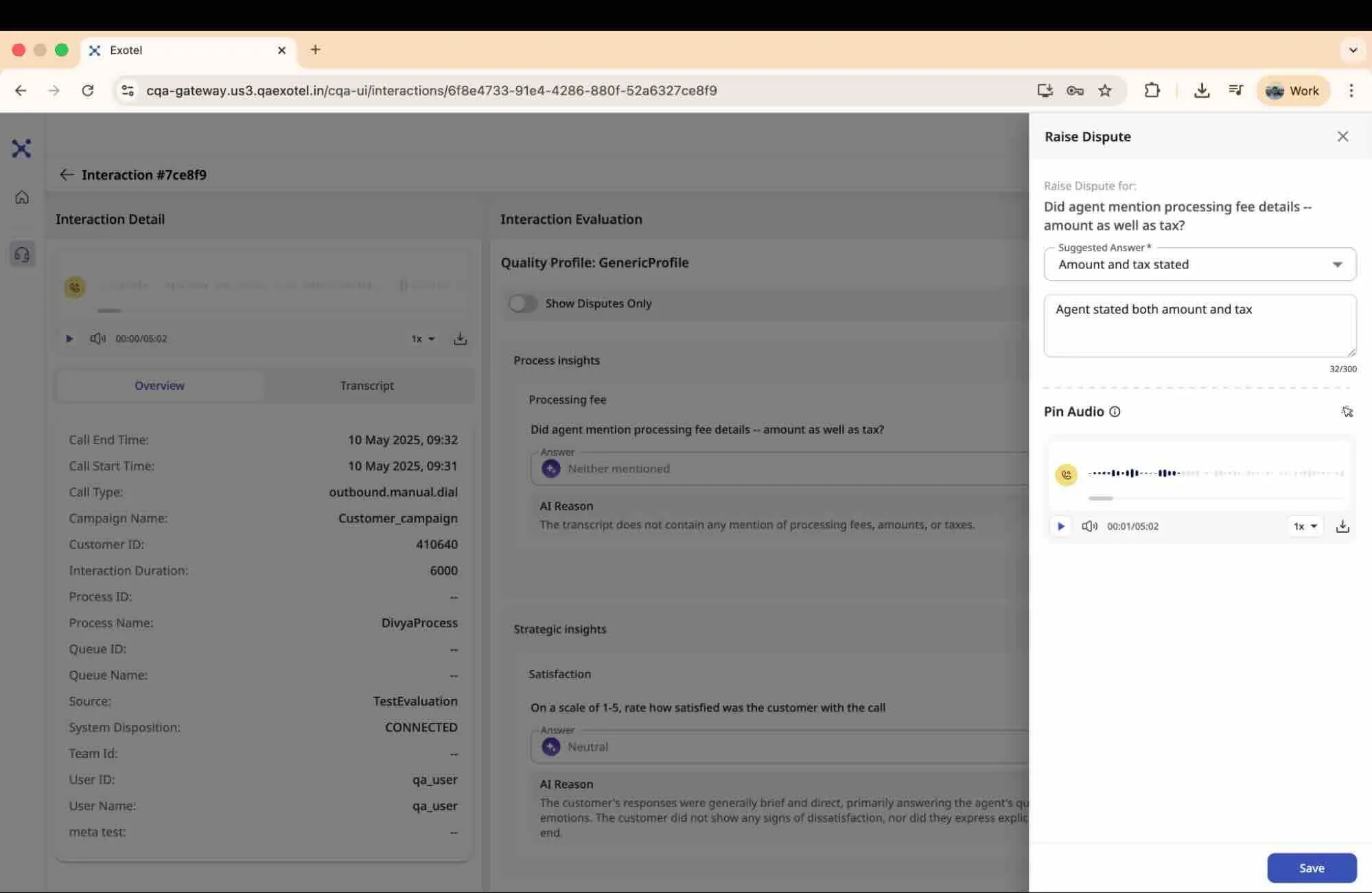
1. Raising a Dispute (Agent Action)
- Open the Interaction View for your evaluated call.
- Locate the specific KPI you disagree with.
- Click the Raise Dispute icon.
- Form Input:
- Suggested Answer: Select what you believe the correct answer is (e.g., change "No" to "Yes").
- Comment: Type your reasoning (e.g., "I mentioned the tax at 02:14").
- Pin Audio: Pin the specific point in audio relevant to the KPI.
- Submit: The dispute is logged and flagged for Supervisor review.
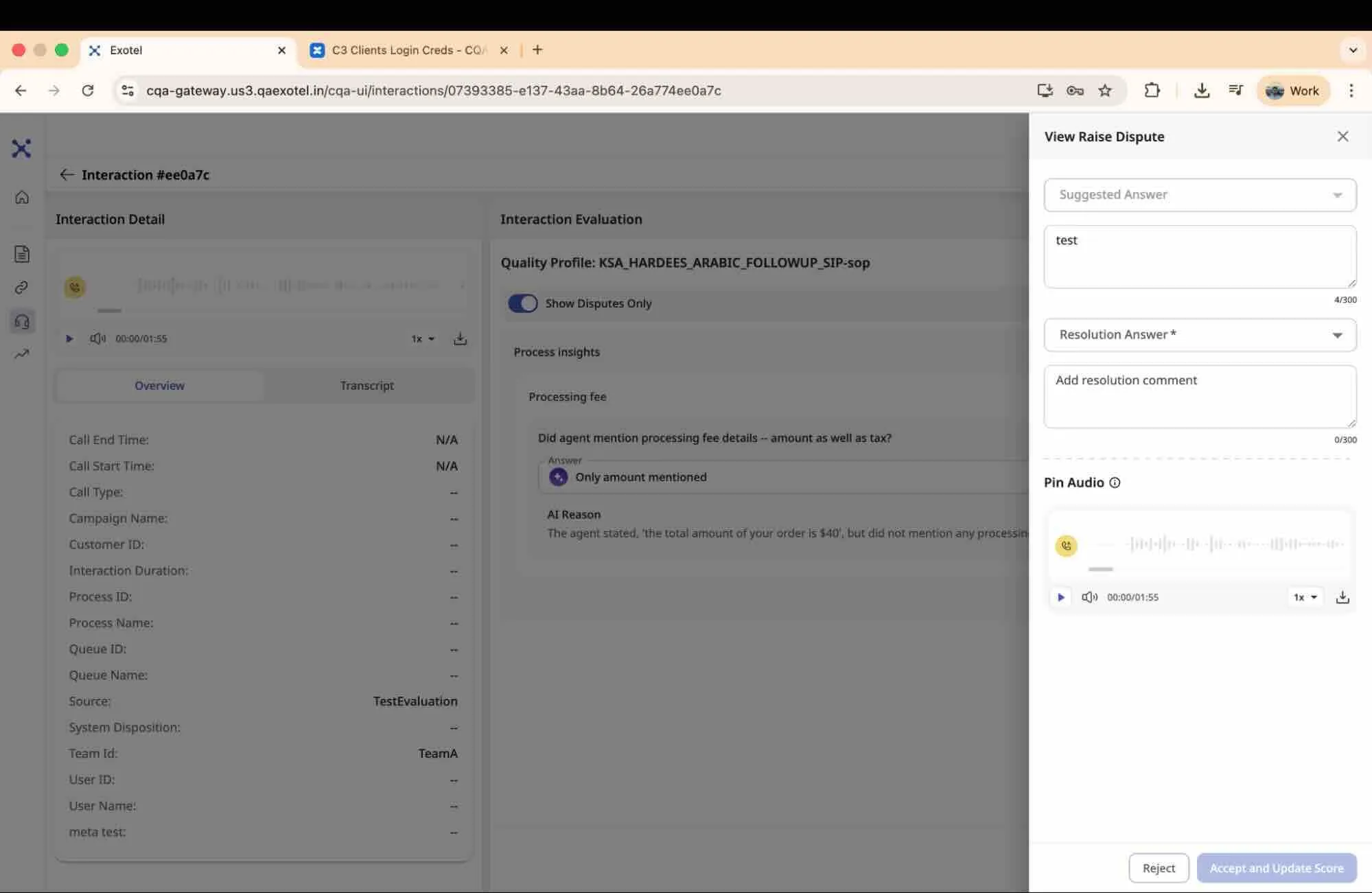
2. Resolving a Dispute (Supervisor Action)
- In the Analysis List, look for interactions flagged with "Open Disputes".
- Open the interaction and toggle the "Show Disputes Only" switch to filter the scorecard.
- Review: Read the Agent's comment and compare it with the AI's reasoning/transcript.
- Action:
- Click on Edit to then enable dispute resolution.
- Reject: The score remains as is. You can add a rebuttal comment.
- Accept & Update: The system automatically recalculates the score (e.g., changing a 0 to a 10) and updates the total.
- Finalize: Click Acknowledge to save the changes and close the dispute.
5.7. Workflow G: Manual Review and Edit
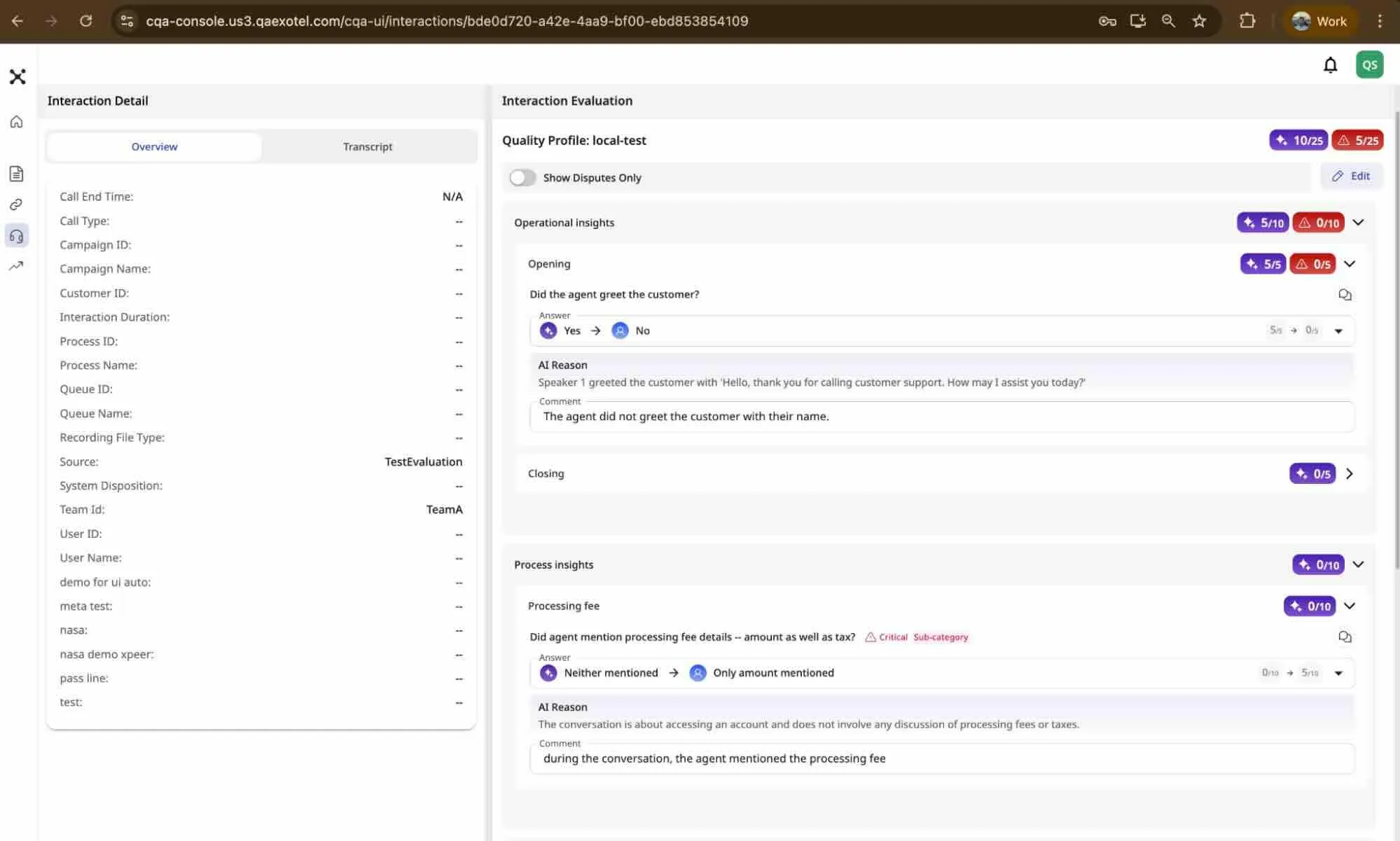
Context: While CQA automates scoring, there are instances where a Supervisor or QA Lead needs to manually intervene to correct an AI evaluation or provide a human-verified score. This workflow allows you to override the system's output and document your reasoning.
Prerequisite: You must have Supervisor access to perform this action.
- Select Interaction: Navigate to the Analysis List and click on the Interaction ID of the call you wish to review.
- Enable Edit Mode: Open the interaction and click the Edit button to enable score modification.
- Modify Answers:
- Scroll to the specific KPI you want to change.
- Change the AI-generated answer to the correct option (e.g., changing "No" to "Yes").
- Add Justification: Upon changing an answer, you must add a Comment justifying the reason for the manual update.
- Finalize:
- Click the Acknowledge button to view a summary of the changes.
- Approve the changes to save. The system will immediately update the KPI score and recalculate the total Quality Score for the interaction.
Filter & Search: Use the filter bar to isolate specific interactions. You can filter by Date, Score, Quality Profile, Metadata (e.g., "Show me calls from Campaign A"), and Interaction Type.
Interaction Type lets you narrow the list to interactions that need attention:
Value | What you see |
|---|---|
Disputed Interactions | Interactions with open or relevant disputes (same pattern as before). |
Critical KPI Failures | Interactions where at least one Critical KPI failed evaluation (per Quality Profile criticality settings). |