Getting Started
Overview
This document outlines the Monitored Bot system, covering admin prerequisites and Monitoring Agent workflows. It details how to supervise live bot sessions, track real-time sentiment, and use Barge to intervene in critical interactions.
Prerequisites
Before you can begin, ensure your account and environment are correctly set up.
- You must have an administrator account with permissions to manage user roles and Monitoring Configurations.
- You must have purchased the "Monitored Bot", which provides both the bot engine and the integrated monitoring capabilities.
- You must have a valid license entitlement for the "Monitoring Agent" role(s), allowing you to create new Monitoring Agents or update existing ones.
- You must have an existing contact center platform that is configured to receive and handle escalated "Barge" interactions from the monitoring service.
- You must have identified the "Monitoring Pivot(s)"—the specific entities like Campaigns, Queues, or Intents—where you intend to apply monitoring. Your Monitored Bot must be configured to route interactions through one of these pivots.
Core Concepts
To get the most out of your Monitored Bot, it's important to understand these key terms:
- Monitoring Agent: This is a special user role, distinct from a standard call-taking agent. A Monitoring Agent has permissions to observe live bot interactions, receive alerts, and use intervention tools (Barge), but they are not automatically routed standard inbound/outbound calls.
- Critical Alert: A real-time notification that flags a high-risk interaction for immediate review. In this product, this is triggered by specific backend rules, such as a "Sentiment Crash" or a "Bot Repetition Loop".
- Barge: The action where a Monitoring Agent takes full control of a live conversation from the bot. The bot is disengaged, and the agent continues the interaction (via voice or chat) from within their contact center interface.
- Attention Span: An administrative setting (applied per Monitoring Pivot) that defines the maximum number of interactions a single Monitoring Agent can be assigned to observe at one time.
- Agent Reserve: An administrative setting (applied per Monitoring Pivot) that reserves a percentage of your monitoring capacity as a "safety net" to ensure an agent is always available for high-priority critical alerts.
- Focused View: The main workspace (left panel) in the Agent Workbench where the agent's list of assigned interactions is displayed. The system uses your admin settings to prioritize and sequence this list.
Frequently Asked Questions (FAQ)
- Q: What is a "Monitoring Pivot"?
- A: A "Monitoring Pivot" is the specific entity in your contact center (like a Campaign, Queue, or skill/Intent) that you apply monitoring rules to. You configure alert rules and agent capacity (like Attention Span) for each pivot, and your bot must be set up to route interactions to it.
- Q: What happens if the monitoring system is at full capacity and a new bot interaction begins?
- A: This is handled by our "Monitoring Capacity Fallback" logic. If the monitoring pool is at its maximum limit:
- During business hours, the interaction is automatically routed to your designated live agent fallback queue.
- Outside business hours, the bot will automatically initiate the "raise callback" flow.
- Q: Will an agent assigned the "Monitoring Agent" role also receive normal inbound calls?
- A: No. The "Monitoring Agent" role is a specialized role excluded from the standard automatic call distribution (ACD). Agents with this role are not automatically routed general inbound or outbound calls, allowing them to remain focused on monitoring.
- Q: What channels (Voice, WhatsApp, Web Chat) support the Monitored Bot?
- A: The Monitored Bot Product, including its core monitoring and intervention features, is designed to be compatible with both voice and chat (e.g., Web Chat, WhatsApp) channels.
- Q: What exactly is "Attention Span"?
A: Attention Span defines the maximum number of live bot conversations a single monitoring agent can supervise simultaneously. Think of it as a "concurrency limit" for human supervision; it allows you to control the balance between operational efficiency and quality. A higher span allows one agent to monitor more volume (saving costs), while a lower span ensures deeper focus on individual conversations for high-stakes or VIP queues.
- Q: What is "Agent Reserve" and why do we need it?
A: Agent Reserve is a dedicated safety buffer that keeps a specific percentage of an agent's bandwidth free for critical interventions. Instead of "maxing out" an agent with passive monitoring duties, this setting ensures they always have the immediate mental capacity and availability to jump in and take over a conversation the moment a sentiment crash occurs, preventing delays during emergencies.
User manual
This guide details the operational workflow for the Monitoring Agent. Follow these steps to effectively supervise bot interactions, track real-time sentiment, and intervene when necessary to preserve the customer experience.
System Login & Status Management
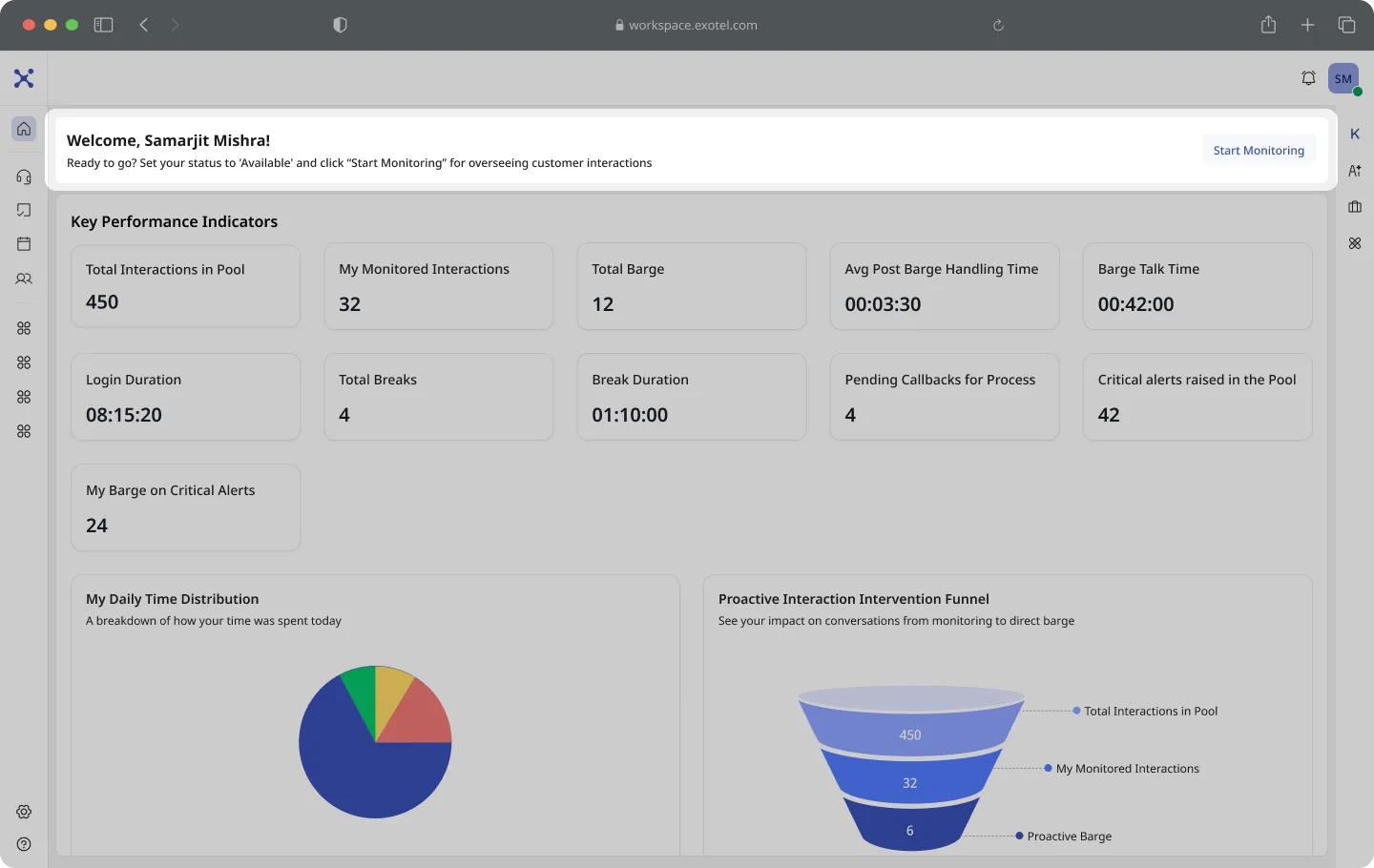
Before engaging with the monitoring console, ensure your agent availability is correctly configured to receive incoming data streams.
- Log in to the Exotel Agent Portal.
- Set Status to Available: Navigate to the top-right corner of your dashboard and select "Available" from the status dropdown. This signals the system that you are ready to monitor active bot sessions.
Note: If you need to step away, ensure you switch your status to "Unavailable" or "Break" to pause interaction assignments
Activating Monitoring Mode
To access the specialized supervision interface, you must enable the dedicated monitoring layer.
- Locate the "Start Monitoring" button in the top right header.
- Click on the “Start Monitoring” button.
- The dashboard will transition from the standard view to the Monitoring Interface.
The Monitoring Dashboard
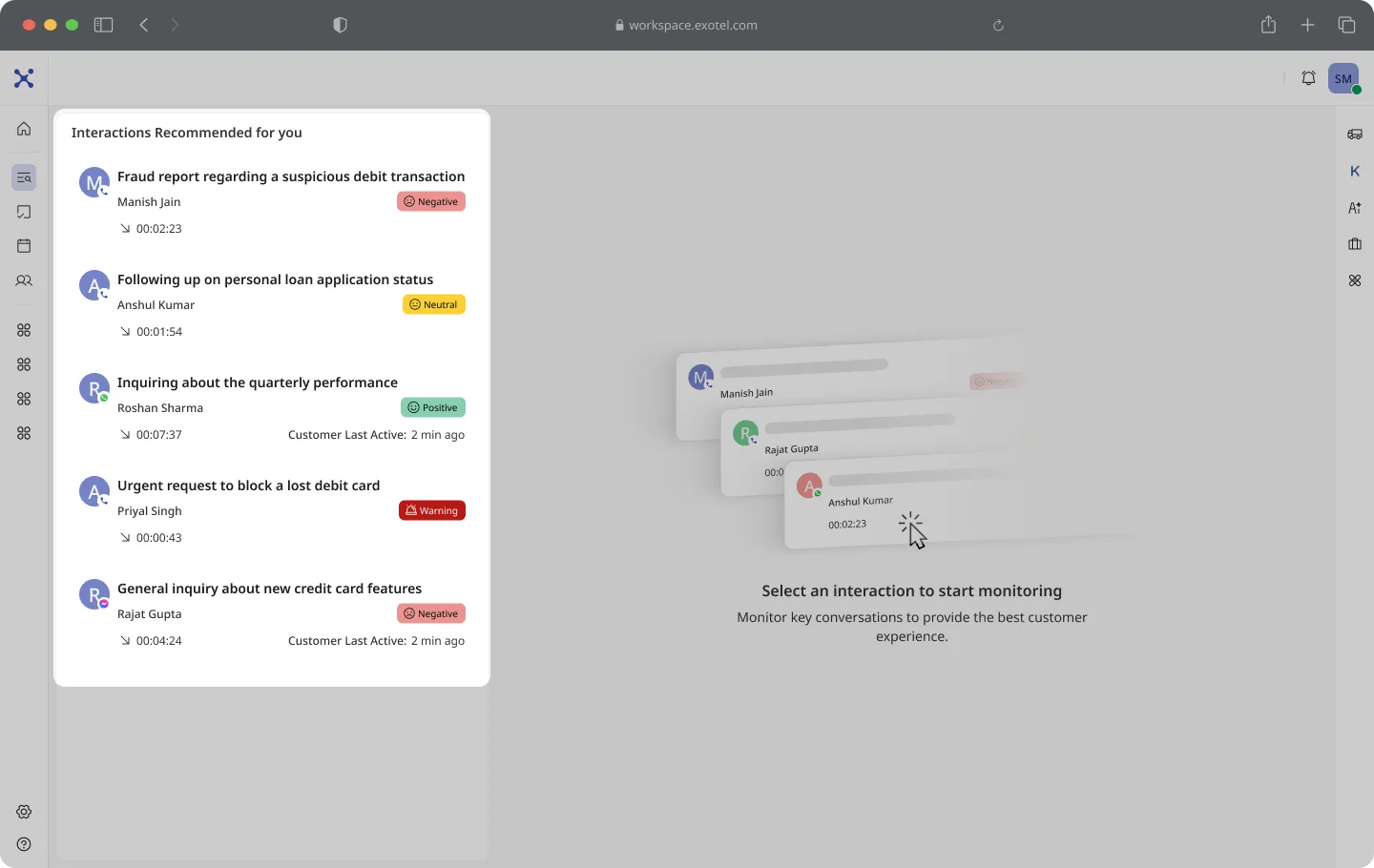
Once active, the system presents a prioritized list of live conversations that require attention.
- Interaction Cards: The left-hand panel displays cards for each active bot conversation. Each card provides critical at-a-glance data:
- Customer ID/Name: Who is on the .
- Duration: How long the interaction has been active.
- Live Sentiment Tag: A real-time indicator of the customer's mood (e.g., Neutral, Positive, Negative).
- Select an Interaction: Click on any card (e.g., "Manish") to expand the session and view granular details.
Real-Time Interaction Monitoring
Upon selecting a card, the view expands to provide complete situational awareness without interrupting the call.
- Live Transcript (Middle Panel): Read the real-time speech-to-text conversion of the ongoing dialogue between the bot and the customer to understand context immediately.
- Intelligence Sidebar (Right Panel):
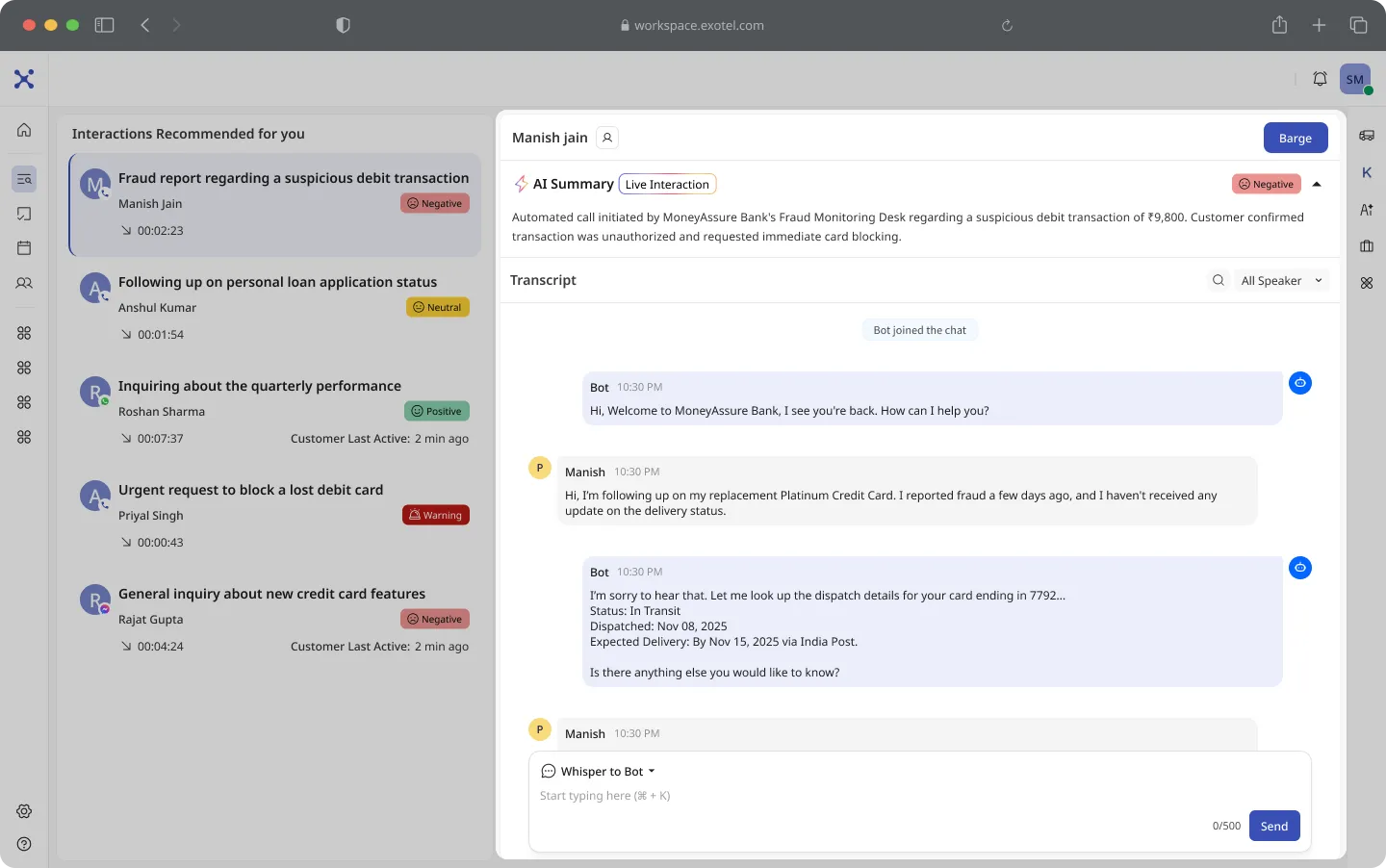
- AI Summary: View AI-generated bullet points summarizing the customer's intent (e.g., "Customer asking about transaction dispute").
- Sentiment Pill: Monitor the dynamic sentiment badge. If the conversation flows smoothly, this will remain Neutral or Positive.
Identifying Escalations (Sentiment Change)
The system automatically detects distress signals. You must be vigilant for visual alerts that indicate a "Sentiment Crash."
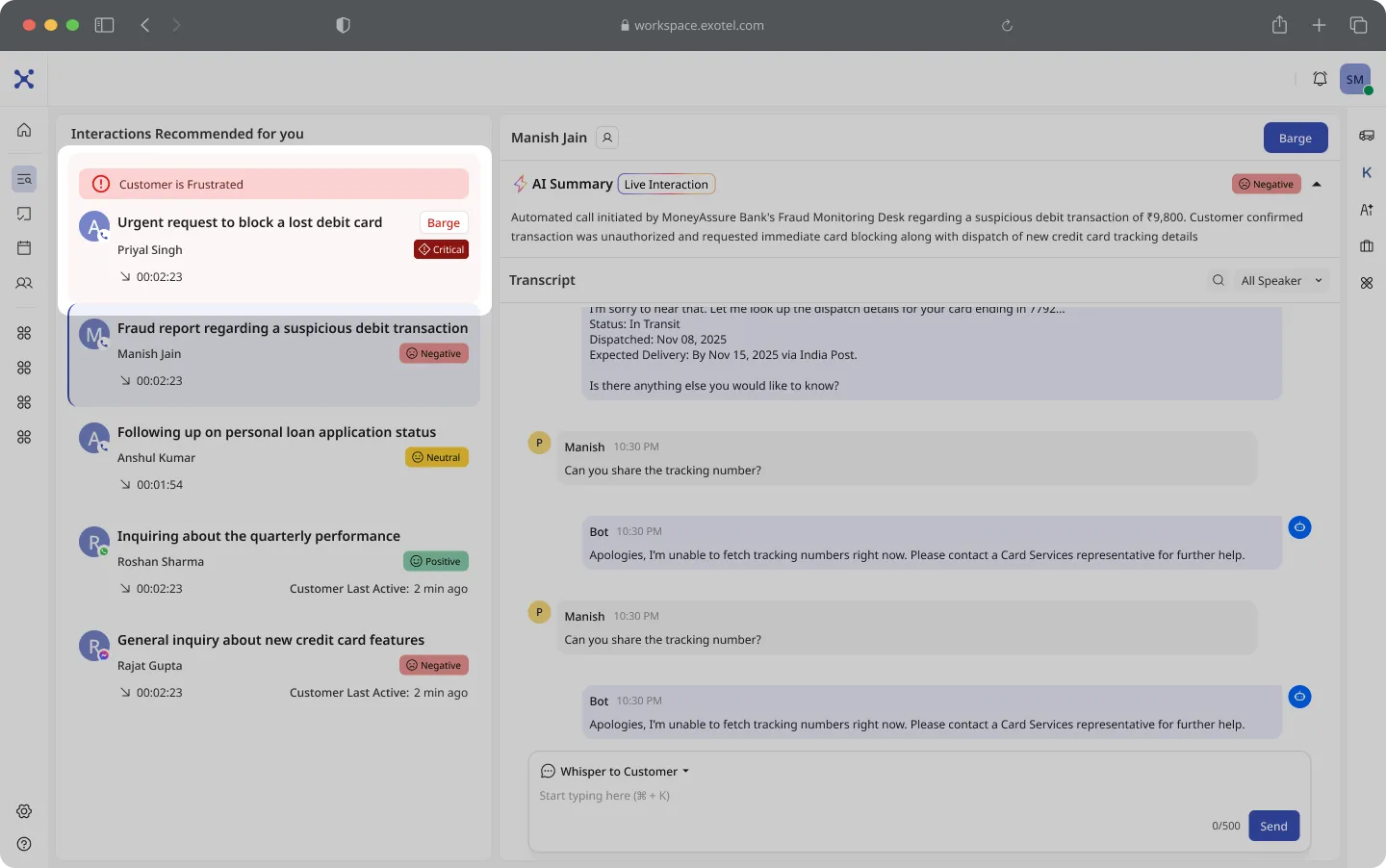
- Visual Triggers:
- The Sentiment Tag turns Red and reads "Critical".
- The interaction card highlights with a "Customer is Frustrated" alert.
- Context: The transcript may show phrases like "I will sue you" or "Total false allegation," indicating a breakdown in trust.
Intervention (Barge In)
When a red flag appears, the bot has reached its capability limit. You must intervene to de-escalate.
- Action: Click the purple "Barge" button located in the top-right corner of the interaction panel.
- Result:
- The bot is immediately disconnected.
- You are connected directly to the customer via voice.
- The status updates to "Call Connected"
Active Call & Customer Data
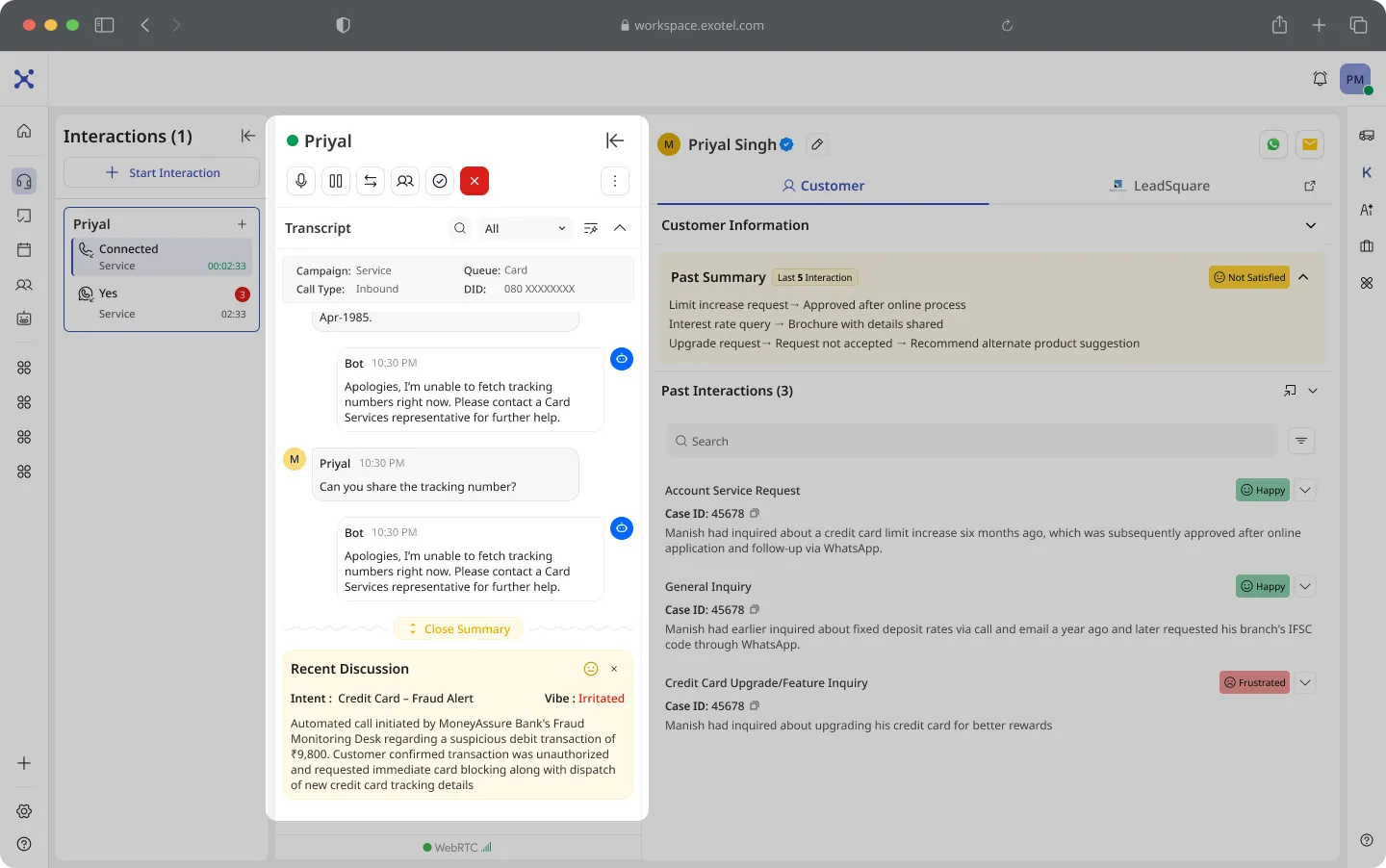
Once connected, you have full access to CRM data to resolve the issue manually.
- Customer 360 View: A third panel opens on the far right, displaying:
- Customer Journey: A history of previous touchpoints and disputes (e.g., "Concerned about Rs 5000 transaction dispute").
- CRM Integration: Details pulled from your backend systems regarding the customer's profile.
- Resolve & Close: Address the customer's concerns using the context provided. When the interaction is complete, end the call using the End Call icon.