Agent Console
After logging in, the agent can access its console. The Console allows the agent to view real-time information of the tickets assigned to him/her.
Agent Login at First Time
In the agent interface, if the Agent is logged in for the first time with the Interaction Campaign then the Dashboard shows all tickets created while interacting with the customers through any medium.
In Agent's Dashboard, if the applied filter and conducted search do not have any result, then the screen comes as blank.
The following message will be displayed (marked in the green box) when the applied filter or conducted search do not have any resultant ticket to show on the screen.
This filter/search has no result. Please try a different criteria.
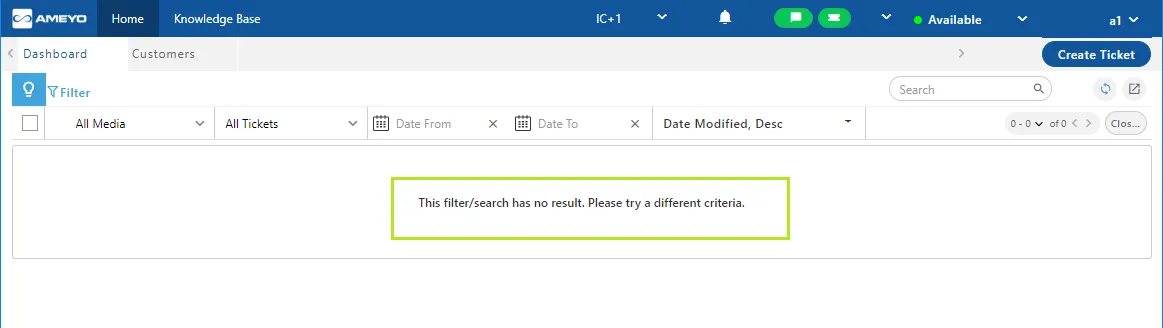
If the agent is logging the dashboard another time and the tickets have already been created or raised by the customers, then this screen and message will not appear.
Login Dashboard another Time
If the Agent is logged in for the second time with the IC Campaign, then the Dashboard shows all tickets created while interacting with the customers through any medium.
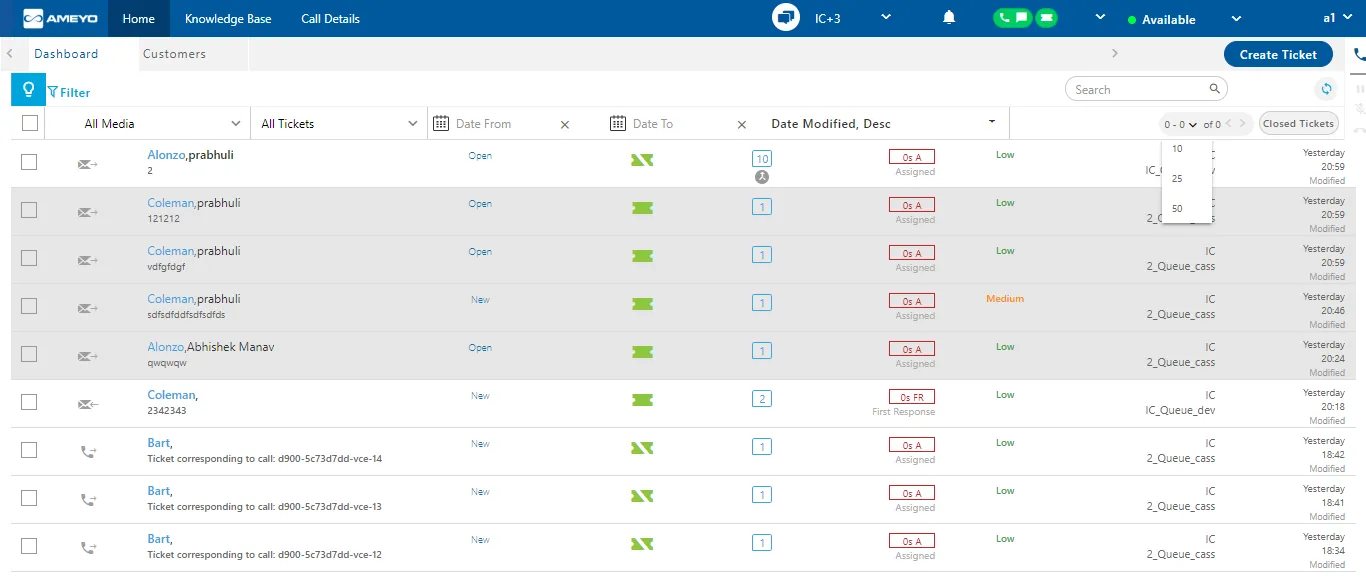
The interface of agent Console can be divided into the following sections.
- Home Tab
- Customers
- Knowledge Base
- Internal Chat
Home
The home tab is divided into two internal tabs:
Dashboard
The Dashboard of the agent's console allows the agent to view the tickets, work on them and reply to the customer. Know more...
Customers
The agent can view the list of all the customers present in that queue of the campaign in which the agent is assigned. The agent can also view the information of the customers from here
If an agent navigates through the internal tab of Home menu, then the internal tabs will not be reloaded. This helps the agent to navigate between internal tabs without loosing the entered information.
Knowledge Base
The Knowledge Base of the agent's console allows the agent to navigate to the organizations knowledge base. This knowledge base is configured by the organizations according to their business needs.
Internal Chat
The users can chat internally with each other by using this feature. This feature can be enabled by the administrator.
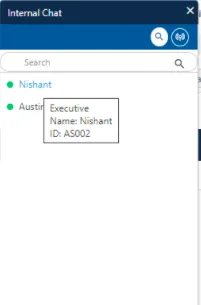
There are certain users that are displayed on the chat window header above the search bar. The user can click on the required user to initiate a chat. These user are displayed using their initials, for example, John Doe is displayed as JD. The user can hover over the initials to view that particular user's username and user ID.
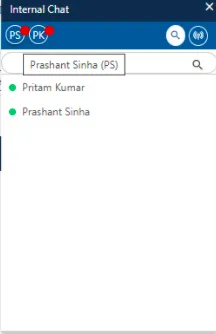
The user can also search for a user using either their usename or user ID.
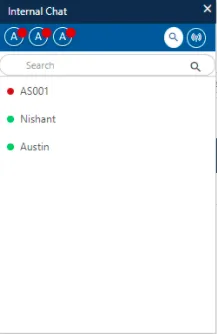
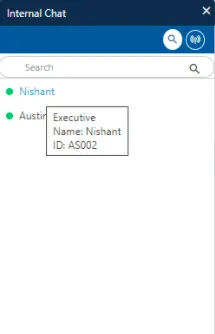
In the search list, the user can hover over a username to view it's username and user ID.
Call Details
The agent can view the details of his calls through the call details tab. The agent can view both Callbacks and Call Details from here