App Manager (App Installer Configuration)
The App Manager (also referred to as App Installer) is the central hub within the Exotel contact center for installing, configuring, and managing apps. It provides administrators with a self-service interface to upload app packages, assign them to specific locations in the contact center UI, and control which user roles can access each app — all without requiring manual database changes or backend technical intervention.
Previously, adding or removing apps required direct database edits by the technical team, which was error-prone and created dependency on engineering resources. The App Manager eliminates this by offering a unified platform accessible from the Administrator Console.
For a catalog of available apps and their download links, visit the App GalleryApp Gallery. For background on the marketplace concept, see Introduction to App MarketplaceIntroduction to App Marketplace.
How It Works
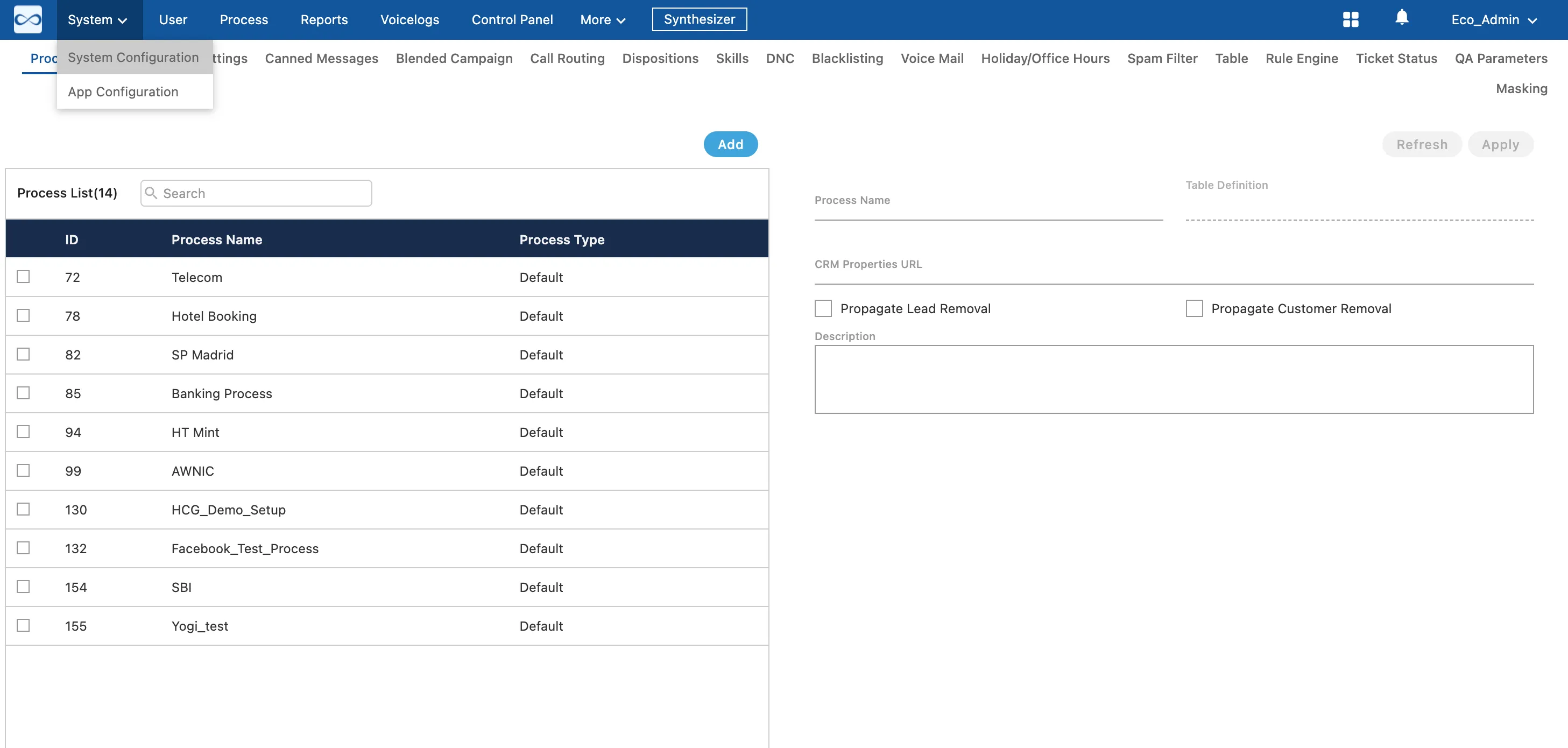
- Access App Manager — An Administrator logs in to the Ameyo instance and navigates to Administrator Console > System Tab > App Manager.
- Download an App Package — The administrator visits the App GalleryApp Gallery on the documentation portal, selects the desired app, reads its dedicated article for feature details and requirements, and clicks the download button to obtain the app package file.
- Upload the App — Back in the App Manager interface, the administrator uploads the downloaded app file using the upload action.
- Configure Slot Mapping — The administrator assigns the app to one or more Slots (UI locations where the app will appear), such as the Agent Toolbar or a sidebar panel. Standard slots are available by default; custom slots require a backend request.
- Assign Roles and Permissions — The administrator configures which user roles (Agent, Supervisor, Administrator) can see and interact with the app.
- Activate the App — Once slot mapping and permissions are set, the administrator activates the app. It becomes immediately available in the assigned UI locations for the configured roles.
- Manage Lifecycle — The administrator can return to App Manager at any time to deactivate, reconfigure, or remove an installed app.
Benefits
- Simplified App Management: No more manual, error-prone database manipulations.
- Self-Service Integration: Customers can integrate their custom-built apps into Ameyo contact center independently via Admin interface.
- Improved Stability: Reduces technical errors stemming from manual interventions.
- Unified UI/UX: Consistent user experience across Exotel contact center and integrated applications.
- Scalable and Extendable: Supports multiple apps managed within a single platform. Check out the App GalleryApp Gallery for more information on available apps.
Prerequisites
- Exotel contact center system with build version supporting the App Installer.
- React and Redux framework-based apps for compatibility.
- Administrator role with access to the System Tab in the Administrator Console.
Note: If the App Manager tab under System Tab on the Administrator interface is not available on your setup, please contact the Exotel support team or your Customer Success Manager to enable it.
Configuration Steps
- Log in to your Ameyo instance as an Administrator.
- Navigate to Administrator Console > System Tab > App Manager.
- Download the app package from the App GalleryApp Gallery:
- Browse to the App Gallery section on this portal.
- Select the app you want to configure.
- Go to the app's dedicated page and click the Download button.
- Upload the app file in the App Manager interface.
- Map the app to a Slot — Choose the UI location(s) where the app should appear (see Slot Mapping below).
- Configure role-based access — Select which user roles (Agent, Supervisor, Administrator) should see the app.
- Activate the app — The app becomes available in the assigned slot(s) for the configured roles.
Slot Mapping
The App Manager allows apps to be placed in specific "Slots" (locations) within the contact center interface. Slots determine where an app appears for end users.
- Standard Slots: Standard slots (like agentHeaderSlot) are available by default.
- Custom Slots: If you require apps to appear in specific new locations (e.g., specialized Admin tabs or Supervisor panels), new slots must be defined in the backend code.
For setups running 4.x apps on the 6.x Omni UI, the following slot mapping applies automatically:
- Workbench Sidebar (4.x) → Right Bar (6.x)
- TopBar Global (4.x) → Left Panel (6.x)
- Workbench Internal Tab (4.x) → Right Bar (6.x)
- Background App (4.x) → Right Panel (6.x)
Configuration parameters
Key / parameter | Description | How to configure | Constraints & options | Sample |
|---|---|---|---|---|
Slot assignment | Determines the UI location where the installed app appears for end users. | Administrator Console > System Tab > App Manager — select the app, then choose a slot from the slot-mapping dropdown. Scope: per app. | Standard slots are available by default (e.g., agentHeaderSlot, Agent Toolbar, Sidebar). Custom slots require a backend request to Exotel Support. | agentHeaderSlot |
Role / persona access | Controls which user roles can see and interact with the installed app. | Administrator Console > System Tab > App Manager — select the app, then assign one or more roles. Scope: per app. | Supported roles: Agent, Supervisor, Administrator. At least one role must be assigned before activation. | Agent, Supervisor |
App activation status | Enables or disables the app in the contact center UI. | Administrator Console > System Tab > App Manager — toggle the activation status for the app. Scope: per app. | Active or Inactive. Deactivating an app removes it from the UI without uninstalling it. | Active |
The App Manager tab itself must be enabled in the backend for the Administrator Console. If it is not visible, contact Exotel Support to enable the App Configuration feature.
Use Cases
- Installing a Monitoring App — A contact center administrator wants to give agents visibility into their own performance. They download the Agent Self Monitoring App from the App Gallery, upload it via App Manager, assign it to the Agent Toolbar slot with the Agent role, and activate it. Agents immediately see the app in their toolbar.
- Deploying a Notification App for Supervisors — A supervisor team needs a broadcast tool. The administrator downloads the Notification App, maps it to the appropriate slot, assigns both Administrator and Supervisor roles, and activates it.
- Managing Multiple Apps — An organization uses several productivity apps (Bulk Operation, Agent Signature, Dial User). The administrator manages all of them from the single App Manager interface — uploading, configuring slots, and controlling activation without needing separate backend interventions for each.
- Deactivating an App Temporarily — During a system maintenance window, the administrator deactivates a non-critical app from App Manager. Once maintenance is complete, they reactivate it — no reinstallation required.
Limitations
- Only apps built with the React and Redux framework are compatible with the App Manager.
- Custom slots (beyond the standard set) require backend code changes and a request to Exotel Support; they cannot be created from the UI.
- The App Manager tab must be enabled in the backend before it appears in the Administrator Console. This is not a self-service toggle.
- For 4.x apps running on the 6.x Omni UI, only Agent-persona apps are supported via automatic slot mapping. Admin and Supervisor persona apps from 4.x are not in scope.
- Background apps from 4.x are not natively supported in the Omni UI and are temporarily rendered in the Right Panel as a minimal (1px × 1px) frame.
Troubleshooting and Support
- App Manager tab not visible: Confirm that the App Configuration feature has been enabled in the backend. Contact Exotel Support or your Customer Success Manager.
- App not appearing after activation: Verify that the correct slot and role are assigned. Check that the user logging in has the matching role.
- Upload failures: Ensure the app package is a valid React/Redux app file downloaded from the App Gallery. Check that the contact center build version supports the App Installer.
- Slot mapping issues: If the desired slot is not listed, it may need to be created as a custom slot — submit a request to Exotel Support.
- For any other issues, consult system logs for errors related to app activation or visibility, and contact Exotel Support with detailed error codes and log snippets for quick resolution.