Manage Customers
The working and features of manage customers page is similar for both Supervisor and Agent. However, the Group Manager does not have the privileges to access the manage customers from workbech, as the group manager is not allowed to work in interaction and chat campaigns.
Customer Tab in the Agent Interface shows the list of customers. It allows the agent to manage the customer's information and access them. Click "Customers" icon present adjacent to the Dashboard icon, to access the customer's page.
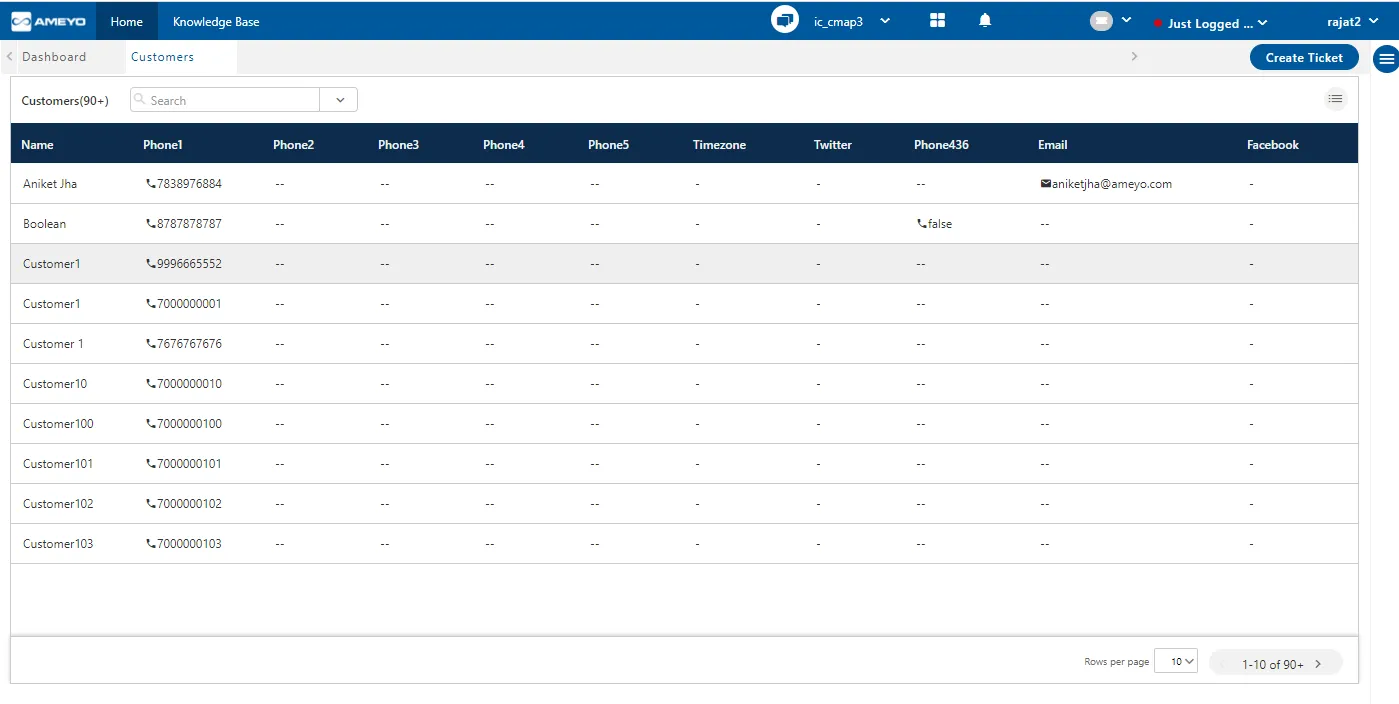
Each customer is listed in an individual row. Following information of customer is available on this page.
- Customer Name: The first column of the customer information contains the name of the customer's name.
- Phone: This column of the customer information contains the phone number of the customer. Here, all the phone fields such as Phone1, Phone2, Phone3, and so on; that the administrator has created at system level is showing
- Email ID: The Email ID column of the customer information page contains the email-id of the customers.
- Timezone: The Timezone column shows the timezone in which the customer is present.
- Media Channel ID: The Media channel Id includes the Facebook, Instagram, Twitter, Messenger, and Google Play Id of the registered customer. If the media channel ID of the customer is not registered in the system, then it will show blank.
Operations
Agent can perform the following two operations on the customers page.
- Customer's Information: Click on the customer's name, a page opens up with the complete customer's information.
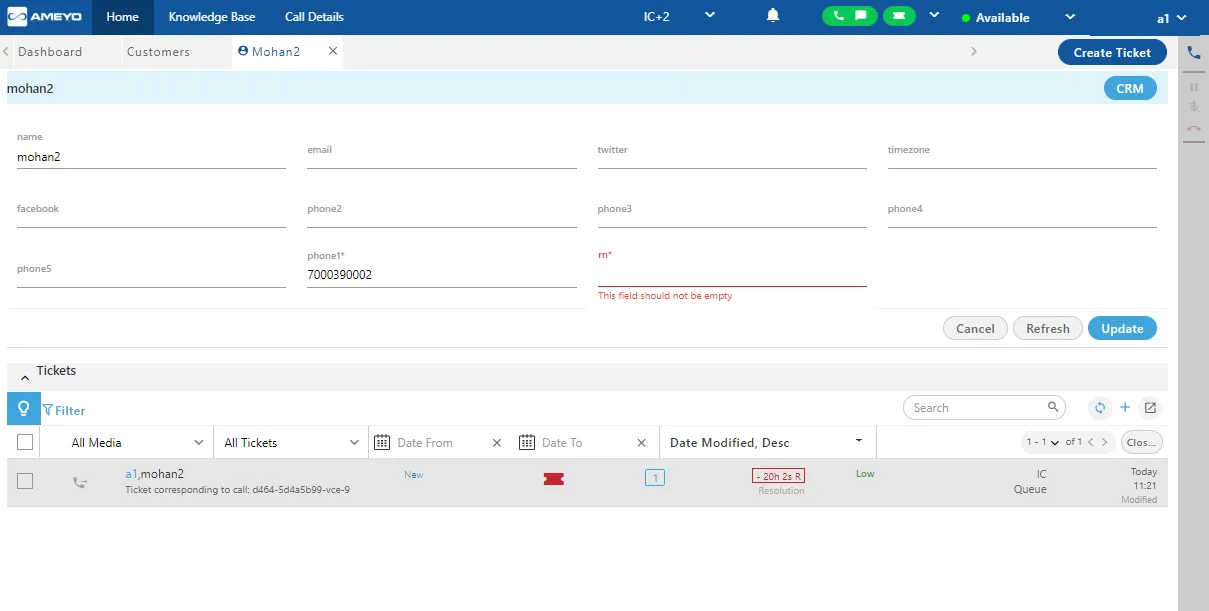
Error Messages: If the agent does not fill a mandatory field, then an inline error message will be shown in red color just below that field. As a result thereof, the agent will not be able to save the details of the customer.
Agent can perform the following operation on the customer's information section.
- View Customer's information: The first column of this page shows the customer's personal information. Agent can view the details or modify them if needed.
- The Agent Table Definition allows the Administrator define the order of appearance of the customer information fields and mark the fields in which the agent can change the values or not.
- The Administrator can create multiple Agent Table Definitions using a single Data Table Definition for a process. It means there can be multiple Agent Table Definitions for a Campaign. The Administrator can assign the agent to a particular Agent Table Definition for a Campaign, and that agent will view the Customer Information Fields as per the selected Agent Table Definition and can modify the customer information in the editable fields only.
Important Points
- An agent can be assigned to one Agent Table Definition in one campaign and to another Agent Table Definition in another campaign. For example, agent1 can be assigned to "ATD1" in Voice1 and "ATD2" in Voice2.
- If the agent is staffed to the multiple campaigns, including an Interaction Campaign, then the Agent Table Definition of the Interaction Campaign will be used on top of other Agent Table Definitions.
- If the agent is staffed to only Voice Campaigns, then the Agent Table Definition of that Voice Campaign will be applicable in which the call has been made or received.
- Edit Customer's information: Click "Edit" button to modify the customer's information. The customer's information is now editable. Change or add the information which you want to change.
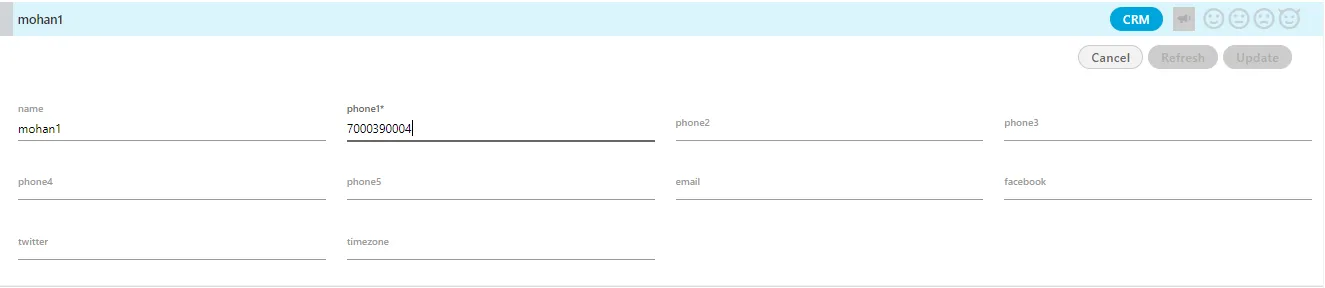
- Click "Update" button to save the changes made, else, click “Cancel” button to cancel the changes. Click “Refresh” button to refresh the customer’s information.
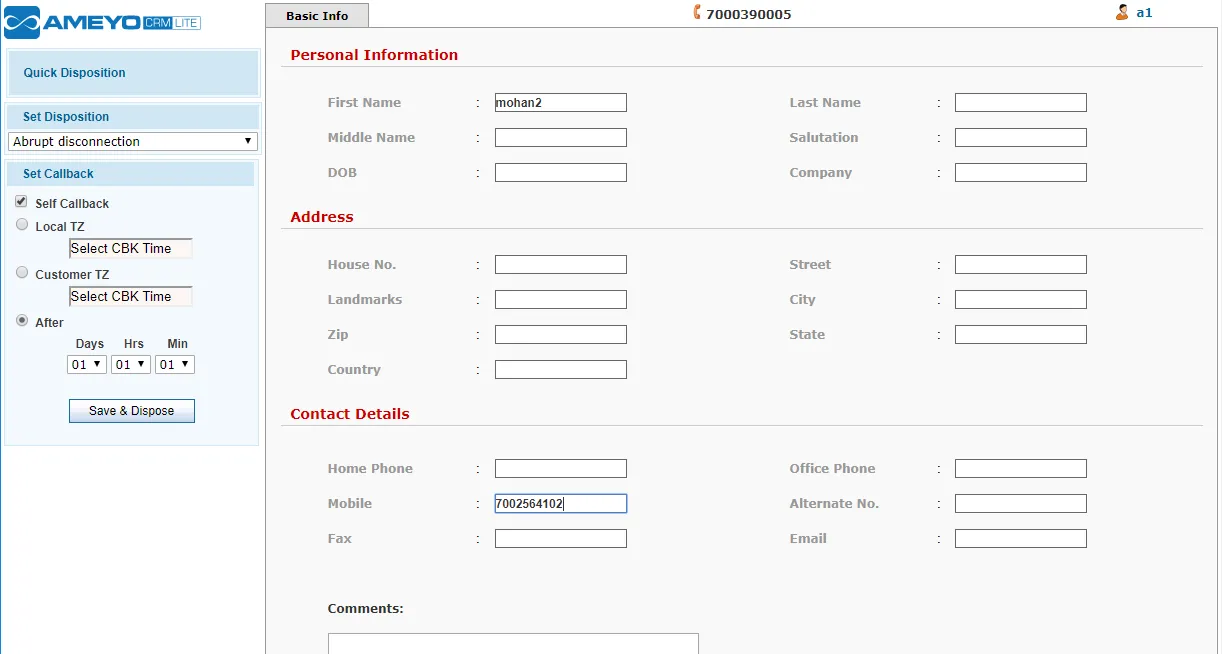
- Customer's Information on CRM: Click "CRM" button present on the top of the customer's information bar to see the customer's information on the CRM(if integrated on Ameyo). The complete information of the customer is available on the CRM page. Agent can change view or change the information according to the usage.
- Ticket Dashboard
In the "Tickets" section, all the tickets raised by the same customer visible only. It contains the same ticket dashboard but contains only the tickets of the specific customer. Agent can perform the same operations here like ticket dashboard

Agent can perform the same operations on the present tickets raised by the customer.
The agent is able to manage the customer information for the tickets attached with calls.
If there are multiple customers with the same number and CustomerQuery Node is used in the inbound nodeflow, then a modal is displayed to the agent that displays all customers with the same phone number. When the agent clicks a number and click "Link" button, the customer is linked, but the name of the linked customer is not displayed in "name" field of the Customer Information. This issue has been fixed now. Now, when the agent links the customer in the modal displaying the multiple customers for the same phone number, then the name of the linked customer is being displayed in the "name" field of the customer information.