Process in System Configuration
Process in System Configuration
A Process is the main component under which campaigns, users, and other settings are organized. You must create a process first to set up a contact center
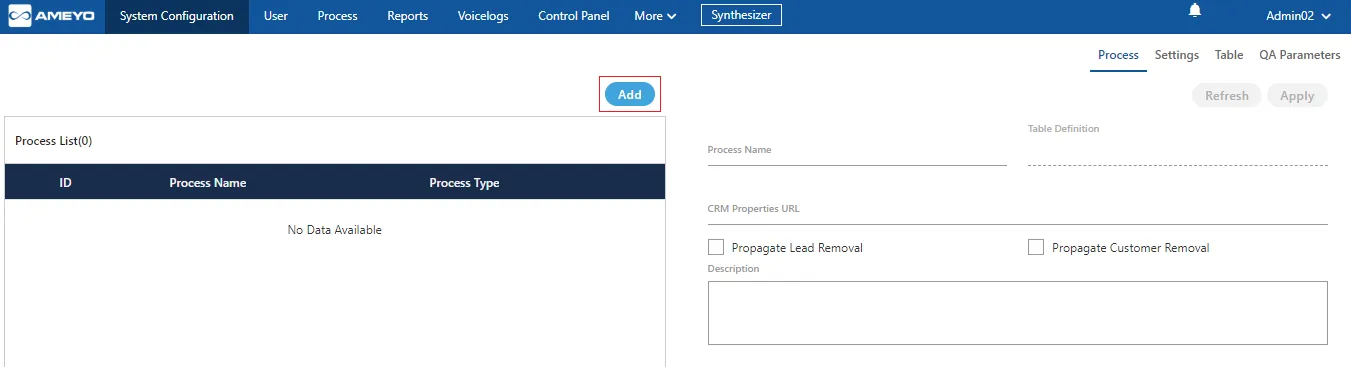
Create a Process:
- Click the Add button.
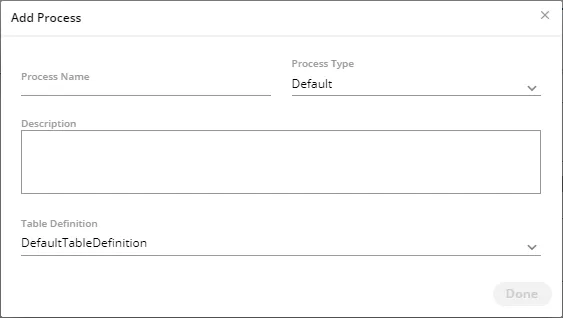
- Enter a Process Name.
- Provide a Description.
- Select a Process Type (e.g., Default).
- Choose a Table Definition (e.g., DefaultTableDefinition).
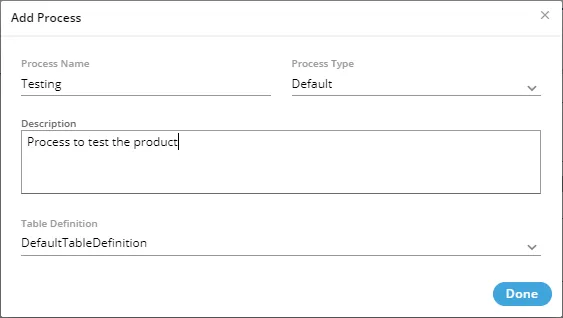
- Click Done. The process is created and displayed on the screen.
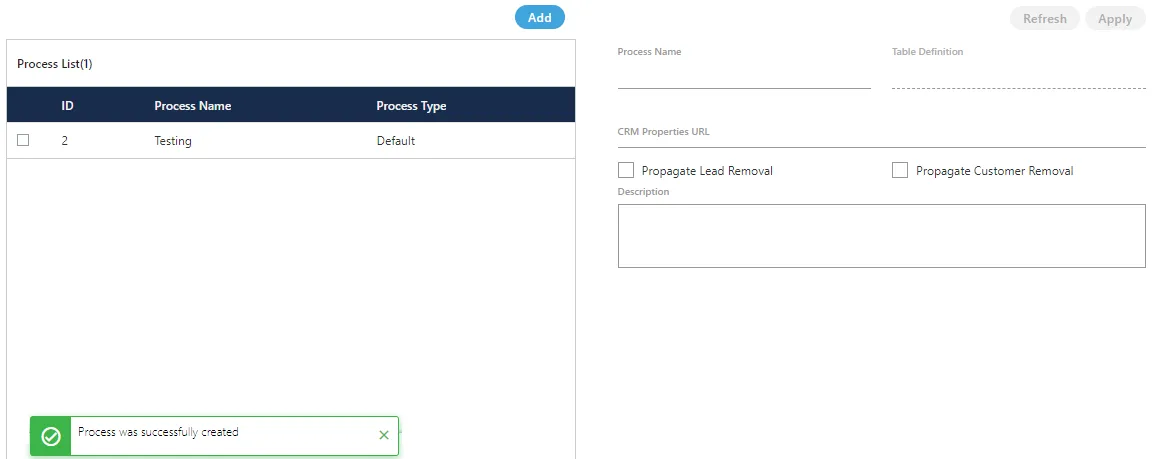
- Multiple processes can be created using these steps. However, the process IDs will remain different.
Modify a Process:
After selecting a process from the list, you can modify its settings
- Select the process in the left side section. The fields (such as Process Name and Description) will be populated in the right side section.
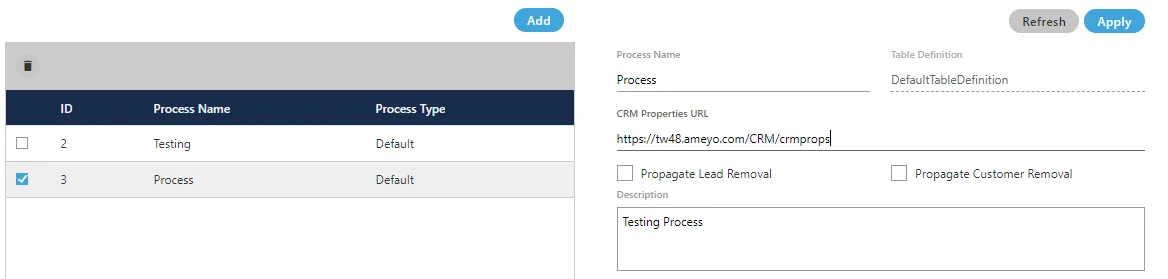
- You can change the Process Name here as well. Provide the new name of the process in the Process Name field.
- You have to provide the inputs for the following fields.
- CRM Properties URL: User can enter the the URL of the CRM that needs to be configured for a particular process.
For example, the following URL can be added for a local AppServer http://<IP_Address_Domain_AppServer>:8786/<CRM_Name>/crmprops Replace <IP_Address_Domain_AppServer> with the IP Address or the domain name of the URL where CRM is hosted.
If VAPT setup is configured in Ameyo then the CRM URL will be:
http://<IP_Address_Domain_AppServer>:8786/<CRM_Name>/crmprops.php Replace http with https, if CRM is configured on secure setup website.
- Propagate Lead Removal: If checked, deleting a lead in Ameyo will also delete it from the CRM database.
- Propagate Customer Removal: If checked, deleting a customer's number in Ameyo will also delete it from the CRM database.
- Click Apply to save changes. Whereas, click "Refresh" button to discard the changes.
In the edit option, you can not change the Table Definition for the process. The table definition can only be defined at the time of the process creation.
If, still you want to change the Table Definition, then delete the process first and create a new process with the other required Table Definition.
Delete a Process:
Administrator can delete any process by following below steps.
- Select the process that needs to be deleted.
- Click on Delete icon. It shows the following warning message on the screen.

- Click "Yes" to delete the process.
- Click "No" to not delete the process.
- When you click "Yes", the process will be deleted and removed from the list.
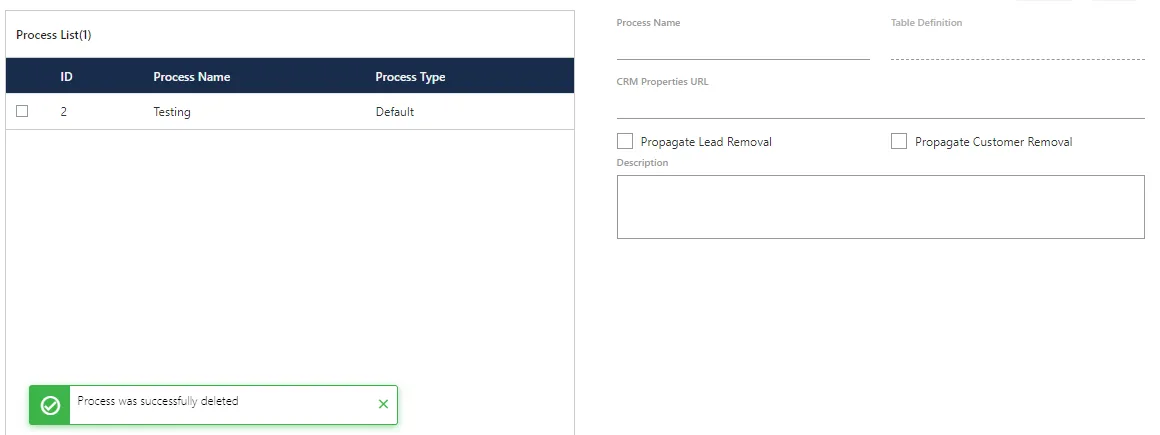
The ID of the deleted process cannot be reused. It will remain consumed even after deletion of the process.