Queue Management in Voice Campaign
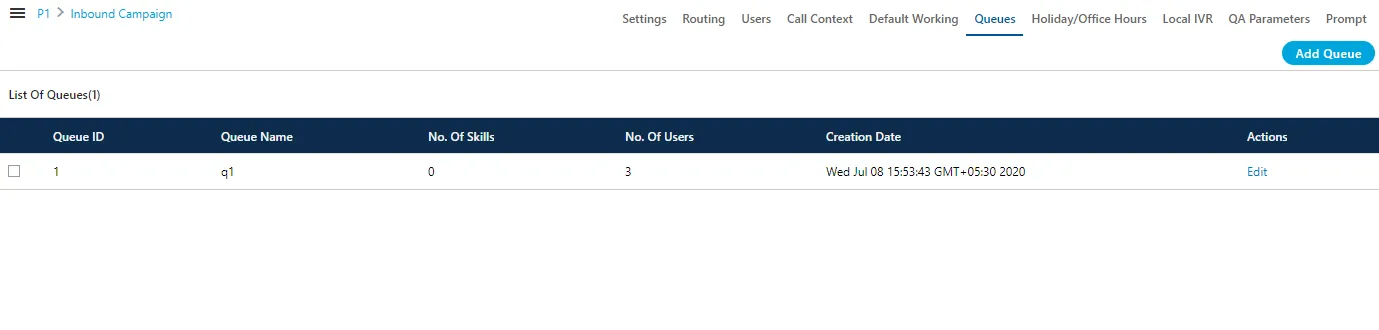
Queues Tab in the Voice Campaign Settings allows you to create and manage the queues.

Create Queue
Perform the following steps to create a queue.
- Click "Add Queue" button on the top right corner to create a queue. It shows the following page.
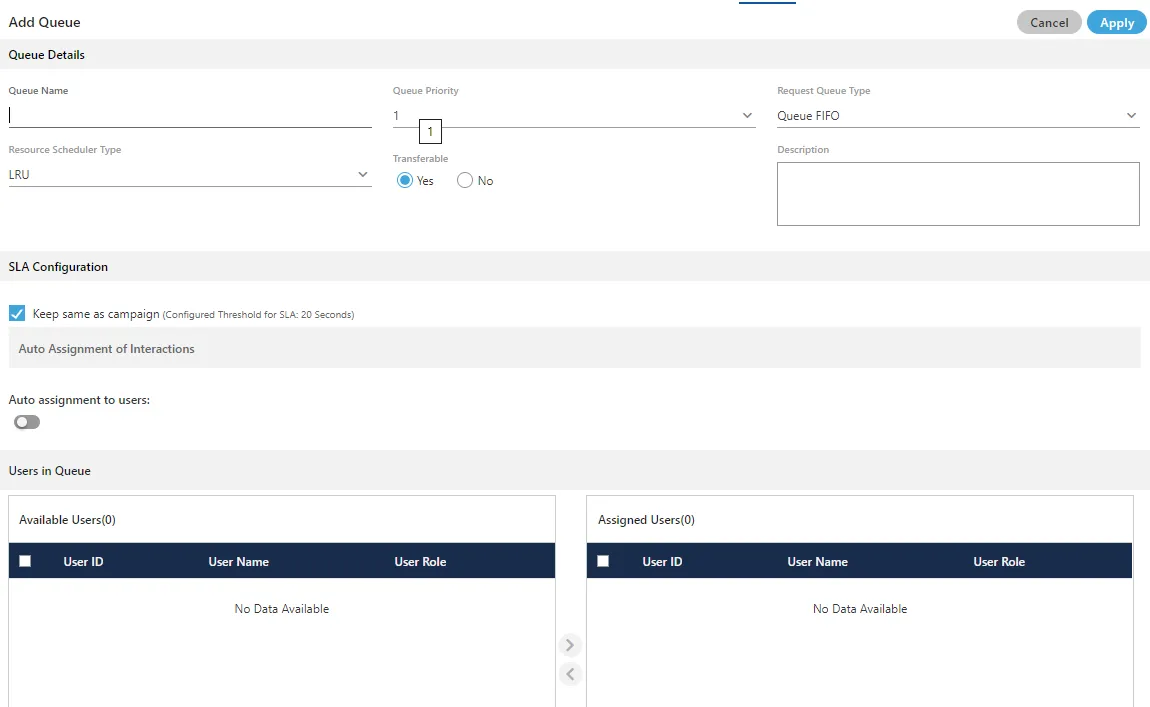
- Provide a name for the queue.
- Select a value for the queue priority. This value will be used for "Priority" type queues.
- Request Queue Type: It lets you define which customer will be served first if more than one customers are waiting in the queue.
- Queue FIFO: FIFO stands for First In First Out. If request queue type is FIFO and two customers are waiting in queue for agent, the customer who is first to reach in the queue would be connected first to the available agent.
- Queue Priority: Nodeflow can be used to decide the priority of any customer. Queue with "1" priority will be selected first. Similarly, Queue with "2" priority will be selected at the second place. Example: Question: If customer1 (who reached earlier) is waiting in Queue1 having priority 1 and customer2 (who reached late) is waiting in the Queue2 having priority 2, and if only one agent is serving both queues, then what will happen?
- Resource Scheduler Type (Licensable): It will let you decide which agent would be connected to the customer when two agents are available to take the chat or call. Select any of the following options.
- LRU: It stands for "Least Recently User". As per this algorithm, the communication (chat or call) will be connected to the agent who has been used very least recently.
- Multiple Extension (Licensable): Select it if the agents have multiple extensions and they are supposed to attend multiple communications (chat or call) simultaneously. One agent can be connected to two customers in the same queue.
- Multimedia Based: Select it only if the agents have to take chat and Inbound calls simultaneously.
- Skill Based:Select it to connect the communication (chat or call) to that agent who have more skill level than others.
- Transferable: Select it to transfer the communication call or chat from this new queue to another queue.
- Provide a description for the queue.
- Assign Users in Queue: Select the users in "Available Users" section and click
 icon.
icon.
To unassign a user, select the users in "Assigned Users" and click  icon.
The user assignment is atomic in nature, that is not transactional. If some users out of all selected users could not be assigned because of any reason such as configuration, then allowed users will be assigned except those are failed to be assigned.
In the case of license restriction, the users of which license is not obtained will not be displayed in the section of available users.
icon.
The user assignment is atomic in nature, that is not transactional. If some users out of all selected users could not be assigned because of any reason such as configuration, then allowed users will be assigned except those are failed to be assigned.
In the case of license restriction, the users of which license is not obtained will not be displayed in the section of available users.
- Assign Skills in Queue: select the skills in "Available Skills" section and click
icon
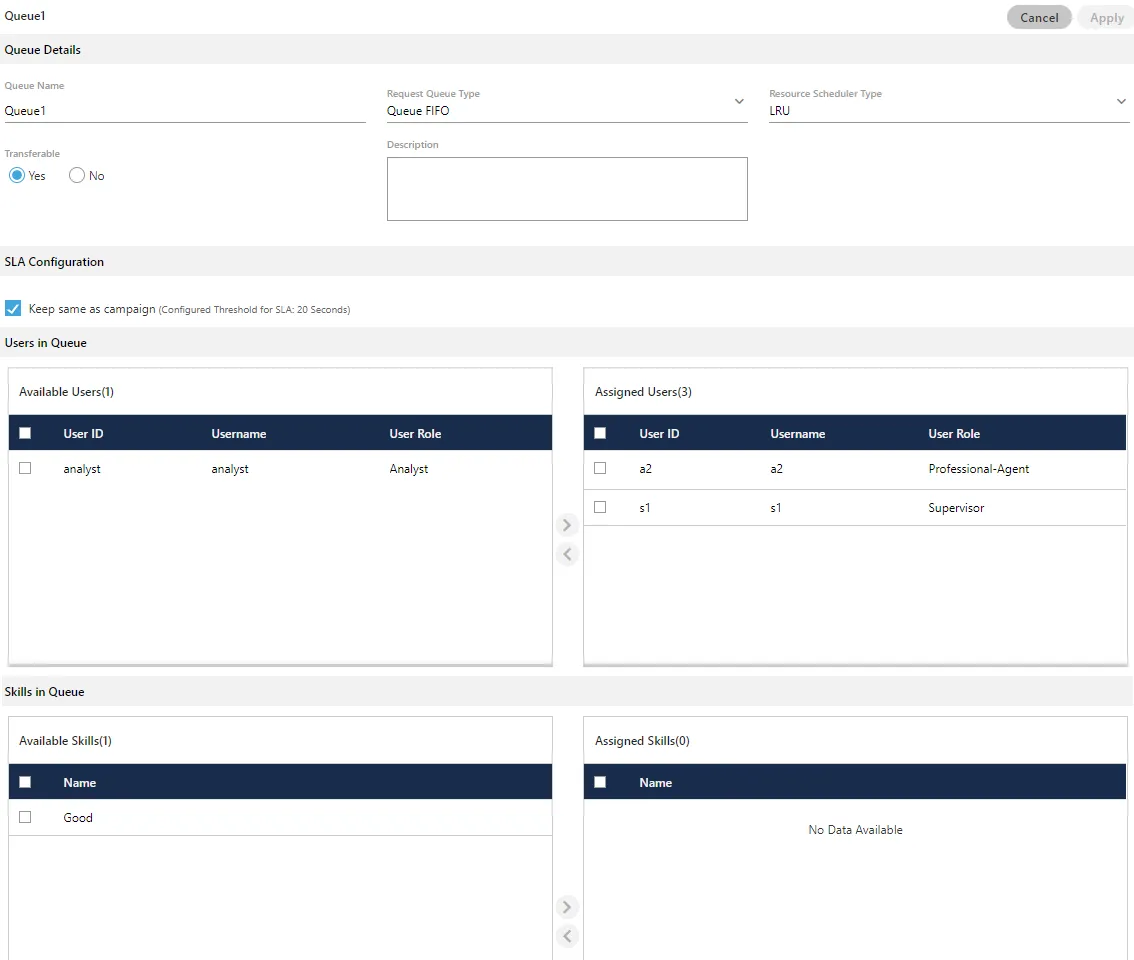
- Click "Apply" to create the queue. Rather, you can click "Cancel" to discard the changes.
You can create multiple queues using these steps.
Edit Queue
Click "Edit" icon present in the list of the queues. The same page opens which opens at the time of the queue creation. You can change all the information entered at the time of the queue creation.
Delete Queue
You can delete the queue. Select the queue, which you want to delete and then, click "Delete" button present at the right top corner of the page. A confirmation pop-up comes up.

Click "Delete" button to confirm the deletion of the queue, else click "Cancel".