Regex Custom Fields in Process Settings
In Ameyo omni contact center, custom fields in a ticket allow you to store additional information specific to your business requirements. These fields can be used to reference data or trigger actions in other systems through HTTP Actions. However, for such references or actions to work reliably, the captured data must be valid.
For instance, a business may store order details in a CRM application where each order is identified using a predefined format such as ABC123456 or ABC123457. During a customer interaction, an agent can record the order ID in a custom field that is passed to another system. Before doing so, the business needs a mechanism to validate the entered order ID.
To address this requirement, the Ameyo Application Server now includes a new Custom Field Type called "Regex". This option allows administrators to create a custom field with validation logic based on regular expressions. It ensures only valid string values are accepted according to the defined pattern.
Go to "Process" Tab → Settings of a Process → "Custom Field" to create and manage the custom fields.
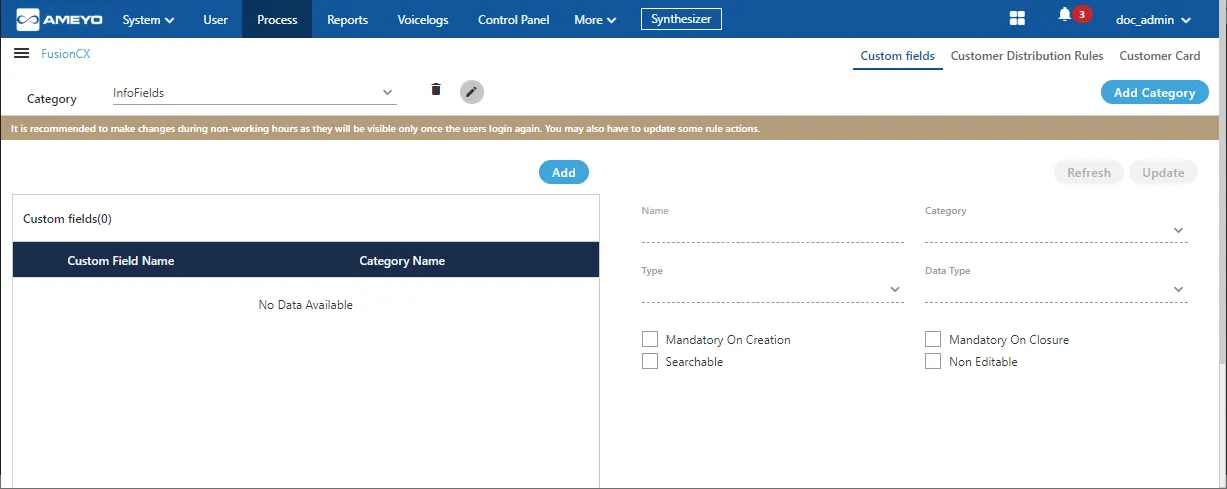
The changes made in the Custom Fields will be visible to the agents only when they log out and re-login. Therefore, it is recommended to make these changes in the non-working hour so that the agent will notice these changes when they login to their working hours. On the top, the following message is displayed.
It is recommended to make changes during non-working hours as they will be visible only once the users login again. You may also have to update some rule actions.
Perform the following steps to create a Regex type Custom Field in an already existing Custom Field Category.
- Click "Add" button to add a new Custom Field. It shows the following modal.
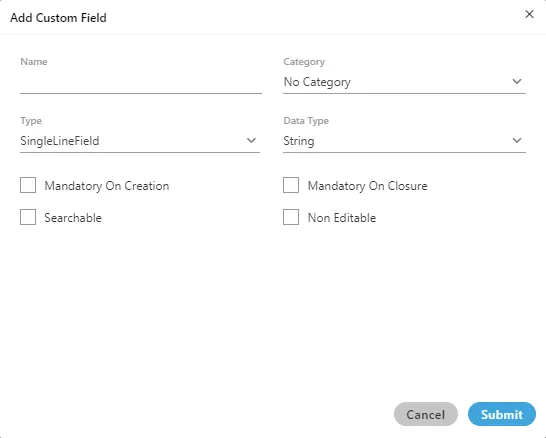
- Provide a name for the new custom field.
- Select the category of the Custom Field.
- Click "Type" drop-down menu to select the custom field type.
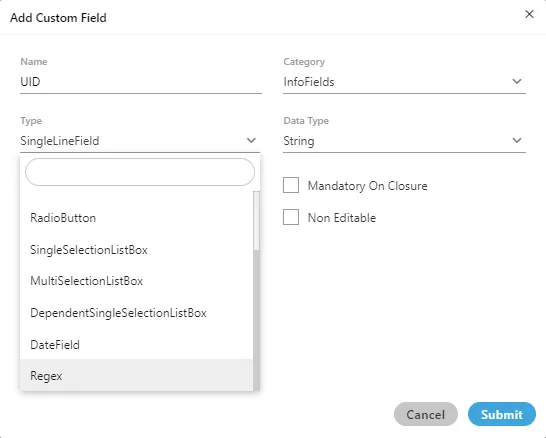
- Select "Regex" as a type of the custom field.
- The default data type of "Regex" is "String".
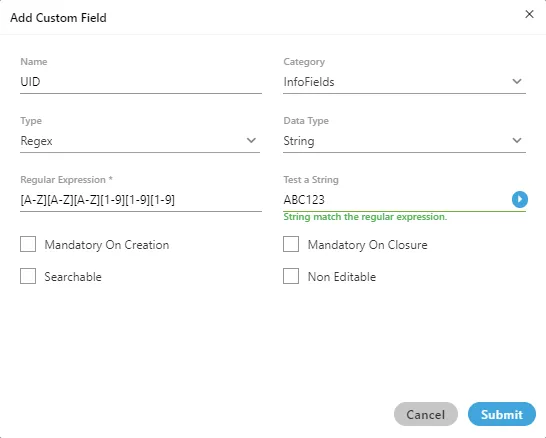
- The next step is to provide the Regular Expression. To create a Regular Expression, the Ameyo User can provide a range of letters or numbers, such as the following examples.
- [a-z]: It denotes a single small-case letter between "a" to "z".
- [A-Z]: It denotes a single capital-case letter between "A" to "Z".
- [1-9]: It denotes a single number between "1" to "9."
- [a-c]: It denotes a single small-case letter between "a" to "c".
- [D-F]: It denotes a single small-case letter between "D" to "F".
Instead of the range, the Ameyo User can provide a constant value such as "ABC", "FII", "2020", or "2021". The following table illustrates some sample Regular Expressions.
Sample Regular Expression | Sample Valid Value 1 | Sample Valid Value 2 |
|---|---|---|
[A-Z][A-Z][A-Z][1-9][1-9][1-9] | ABC123 | XYZ345 |
IFC[a-d][n-p][1-9][1-9][1-9] | IFCan123 | IFCep789 |
- After entering the Regular Expression, the Ameyo User can provide a sample value in "Test a String" text field and click on forward arrow icon to test whether the provided test value is valid or not.
Example 1: The test value in the following case is valid as per the provided Regular Expression.
Example 2: The test value in the following case is invalid as per the provided Regular Expression.
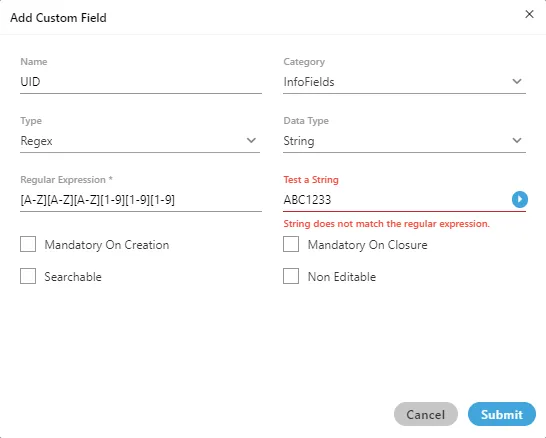
Example 3: The test value in the following case is invalid as per the provided Regular Expression.
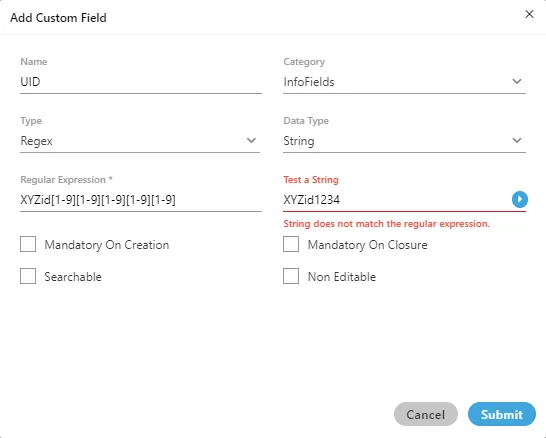
- Select other options as per requirement. Refer to this user manual link for details.
- Click "Submit" to create a Regex type Custom Field.
If the agent tries to enter the wrong Regex, then the agent will receive an inline error for the Regex field if the provided value does not match the defined pattern.
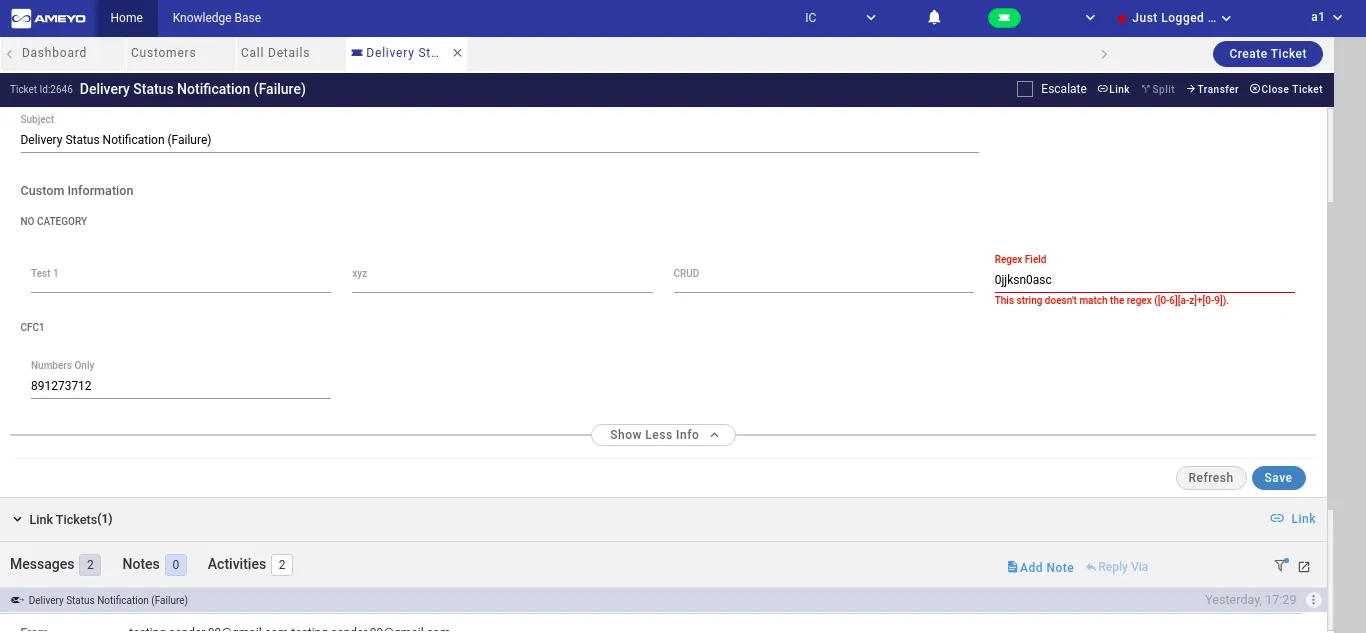
The validation for Regex type Custom Field will be available in App Framework, Rule Engine, and API also.
If a rule is created for a Regex field already, but that Regex Field is modified, then that rule may not work.