OmniDimension Voicebot AgentStream Integration
1. Introduction
This document will help you walk through integrating Exotel phone numbers with OmniDimension (OmniDim) Voicebot, using call flows and importing into OmniDim.
What you’ll achieve: incoming PSTN calls to Exotel → routed via configured call flow → handled by OmniDim VoiceBot.
2. Architecture Overview
Sequence of events with endpoints: 1. Exotel receives the call on your Exophone number 2. Exotel triggers your configured “call flow” (App) 3. Within the flow: Voicebot applet, passthru applet(s), connect/hangup logic 4. Webhook / media endpoints point to OmniDim URLs 5. OmniDim handles the voice session, agent conversation, transfer or hangup
3. Prerequisites & Requirements
- Exotel account with KYC completed: Steps to get started with Exotel
- Required credentials from Exotel: • API Key • API Token • Subdomain • Account SID • Exophone Number • App ID (call flow / App ID)
- Access to OmniDim portal & permission to import numbers URLs / endpoints in OmniDim for media/control.
4.Exotel Flow Setup
4.1 Access App Builder in Exotel
- In your Exotel dashboard, go to the side menu and click on 'App Bazaar'.
- Navigate to App Bazaar in the side menu
4.2 Create New App
- Click on 'Create New App' to start building your call flow.
- Click Create New App button
4.3 Add Voicebot Applet for Call Coming
- On the 'Call Start' block, drag a 'Voicebot' applet from the right sidebar. In the URL field, enter: wss://live.omnidim.io/media_exotel_community and also turn recording ON.
- Drag the Voicebot applet and add the WSS URL
4.4 Add Second Passthru Applet
- On the voicebot applet's next section, drag another 'Passthru' applet. In the URL field, enter: https://live.omnidim.io/should_end_the_call
- Add second passthru applet
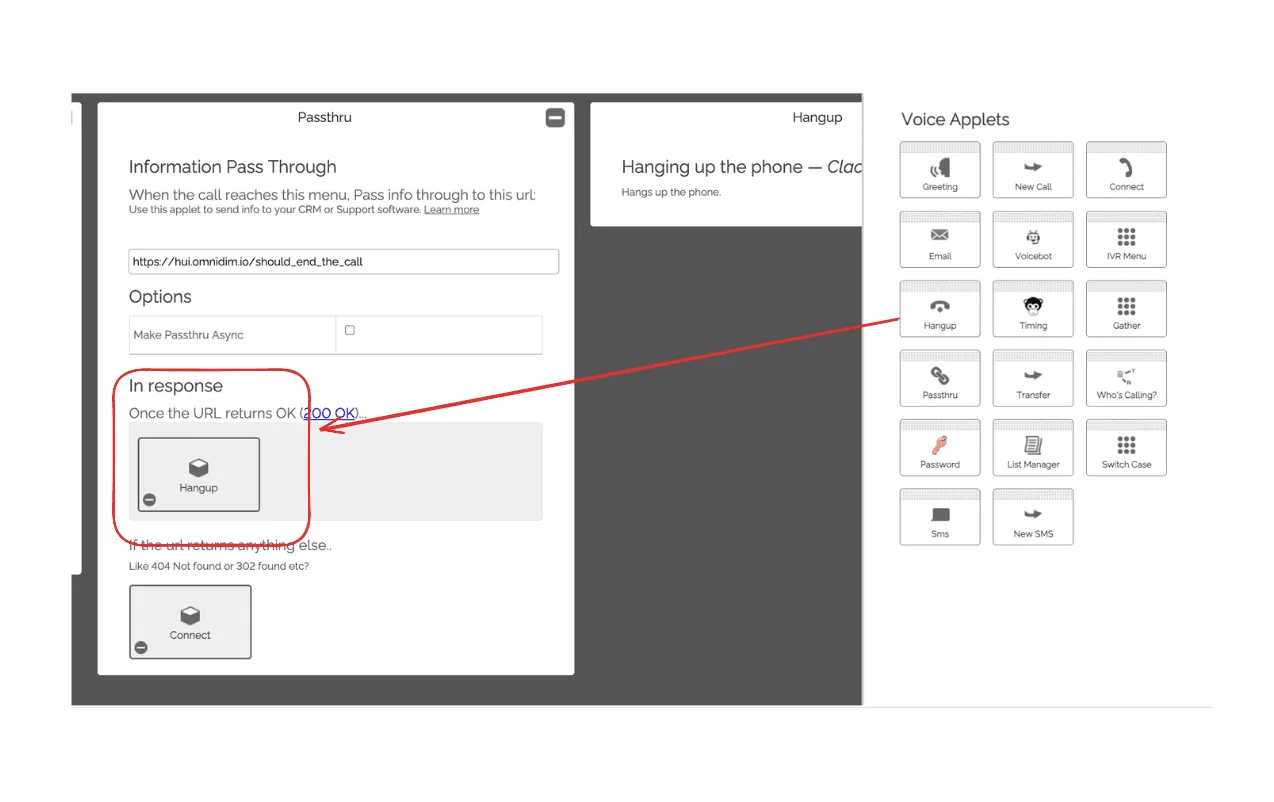
4.5 Add Hangup on 200 Response
- In the 200 response of the second passthru applet, drag a 'Hangup' applet to end the call when needed.
- Add hangup applet on 200 response
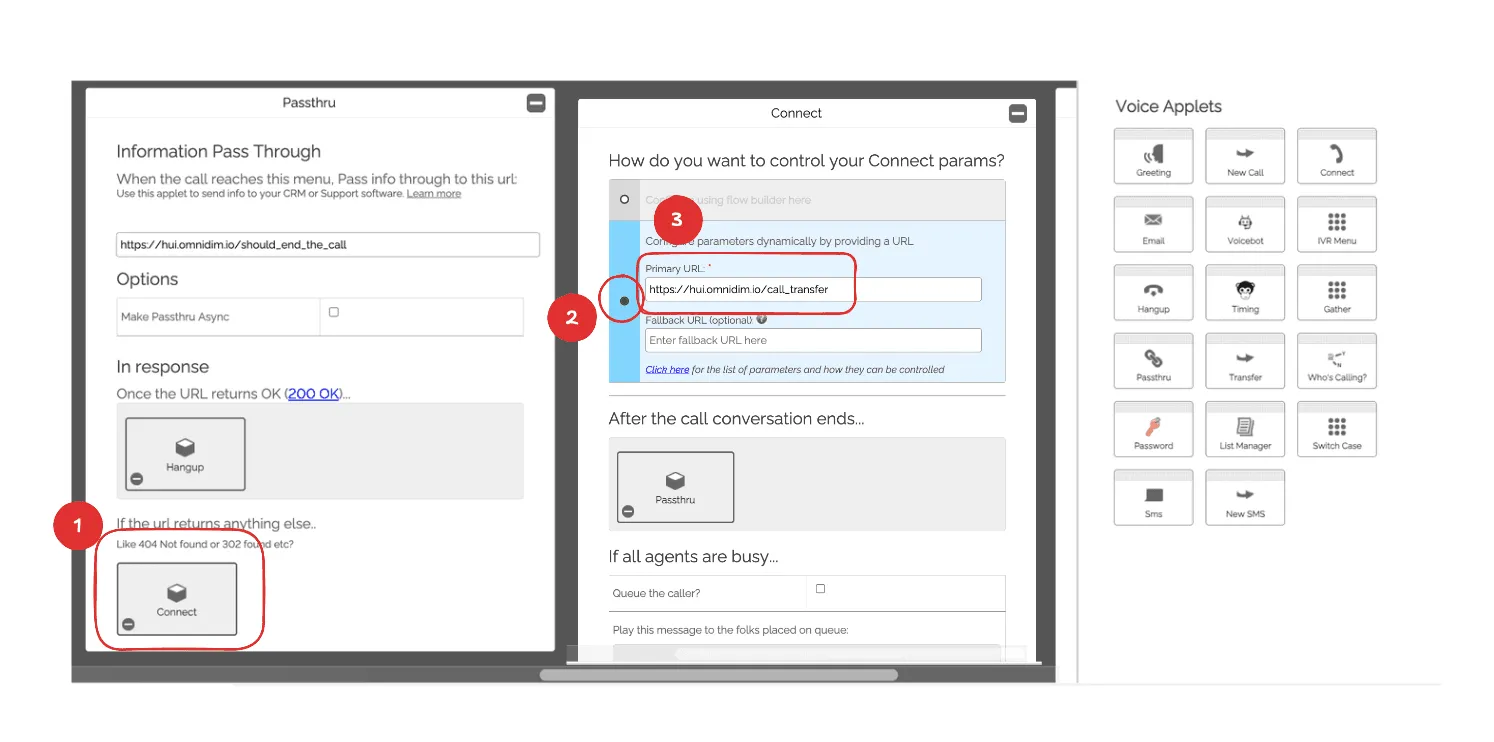
4.6 Add Connect Applet for Non 200 response
- In the 404 or 302 response of the second passthru applet, drag a 'Connect' applet for call transfers.
- Add connect applet on 404 or 302 response
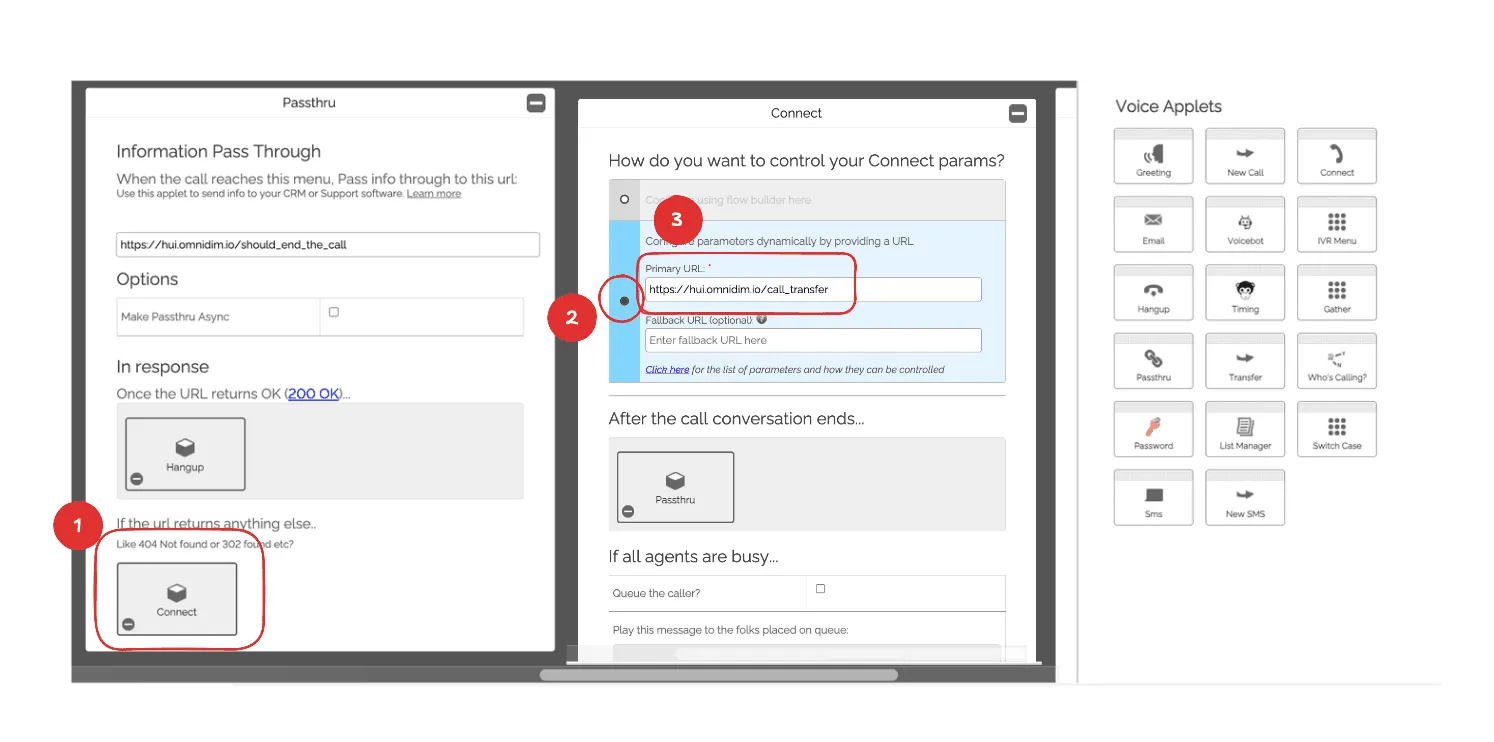
4.7 Configure Connect Applet
- In the connect applet, select 'Primary URL' and enter: https://live.omnidim.io/call_transfer
- Configure the Connect applet with the URL
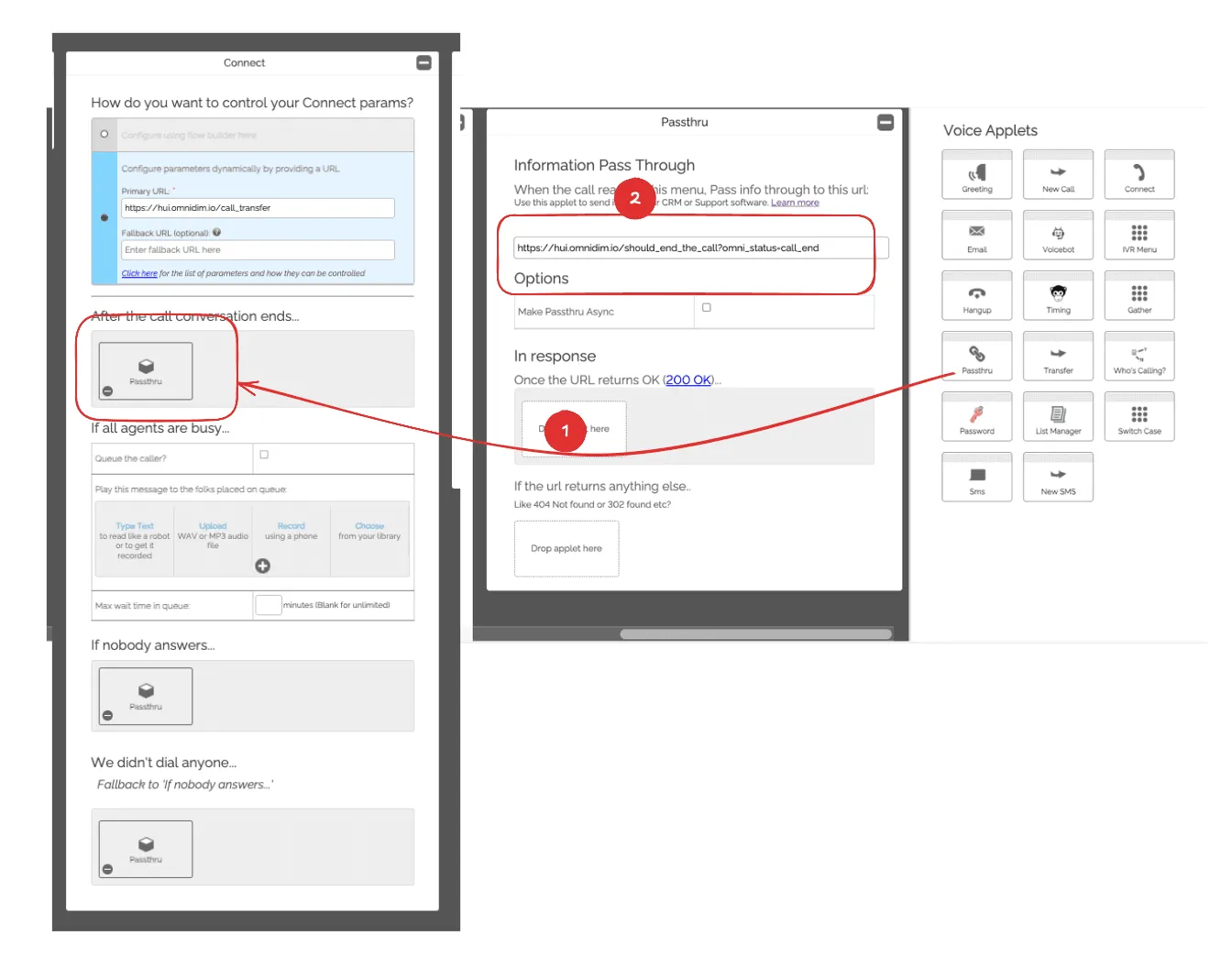
4.8 Add Passthru for Call End
- For the 'After the call conversation ends' option, add a passthru applet with URL: https://live.omnidim.io/should_end_the_call?omni_status=call_end
- Add passthru for call end scenario
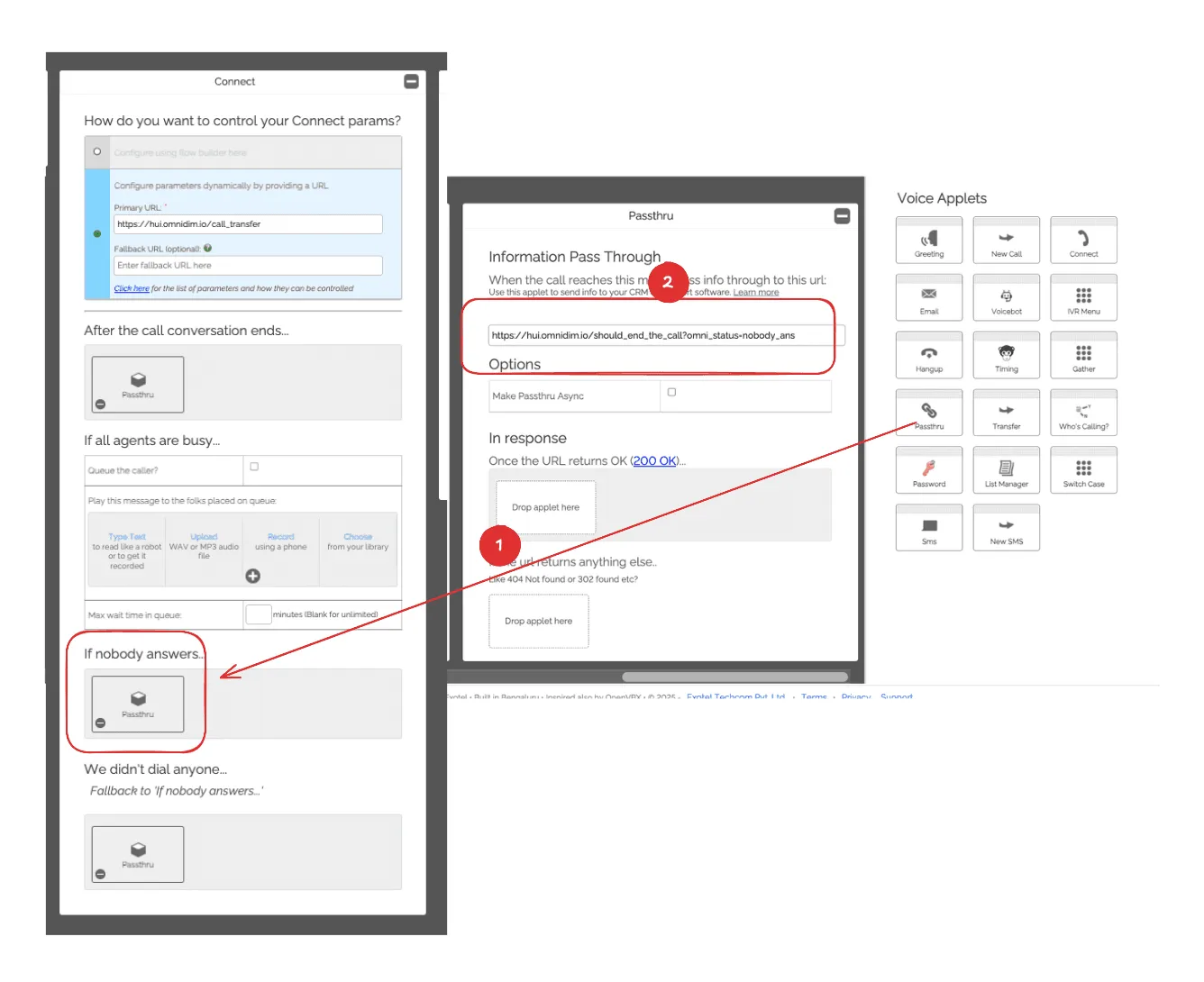
4.9 Add Passthru for No Answer
- For the 'If nobody answers' option, add a passthru applet with URL: https://live.omnidim.io/should_end_the_call?omni_status=nobody_ans
- Add passthru for no answer scenario
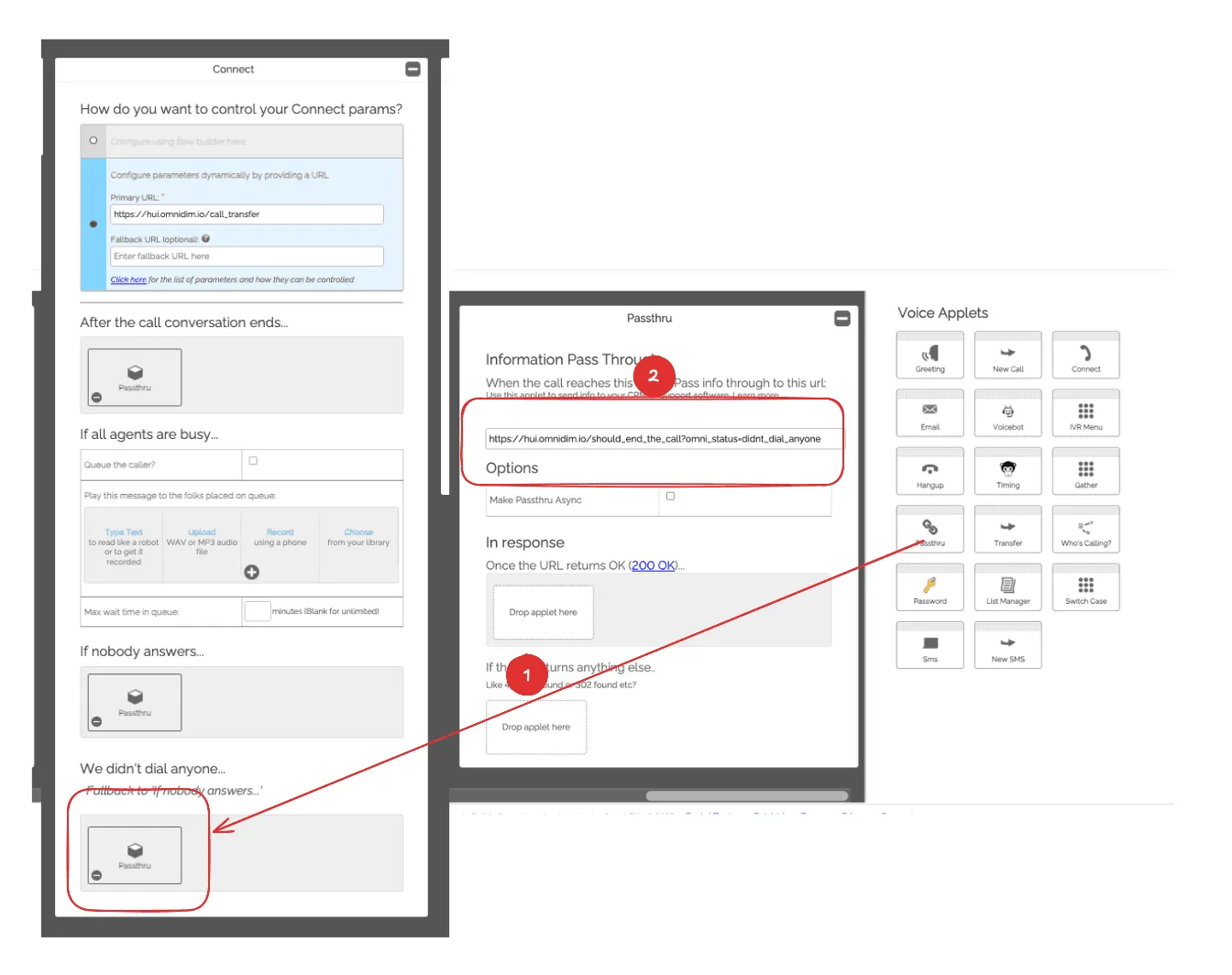
4.10 Add Passthru for No Dial
- For the 'We didn't dial anyone' option, add a passthru applet with URL: https://live.omnidim.io/should_end_the_call?omni_status=didnt_dial_anyone
- Add passthru for no dial scenario
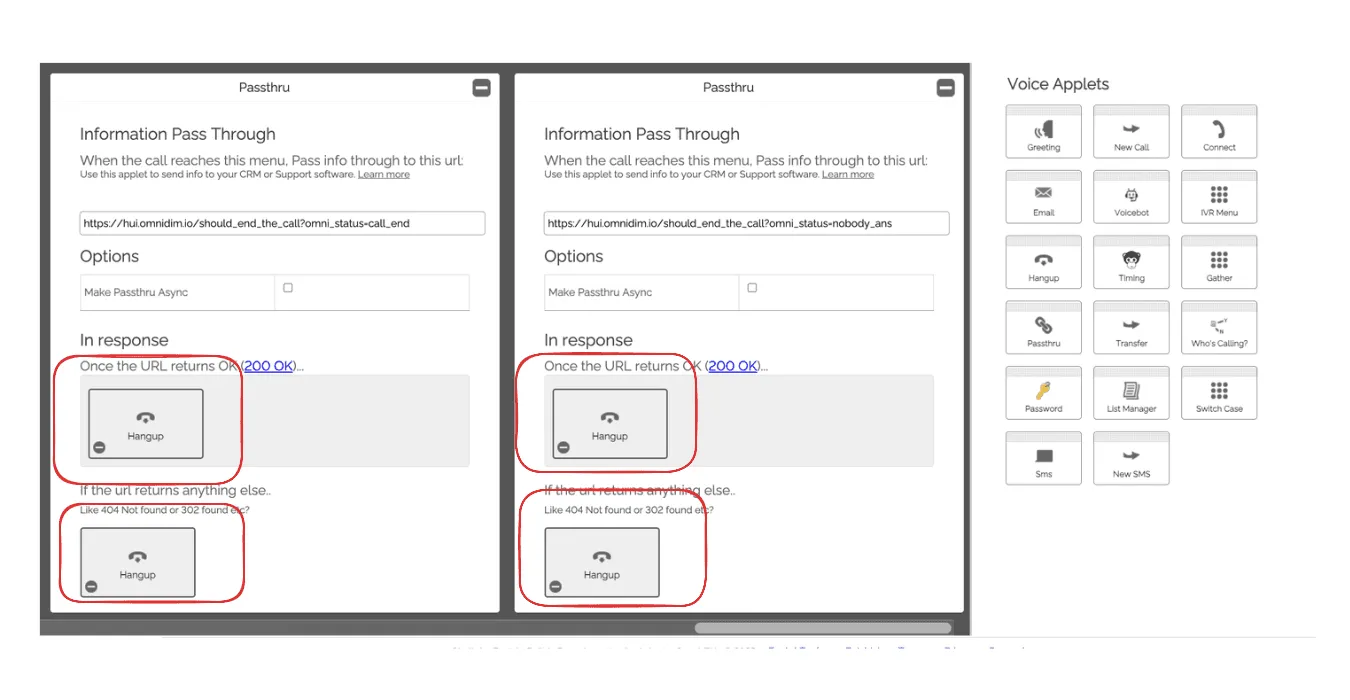
4.11 Add Hangup Applets
- On all the passthru applets you just created, add a 'Hangup' applet in both 200 and 302 responses to ensure calls end properly.
- Add hangup applets to all passthru responses
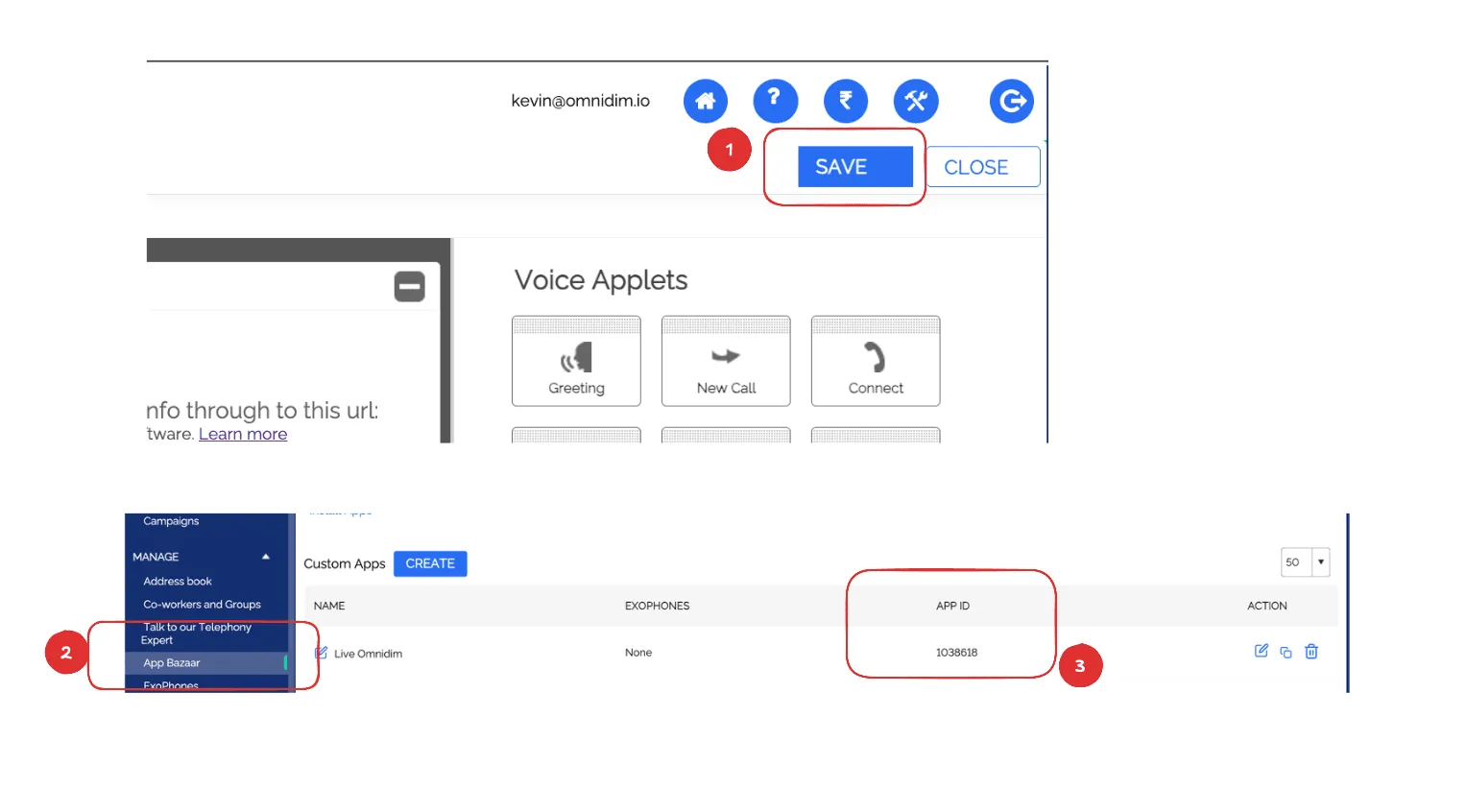
4.12 Save Your Call Flow
- Click 'Save' to save your call flow configuration and close the flow builder. Make sure to note down the App ID (call flow ID) as you'll need it for the import process.
- Save your call flow configuration
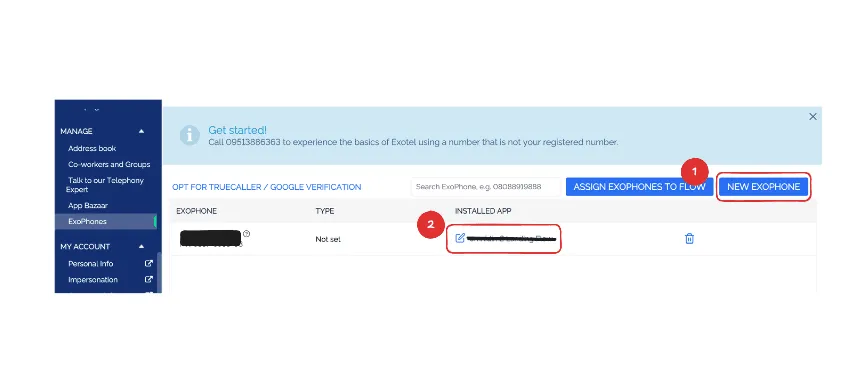
4.13 Attach Call Flow with your Exophone number
- Go to the Exophone section in the Exotel dashboard, buy a number and attach the call flow you just created. Make sure to note down the Phone Number as you'll need it for the import process.
- Attach the call flow to your Exophone number.
5. Importing the Number to OmniDim
- Go to Phone Numbers Section
- Log in to OmniDim dashboard → Phone Numbers Click “Import Exotel Phone Number”
- Opens an import form Fill in All Credentials
- API Key
- API Token
- Subdomain
- Account SID
- Exophone number
- App ID
- Submit Import
- Click Import On success, the phone number will be listed in OmniDim interface
6. Import to OmniDimension
- Now that your call flow is set up in Exotel, follow these steps to import your phone number into OmniDimension:
6.1 Navigate to Phone Numbers
- In your OmniDimension dashboard, go to the 'Phone Numbers' section from the main navigation menu.
- Navigate to Phone Numbers in your dashboard
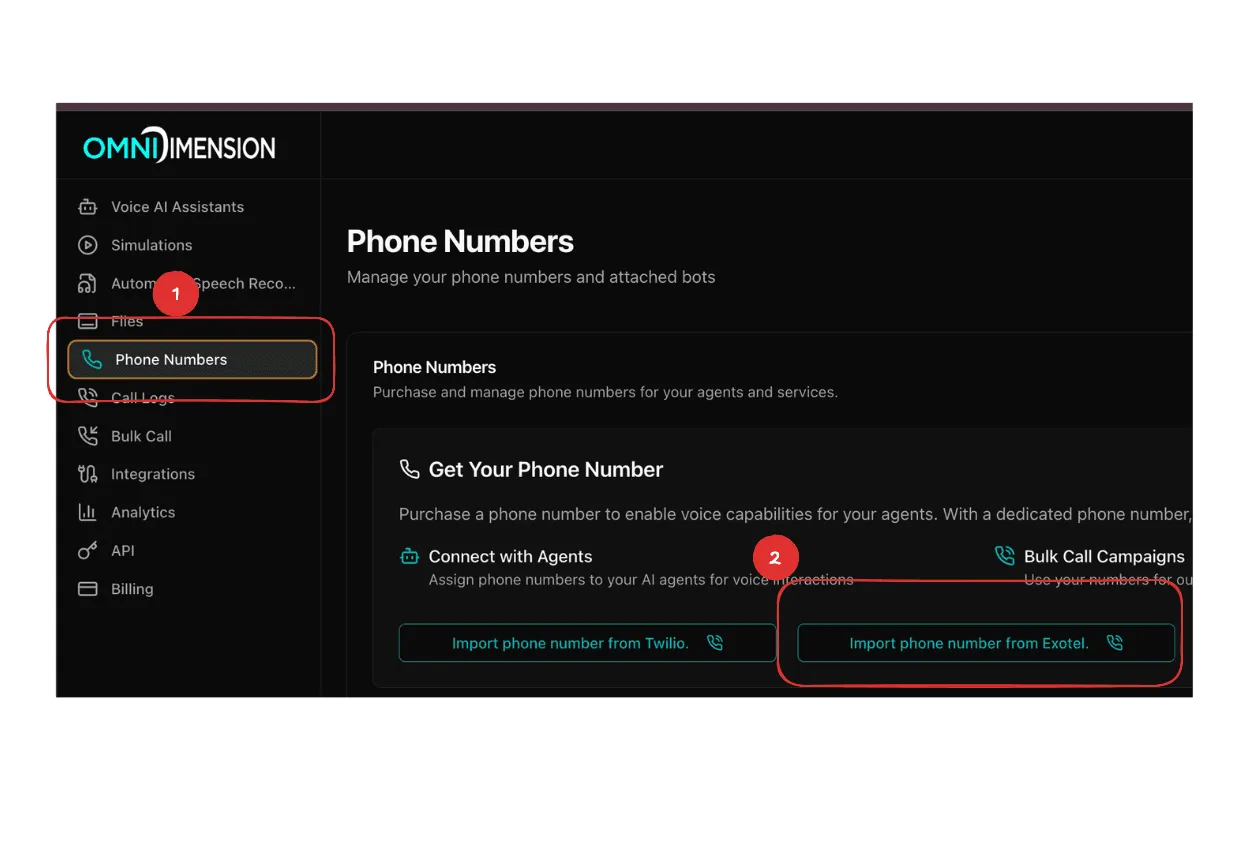
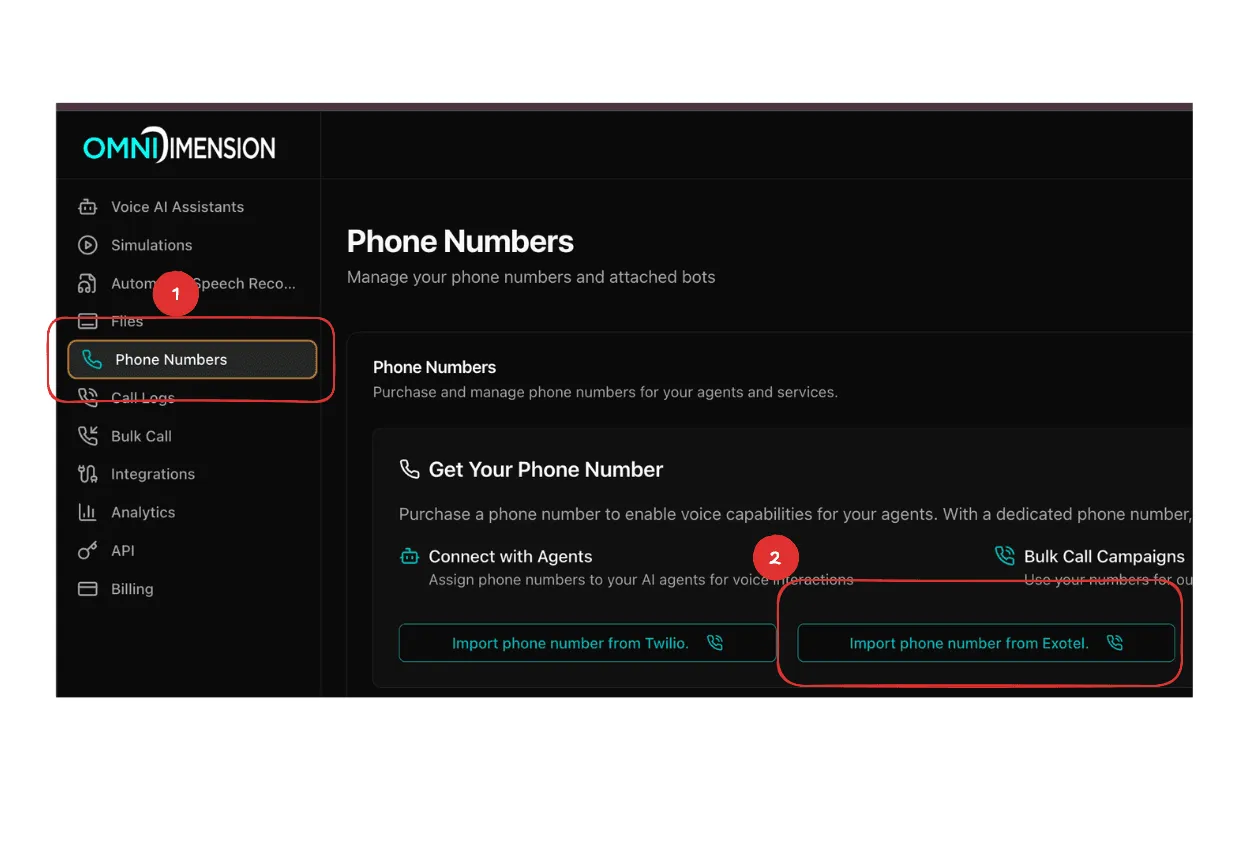
6.2 Click Import Exotel Phone Number
- Look for the 'Import Exotel Phone Number' button and click on it to open the import form.
- Click the Import Exotel Phone Number button
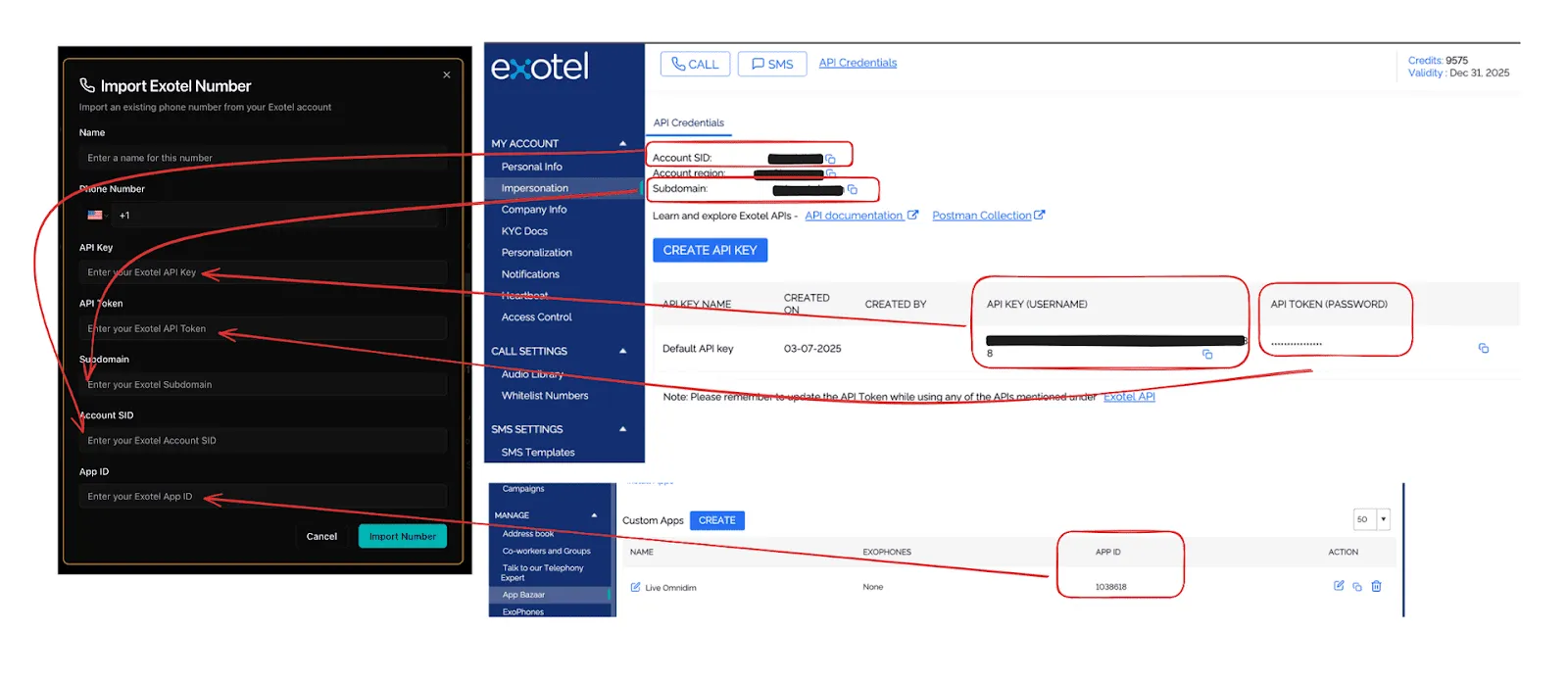
6.3 Fill in the Import Form: Enter all the credentials you collected from your Exotel dashboard in the form fields:
- Exotel API Key
- Exotel API Token
- Exotel Subdomain
- Exotel Account SID
- Exotel Phone Number
- Exotel App ID (your call flow ID)
- Fill in all the required credentials
6.4 Complete the Import
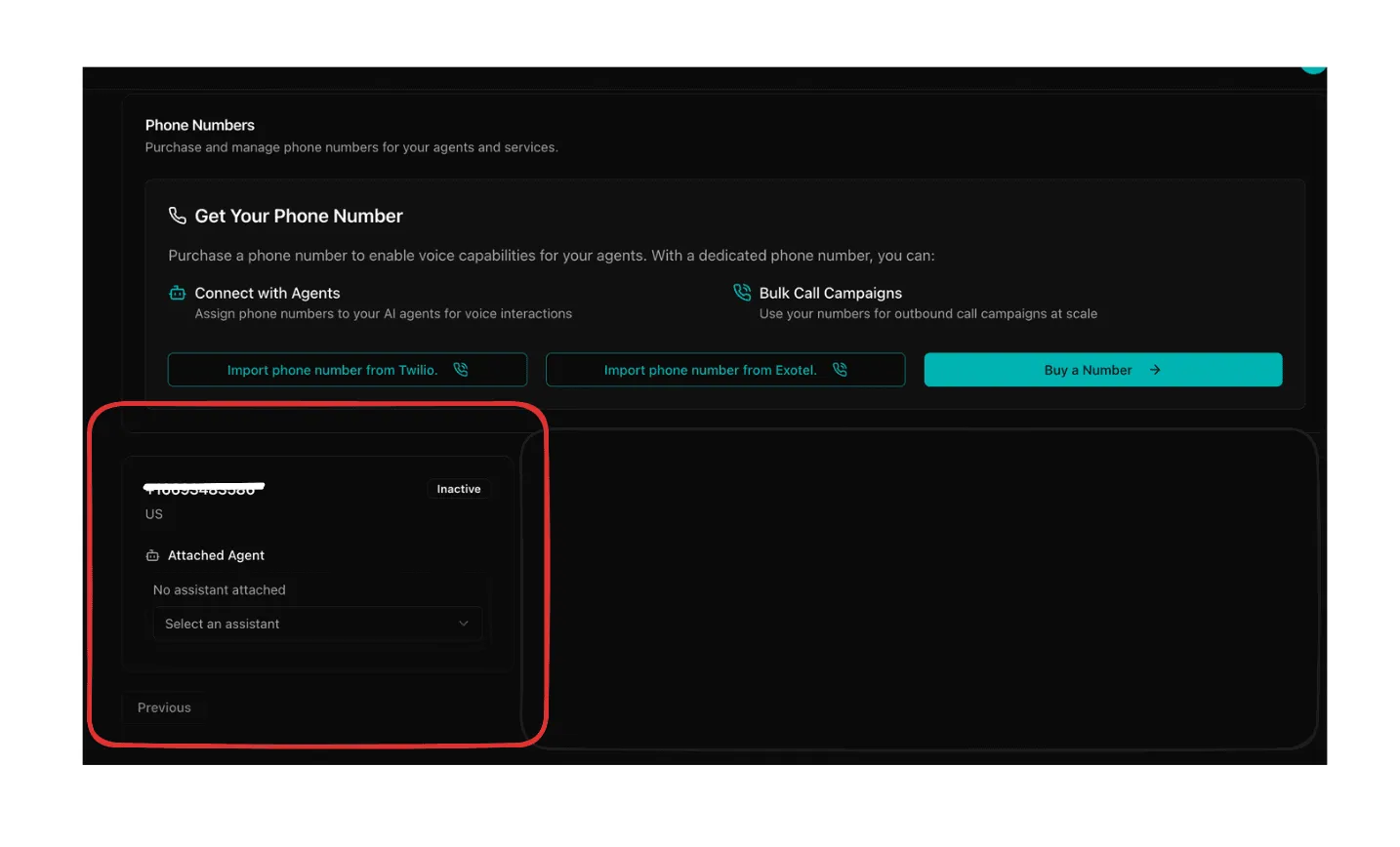
- Click the 'Import' button to complete the process. Your Exotel phone number will now appear in your OmniDimension dashboard and be ready for use with your AI agents.
- Your phone number has now been imported successfully
7. Understanding the Call Flow
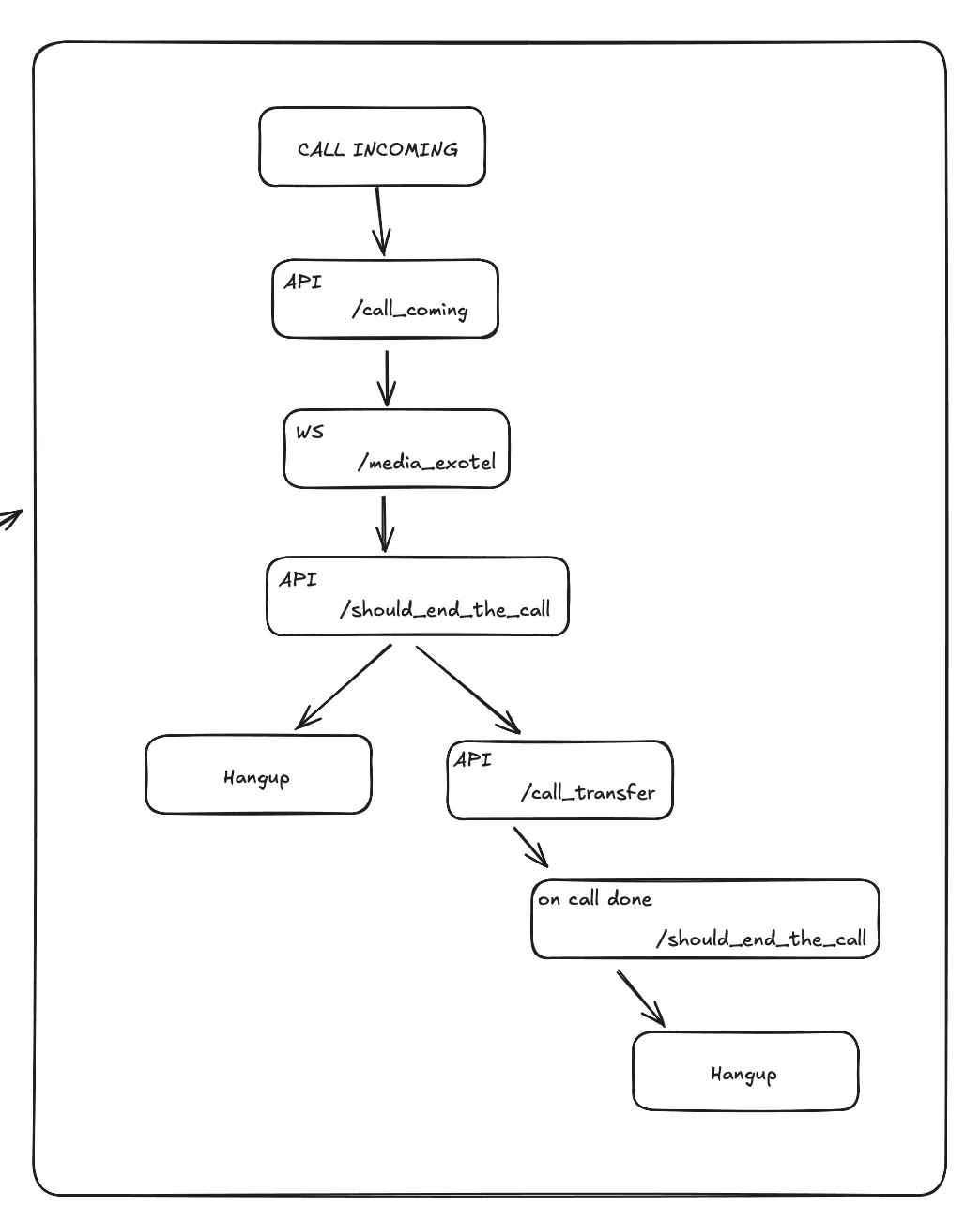
Here's how your call flow works after setup. When someone calls your Exotel number:
- The call first goes to OmniDimension's call_coming endpoint
- OmniDimension then connects to your AI agent through the voicebot
- Your AI agent handles the conversation
- When the call should end, it goes to the should_end_the_call endpoint
- If a transfer is needed, it goes to the call_transfer endpoint
- All calls eventually end with a hangup action
Complete call flow overview
8. What Happens After Import
Once your phone number is successfully imported, you can:
- Use the phone number with any of your AI agents
- Receive incoming calls that are automatically handled by your agents
- Monitor call logs and performance in your dashboard
9. Next Steps
Now that your Exotel phone number is imported, here are some recommended next steps:
- Configure your AI agents to handle calls effectively
- Attach exotel phone number to your agent
- Test your setup by making a test call to your number
10. Troubleshooting Common Issues
If you encounter any issues during the setup process, here are some common solutions:
- Voicebot applet not visible: Make sure you've completed KYC verification. If still not visible, contact Exotel support
- Import fails: Double-check all credentials are correct and your call flow is properly configured
- Calls not connecting: Verify your call flow URLs are correct and your OmniDimension account is active
- Call hangup on connect: Make sure all URLs are entered exactly as shown with no extra spaces
- KYC issues: Contact Exotel support if you're having trouble with the verification process
11. Getting Help
If you need additional help with the Exotel integration:
- Check the Exotel documentation for detailed call flow setup
- Contact Exotel support for issues with your Exotel account or call flows
- Contact OmniDimension support for issues with the import process or AI agents
- Join our community forums to connect with other users
- Handle retries and timeouts gracefully
10. Support & Resources
- OmniDim support/contact: [email protected]
- Exotel Support: [email protected]/808 8919 888