Connect a phone number to your agent
5 min
Overview
This page shows how to link an Exotel phone number (ExoPhone) to your agent, so customers can call it directly.
Two User Paths
- New Users: Start with Part 1: Account Setup (Sign Up & KYC).
- Existing Users: Skip to Part 2: Configuration & Launch.
Part 1: New Users – Account Setup and KYC
If you are new to the Exotel platform, you must first complete account registration and verification.
- Go to and click the 'Sign Up' button to create your account https://my.exotel.com/auth/register or https://my.in.exotel.com/auth/register
- Follow the guided workflow to complete your KYC process. This step is mandatory to activate your phone number and unlock the Voicebot applet.
- Once your account and KYC are verified, log in to the Exotel Platform.
- You can now proceed directly to Part 2: Configuration & Launch to connect your Voicebot.
Part 2: Existing Users – Configuration & Launch
There are two ways to connect your agent to an ExoPhone. The quickest is to let the Voice Agents console create the call flow for you.
Option A: Create the call flow from the console (quickest)
- Open the Voice Agents console: voicebot.in.exotel.com (India) or voicebot.sg.exotel.com (Singapore).
- Go to Agents, open your agent and click Edit agent.
- Go to Configure → Go live and click Create appflow. This creates a call flow in App Bazaar with the Voicebot applet and your agent's address already filled in.
- In your Exotel dashboard (my.in.exotel.com or my.exotel.com), go to ExoPhone, select the number you want to use and assign the new flow to it.
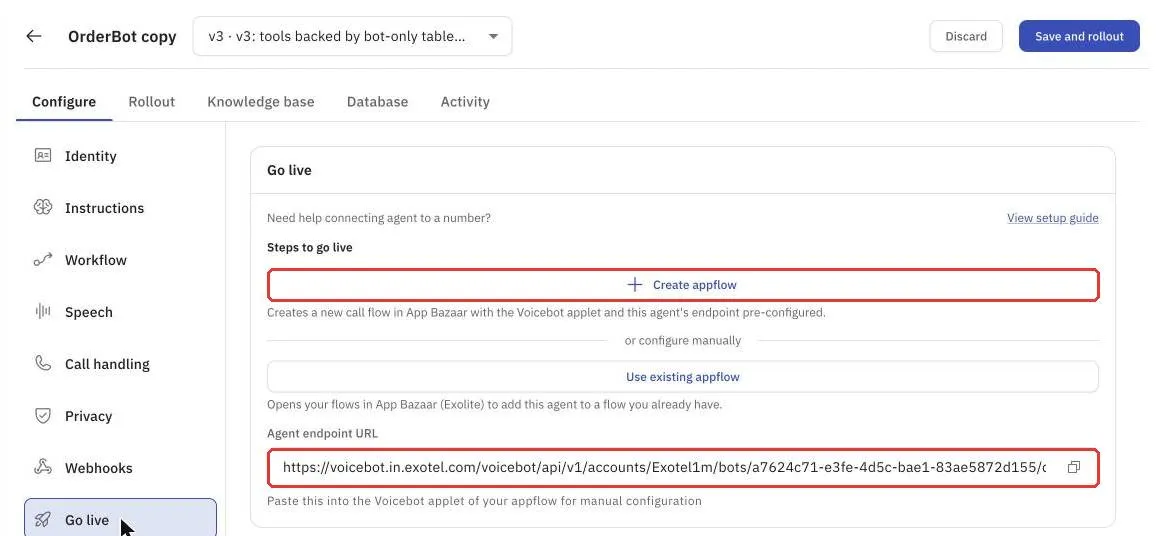
Figure 1 — Go live: Create appflow, or copy the Agent endpoint URL into a flow you already have.
Option B: Add the agent to a call flow yourself
- Log in to your Exotel dashboard (my.in.exotel.com or my.exotel.com).
- From the left menu, click App Bazaar.
- Click Create New App and drag the Voicebot applet onto the call flow. You can also open a flow you already have. (In the console, Use existing appflow opens your flows in App Bazaar.)
- In another browser tab, open the Voice Agents console. Go to Agents, open your agent, then go to Configure → Go live.
- Copy the Agent endpoint URL with the copy icon at the end of the field.
- Back in App Bazaar, click the Voicebot applet, paste the URL into the URL field and click Save.
- Go to ExoPhone, select the number you want to use and assign this flow to it.
Test it
Call the ExoPhone from your phone. Your agent should answer with its greeting. To test the agent without a phone call first, use Test agent on the agent page.
Your Voicebot is now live and ready to take calls on the assigned phone number!