Save changes safely and roll out a new version
Every change you make to an agent is saved as a new version. Live calls keep running on the version they are on until you decide to move them. You can send a small share of calls to a new version first, check how it does, and then move all calls to it.
Before you start
- Where it lives: Agents → open an agent → Rollout tab.
- Who sees what: callers only reach versions that have a share of traffic. A version at 0% is paused and keeps its settings.
- Limits: an agent can keep up to 100 versions that are not archived. Archive old versions to make room.
- Timing: traffic changes go live within a minute of saving.
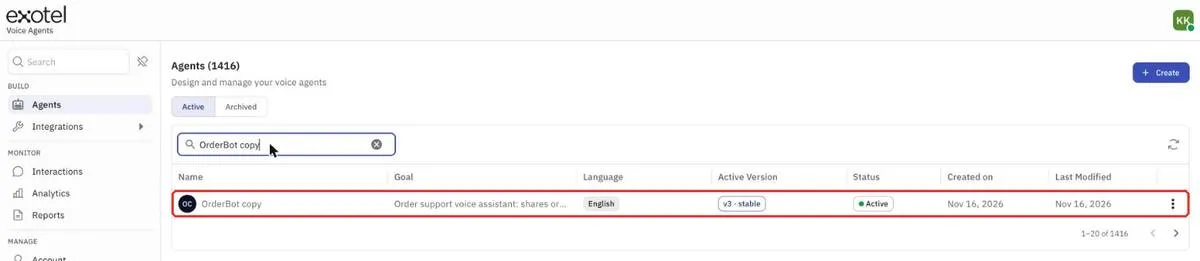
Figure 1 — Open your agent from the Agents list.
See your versions and where calls are going
- Go to Agents and click your agent's name.
- Click the Rollout tab.
- Traffic allocation shows the share of incoming calls each version takes.
- Versions lists every version, newest first. For each one you see:
- Status — Live (taking calls), Stable (your main version) or Paused (0% of calls).
- Traffic — its share of calls.
- Calls and Avg duration — how it is doing. Click Refresh metrics to update them.
- Test threads — conversations saved from the text test console.
- Differs — which settings changed compared with the version before it.
- Traffic change history, at the bottom of the page, shows who changed the split and when.
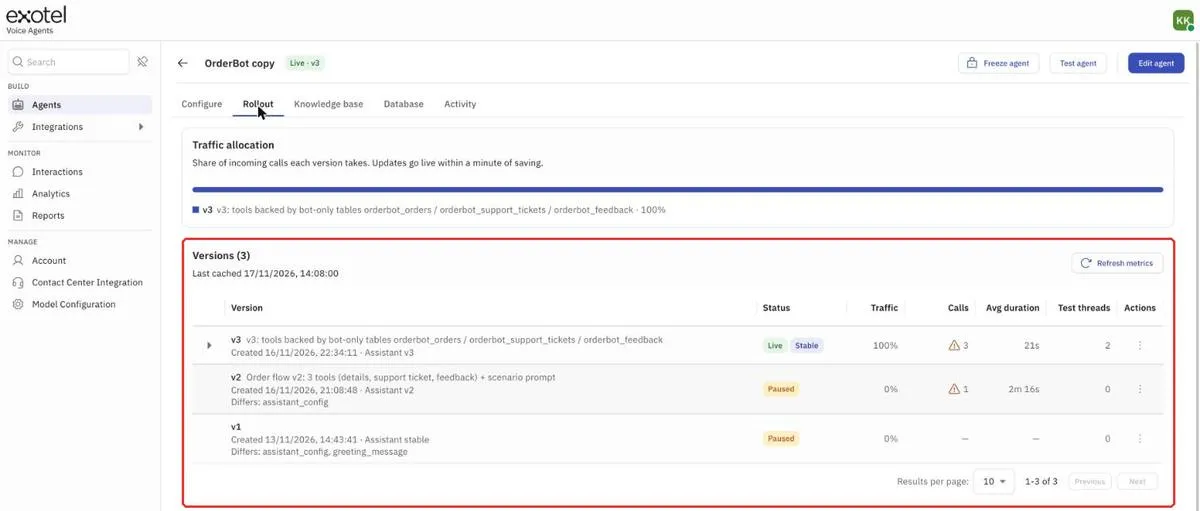
Figure 2 — The Rollout tab shows the traffic split and every version.
Make a change in a new version
- On the agent page, click Edit agent. The page opens in edit mode with Discard and Save and rollout at the top.
- On the Rollout tab, click New version.
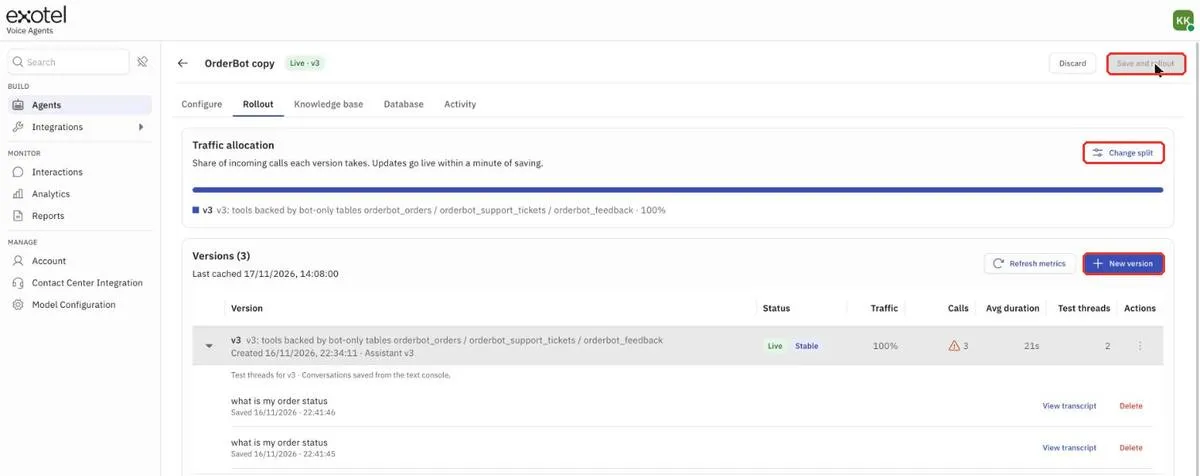
Figure 3 — In edit mode you get Change split, New version, and Save and rollout.
- The Configure tab opens. The version picker at the top shows which version your change starts from.
- Make your changes, for example in Instructions or Speech.
- Click Save and rollout. A new version is created. The version you started from does not change.
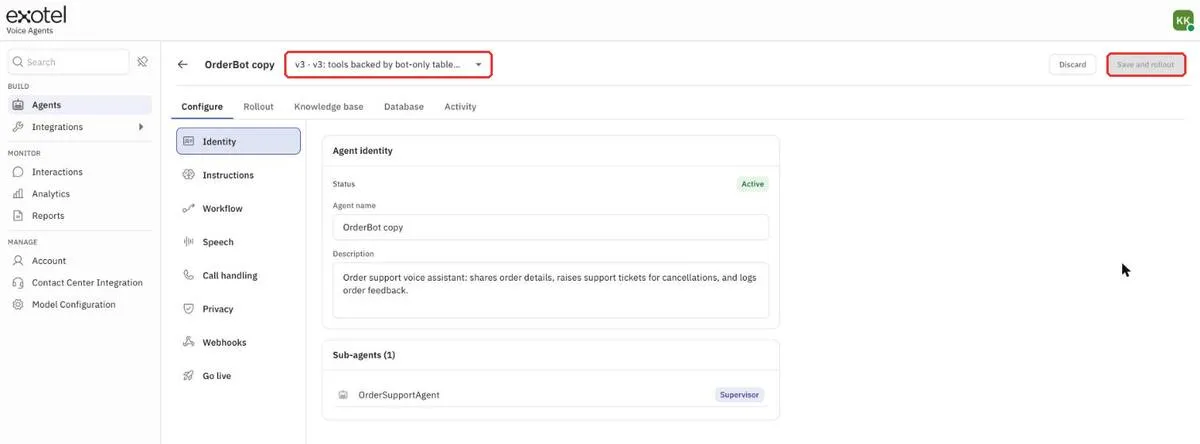
Figure 4 — The version picker shows which version you are building on.
Note: a new version starts paused at 0% of calls. Test it before you give it traffic. See Test your agent by chatting with it.
Send some calls to the new version
Start small. For example, send 10% of calls to the new version and keep 90% on the current one.
- Click Edit agent, then open the Rollout tab.
- Next to Traffic allocation, click Change split.
- Set the share for each version, either with the slider or by typing a number in the % box.
- Check that Total shows 100%.
- Click Save and apply. Calls start following the new split within a minute.
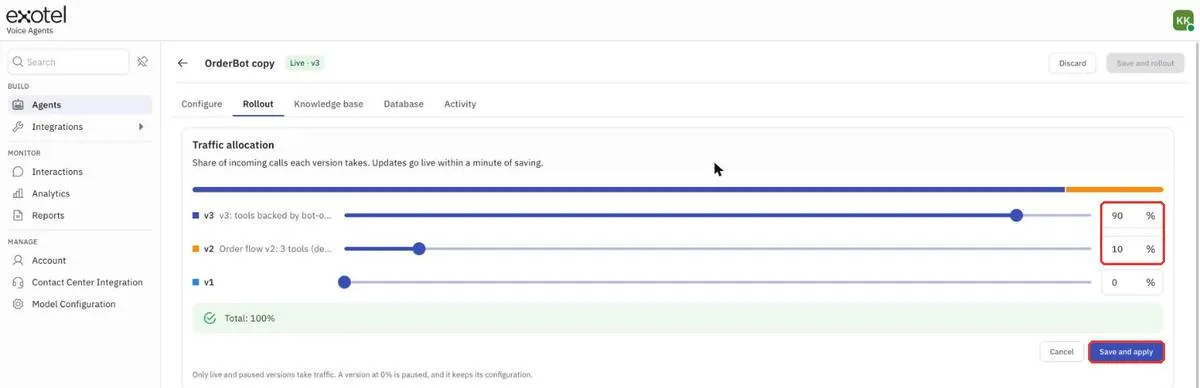
Figure 5 — Sending 10% of calls to v2 and 90% to v3.
To undo, open Change split again and put the old version back to 100%.
Make a version your main version
When the new version is working well, make it Stable.
- Click Edit agent and open the Rollout tab.
- Click ⋮ on the version's row.
- Choose Set as stable.
The same menu also has:
- Test agent — chat with or call this version.
- Edit description — give the version a name you'll recognise later, such as "New refund policy".
- Archive — hide a version you no longer need. Archived versions don't count toward the 100-version limit.
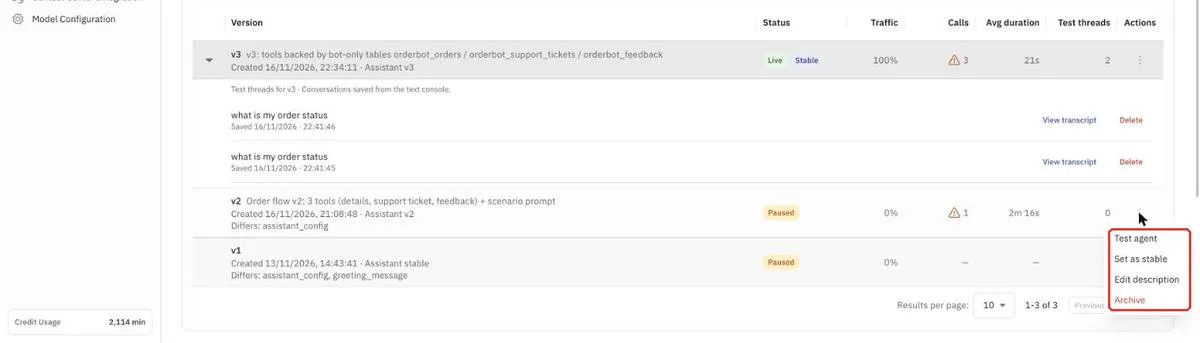
Figure 6 — Version actions in edit mode.
FAQ
Does saving change my live calls? No. Saving creates a new version. Calls only move when you change the split or set a version as stable.
Can I go back to an older version? Yes. Older versions are kept as they were. Give the older version 100% in Change split, or set it as stable.
Why can't I create a new version? The agent may have reached 100 versions. Archive a version you no longer use and try again.
What does "Differs: assistant_config, greeting_message" mean? It lists which parts of the agent changed in that version, compared with the one before it.