Help your agent hear callers clearly
Callers ring from busy streets, shops and speakerphones. Some pause mid-sentence or read out long numbers. Two settings help your agent hear them properly: the Denoiser cleans background noise, and VAD decides when a caller has started and finished speaking. You can pick a ready-made preset for your callers instead of tuning numbers yourself.
Before you start
- Where it lives: Agents → open an agent → Edit agent → Configure → Speech.
- Changes are versioned: saving creates a new version. Test it before you send calls to it. See Save changes safely and roll out a new version.
- Use the right tool: for background noise, use the Denoiser. For callers who pause or get cut off, use VAD.
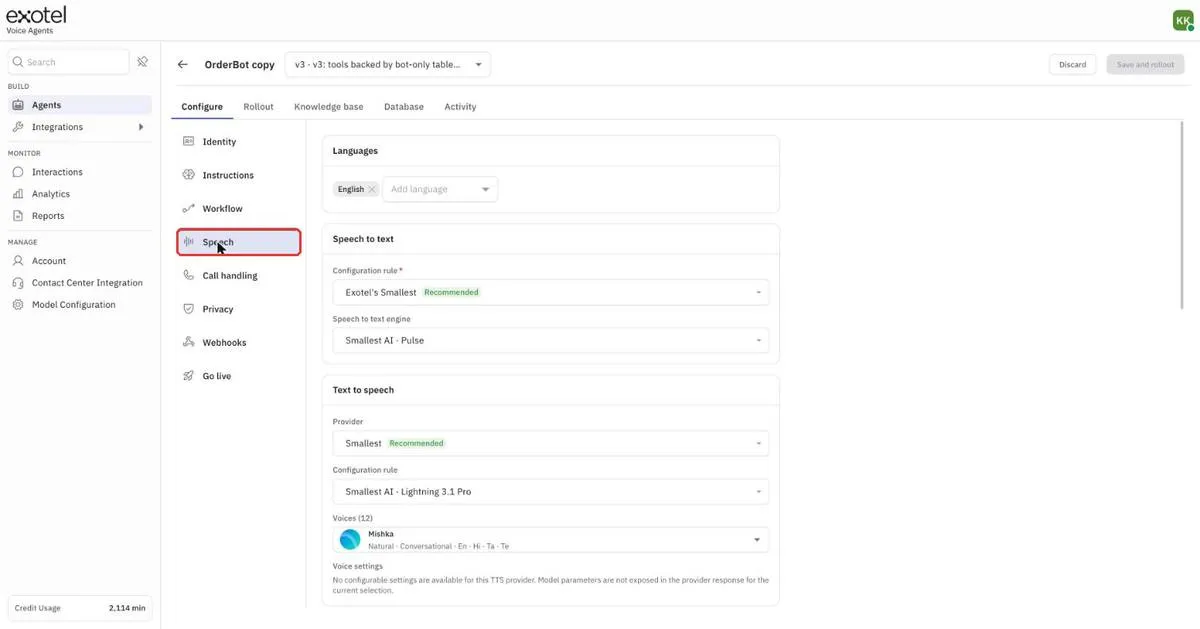
Figure 1 — Open Speech in the Configure tab.
Clean up background noise with the Denoiser
- Open your agent and click Edit agent.
- In Configure, click Speech and scroll to Denoiser.
- Turn on the Denoiser switch.
- Set the Enhancement level:
- Move it towards More filtering to remove more background noise.
- Move it towards Less filtering to keep more of the original audio.
- Click Save and rollout.
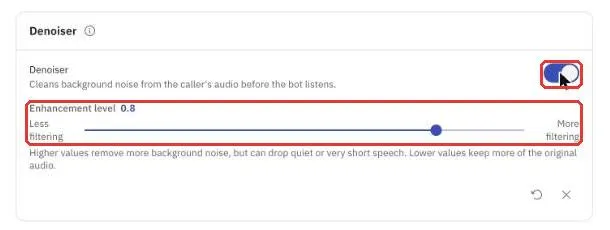
Figure 2 — Turn on the Denoiser and set how strongly it filters.
Note: a very high level can also drop quiet or very short speech, such as "yes" or "no". If callers say the agent ignores short answers, lower the level.
Choose how your agent listens (VAD)
VAD stands for voice activity detection. It decides when the caller has started talking and when they have finished, so the agent knows when to reply.
- In Speech, scroll to VAD configuration.
- Open Preset and pick the one closest to your callers:
- Balanced — a general-purpose profile suitable for most callers.
- Noisy — for callers on the street, in a market, on speakerphone, or with a TV in the background.
- Patient — for callers who pause, read out numbers, or are elderly or rural.
- Snappy — for clean audio with short yes/no or OTP answers.
- The four sliders move to the preset's values.
- Click Save and rollout.
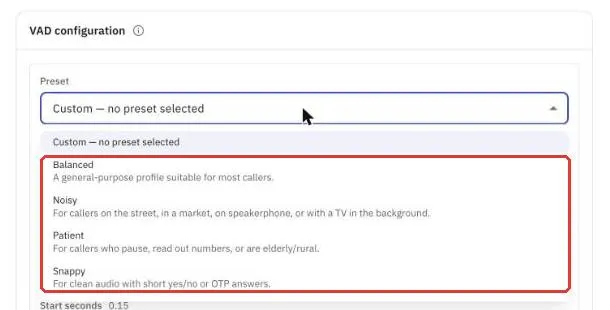
Figure 3 — Pick a preset that matches your callers.
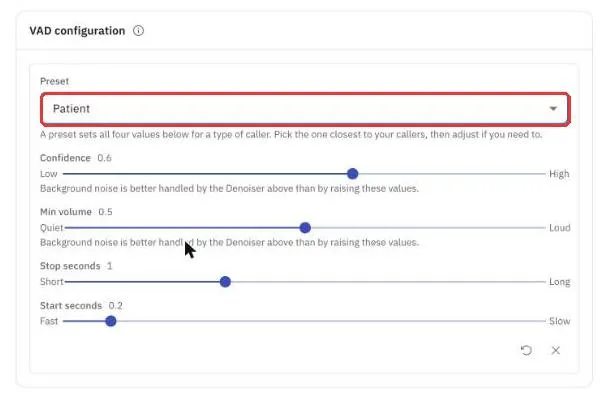
Figure 4 — The Patient preset waits longer before deciding the caller has finished.
What the four sliders do
Slider | What it controls | Move it when |
|---|---|---|
Confidence (Low ↔ High) | How sure the agent must be that it is hearing speech | Raise it if the agent reacts to noise. Lower it if it misses soft speakers. |
Min volume (Quiet ↔ Loud) | How loud a sound must be to count as speech | Lower it for quiet callers. |
Stop seconds (Short ↔ Long) | How long a pause means the caller has finished | Raise it if callers get cut off mid-sentence or while reading a number. Lower it for faster replies. |
Start seconds (Fast ↔ Slow) | How long someone must talk before it counts as speech | Raise it if coughs or clicks interrupt the agent. |
Tip: don't raise Confidence or Min volume to fight background noise. Use the Denoiser for that.
Fine-tune a preset
- Pick the closest preset.
- Move one slider. The preset name changes to Custom (based on preset).
- Click Show what changed to see each value you changed, from the preset value to your new value.
- To go back, click the reset icon at the bottom of the panel.
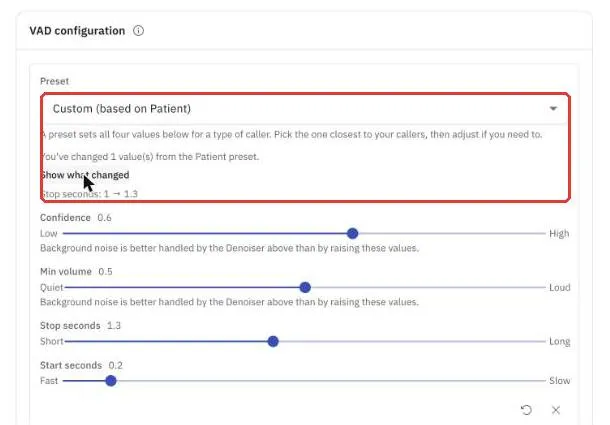
Figure 5 — Stop seconds raised from 1 to 1.3, based on the Patient preset.
Test it
- Click Save and rollout to create the new version.
- Call the new version: on the Rollout tab, click ⋮ → Test agent → Call. Speak the way your callers do: pause, read out a long number, or call from somewhere noisy.
- When you're happy, send a small share of calls to it with Change split, check Calls and Avg duration, then increase it.
FAQ
Which preset should I start with? Start with Balanced. Switch to Patient if callers get cut off while reading numbers, Noisy if they call from loud places, or Snappy for short answers on clean lines.
My agent interrupts callers. What should I change? Raise Stop seconds a little, or pick the Patient preset.
My agent is slow to reply. What should I change? Lower Stop seconds a little, or try the Snappy preset if your callers give short answers.
Does the text test chat check these settings? No. The text test has no audio. Test these settings with a call.