Test your agent by chatting with it
You can test your agent by typing to it instead of calling it. It is the fastest way to check what the agent says, which agent answers, and which tools it uses. You can save a good conversation against the version you tested, so your team can read it later.
Before you start
- Where it lives: the Test agent button on the agent page, or ⋮ → Test agent on a version in the Rollout tab.
- What it tests: what the agent says, the agent that handles each reply, and the tools it calls.
- What it doesn't test: speech. There is no phone call, so voice, speech recognition and turn-taking are not tested. Use Call for that.
- Tools are real: every tool call goes to the real system. If a tool creates a ticket or updates a record, it really does.
Start a test chat
- Open your agent.
- Click Test agent at the top right. To test a version that isn't live, open the Rollout tab, click ⋮ on that version, and choose Test agent.
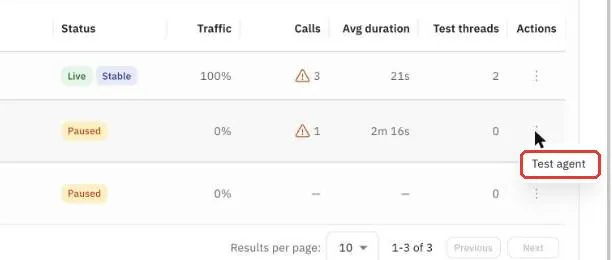
Figure 1 — Test any version from its ⋮ menu on the Rollout tab.
- Choose Text. (Choose Call if you want to talk to the agent and hear its voice.)
- Click Start chat.
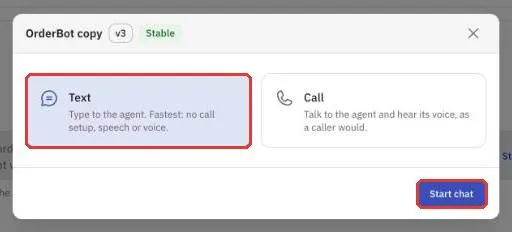
Figure 2 — Choose Text, then Start chat. The window shows which version you are testing.
Chat with your agent
- The agent starts with its greeting.
- Type what a caller would say in the box at the bottom, then click Send.
- Read each reply. Under each one you see:
- Agent — which agent answered.
- Tool calls (live) — any tool the agent used, and the values it sent.
- Keep going for as many turns as you need. Click the arrow on a reply to hide or show its details.
- To start again from the greeting, click Reset conversation.
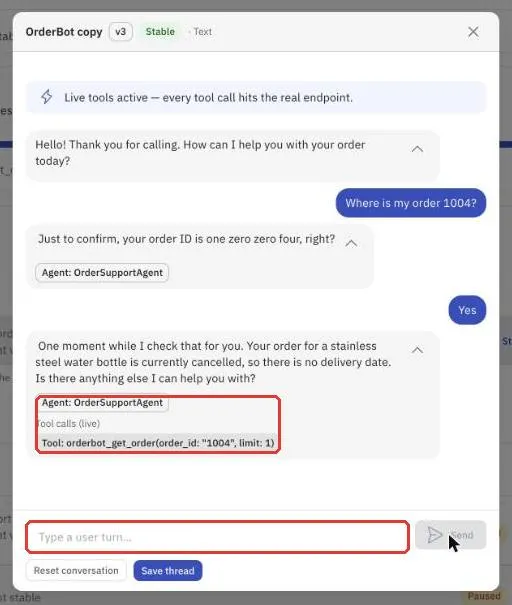
Figure 3 — The reply shows the agent that answered and the tool it called with the order ID.
Tip: test the same questions on the old and new version. This shows exactly what your change did.
Save a conversation
If the conversation is worth keeping, for example a good example of a refund or a case you fixed, save it.
- Click Save thread.
- The conversation is saved against the version you tested.
If you close the window without saving, you'll be asked to confirm. Click Leave to discard the conversation or Cancel to go back.
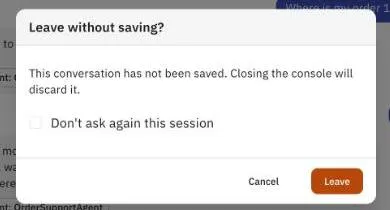
Figure 4 — You are warned before an unsaved conversation is discarded.
Read saved conversations
- Open the Rollout tab.
- The Test threads column shows how many conversations are saved for each version.
- Click the arrow at the start of a version's row to list its saved conversations, newest first.
- Click View transcript to read one.

Figure 5 — Saved conversations appear under their version.
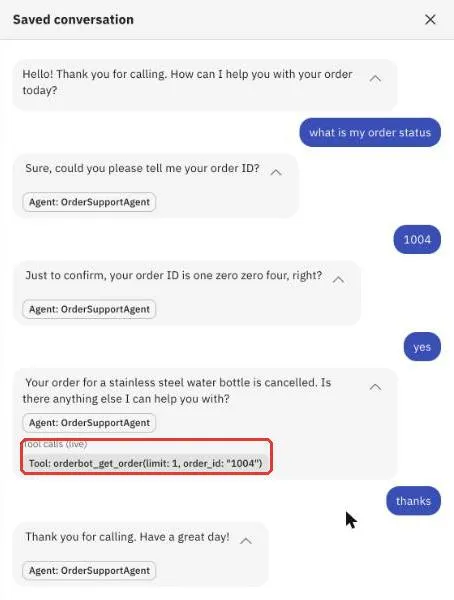
Figure 6 — A saved conversation keeps every reply, the agent that answered and the tools it called.
To delete a saved conversation, click Edit agent first. A Delete link then appears next to each one.
FAQ
Why did my test create a real ticket? Tools in the test chat call your real systems. Test with dummy data, or use test records your team has set up.
Can I test a version before it takes any calls? Yes. Open ⋮ on a paused version and choose Test agent.