Queue Management
Overview
Queue Management is a core feature that allows administrators and supervisors to create, configure, and oversee groups of agents called Queues within a campaign. The primary purpose of a queue is to serve as a staging and routing mechanism, ensuring incoming communications (calls, chats, or tickets) are distributed efficiently to the most appropriate and available agents.
Key Benefits
- Targeted Routing: Ensures customer interactions are directed to the correct group of agents based on purpose (e.g., Sales vs. Support) and agent capabilities (Skills).
- Customizable Distribution Logic: Allows defining how agents within the queue receive work, using algorithms like LRU or priority-based methods to optimize agent utilization.
- Priority Enforcement: Enables setting both queue-level and customer-level priorities, ensuring high-value interactions are addressed first.
- Transfer Control: Permits or restricts the transfer of communications to and from the queue.
Functionality
Queue functionality is defined by several core parameters that control how work enters, is prioritized, and is assigned within the queue.
Core Queue Details
- Queue Name: A unique name must be provided during creation to identify the queue within the campaign.
- Queue Priority: A numerical value must be selected for the queue. This value is used for Priority-type queues, where calls in a queue with higher priority are connected first, even if the customer arrived later than a customer in a lower-priority queue.
- Transferable: This boolean setting controls whether communication (call or chat) can be transferred from this queue to another queue. If enabled, the queue name will appear in the transfer dropdown menu for agents.
Resource Scheduler Type (Agent Selection Logic)
This Licensable feature dictates which specific agent within the queue receives the communication when multiple agents are available.
- LRU (Least Recently Used): As per this algorithm, the communication (chat or call) is routed to the agent who was used very least recently, maximizing fairness in distribution.
- Skill Based: This option connects the communication (chat or call) to the agent who has a higher skill level than others, ensuring expertise is prioritized.
- Multiple Extension (Licensable): Selecting this allows agents assigned to the queue to attend multiple communications (chat or call) simultaneously, up to the defined limits. (One agent can be connected to two customers in the same queue)
- Multimedia Based: Select it only if the agents have to take chat and Inbound calls simultaneously.
Request Queue Type (Customer Selection Logic)
This defines which waiting customer is served first when more than one interaction is queued up.
- Queue FIFO (First In First Out): The customer who was first to reach in the queue would be connected first to the available agent.
- Priority Logic: Customers are served strictly based on their arrival time in the queue, ensuring fairness based on the wait duration.
- Queue Priority: The Nodeflow can be used to decide the priority of the customer.
- Priority Logic: Communications are routed based on their assigned priority number. A customer waiting in a queue or assigned a high priority (e.g., priority 1) will be connected before a customer who has been waiting longer but has a lower priority (e.g., priority 2). This overrides the standard arrival time logic.
Auto Assignment of Interactions (for IC media Tickets)
- Auto assignment to users: This is an explicit toggle switch used to assign IC media Tickets (Interaction Campaign tickets) to agents automatically as they become available.
- The supervisor can toggle the switch to enable this feature for the queue. Toggling it off disables the feature, requiring agents to manually pick tickets.
Prerequisites
- An active Campaign (Chat, Interaction, or Voice) must exist to create a queue within it. Please check below on how to create queues and manage them at different persona levels (Administrator and Supervisor)
- Users must be created and assigned to the campaign before they can be staffed to the queue.
- Appropriate Licenses must be procured for using features like LRU, Multiple Extension, or Skill Based Resource Scheduler Types.
Usage Instructions
At Administrator level (Queue Management in Voice Campaign)
How to Add a Queue (Create)
- Navigate to Campaign Settings
- Go to the Manage tab and select the desired campaign (e.g., Voice Campaign or Chat Campaign). The following configuration is for voice campaign.

- Click the Queues tab.
- Click the "Add Queue" button in the top right corner.
- Configure Queue Details
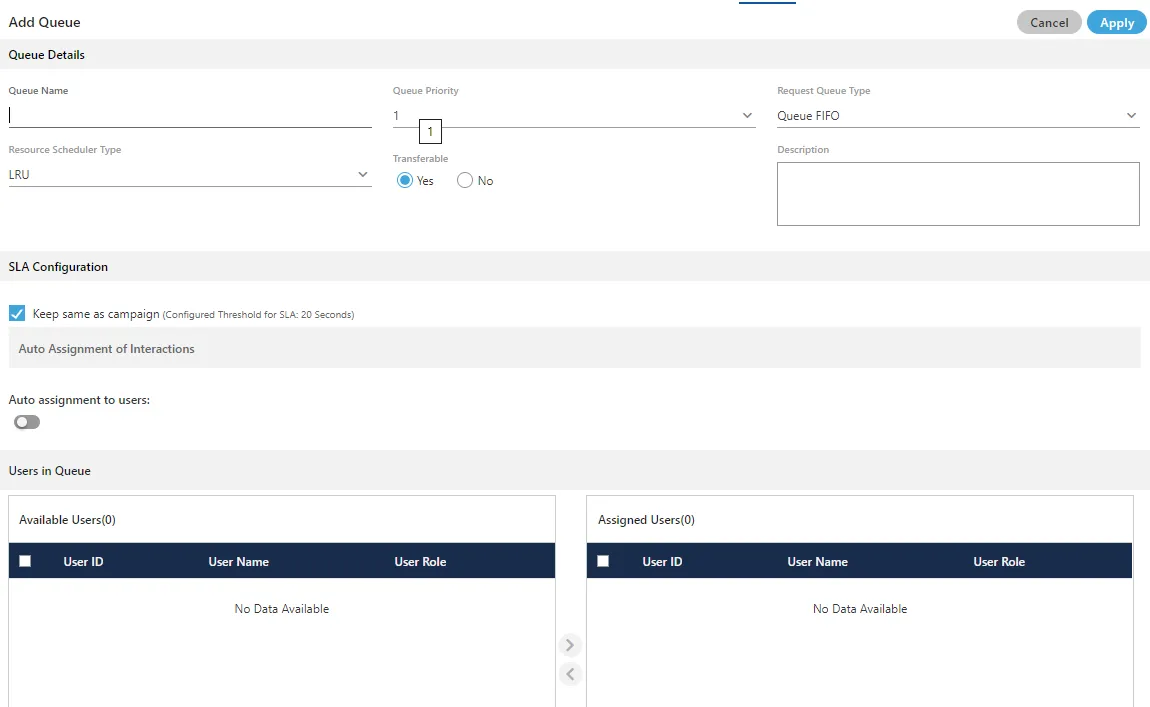
- Queue Name: Enter a unique, descriptive name for the queue.
- Queue Priority: Select a numerical value (e.g., 1, 2). This value is used to prioritize this queue over others when an agent is serving multiple queues.
- Select Rotuing logic:
- Request Queue Type: Choose how customers waiting in this queue are prioritized (Queue FIFO, Queue Priority)
- Resource Scheduler Type (Licensable):Choose how the system selects an agent when multiple are available (LRY, Multiple Extension, Multimedia based or Skill based routing)
- Description: (Optional) Provide a brief description of the queue's purpose.
- Transferable: Select it to transfer the communication call or chat from this new queue to another queue.
- Auto Assignment: (For Interaction Campaign tickets) Toggle the switch to On to enable automatic ticket distribution to agents.
- Assign Users (Agents)
- In the "Assign Users in Queue" section, select agents from the "Available Users" list on the left.
- Click the
 icon to move them to the "Assigned Users" list on the right.
- To unassign a user, select the users in "Assigned Users" and click
 icon.
icon.
Note on Atomic Assignment: User assignment is atomic. If you select multiple users and one fails to assign (e.g., due to license restrictions), the system will assign the valid users and exclude the failed ones.
- Assign Skills (Optional)
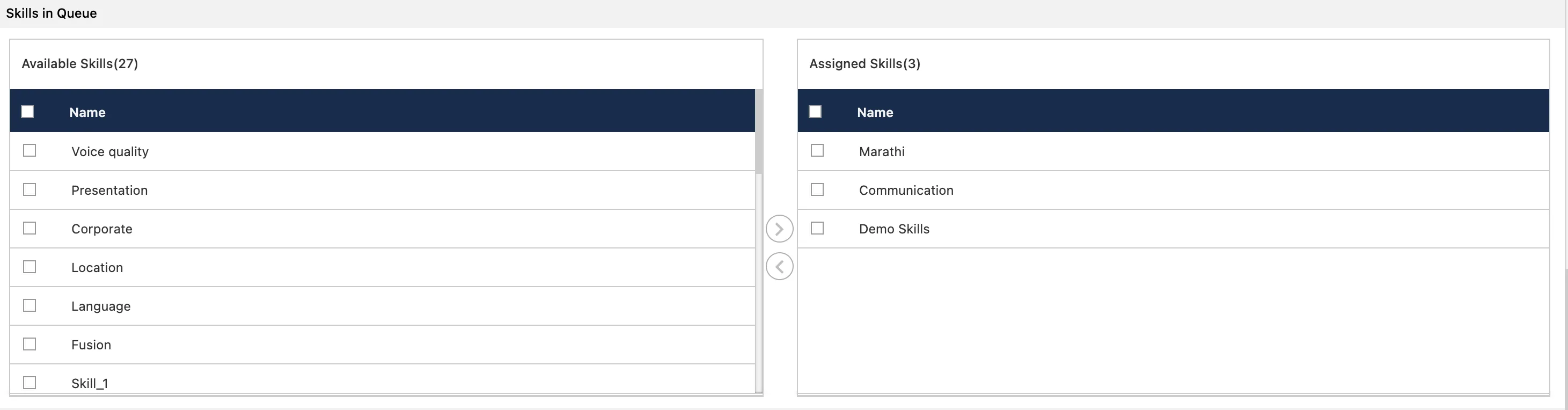
- If using Skill Based routing, scroll to the "Assign Skills in Queue" section.
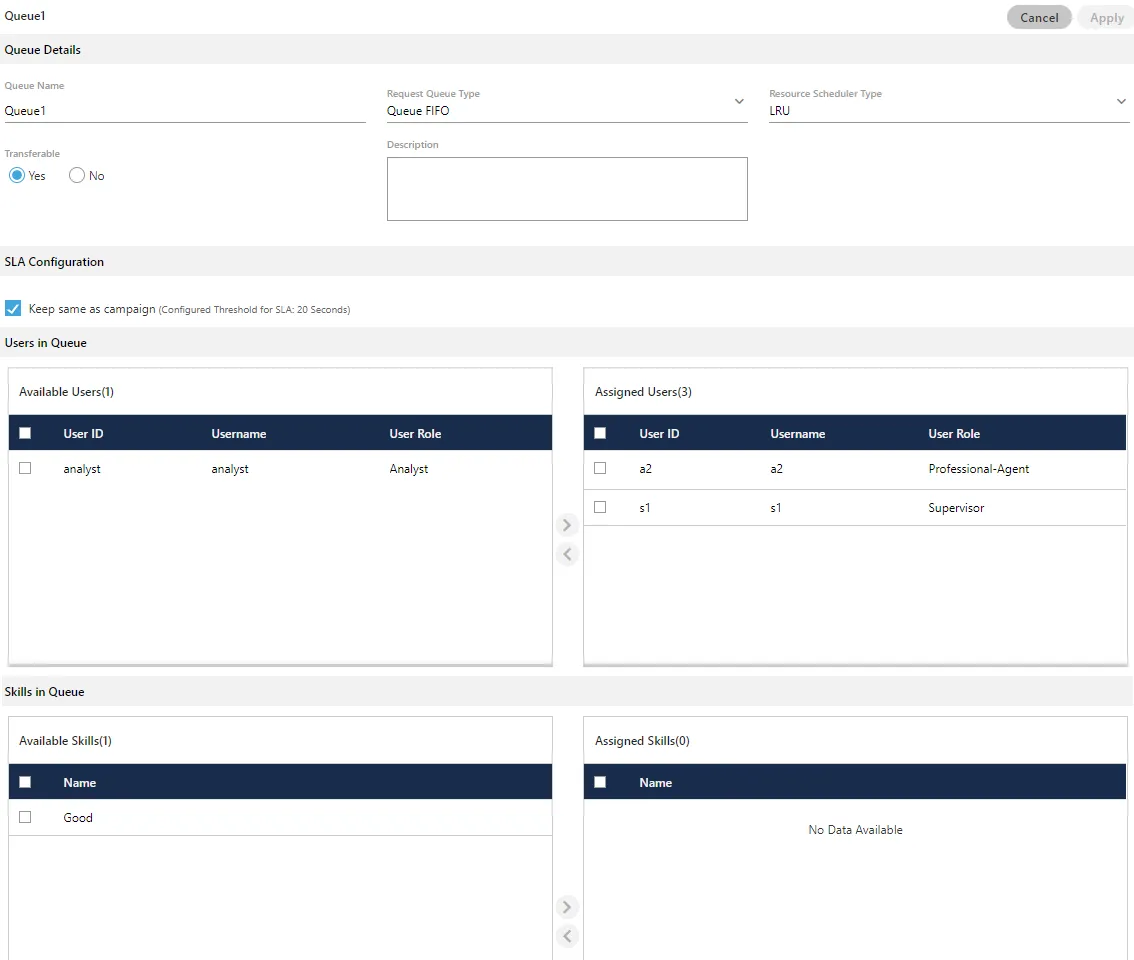
- Select the required skills from "Available Skills" and move them to the assigned list using the icon.
- Save Changes
- Click "Apply" to create the queue.
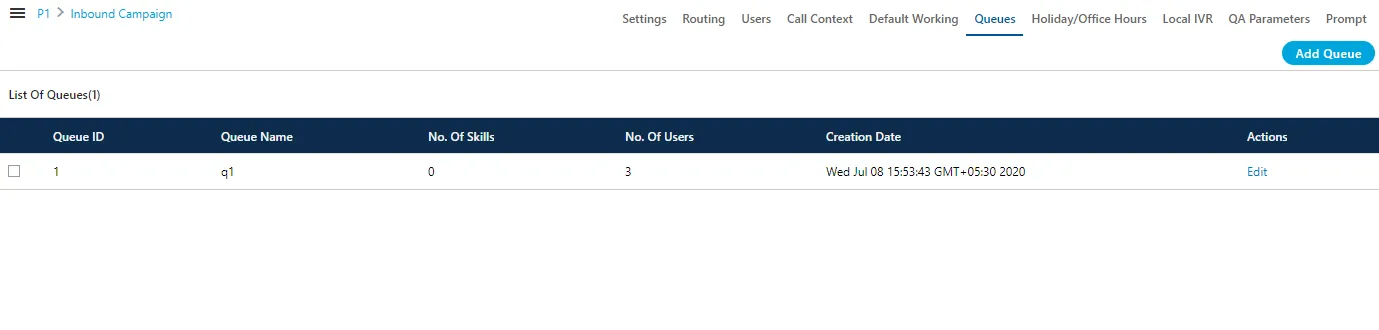
Managing Existing Queues
- Edit Queue: Click the Edit icon next to a queue name in the list. You can modify all parameters, including name, priority, and user assignments.
- Delete Queue: Select the queue you wish to remove and click the Delete button.
- Warning: Confirm the deletion in the pop-up. This action is permanent and cannot be undone. Ensure no active campaigns rely on this queue before deleting.
How to Edit Queue (Modify)
- In the Queues list, click the Edit icon adjacent to the queue name.
- The original creation page will open, allowing modification of the Queue Name, Priority, Resource Scheduler Type, Request Queue Type, and Transferable status.
- Modify the user assignments and click "Apply" to save the changes.
How to Delete Queue
- You can delete the queue. Select the queue, which you want to delete and then, click "Delete" button present at the right top corner of the page. A confirmation pop-up comes up.

- Click "Delete" button to confirm the deletion of the queue, else click "Cancel".
At Supervisor level (Queue Management in Voice Campaign)
Creating a New Queue
To configure a new queue for a campaign, follow these steps:
- Navigate to the Campaign Management section and click on "Queues" tab.
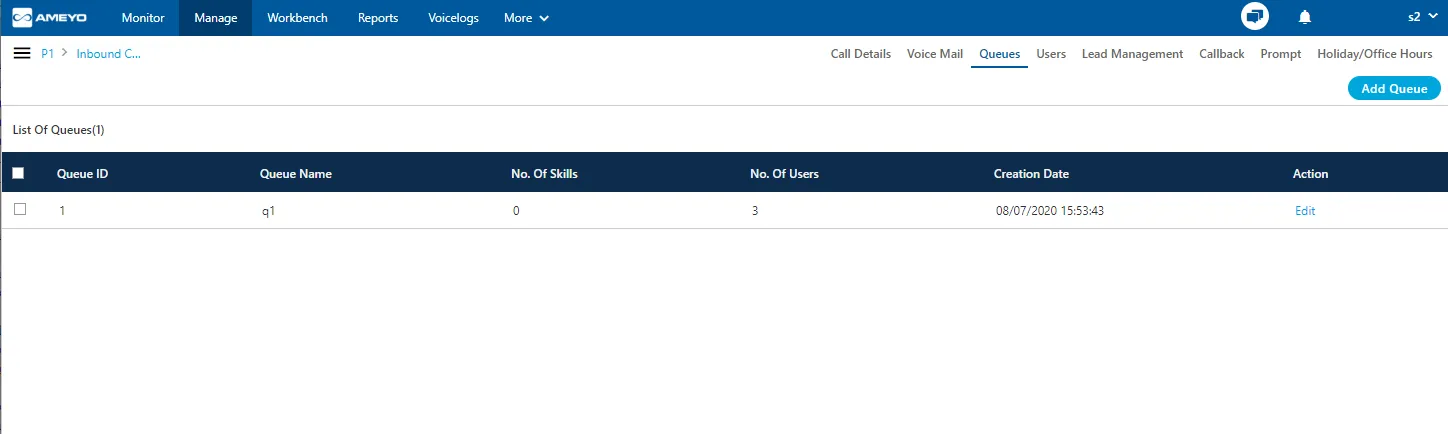
- Click the Create Queue button and Enter a descriptive Name for the queue.
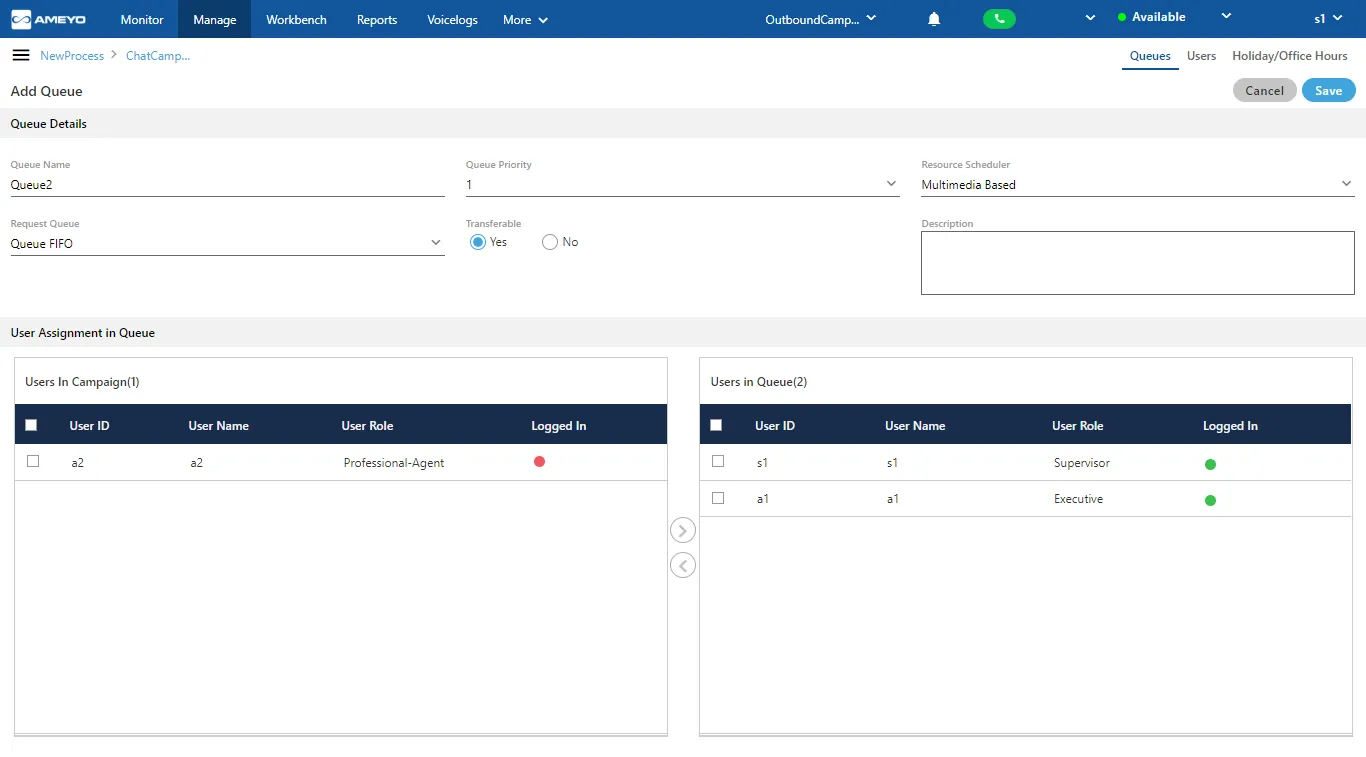
- Configure the Queue Parameters such as Queue Priority, Resource Scheduler, Request Queue Type (Customer Priority) as described in this document earlier (Core queue details)
- Click Apply to save the new queue.
- Users assignment: In the Assign Users section, locate the Available Users list and assign the desired agents using icon.
- Skill Assignment: If utilizing Skill Based Routing, supervisors can assign specific skills to the queue (provided skills have been created by the administrator). Agents assigned to the queue will receive calls based on the alignment of the call's required skills and the agent's assigned skills.
Voicemail Configuration
Note: Voicemail is a licensable feature.
If enabled, callers can leave a message when no agents are available.
- Voicemail Toggle: Switch the slide button to ON to enable features.
- Notification Email IDs: Check this box to trigger email alerts when a voicemail is received.
- Configuration: Enter the recipient email addresses in the text box. Multiple emails can be added by separating them with a comma (,) or colon (:).
- Welcome Voicemail Prompt: Select the audio file played to the customer inviting them to leave a message.
- Finish Voicemail Prompt: Select the audio file played to the customer after the recording confirms the message was saved.

Managing Existing Queues
- Edit Queue: Click the Edit icon next to a queue name. All settings (Name, Priority, Voicemail, Users) can be modified. Changes update the system immediately.
Note: Changing queue settings updates the system level configuration immediately. This impacts all users currently assigned to that queue. It is advised to perform edits only when mandatory to avoid disrupting active operations.
- Delete Queue: Select the queue and click the Delete button.
This action is permanent. Ensure the queue is not in use by active campaigns before confirming.