Blacklisting
Overview
Blacklisting is a feature that allows administrators and supervisors to restrict incoming calls from specific customers. The primary purpose of this functionality is to manage customers who misuse or abuse organizational users, or those who call repeatedly, which can hinder the working efficiency of users. Contacts added to a blacklist cannot call the contact center.
The organization can utilize this feature to define specific procedures for handling such customers.
Key Benefits
- Mitigation of Abuse: Restricts incoming calls from customers who misuse or abuse contact center users.
- Improved User Efficiency: Prevents repetitive, unwanted calls that can hinder the working efficiency of users.
- Controlled Access: Establishes a system-wide or process-specific mechanism to exclude problematic contacts from initiating interactions.
How It Works
The Blacklisting feature is managed by uploading or editing Blacklist Leads and configuring disposition codes for agent use.
Prerequisites
The following prerequisites must be in place to fully utilize the Blacklisting feature:
- Administrative Access: Users require Administrator, Voice-Admin, or Supervisor console access to configure and manage Blacklist Leads.
- Blacklist Disposition Configuration: A specific disposition named "Blacklist Disposition" must be configured and made available in the agent’s telephony panel or webchat modal for agents to use this functionality.
- Data Format: When uploading Blacklist Leads, customer contacts must be provided in a CSV file format.
Configuration Scope and Usage Instructions
Blacklisting is configured at multiple levels:
System Level (Administrator/Voice-Admin)
- Managed via the interface under System > Exclusion > Blacklisting (or System Configuration in the Voice-Admin Console). This typically enforces the blacklist organization-wide.
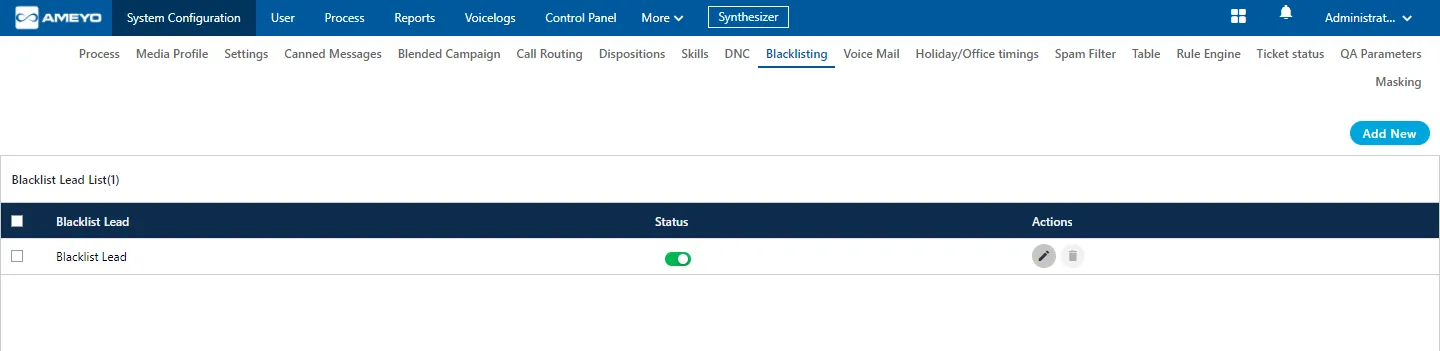
Add a new Blacklist Lead
Administrator can perform the following steps to add a new Blacklist lead.
- Click "Add New" button to create a new Blacklist lead. It shows the following modal.
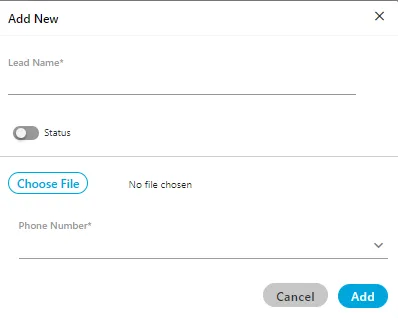
Here, you have to provide the following information.
- In Lead Name column, enter the name of the lead.
- Toggle Status button to enable or disable the new lead.
- Click "Choose File" to select the location and the CSV file. Click "Open" button to upload that file.
- In Header Mapping, the administrator can map the file headers of lead with phone, timezone, and name headers as per the created headers in the system.
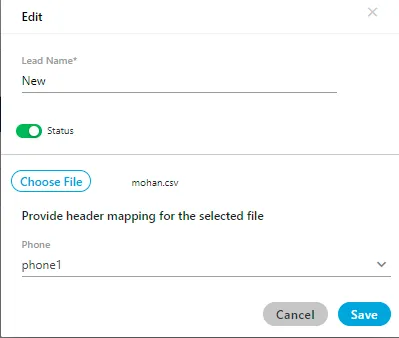
- Click "ADD" to add a new lead. Rather, you can click "Cancel" to discard the changes.
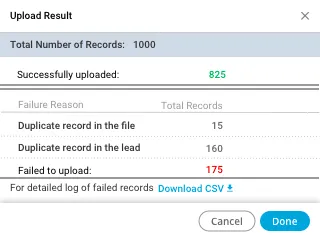
- After clicking "ADD", a result modal is shown that provides the overview of the uploaded contacts through the Blacklist lead.
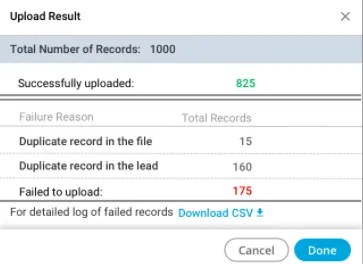
- The administrator can click "Download CSV" option to download the CSV file of the contacts that have been failed while uploading.
- The administrator can use the above steps to upload multiple Blacklist leads here.

Edit Blacklist Lead
Select the Blacklist Lead which you want to edit and click  icon. The same modal is arrived which is arrived at the time of adding the Blacklist. You can change the Blacklist lead name, file and header mapping on the opened modal. You can also enable or disable the lead from here as well.
Delete an Blacklist Lead List
The deleted Blacklist lead cannot be retrieved back.
Select the Blacklist Lead and click  icon to delete it. A warning message is displayed on screen. Click "Yes" to delete it else you can click "No" to not delete it.

Process/Campaign Level (Supervisor)
Chat Campaigns: Available under Manage > Chat Campaign > Blacklist in Chat Campaign. Exclusion is valid for that chat campaign only.
Voice Campaigns: Managed at the process level under Manage > Process Settings > Blacklist. Exclusion is valid for that process only and all the campaigns within that process.
Note: Blacklisting in one process does not apply to other processes.
Sub-Tabs in the Blacklist Module
The Blacklist section contains two sub-tabs:
- Blacklist Lead – Used to create or upload blacklist lists (leads).
- Blacklisted Data – Used to view, search, or download existing blacklisted records.
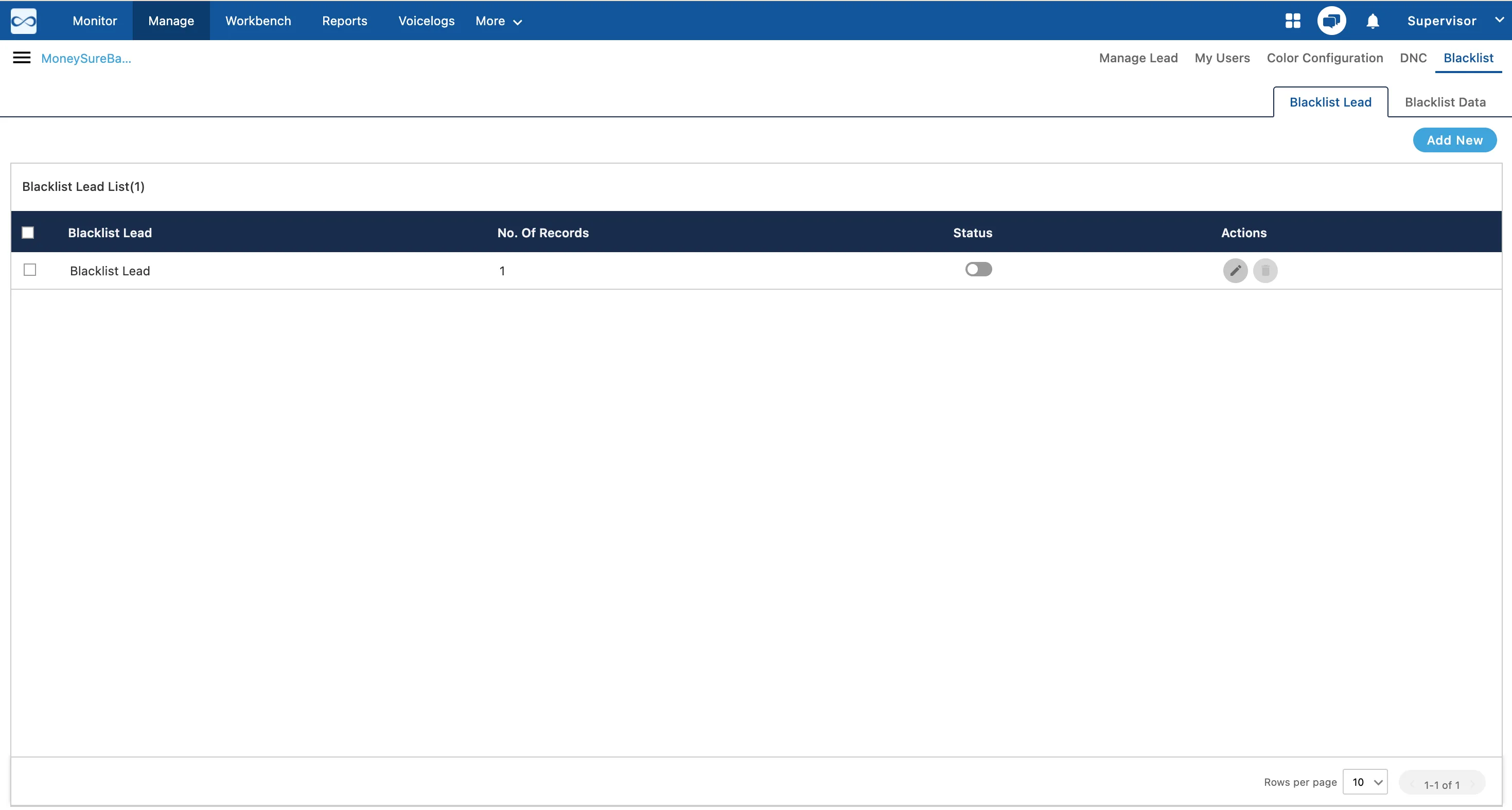
Blacklist Lead
This tab allows Supervisors to create, manage, and upload lists of contacts that need to be blacklisted.
Creating a Blacklist Lead
To add a new blacklist:
- Click Add New. The Add Blacklist Lead pop-up appears.
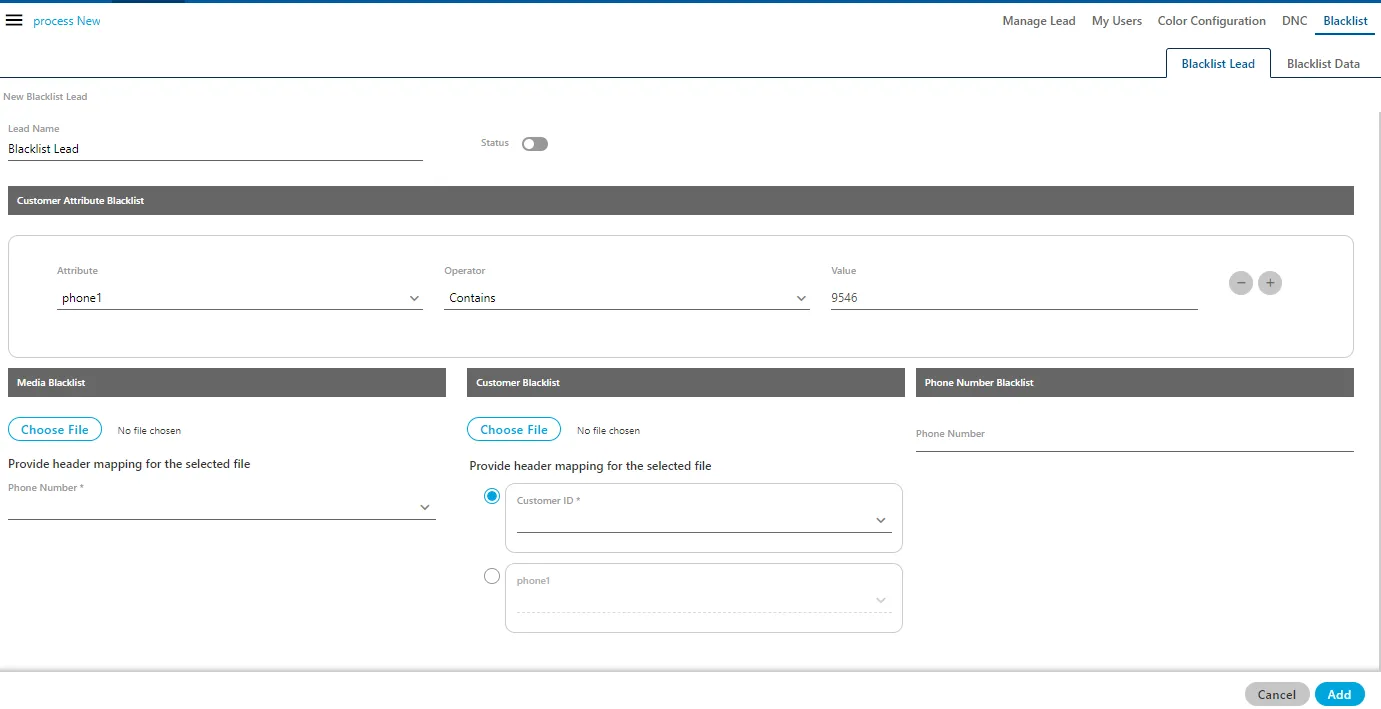
- Provide the following details:
- Lead Name: Enter a descriptive name for the blacklist lead.
- Status: Toggle Enable to activate or deactivate the blacklist.
- Customer Attributes (Optional): Add one or more customer attributes (e.g., phone, email, ID) to define additional filtering conditions.
- Choose the Type of Blacklist:
- Media Blacklist – Upload a list of phone numbers or emails to exclude.
- Customer Blacklist – Upload customer IDs to restrict those customers from communication.
- Phone Number Blacklist – Upload a list of phone numbers to block directly.
- Upload the corresponding CSV file containing the data for the selected blacklist type.
- Click Add to create the blacklist.
After the upload is completed, the system displays a confirmation modal showing:
- Number of records successfully uploaded
- Number of failed or invalid entries
You can download the error log for detailed information if any records failed to upload.
Blacklisted Data
The Blacklisted Data tab enables Supervisors to search, view, or fetch details of existing blacklisted records.
Steps to Search Blacklisted Data
- Click Search in the Blacklisted Data tab.
- In the pop-up, provide the following details:
- Blacklist Lead Name – Select the lead from the drop-down list.
- Blacklist Type – Choose from Media, Customer, or Phone Number blacklist.
- Phone Numbers – Enter comma-separated phone numbers (if applicable).
- Click Fetch to view results.
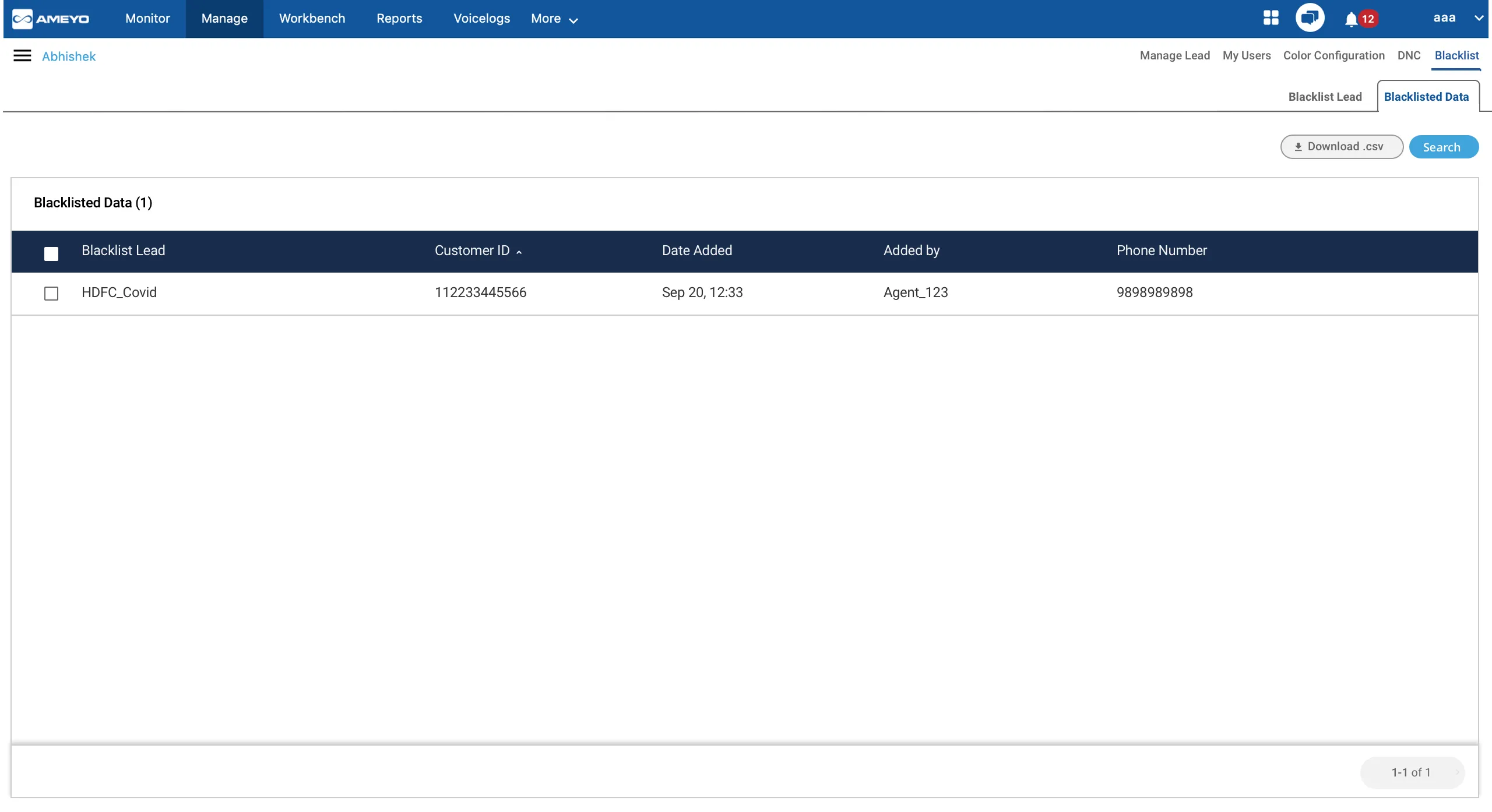
The filtered blacklist data will appear on-screen, showing all records matching the selected criteria.
Agent Interaction
- Agents can use a configured "Blacklist Disposition" in the disposition plan to immediately add a customer's number to the blacklist during a call or webchat wrap-up.
Agent Blacklisting
- During the wrap-up process of a call or webchat, the agent must select the "Blacklist Disposition" from the available dispositions in their telephony panel or webchat modal.
- Selecting this disposition automatically adds the customer's phone number to the blacklist.
Viewing Blacklisted Data (Supervisor/Admin)
The "Blacklisted Data" tab, available to Supervisors/Admins, displays the following information for excluded contacts:
- Navigate to the "Blacklisted Data" tab.
- Click the "Search" button.
- Provide the required search details, such as the Blacklist lead name and Blacklist type.
- Optionally, enter a comma-separated list of phone numbers to narrow the search.
- Click "Fetch" to display the current blacklisted data.
Column Name | Description |
|---|---|
Blacklist Lead | Shows the name of the Blacklist Lead to which the contact belongs. |
Customer ID | The unique ID of the customer. |
Date Added | The date and time when the contact was added to the blacklist. |
Added By | The name of the user who added the contact to the blacklist. |
Phone Number | The blacklisted phone number. |