Live Monitoring of Inbound Campaign
This dashboard allows Supervisors to track Inbound Campaign activity. The interface is organized into specific sections for alerts, data timelines, and summary metrics.
1. Cautionary Extension Selection Alert
A Red Cautionary Bar may appear at the top of the screen upon login.

- Trigger: This indicates that the Supervisor has not yet selected a phone extension.
- Action: Click directly on the red bar or the extension dropdown to select your active extension. Once selected, the warning disappears.
2. Data Collection Indicators
Starting from version 4.13.33, the dashboard refresh interval is configurable via the liveMonitoringRefreshTimerMs parameter in server_preference_store at the campaign level. Accepted values range from 4000 ms (4 seconds) to 10000 ms (10 seconds); the default is 10000 ms. Lowering the value provides more responsive data at the cost of slightly higher server load.
The dashboard uses specific font colors and labels to indicate how frequently the displayed data is updated.

- Real-Time Data&#xNAN;: The statistics which are given in the black font color will update its data in every 10seconds. . Generally, the data shown in this color has a real-time impact on the database like Agent’s activity.
- Historical Data&#xNAN;: The statistics which are in the Purple font color refreshes after every 5minutes. Generally, the data shown in this color do not impact the database in every instance of the database.
- Stats Duration&#xNAN;: It shows that the data showing on the monitor screen is of the last 30 minutes.
- Stats Reset&#xNAN;: It is the indication about the time before which the monitoring data was refreshed.
3.Campaign & Agent Runtime Summaries
The Live Monitoring dashboard provides detailed runtime summaries for both overall Campaign performance ("Total Calls") and Agent status ("Total Agents").
1. Campaign Runtime Summary (Total Calls)
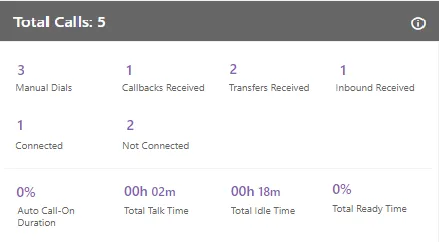
The Total Calls section provides a snapshot of the specific Inbound Campaign's performance for the current runtime session.
Viewing Data Timestamps (Additional Information)
Hover your mouse over the Information Icon (usually represented by an i or similar symbol) next to the section header. This displays:
- Last Calculated Time: When the metrics were last computed by the system.
- Last Fetched Time: When the data was last retrieved for display.

Available Metrics
The dashboard tracks the following metrics:
Call Volume Counters:
- Manual Dials: Total manual and manual-preview calls. It shows the data of the last 30 minutes.
- Callbacks Received: Aggregated count of Queue, Campaign, Self, and Preview callbacks. It shows the data of the last 30 minutes.
- Transfers Received: Total calls transferred into the campaign. It shows the data of the last 30 minutes.
- Inbound Received: Total incoming calls received. It shows the data of the last 30 minutes. It shows the data of the last 30 minutes.
- Connected / Not Connected: Count of calls answered by customers vs. those that failed to connect. It shows the data of the last 30 minutes.
Time & Efficiency Metrics:
- Total Talk Time: Cumulative time all agents have spent on calls.
- Auto-Call On Duration %: Percentage of time agents had "Auto-Call" enabled while in the Ready state.

- Total Ready Time %: Percentage of time agents were in the Ready state while staffed in the campaign.

Idle Time Calculation: The Total Idle Time % is calculated using the following logic:
It is the percentage of Total Idle Duration divided by Total Ready Duration. Here, the Total Idle Duration is the difference between Total Ready Time and Total Service Time in a campaign.

- Total Idle Duration = (Total Ready Time) - (Total Service Time)
2.User Runtime Summary (Total Agents)
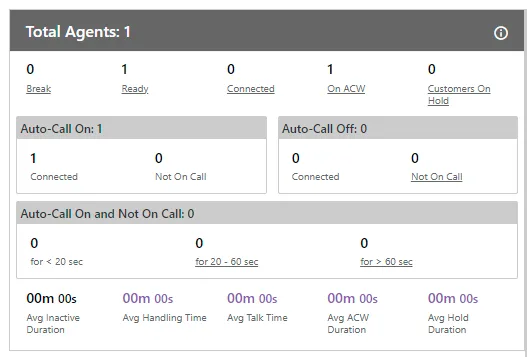
This section provides a real-time snapshot of the current agent workforce.
Viewing Data Timestamps
Similar to the Campaign Summary, hover over the Information Icon to view the Last Calculated and Last Fetched timestamps for agent data.

Available Metrics
This section categorizes agents by their current state and performance averages.
Agent States:
- Break: It is equal to the number of agents on break divided by the number of agents whose status is break in the campaign.

Certain metrics in this view are interactive. Example: Clicking on the Break wizard/metric will automatically activate the dashboard filter group. The Agent List below will update to show only the agents currently matching that parameter (e.g., only agents on Break).
- Ready: It is the number of unique agents staffed in the campaign, who are on "Available" status. It is a click-able entity. Once you click on "Ready" wizard, the filter group of the dashboard page activates and the Agent list comes up according to the selected parameters.
- Connected: It is the number of agents who are connected to calls in the campaign.It is a click-able entity. Once you click on "Connected" wizard, the filter group of the dashboard page activates and the Agent list comes up according to the selected parameters.
- On ACW: Agents in After Call Work.
- Auto-Call On / Off: "Auto-Call On and Not on Call" are the number of agents whose Auto Call status is On but they are not on any call. It includes an agent only when its status is set as "Auto-Call On" and "Available".
Example: It includes only the current status for all the calculations, that is, if the user (with "Available" and "Auto-Call On" status) is not getting a call from last 60 seconds, and it switched to break for 5 seconds, then after coming back from break, that agent will be seen inactive in "<20sec" field, the last 60 seconds is lost. The count will decrease when the agent selects any break or sets its Auto-Call status as "OFF." The count will increase when the agent selects available after coming from any break or sets its Auto-Call Status as "ON."
It shows the inactive agents in the following intervals.
- <20 sec: It is the total number of agents who are on "Auto-Call On" status and waiting for the calls for less than 20 seconds.It shows the current data. The Data Refresh Interval on the User Interface is maximum 5 to 10 seconds.
- 20-60 sec: It is the total number of agents who are on "Auto-Call On" status and waiting for the calls from the last 20 to 60 seconds.It shows the current data. The Data Refresh Interval on the User Interface is maximum 5 to 10 seconds.
- >60 sec: It is the total number of agents who are on "Auto-Call On" status and waiting for the calls for more than 60 seconds.It shows the current data. The Data Refresh Interval on the User Interface is maximum 5 to 10 seconds.
Avg Inactive Duration
It is the average of all inactive duration of the agents staffed in the campaign.
It shows the current data. The Data Refresh Interval on the User Interface is maximum 5 to 10 seconds.
Avg Handling Time
It is equal to the sum of Customer Talk Time, Customer Hold Time, and Wrap Time of Connected Calls divided by the total connected calls. It includes only Customer Interactions, but Dial User (Internal Calls) are not included.

AHT does not include the Average Wrap Time of an agent as the Average Wrap Time will also include the wrapping up of not connected calls.
It shows the data of the last 30 minutes. The Data Refresh Interval on the User Interface is maximum 5 to 10 seconds.
Avg Talk Time
It is equal to the total time (in seconds) spent by the agents while talking to the customers divided by the total number of answered customer calls in this campaign.

It shows the data of the last 30 minutes. The Data Refresh Interval on the User Interface is maximum 5 to 10 seconds.
Avg ACW Duration
It is the average amount of time spent by all the agents in disposing the calls.It represents the average time taken by the Agents to dispose the calls.
It shows the data of the last 30 minutes. The Data Refresh Interval on the User Interface is maximum 5 to 10 seconds.
Avg Hold Duration
It is equal to the total hold time divided by the count of customer calls with holds.
Calculation&#xNAN;:

It shows the data of the last 30 minutes. The Data Refresh Interval on the User Interface is maximum 5 to 10 seconds.
3.Customer Runtime Summary (Total Customers)
This section provides a real-time snapshot of customer activity within the campaign. It tracks calls from the moment they enter the system until they are connected or dropped.
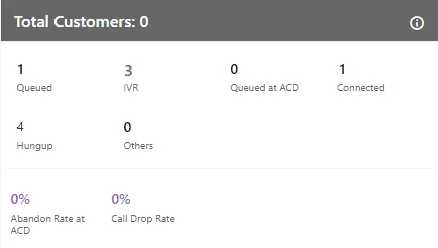
Note: Hover over the Information (i) icon to view the "Last Calculated" and "Last Fetched" timestamps. All metrics in this section allow a maximum data refresh interval of 5 to 10 seconds on the UI.
Key Metrics
- Queued: The current number of calls (including Preview, and Callbacks) waiting for initialization. In Inbound campaigns, this reflects callbacks and manual callbacks.
- IVR: The current number of calls waiting in the IVR menu.
- Queued at ACD: The current number of calls waiting at the Automatic Call Distributor (ACD) for an available agent in a campaign.
- Connected: The total number of currently connected calls in the campaign.
- Hungup: Calls that have been disconnected (by agent or customer) but not yet disposed of by the agent in the campaign.
- Context: Once the agent selects a disposition, this count resets on the supervisor's screen.
- Others: Calls currently in a transitional "ringing" state (e.g., Transfer to Queue, Transfer to Campaign, Transfer to IVR, or Transfer to Phone).
- Abandon Rate at ACD %: The percentage of calls dropped while ringing before reaching the ACD.
- Call Drop Rate %: The percentage of calls dropped before an agent could answer.
4.Agent List (Real-Time Monitoring)
The Agent List gives Supervisors a live view of all agents staffed to the campaign. It details their current status, call context, and performance alerts.

Note: The following list shows the current data. The Data Refresh Interval on the User Interface is maximum 5-10 seconds.
Agent Columns
1.Agent Name: It shows the usernames of the agents who have been assigned in the selected campaign.
2.Agent ID&#xNAN;: It shows the IDs of the agents who have been assigned in the selected campaigns.It shows the current data.
3.Extension&#xNAN;:It shows the extension selected by an agent or assigned forcefully to an agent.It shows the current data.
4.Auto Call Status&#xNAN;: It shows the auto-call status of an agent.It shows the current data. The Data Refresh Interval on the User Interface is maximum 5-10 seconds.
5.Agent Status&#xNAN;: It shows the status of an agent and the duration since when the agent is on this status.It shows the current data. The Data Refresh Interval on the User Interface is maximum 5-10 seconds.
6.Call Context&#xNAN;: It shows the call context assigned to an agent.It shows the current data. The Data Refresh Interval on the User Interface is maximum 5-10 seconds.
7.Agent Call Status&#xNAN;: It shows the call status of an agent. If the agent is on dial user (internal call) or connected on call in other campaign, the columns (call type, customer info, customer status, and queue) will remain blank. There is no feature for the Supervisor to identify such calls.It shows the current data.
8.Call Type&#xNAN;: It shows the type of call, which is connected with the agent at present. If the agent is on dial user (internal call) or connected on call in other campaign, the columns (call type, customer info, customer status, and queue) will remain blank. There is no feature for the Supervisor to identify such calls.
9.Phone&#xNAN;: It shows the customer information. As of now, the call context is being displayed in case of Outbound calls where the phone number is being displayed in case of manual dial calls.
10.Customer Call Status&#xNAN;: It shows the status of the call of the customer.
11.Working Mode&#xNAN;: It shows the selected working mode by the agents.
12.Queue&#xNAN;: It shows the name of queue in which the Outbound call has arrived. Even if the agent has been assigned in the multiple queues, still the name of that queue will be displayed in which the agent is connected to the customer.It shows the current data.
13.Group Manager&#xNAN;: It shows the name of the group manager under which the agent is assigned into.
17.Groups&#xNAN;: It shows the name of the groups in which the agent is assigned into.
18.Table Filters&#xNAN;: It shows the name table filter name when the masking feature is enabled.
If any agent is on call through Dial User App, then the metrics like Call TYpe, Phone, Customer Call Status, and Queue in Agent List will remain blank. However, the Agent Call Status should remain "Connected".

Operational Filters
Supervisors can click specific status buttons to instantly filter the Agent List:
- Break: View agents currently on break and their duration.
- Ready: View agents available to take calls.
- Connected: View agents currently speaking with customers.
- On ACW: View agents performing After Call Work (disposing calls).
- Customers on Hold: View agents who have placed customers on hold.
Threshold Configuration (Licensable)
Supervisors can configure time limits (Thresholds) for specific agent activities. If an agent exceeds these limits, their status in the Agent List changes color to alert the Supervisor.
This feature is licensable, hence contact your administrator for further information on same.
(Internal Team:)
Execute the following query to enable Call Duration Breached Threshold on UI (as it is not enabled by default).
Execute following query to access database.
psql -U postgres <Ameyo_Database_Name>
Execute following query to enable Call Duration Breached Threshold.
INSERT into server_preference_store (context_type,context_id,key,value) VALUES ('campaign','<campaign_id>','activityParameterCallDurationVisible','true');
You have to enter all the campaign id's for all those campaigns in which you want to configure "Call Duration Breached". After this configuration, you can provide the Call duration breached time from UI.
Types of Thresholds
- Hold Time Breached: Alerts when a customer is kept on hold longer than the allowed limit.
If the agent exceeds the hold time limit the color of the agent turns to the hold time breached color, but the moment he resumes the call, the color of the agent again turns to white. In the same way, if the agent put the call on hold multiple times then the agent list call status turns to the respective colors again and again, which signifies that the agent status color depends on the status of his call on runtime. The color of the agent list for call status is runtime.
- ACW Time Breached: Alerts when After Call Work exceeds the defined limit.
- Call Duration Breached: Alerts when the Total Call Duration (Talk Time + Hold Time) exceeds the limit.
- Setup: Requires database configuration to enable activityParameterCallDurationVisible.
- Break Duration Breached: Alerts when an agent's break exceeds the configured time for that specific break reason.
How to Configure
- Click the Configure Threshold button in the Agent List bar.
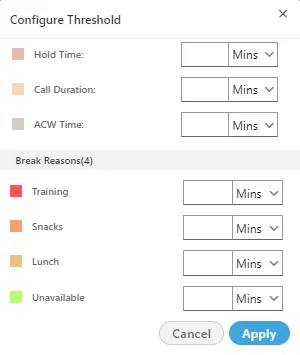
- Enter time limits for Hold Time, ACW, and Call Duration.
- Set specific limits for each Break Reason (e.g., Lunch, Bio Break).
- Select the time unit (Minutes or Seconds).
- Click Apply.
After configuring the threshold values, the status starts coming in the "Agent List" wizard of window.
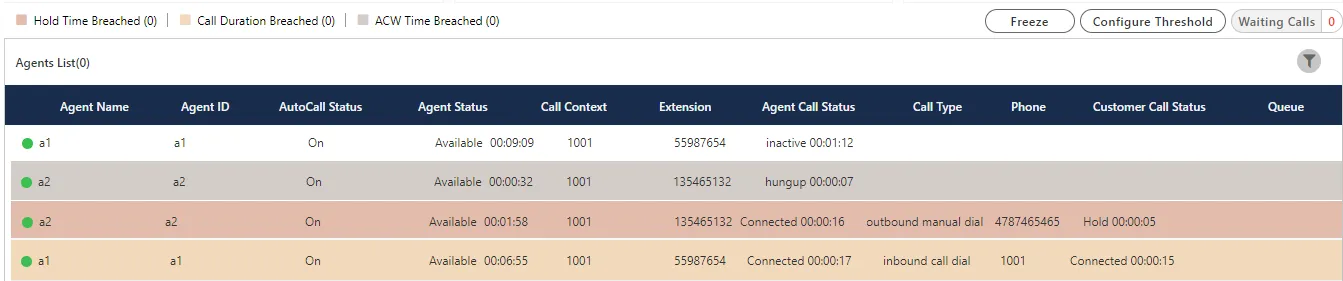
Freeze or Unfreeze
You can click on the "Freeze" to freeze "Live Monitoring" Tab at any point of time. No update in any graph or report will be reflected. You have to click "Unfreeze" unfreeze "Live Monitoring" Tab and let it receive the latest updates.
Search
The Supervisor can search data for the particular agent or customer by entering the username or customer info in the provided text box and clicking  icon.
icon.
Waiting Call
It shows the total number of calls which are waiting to be answered in campaign. Click "Waiting calls" buttons to see the list of all the calls which are waiting in that campaign and queue.
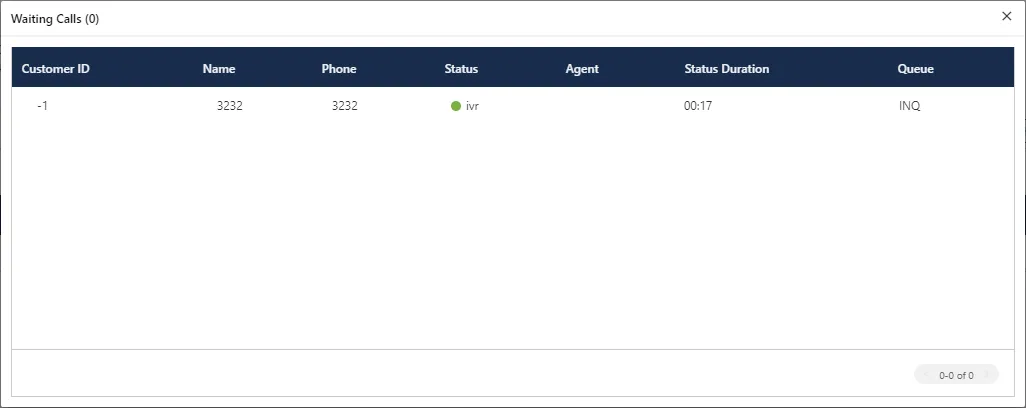
Figure: Waiting Calls
The opened pop-up contains the following columns.
- Customer Id&#xNAN;: It shows the id of the registered customer. If the customer is not registered, then it shows "-1" as customer id.
- Name&#xNAN;: It shows the name of the customer, if registered. If the customer is not registered, then it shows the extension name from which the call is coming.
- Phone&#xNAN;: It shows the phone number of the customer.
- Status&#xNAN;: It shows the status of the call in which it is currently present.
- Agent&#xNAN;: It contains the agent name to whom the call is going to assign. If there is no agent free at the time of call, it shows blank as agent name.
- Status Duration&#xNAN;: It shows the total time of the call which is spent by the call before assigning it to any of the agent.
- Queue&#xNAN;: It shows the name of the queue in which the call has been assigned or landed
Filter
Supervisor can click  icon to filter the data as per the selected table filters in the filter modal.
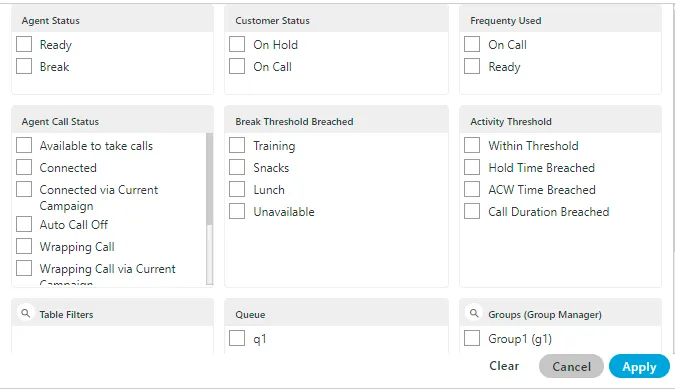
If Filter Groups are enabled in the campaign, then "Filter Groups" column will also be added in Agent List and Filter Modal.
The Supervisor can search through the values of both "Filters" and "Filter Groups" column in Agent List.
- Customer Status : The supervisor can select the status of the customer either the customer is on the call or on the Hold.
- On Call : It means that the agent is on the call with the customer.
- On hold : It means that the agent is either not active on the call or the agent put the customer's call on hold.
- Frequently Used : It shows the frequently used filters which are used by the supervisors mostly.
- Agent Status : It filter the agents based on the status of their work, that is, whether the agent is ready or is on the break. It contains the following options.
- Ready&#xNAN;: It shows the agents who are ready to attend the calls.
- Break&#xNAN;: It shows the agents who are on break.
If the agent is automatically set on "Auto Available" just after the logon, then the break count will be increased by 1.
- Agent Call Status : The supervisor can filter the status of the agents from the following status.
- Available to take calls : It means that the agent is free and available to take the next call.
- Connected : It means that the agent is connected with the campaign and also selected the extension.
- Connected via current campaign : It filters those agents which are connected with the campaign in which the supervisor is connected at that time.
- Auto Call Off : It shows that the agent is not on the auto call or the auto call for those agents are off.
- Wrapping Call : It filters for those agents who are wrapping-up their calls or agents who are disposing off their calls.
- Wrapping Call via current campaign : It filters for those agents who are wrapping-up their calls with the current campaign with which the supervisor is logged-in at the same time.
- Activity Threshold : It allows the supervisor to filter for those call which are in the various threshold range. It contains the following parameters which can be used to filter the list.
- Within Threshold&#xNAN;: It filter the list of those agents which are lying in the threshold limit set by the administrator.
- Hold Time Breached&#xNAN;: It filters the list of those agents who breached the hold time limit set by the administrator.
- ACW Time Breached&#xNAN;: It filters the list of agents who breached the time limit to dispose off the call which is set by the administrator.
- Call Duration Breached&#xNAN;: It filters the list of agents who breached the limit of Call duration which is set by the administrator as well.
- Break Threshold Breached :The supervisor can search those users whose status is on break and the break time configured by the supervisor has already been breached. It contains all the break reason which are configured in the system by the administrator.
- Queue : The supervisor can filter the agents assigned in selected queue.
- Groups (Group Manager) : The supervisor can filter the agent list according to the groups and group manager names.
Monitoring a Call
The Supervisor can click any on any record on live monitoring screen to access a floating window.
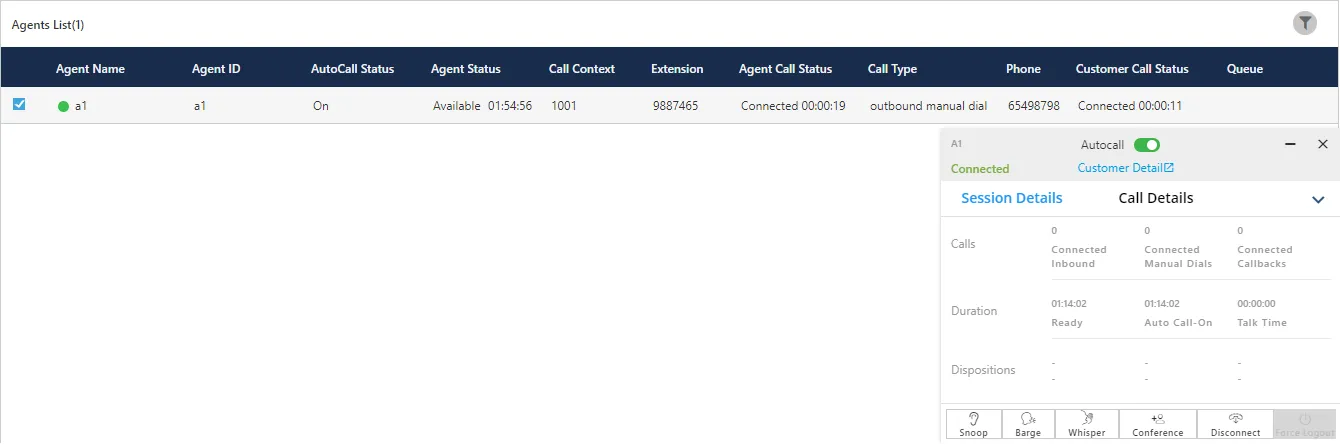
It will show agent name, status (inactive/ connected/ hung up), Customer Details (on clicking on this, CRM gets open in preview mode) along with below mentioned tabs.
Exceptional case: When an agent performs "Transfer to User" for an inbound call and transfers it to another user, then the Call Type for such a call is not available in Live Monitoring tab. For example, agent 1 has received a call and then transferred it to agent 2. In this case, the customer will be reflecting with the agent 1 rather than the agent 2. The supervisor will see that the customer is connected with agent 1.
Session Details
- Calls: Count of Autodial (in case of the Outbound campaign)/ Inbound (in case of Inbound campaign), Manual and Callback calls.
- Duration: Total Ready, Auto-call (Auto-call On) and Talk (talk time) duration.
- Dispositions: It shows the top 3 dispositions.
Call Details
- Customer: It will show Details (customer's phone number), Status (inactive/ connected/ hung up) and Duration (talk time).
- Details: It will show Campaign (Campaign name in which the call has been received/ from which call has been dialed), Lead (Lead Name in case of the Outbound campaign) / Queue (Queue Name in case of Inbound campaign) and Call Type (inbound/auto dial/manual dial).
Monitoring Operations
The Supervisor can snoop, whisper, conference, barge, and Hang-up the call using the buttons provided at the bottom of the floating panel. These buttons will only get highlighted in case the agent is on a call except Force Logout (which will be highlighted irrespective whether the agent is on call or not). Supervisor can minimize or maximize 5.the floating window using up and down arrow icons respectively.
Live Call Monitoring Operations (Agent Coaching and Monitoring)Live Call Monitoring Operations (Agent Coaching and Monitoring)
Supervisors can perform active monitoring actions on live calls. Clicking on any agent record opens a Floating Window with session details and control buttons.
Session Details
- Calls: Count of Autodial (in case of the Outbound campaign)/ Inbound (in case of Inbound campaign), Manual and Callback calls.
- Duration: Total Ready, Auto-call (Auto-call On) and Talk (talk time) duration.
- Dispositions: It shows the top 3 dispositions.
Call Details
- Customer: It will show Details (customer's phone number), Status (inactive/ connected/ hung up) and Duration (talk time).
- Details: It will show Campaign (Campaign name in which the call has been received/ from which call has been dialed), Lead (Lead Name in case of the Outbound campaign) / Queue (Queue Name in case of Inbound campaign) and Call Type (inbound/auto dial/manual dial).
Monitoring Actions
- Snoop (Listen): Select the record of an agent who is on a live call, the floating window will open with the
 button enabled.
- Click on Snoop button to connect in between the call in Snooping mode.
- While snooping a call, both agent and caller will remain unaware of the supervisor’s activity.
- To end the snoop call, click on the same button again.
- Whisper (Coach): Select the record of an agent who is on a live call, the floating window will open with the
 button enabled.
- Click on the Whisper button to connect in between the call in Whisper mode.
- Customer will only hear the voice of the agent (not the Supervisor).
- The Supervisor can end whisper call by clicking the same button again.
- Conference: This feature can be used if supervisor wants to force confer a live call. Supervisor needs to follow the below steps to force confer a call.
- Select the record of an agent who is on a live call, the floating window will open with he button enabled.
- Click confer button to connect in between the call.
- The Supervisor can end the conference call by clicking the same button again.
If "Confer Call" privilege has been masked for a Supervisor, then "Call Conference" for that Supervisor will also be masked in the modal of call monitoring of "Live Monitoring" Tab.
It is a Campaign-level Privilege, which can be configured by Administrator and Supervisor. The change made by a Supervisor for this privilege will override the privilege configured by the Administrator.
- Barge
- Select the record of an agent who is on a live call, the floating window will open with the
 button enabled.
- Click barge button to connect in between the call.
- CRM will be popped up on supervisor workbench automatically.
- Now, Supervisor is the owner of the call and can dispose the call by selecting a disposition. Agent can still listen to the conversation of customer and supervisor on mute-mode. Note that agent goes on Mute-mode automatically during barge.
Disconnect
Supervisor can force Disconnect the live call of any agent by clicking on  icon. Both customer's and agent's channel will be disconnected.
Force Logout an Agent
The Supervisor can force logout an agent from the system at any moment.
- Select the record of the required agent in live monitoring screen, the floating window opens up.
- The Supervisor can click
 icon to logout a user forcefully. The following pop-up is displayed on the screen. Enter a Reason for the logout (Mandatory).
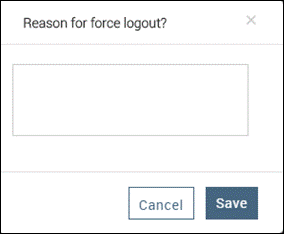
- Click Save to confirm session termination.
Working Mode Selection Monitoring
Due to the covid-19 pandemic situation, all organizations were operating from home. But, after restoration of situations, the organizations started mixed mode of working, where some agents started working from office and some of the agents are working from home. In such scenarios, the work of supervisor to monitor the agents is increased, as the supervisor would want to know the agent's working mode. This will help the supervisor to know how to communicate with the agent. Thus, to provide the better agent monitoring, the working mode selection functionality has been provided to the agents, which a supervisor is also able to view.
Thus if the working mode selection is available/configured for the agents, then a data metric column will be available to the supervisor in the Agents List section. It will show the selected working mode by the agent. The following two working mode selection is present:
- WFO (Work from Office): The agents who are working from Office, have to select this working mode option.
- WFH (Work from Home): The agents who are working from home, and is enabled with Ameyo remote solution, have to select this working mode option.
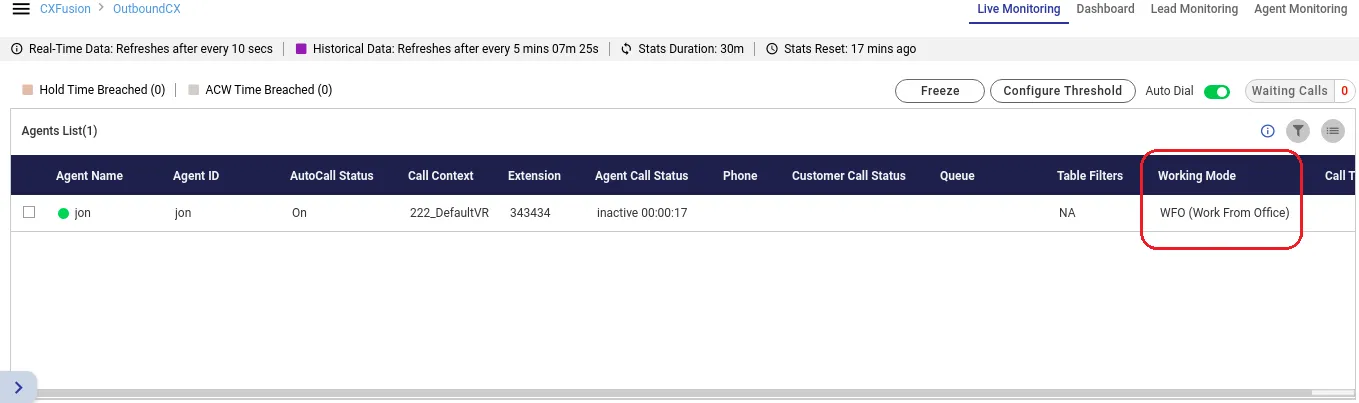
Figure: Monitoring of Selected Working Mode
Version History
Version | Enhancement | Release Notes |
|---|---|---|
4.13.33 | liveMonitoringRefreshTimerMs — configurable dashboard refresh interval (4–10 s, default 10 s) | Contact Center - Patch Release Notes - Version 4.13.334.13.33 Release Notes |