User Management
The User Management page displays all users who are assigned under the supervision of the logged-in Supervisor.
Supervisors can view and modify user details but cannot create or delete users.
User creation and deletion are restricted to Administrators only.
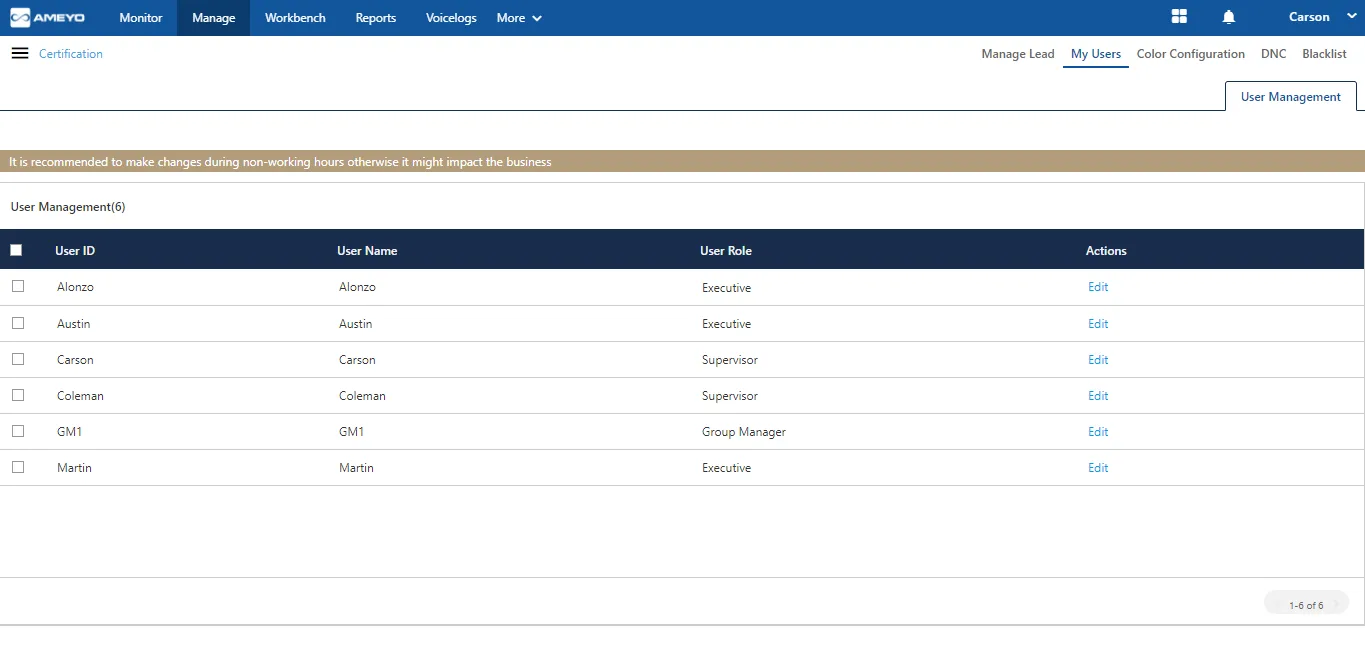
From this page, Supervisors can:
- View the list of all users assigned within their processes.
- Search users by name or ID.
- Modify user information and system privileges.
- Configure campaign-specific restrictions.
- Manage voicemail configurations (if licensed).
Search a User
- Enter the user’s name in the Search bar.
- Press Enter to display matching results.
- Click the user’s name or the Edit (✎) icon to modify their details.
Modify User
Supervisors can modify general user information, adjust privileges, and configure campaign-level access for assigned users.
- Select the user by checking the box next to their name.
- Click Edit.A pop-up window appears for user modification.
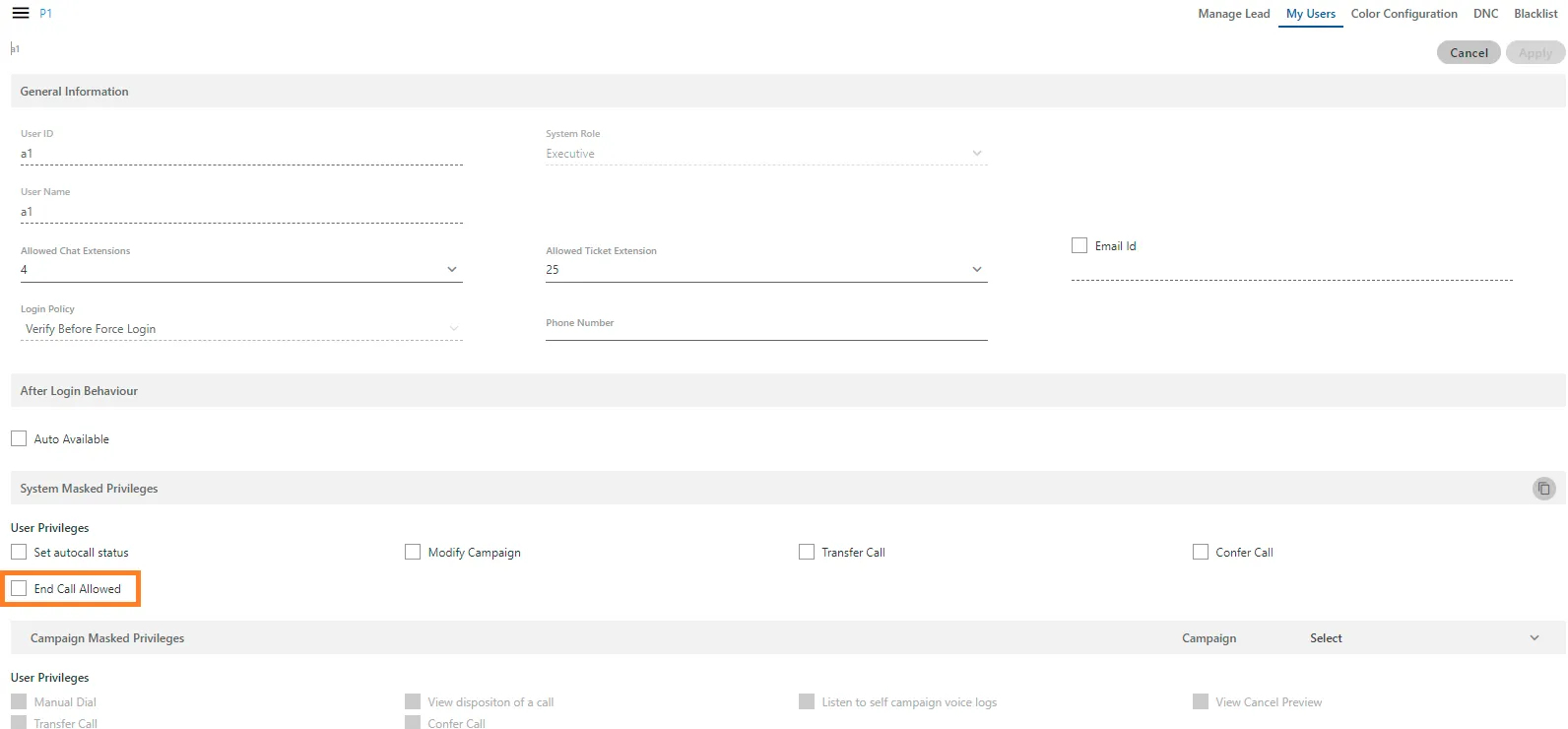
Editable Information
1. General Information
Supervisors can modify the following fields:
- Allowed Chat Extensions — Enable or disable specific chat extensions for the user.
- Allowed Ticket Extensions — Manage ticket extensions accessible to the user.
- Email ID — Check or uncheck to include an email address.
- Add, Modify, or Delete Email Addresses.
- Enable/Disable Screen Recording — Allow or restrict recording of user’s screen sessions.
2. After Login Behaviour
- Auto Available — Enable this setting to make the user automatically “Available” upon login.When unchecked, the user must manually change their status to Available after logging in.
3. System Masked Privileges
System-level privileges allow the Supervisor to restrict specific user actions globally across the system.
Enable the checkbox beside a restriction to apply it.
Privilege | Description |
|---|---|
Set Auto Call Status | Prevents the user from enabling or disabling auto call mode. |
Modify Campaign | Restricts the user from changing campaigns after login (even if assigned to multiple). |
Transfer Call | Disables the ability to transfer calls to another user or campaign. |
Confer Call | Restricts the user from initiating conference calls. |
End Call Allowed | Prevents the user from manually ending calls — only customers can hang up. |
4. Campaign Masked Privileges
Campaign-level masking allows the Supervisor to restrict user actions within specific campaigns.
Select the target campaign from the dropdown list to apply restrictions.
Privilege | Description |
|---|---|
Manual Dial | Prevents users from manually dialing numbers in that campaign. Useful for inbound campaigns. |
View Disposition of a Call | Hides the call disposition list in the dialer, forcing call closure from CRM only. |
Listen to Self Campaign Voice Logs | Restricts users from listening to their own call recordings. |
View Cancel Preview | Disables the user’s ability to cancel customer preview in preview dialing. |
Transfer Call | Restricts the user from transferring calls in this specific campaign. |
Confer Call | Disables the user’s ability to start a conference call. |
5. Voice Mail Configurations (Licensable)
Supervisors can manage voicemail configuration at the user level.
- Enable voicemail by toggling the Voicemail switch ON. If disabled, no voicemail will be recorded.
- Enable Notification Email IDs to send voicemail notifications.
- Enter multiple Notification Email IDs (Gmail domain only) separated by commas.Example: [email protected], [email protected]
- Select audio prompts:
- Welcome Voicemail Prompt
- Finish Voicemail Prompt
- Click Apply to save changes, or Cancel to discard.
Summary Table
Section | Purpose |
|---|---|
General Information | Update user’s extensions, email, or screen recording options. |
After Login Behaviour | Set whether user becomes available automatically post-login. |
System Masked Privileges | Apply global user restrictions (e.g., transfer, confer, or call end controls). |
Campaign Masked Privileges | Restrict user actions within specific campaigns only. |
Voicemail Configurations (Licensable) | Enable or configure voicemail recording and notifications. |