Filter Groups
Overview
Filter groups (also called table filter groups) let you bundle several existing table filters into named, ordered sets so outbound-style campaigns can dial leads in priority tiers—for example “high-value” leads first, then a broader pool—instead of applying only a single flat filter set.
The capability is licensable. It applies to Outbound Voice, Parallel Predictive Voice, and Voice Blast campaigns. Groups can be built at system level (Administrator) and/or campaign level (Supervisor), then assigned on the campaign Customers tab under the Filter Group sub-tab.
How It Works
End-to-end journey
- Table and filters exist. An Administrator defines the customer table and individual table filters (conditions on customer fields) under System Settings → Table → Filters (or equivalent in your edition).
- Build filter groups. Either:
- the Administrator creates system filter groups under System Settings → Table → Filter Groups, or
- the Supervisor creates campaign filter groups under Manage → Lead Management → Manage Filter Groups on a supported campaign.
- Assign groups to the campaign. On Manage → Campaigns → [campaign] → Customers → Filter Group tab, move the desired groups from Available to Assigned, then Apply. System groups appear alongside campaign groups; supervisors cannot delete system-created groups.
- Optional: fetch order inside a group (licensable). On Manage Filter Groups, the Supervisor can attach up to five fetch order policies per filter group so that, within each tier, the dialer also orders leads (for example by upload time or attempts). When used here, these policies override fetch order configured at Administrator campaign level for that filter-group setup (the UI explains this on the information icon).
- Operate and verify. Use Check impact / Check dialable numbers (and Enabled only vs All where shown) to see filtered and dialable counts after changes. After toggling groups on or off, refresh dialable counts as prompted.
Mutual exclusion: filters vs filter groups
For a given campaign you use either the Filter tab or the Filter Group tab on Customers, not both. When the filter group license is active, the Manage Filters path for that flow is typically hidden or unavailable—plan training so supervisors know which mode the tenant uses.
System vs campaign groups
Origin | Created by | Type label | Notes |
|---|---|---|---|
System Settings → Table → Filter Groups | Administrator | System | Can be assigned to multiple supported campaigns; only an administrator removes them at source. |
Manage Filter Groups on a campaign | Supervisor | Campaign | Scoped to that campaign; supervisor can enable/disable, reorder, modify, or delete their own groups; cannot delete system groups. |
Prerequisites
- License for filter groups (and, if used, fetch order policy inside filter groups) on the deployment.
- Campaign type is Outbound Voice, Parallel Predictive Voice, or Voice Blast.
- A table definition is selected where groups are maintained, and individual table filters already exist for that context.
- For assignment: the campaign Customers → Filter Group tab is used; prerequisites for that screen are described in Customers / Lead Filtration.
Configuration Steps
A. Administrator — create system filter groups
- Open System Settings → Table → Filter Groups.
- Under Select table, pick the table definition whose filters you will group.
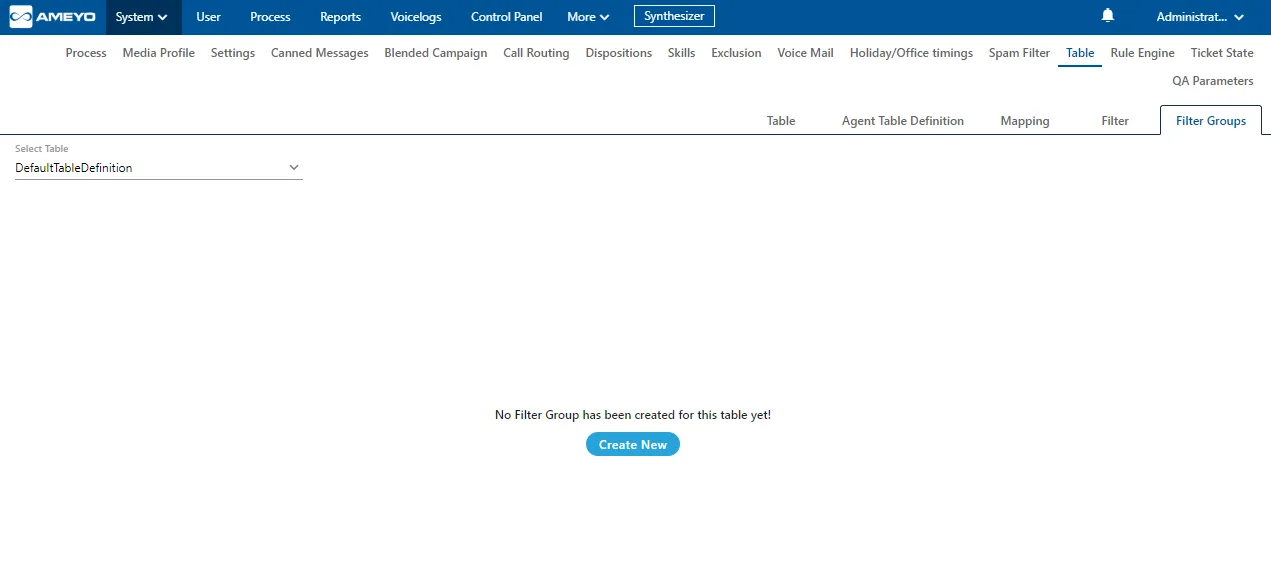
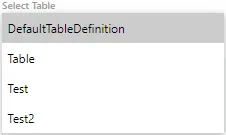
- Click Create New. Enter a filter group name, choose campaign type (Outbound, Parallel Predictive, or Voice Blast), then move filters from Available filters to Assigned filters using the forward arrow; use the backward arrow to remove members.
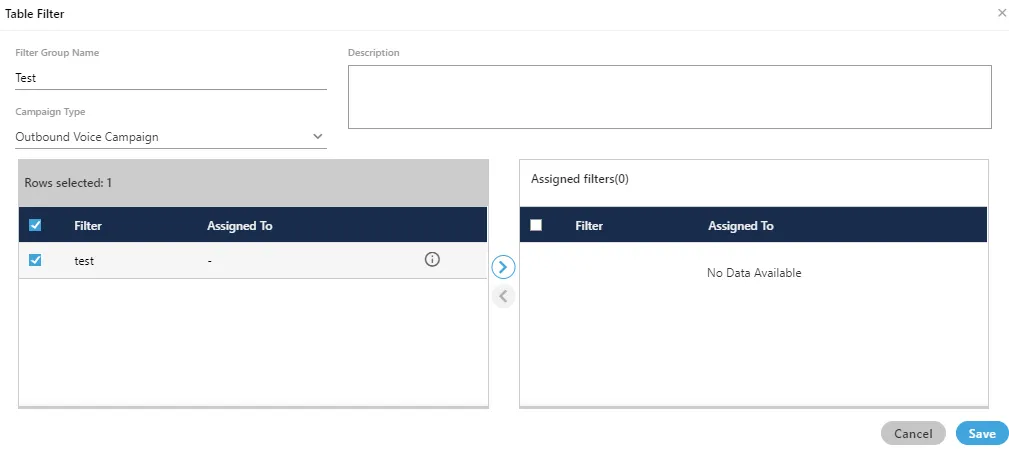
The campaign type you pick determines which filters are offered for grouping.
- Click Save (or Cancel to discard). Enable or disable the group with the toggle when needed.
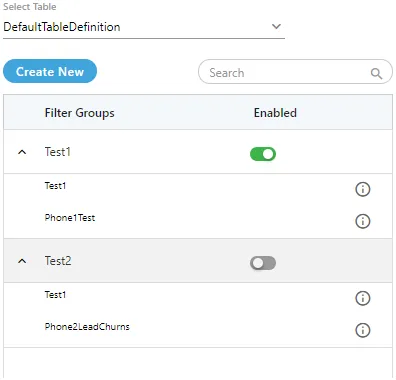
- To edit, select the group, click Edit, adjust name, description, or members, then Save. To delete, select the group, click Delete, confirm Yes. Deletion is permanent; if the group was assigned to campaigns, lead filtration for those assignments stops working until you reconfigure.
A deleted filter group cannot be restored. If it was in use on campaigns, dialing logic for those assignments breaks until reassigned.
B. Supervisor — campaign filter groups and fetch order
Use Manage → Campaigns → open an Outbound, Parallel Predictive, or Voice Blast campaign → Lead Management → Manage Filter Groups. Create groups (Create New), assign filters from Available to Assigned, set priority with ↑ / ↓ (top group applies first). System groups appear as System type and cannot be deleted here.
For fetch order (licensable), use + to add policies (up to five). Typical policy types include:
- Customer upload time (ascending / descending)
- Randomized order of lead upload
- Natural order of lead upload (CSV row order)
- Number of attempts (ascending / descending)
- Customer information (sort by a chosen customer field, ascending / descending)
- User disposition retry time (ascending / descending)
- Custom (custom ordering script where your product edition exposes it)
The same logical filter group can use different fetch-order stacks when reused across campaigns.
Use Check impact / Check dialable numbers to refresh filtered and dialable counts after toggles; use Enabled only or All tabs in the modal where your build shows them.
Step-by-step screenshots for the supervisor console live under Manage Filter Groups (Licensable) in this documentation set.
C. Assign filter groups on the campaign
- Manage → Campaigns → select the campaign → Customers → Filter Group tab.
- Move groups from Available to Assigned, then Apply.
- Do not use the Filter tab on the same campaign while filter groups are the active mode.
See Customers / Lead Filtration for the combined Customers tab narrative (filters vs filter groups, Check impact).
Configuration parameters
Exact machine keys for filter-group limits vary by release and hosting; use the table below for what to configure and confirm storage keys with your platform administrator if you automate configuration.
Key / parameter | Description | How to configure | Constraints & options | Sample |
|---|---|---|---|---|
(UI) Filter group license | Turns on filter-group features and related UI. | License / entitlement for the contact center (Administrator or Exotel onboarding—not a single campaign toggle). | Without license, filter-group tabs and Manage Filter Groups may be absent. | Enabled for outbound sales tenant |
(UI) Campaign type on system filter group | Limits which filters appear when building a system group. | System Settings → Table → Filter Groups → Create New → Campaign type | Outbound Voice, Parallel Predictive Voice, or Voice Blast | Outbound Voice |
(UI) Filter group members | Ordered set of table filters inside one group. | System or Manage Filter Groups editor → Available filters → forward arrow → Assigned filters | At least one filter per group when you intend the group to narrow leads | “Tier 1 — hot leads” contains filters A + B |
(UI) Group priority | Dialing order across multiple groups on a campaign. | Manage Filter Groups → ↑ / ↓ | Top group runs first | “Hot” above “Nurture” |
(UI) Fetch order policies per group | Secondary ordering inside a group after filters match. | Manage Filter Groups → add policies with + (licensable) | Up to five policies per group in product docs; order matters | Upload time descending, then attempts ascending |
(UI) Max filter groups per campaign | Caps how many groups can be assigned. | Documented as backend / deployment tunable; default often 10 in guides—confirm for your build. | UI-only (key not verified) — ask administrator for your limit | 10 groups assigned |
Use cases
- Tiered dialing: Dial “eligible + high score” leads first, then fall back to a wider segment when the first tier is exhausted.
- Regional or product campaigns: Separate groups by geography or product line while reusing the same base table.
- Operational fairness: Combine fetch order (for example random or natural CSV order) with tiered filters to balance business priority and even lead treatment.
Benefits
- Clear prioritization of segments instead of one monolithic filter.
- Reuse of system-defined groups across many campaigns.
- Supervisor control over campaign-local groups and ordering without redefining base table filters.
- Optional fine ordering inside each tier when fetch-order policies are licensed and configured.
Limitations
- Filters vs filter groups are mutually exclusive per campaign Customers configuration.
- Supervisors cannot remove system filter groups at campaign level.
- Deletion of a system group is destructive and breaks assignments until you fix campaign settings.
- Fetch order inside filter groups overrides administrator campaign-level fetch order for that filter-group configuration—communicate this to avoid surprises.
- Maximum five fetch-order policies per filter group and a default cap on assigned groups per campaign (often 10) are described in product guides; your deployment may differ—validate with support.
Related topics
- Manage Filter Groups (Licensable) — Supervisor-console walkthrough, fetch-order screenshots, Check impact, delete.
- Customers / Lead Filtration — Customers tab: assigning filters vs filter groups, Apply, Check impact.
- Lead Management — Broader lead and filter context.
- Customer Records Management — How table definitions and filters relate to agent-visible data.