QA Parameters in System Configuration (Licensable)
The administrator can define various quality parameters to assist analysts and other authorized users in rating the quality of each customer interaction with agents. This feature requires a license; for more information, please contact the Ameyo support team.
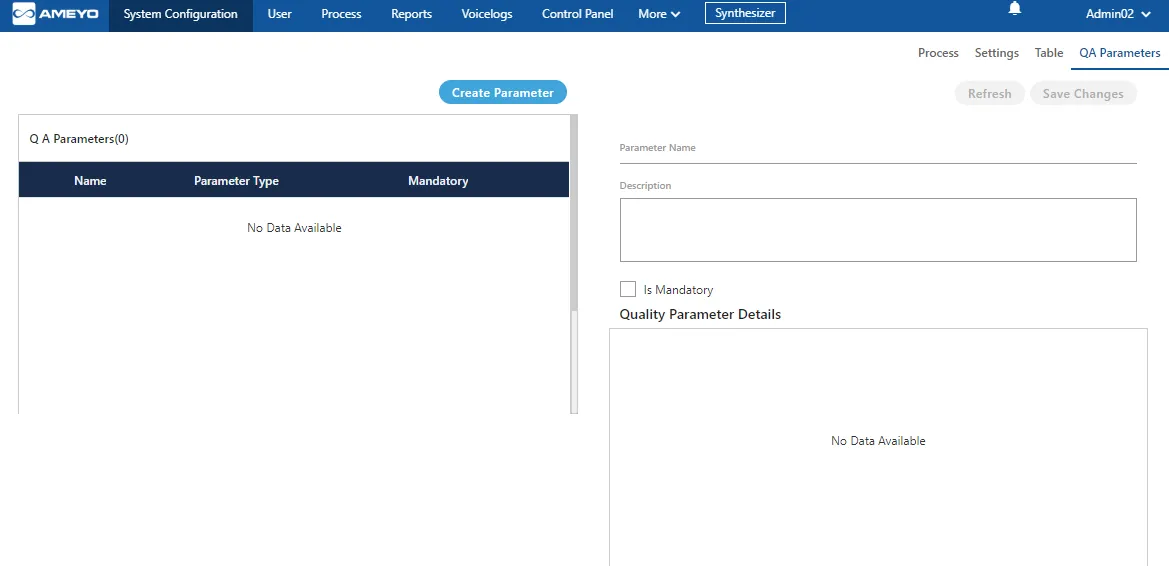
Create Quality Parameter
Administrator can create new parameter by performing the following steps.
- Click "Create Parameter" button. A pop-up is displayed on the screen.
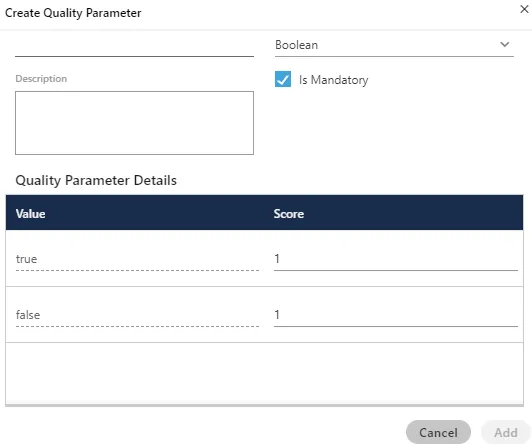
- Parameter Name: Enter the name of parameter.
- Description: Enter the description of parameter.
- Is Mandatory: Check the check box if this parameter has to be made mandatory, which means the Analyst or Supervisor has to rate the call.
- Parameter Type: Select the parameter type from the drop-down menu. After selecting a value, the interface gets changed. It contains the following options.
- Boolean&#xNAN;: Select it to create a boolean-based Quality Parameter, whose value can be given in True or False. After selecting the boolean, provide the values for true and false.
- Multiple&#xNAN;: Select it to create a Quality Parameter, which can contain multiple vaules.
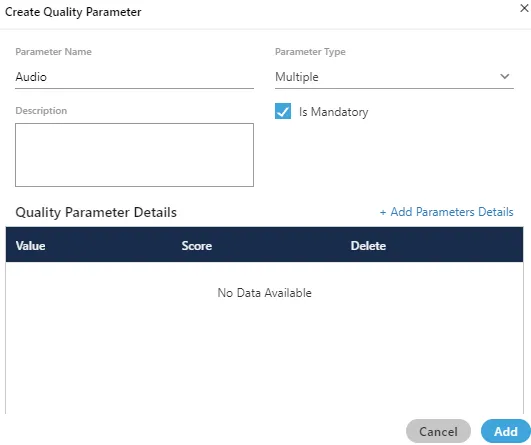
Perform the following steps.
- Click "+Add Parameter Details" link. It adds a new row in the blank area.
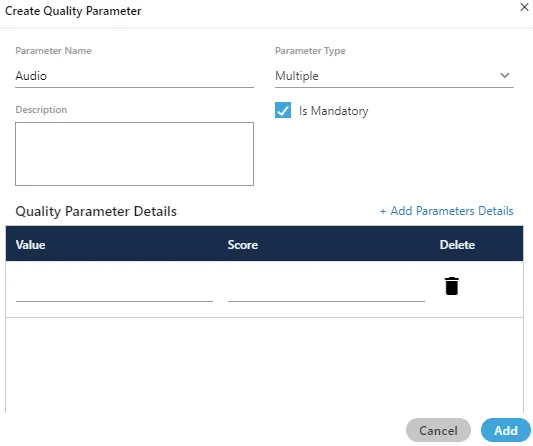
- Provide the value and score. For example, the value can be in text format and the score can be in numeric format such as "Poor" can be the value and "1" can be its score.
- Click "+ Add Parameter Details" link again to add one more row containing value and score.
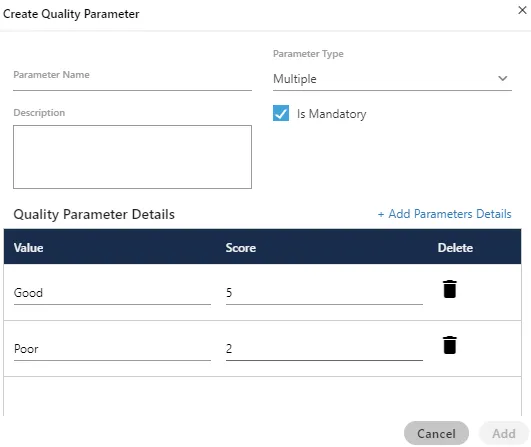
- Click on delete icon to detele a parameter detail.
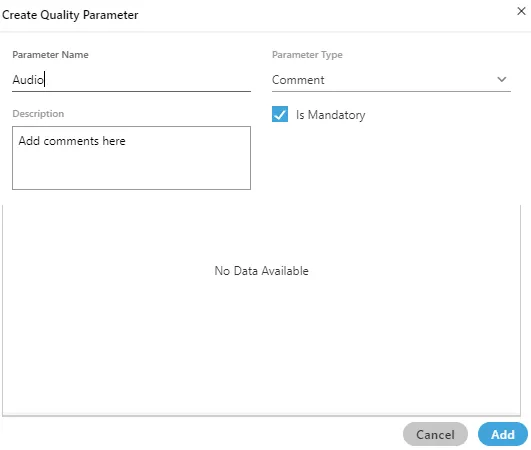
- Comment: Select it to create a Quality Parameter, which can accept and store comments about the quality of customer communication.
- Range&#xNAN;: Select it to create a range-based Quality Parameter. You can specify the minimum and maximum range.
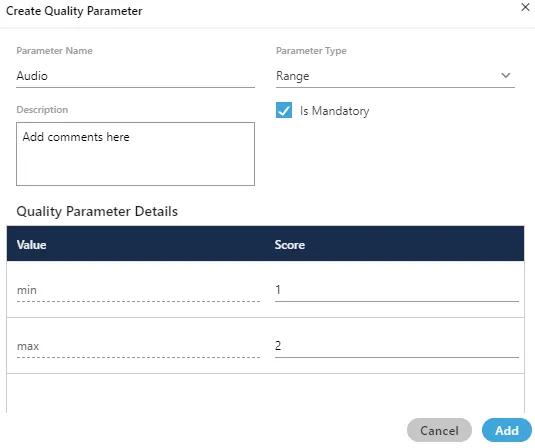
- Click "Add" button to add the parameter.
Following screenshot shows newly created quality parameters.
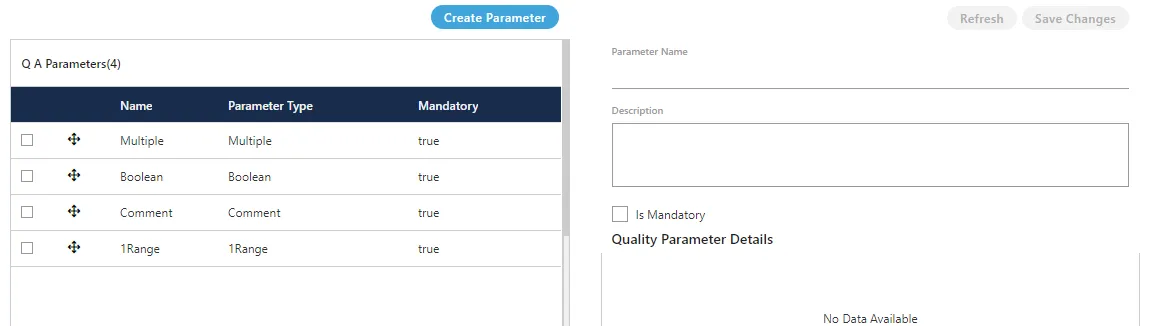
- Select the QA Parameters to view its details.
Change Priority of Quality Parameters
Each Quality Parameter in the list includes controls for adjusting its priority. The administrator can click the ↑ arrow to increase the priority of a Quality Parameter or the ↓ arrow to decrease its priority.
Modify Quality Parameter
You can click the checkbox of a quality parameter to view its details in the right section.
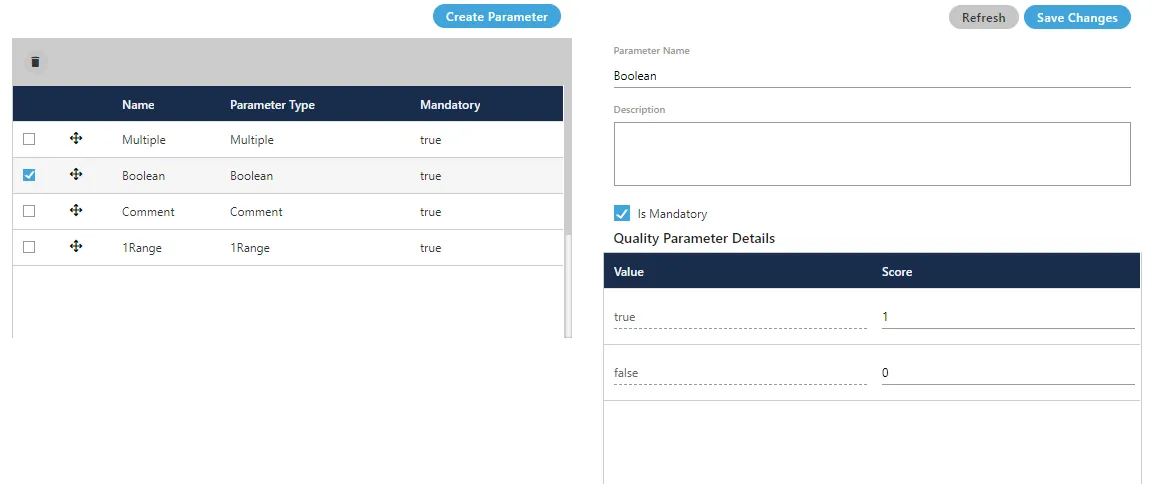
You can modify the following details.
- Name
- Description
- Make it optional by unchecking "IsMandatory" or make it mandatory by checking "IsMandatory".
- If it is a Boolean-, Multiple-, or Range-based Quality Parameter, then you can change its value and score.
Click "Save Changes" button on the top-right corner to save the changes. Rather, you can click "Refresh" to discard the changes.
Delete Quality Parameter
Perform the following steps to delete a quality parameter.
- Select a quality parameter in the list.
- Click "Delete" to delete the quality parameter. It shows the following pop-up.

- Click "Yes" to delete the quality parameter. Click "No" to not delete the quality parameter.
The deleted Quality Parameter cannot be restored.
Prerequisites & Privileges
- The Quality Scoring / QA Parameters feature is licensable. If the QA Parameters tab is not visible under Administrator, request the feature to be enabled by the Exotel support team.
- To create, modify, or delete a parameter the signed-in user needs contactcenter:dacx-cc.admin.qa-mgmt.add-cc-qa-param:invoke-access, modify-cc-qa-param:invoke-access, or remove-cc-qa-param:invoke-access respectively. Viewing requires view-cc-qa-param:invoke-access.
- By default these privileges are held by the Administrator role; Analyst, Group Manager, and Supervisor have view-only access.
Parameter type cheat-sheet
Parameter Type | Use when | Stored value | Score model |
|---|---|---|---|
Boolean | A question has exactly two outcomes (e.g. Did the agent greet the customer?). | true / false | One score per value (true vs false). |
Multiple | The auditor picks from a fixed list (e.g. Poor / Average / Good). | Selected option label | Each value has its own numeric score. |
Comment | Free-text qualitative feedback. | Auditor comment | No numeric score, ignored in aggregate scoring. |
Range | The auditor picks a number within a range (e.g. 1–10). | Integer in the configured range | Score = selected value (or configured weighting). |
Priority ordering (↑ / ↓) controls the display order on the scorecard shown to the Supervisor / Analyst and the order of columns in QA-related reports.
Related pages
- QA Parameters in a Campaign — assigning saved parameters to specific campaigns.
- Quality Scoring / QA Parameters — auditor workflow and scoring outcomes.
- Reporting & Analytics — QA score reports and trend analysis.