Holiday/Office Timings (Licensed Feature)
Holiday/Office Timings is a feature which defines the holiday and office hour timings. This feature is licensed. This tab will be only visible if holiday/ office timing license is procured at the center.
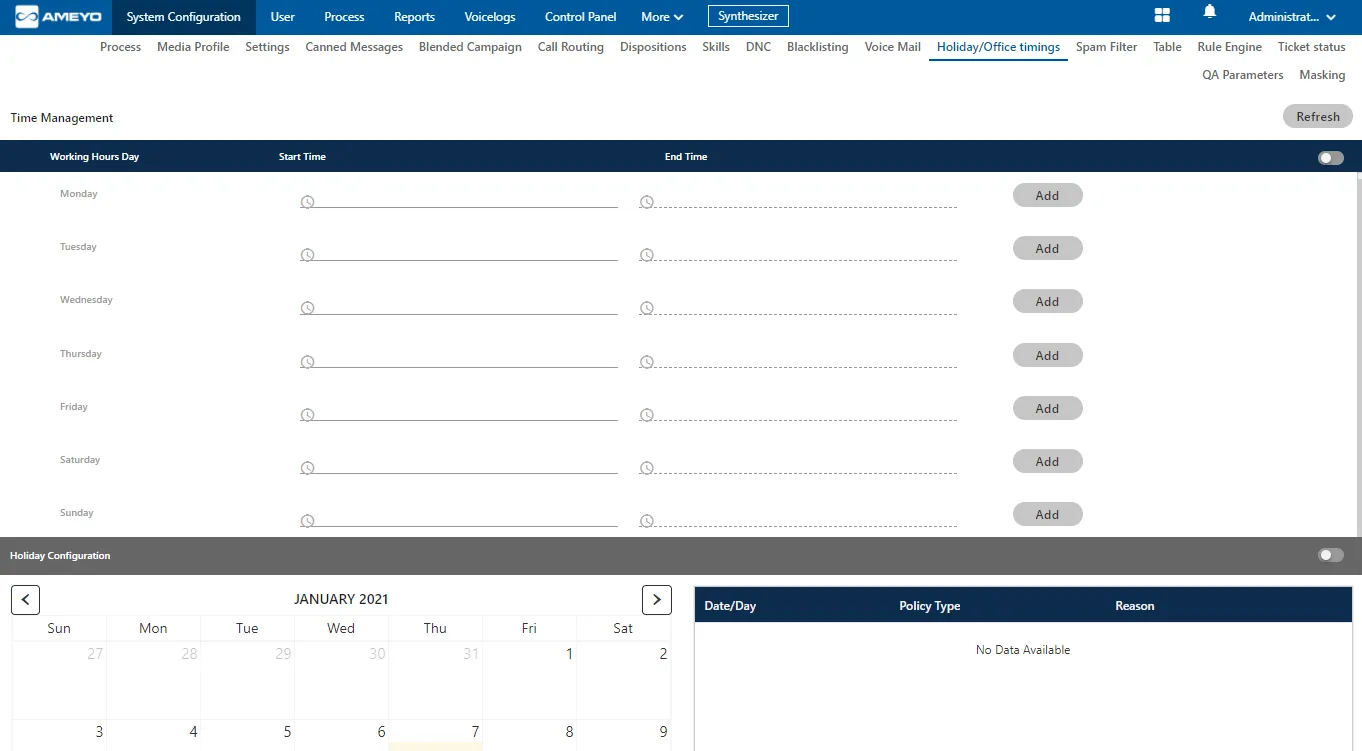
Working Hour Configuration
Perform the following step to configure the working hours.
- The Administrator can enable office hour at system level under Time Management by sliding the working hours bar towards right to enable working hours.
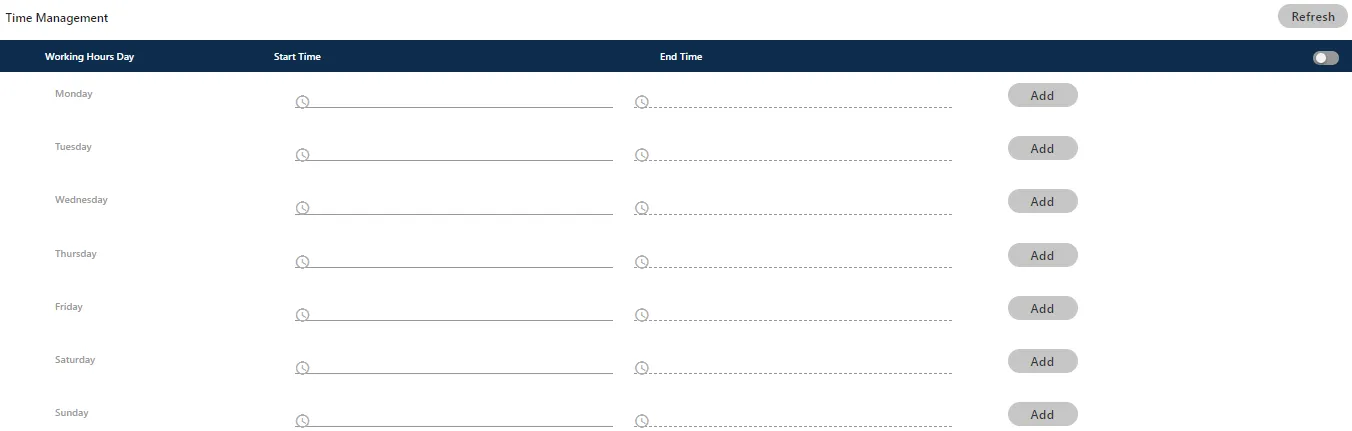
If this is not enabled, then office hour configuration will not be configured.
- Click the time box under "Start Time" for any day to add the time when the working hours start. It shows a pop-up, in which you can select the hours, minutes, and seconds.
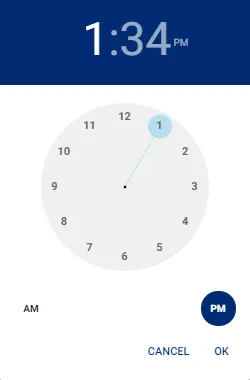
- You can click hour in header to use the clock to select the hour.
- You can click minute in the header to use the clock to select the minutes.
- You can click "PM" or "AM" in the header to change their values.
- Once done, click "OK" to save the time. Similarly, you have to select "End Time".
- Click "Add" to add the working duration for the particular day. Similarly, you can provide the working hours for all seven days as displayed in the following screenshot.
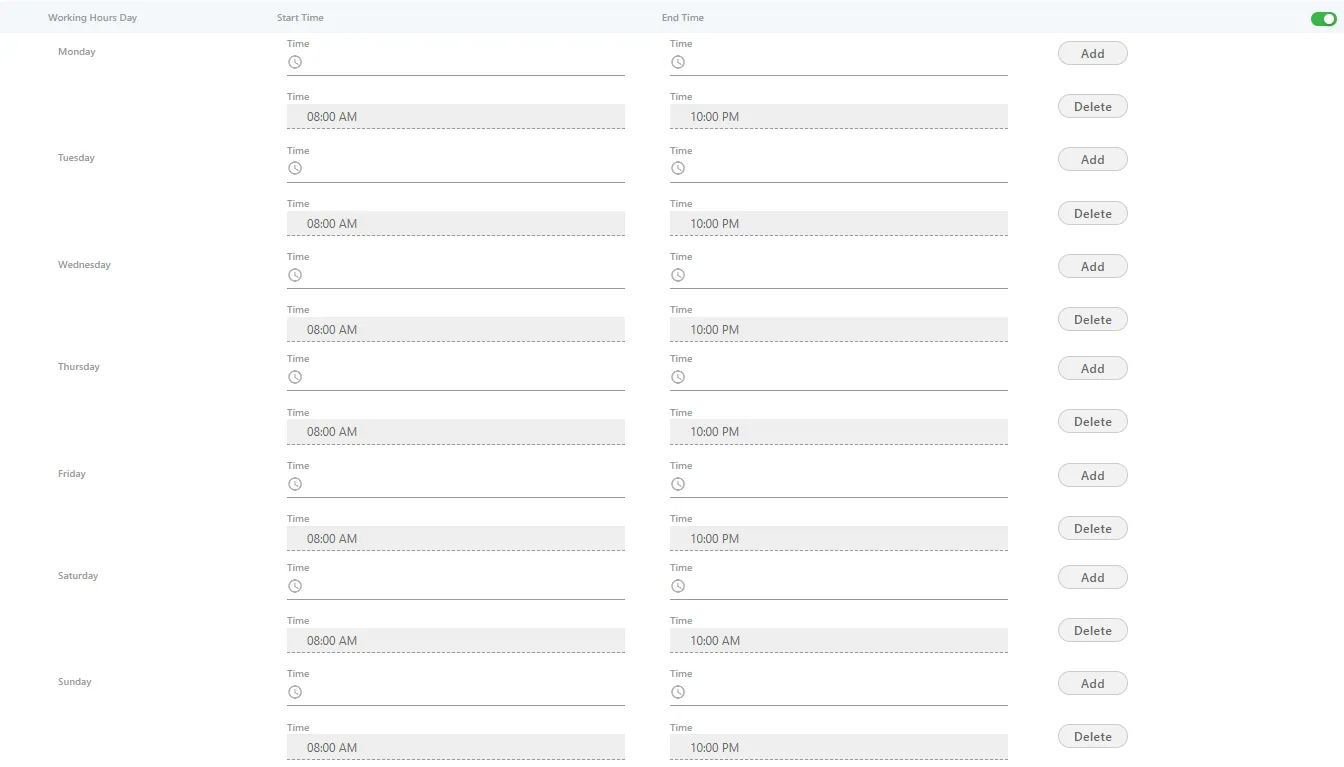
To delete the working hour for a day, click "Delete" for that row.
Holiday Configuration
The Administrator can enable Holiday at system level under this option by sliding the holiday configuration bar towards right. If this is not enabled, then holiday configuration will not be configured.
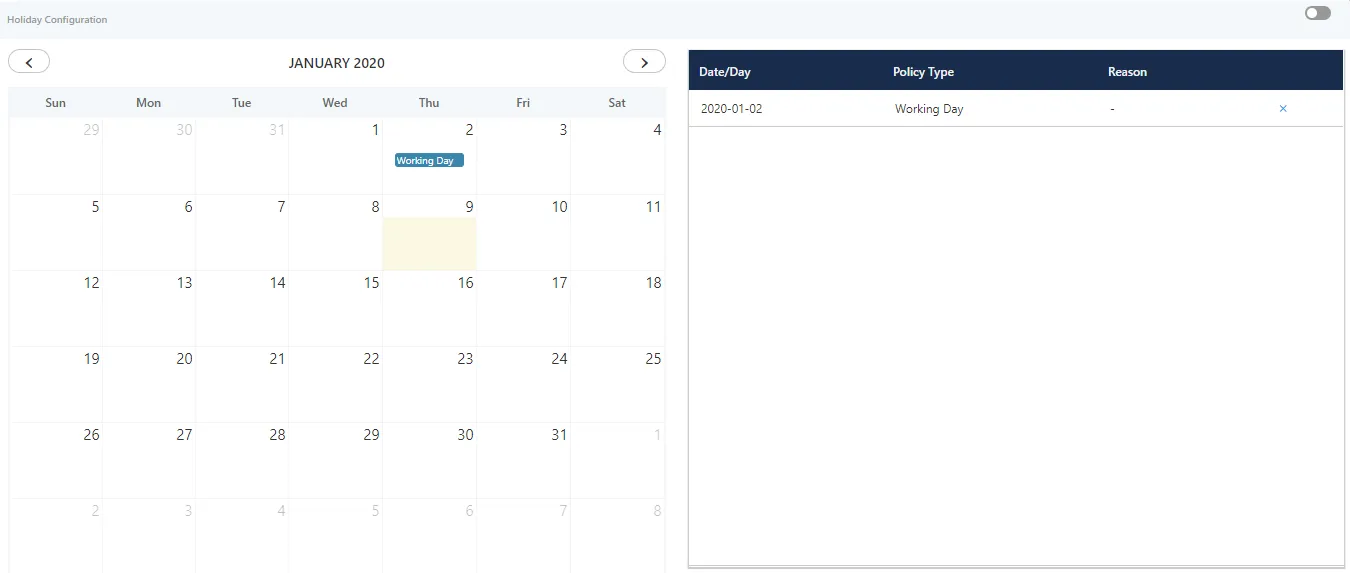
Perform the following steps.
- Administrator can select the date from calendar to mark different days as holiday.
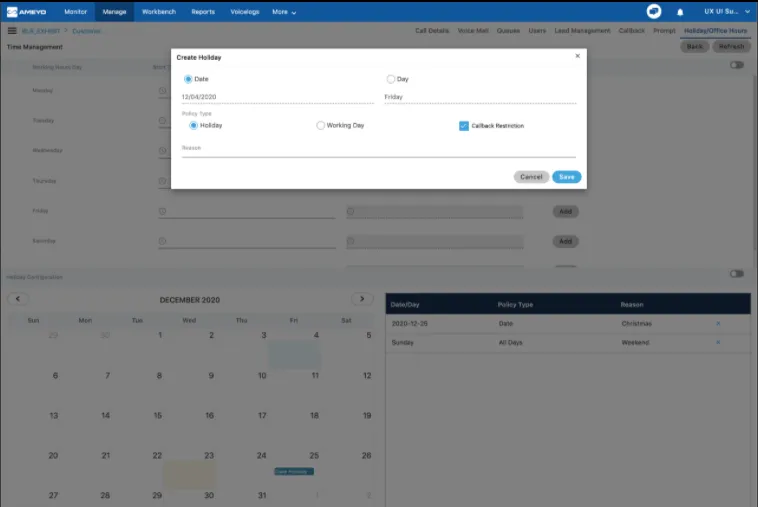
- Click a day to mark that day as Holiday or Working Day using the following pop-up.
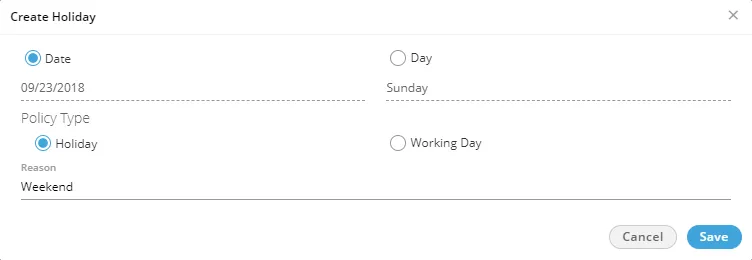
- Date: Click "Date" if you only want to mark the selected date as Holiday or Working day. After selecting it, select any of the following options.Click "Save" to mark it as the selected option.
- Holiday: Click it to mark the selected day as a holiday.
- Working Day: Click it to mark the selected day as a working day.
- Day: Click "Day" if you want to want the holiday or working day to repeat on the same day.
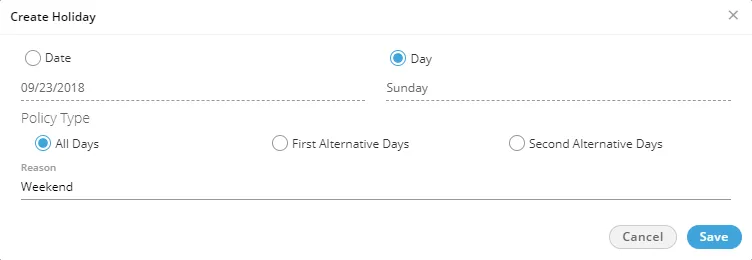
After selecting it, select any of the following options.
- All: Select it to mark all days in the month as the holiday.
Holiday on an alternate day means if the holiday is marked on the first week then the next holiday on the same day will be on the third week. There will be no holiday in the second week on the selected day.
Here, you can select whether to start alternate holidays on the first week or second week.
- First Alternate Days: Select it to start the alternate holidays on the selected day from the first week itself.
- Second Alternate Days: Select it to start the alternate holidays on the selected day from the second week itself.
- Provide a reason to create a holiday or weekday.
- Click "Save" to save the day. Rather, you can click "Cancel" to discard it. The selected holiday will be listed on the right side section.
Following is a sample screenshot.
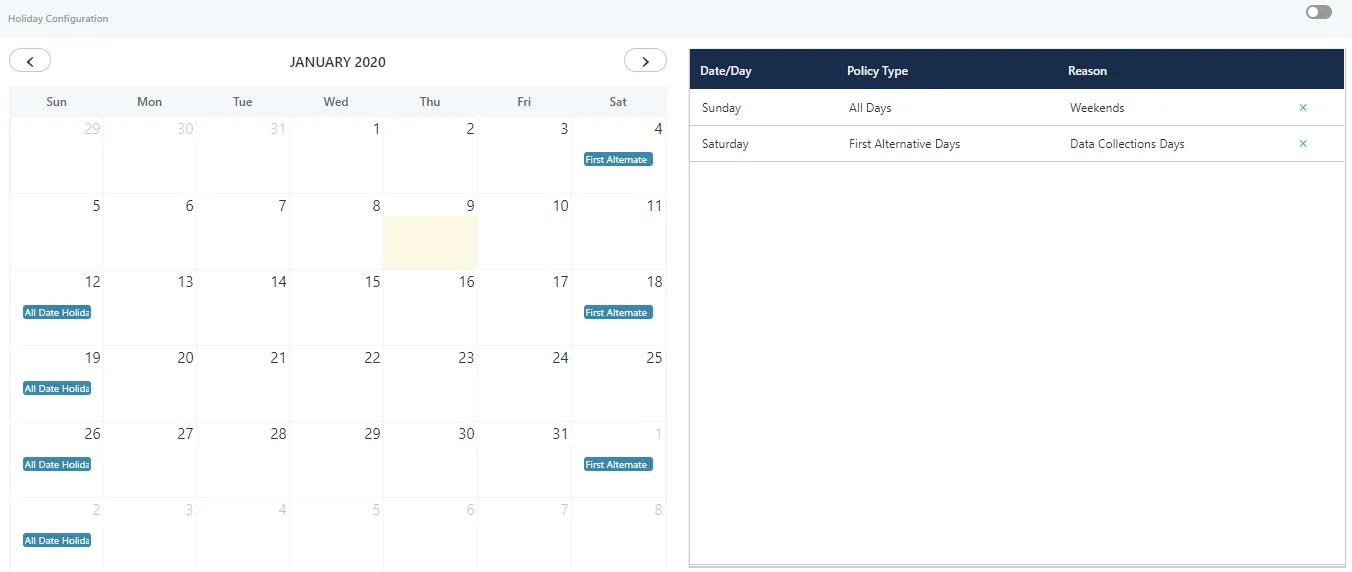
To delete a holiday, click "X" for a holiday in the right side section.
Holiday Office Hour Restriction in Non-Office Hours
In cases where the agent schedules a callback call beyond the office hour timing, the callback calls fail, which leads to a high count in the failed callback attempt. Also, when the operations team does not want to initiate or handle callback and inbound/outbound calls together, a window where they can define the callback start and end time for scheduling the callback calls is very useful. Holiday/Non-office hours configuration are provided for callback calls. Administrators can configure the same at both system and campaign level. If the configuration is done at both levels, then the campaign-level configuration overrides the system-level configuration.
Administrator can perform the following actions:
- Add and edit callback hours
- Add/edit holiday configuration as per the calendar date.
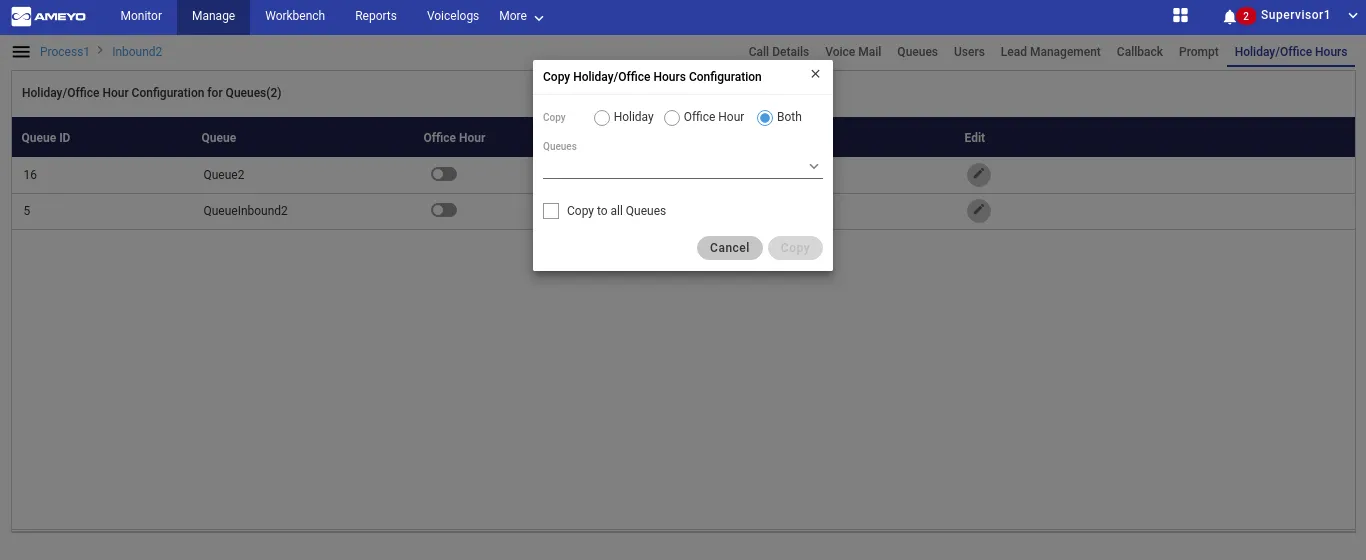
- Copy these settings in other campaign(s) in the same process.
For both agent and supervisor, when adding a callback, if the agent selects a time that is marked as holiday/non-office hours, then the holiday dates are disabled on the calendar and an error message is displayed.
In case a callback is scheduled and later the administrator changes the holiday/non-working hours so that the call scheduled time falls under the non-permissible time, then the callback is initiated in the next working hour.