Interactive Voice Application Campaign Settings
In the left navigation bar of Process Tab, you can select an Interactive Application Campaign to view its settings.
The changes made in settings of one Interactive Voice Application Campaign will be applicable to that campaign itself. They will not be applicable on other similar (Interactive Voice Application) and different (non-interactive voice application) campaigns.
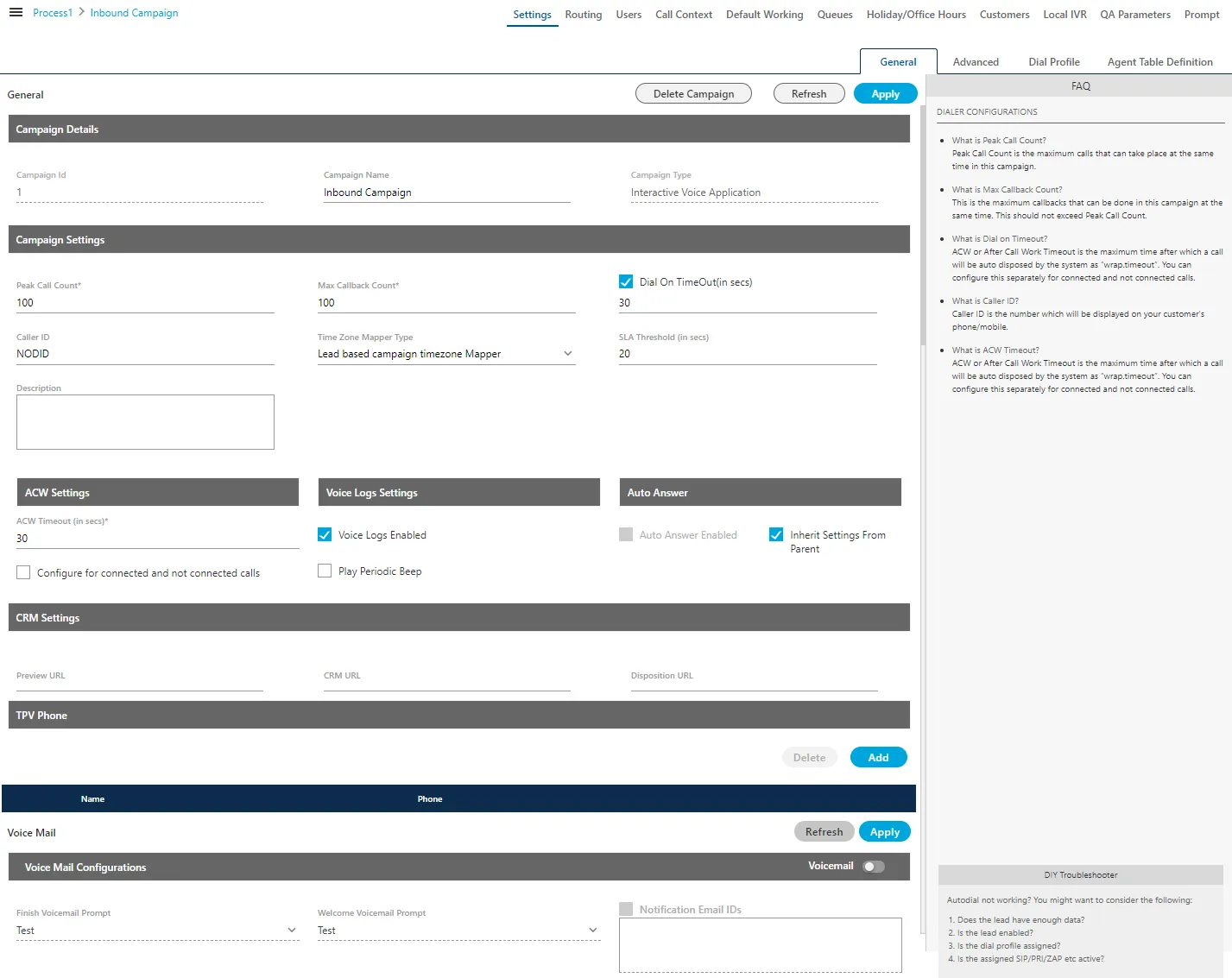
At the right side of the campaign settings page, some of the commonly asked definitions of settings are defined. You can refer to those definitions.
It contains the following tabs.
- Settings
- General Settings
- Advanced Settings
- Dial Profile Settings
- Agent Table Definition
- Queues
- Routing
- Users
- Default Working
- Holiday/Office Hours
- Call Context
- Local IVR
- QA Parameters
- Prompt
Settings Tab
This tab contains "General Settings", "Advanced" Settings, and "Dial Profile" Settings.
General Settings
Here, the General Settings are divided into the following sections.
Campaign Details
These are the same details, which you have provided while creating this campaign. You can only change the campaign name here.
Campaign Settings
Except for the following, it contains those settings, which you have configured while creating this campaign.
- Dial On Time out (In seconds): Select it to define the dial on time-out. With these settings, the dialed calls will be disconnected after the provided seconds if not connected.
- SLA Threshold (In Sec): Here, you can specify the threshold in which the inbound calls should be answered ideally.
- CRM Settings: These are the same settings, which you have provided while creating this campaign. You can modify all of its fields here.
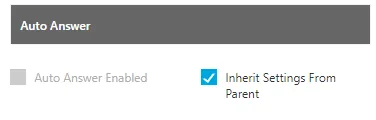
- Auto Answer Settings: Auto-Answer Feature is already available for WebRTC with or without Ameyo SIP Agent Proxy. This feature did not require the implementation of "Accept-Reject" node in the Nodeflow to show the prompt at Ameyo User Console before answering the call.However, "Accept-Reject Node" was providing the Auto-Answer Configuration at the campaign-level and this feature was missing in Auto-Answer Feature for WebRTC."Auto-Answer" section contains the following options and only one option will work at a time.
- Inherit from Parent: Select this option to inherit the Auto-Answer Configuration in the campaign from the System-level. If the Auto-Answer is disabled at the System-level, then it will remain disabled at the Campaign-level. If the Auto-Answer is enabled at the System-level, then it will remain enabled at the Campaign-level.
- Auto Answer Enabled: It will enable "Auto-Answer" at the Campaign-level forcefully even if it is disabled at the system-level. Refer to the following screenshot.
- TPV Phone: As per the process requirement, there may be a few numbers to which transfer of calls is very frequent. Third-party verification (TPV) number is used to transfer the call to the verifier. Here, such frequently used TPV numbers are added so that the user can directly transfer the case to these numbers.

Click "Add" to show a row to add TPV Phone number. Enter the name and phone number. You can add multiple TPV Numbers. To delete a TPV phone number, click its checkbox to select it and click "Delete".
- Voicemail Configuration: Perform the following steps to enable the voicemail feature on the queue level. If this is not enabled, then voicemails will not be recorded.
Make sure to upload the Prompts through "Prompts" tab in the campaign to use them in Voicemail.
- Click "Voicemail" toggle switch to turn it on.
- Welcome Voicemail Prompt: Select the welcome voicemail prompt from the drop-down field.
- Finish Voicemail Prompt: Select the finish voicemail prompt from the drop down field.

- Notifications Email IDs: Check "Notification Email IDs" to send the voicemail notifications to the selected recipients. After enabling it, enter the email addresses (only Gmail domain) of the recipient's Administrator separated by comma. For example: [email protected], [email protected].
After modifying the settings, click "Apply" on top to apply these settings. Else, you can click "Refresh" to discard the changes.
After modifying the settings, click "Apply" on top to apply these settings. Else, you can click "Refresh" to discard the changes.
Advanced Settings:
Here, the Administrator can configure the Advanced Settings of an Interactive Voice Application Campaign.
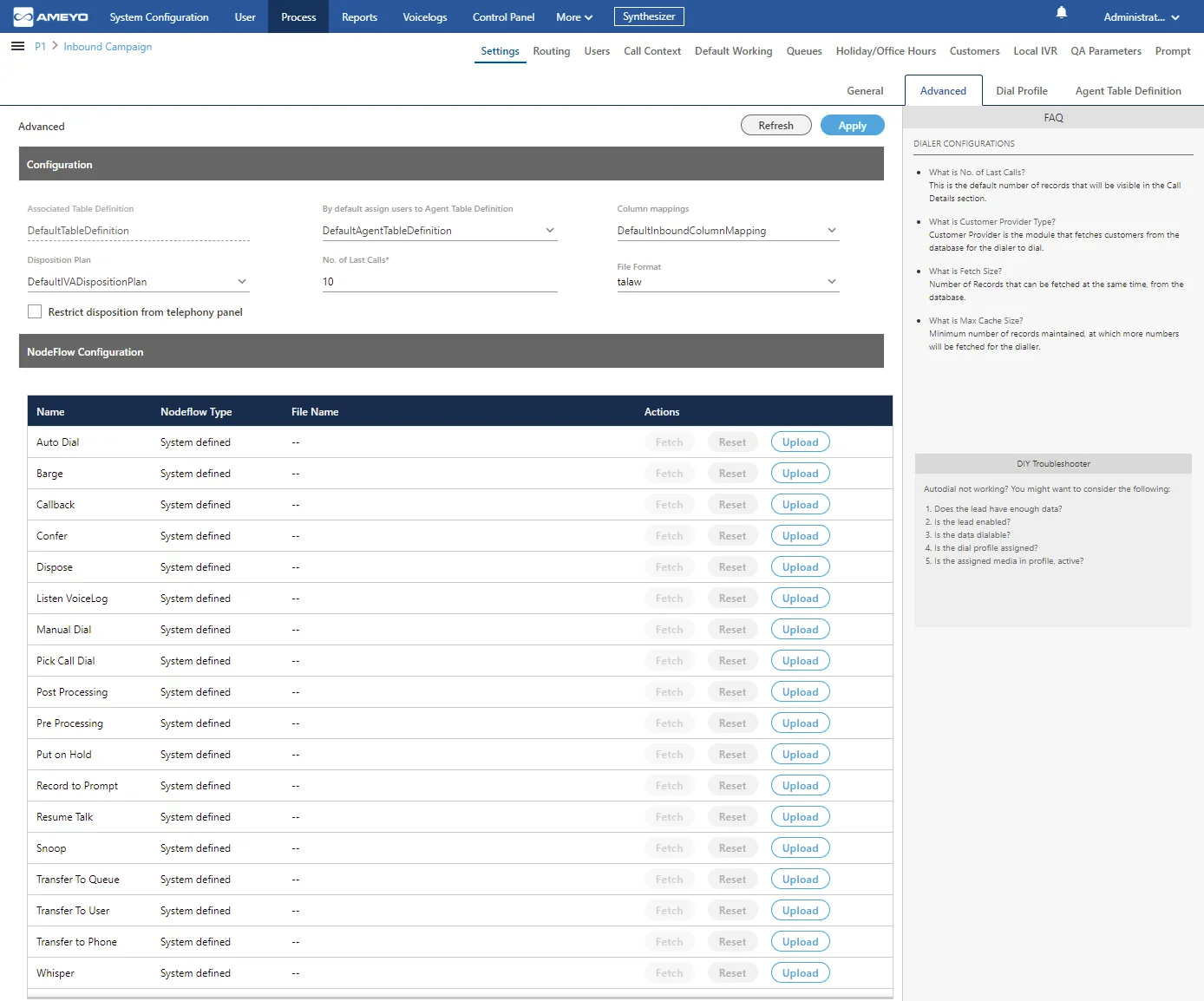
- This tab can be divided into two sections - "Configuration" and "NodeFlow Configuration".
Configuration
It contains the following settings, which you have configured while creating the campaign.
- Disposition Plan
- Column Mapings
- No. of Last Calls
- File Format
It also contains the following settings, which you can configure after creating the Interactive Voice Application Campaign.
- Defaut Table Definition: Here, you can select the default Table Definition for this campaign.
- By default assign users to Agent Table Definition: Here, you can select the default Agent Table Definition for this campaign.
Restrict Disposition from Telephony Panel
In the Contact Center Industry, the business prefers to dispose of the Calls from the CRM, especially which is linked with Ameyo Application Server. The agents have two different ways to dispose of the single call - one through Telephony Panel and another through CRM. If the agent was disposing of the calls in both of the ways, then there will be two dispositions for a single call that can create confusion and discrepancy.To avoid this discrepancy, a configuration named "Restrict disposition from Telephony Panel" is added in "Advanced" Tab of Voice Campaign Settings.
Brief about Settings
- Uncheck (Default): Uncheck this option to use the default or existing Call Disposition process. It means the agent can dispose of the call from both Telephony Panel and CRM.
- Check: Check this option to disable the call disposition at Telephony Panel and allow the agents to dispose of the call from CRM only.
By default, this option is unchecked due to which the agent will be able to dispose of the call from the Telephony Panel. However, if the Administrator has enabled it, then the agent will not be able to dispose of the call from the telephony panel.
We recommend that this option should be checked if the client is not using any CRM.
- When Unchecked → Disabled (By Default)If the option “Restrict Disposition from Telephony Panel” is unchecked, then the default or previous Call Disposition flow will work by default. The Agent can dispose of the call from Telephony Panel or CRM. However, it will not solve the use case addressed in this story.
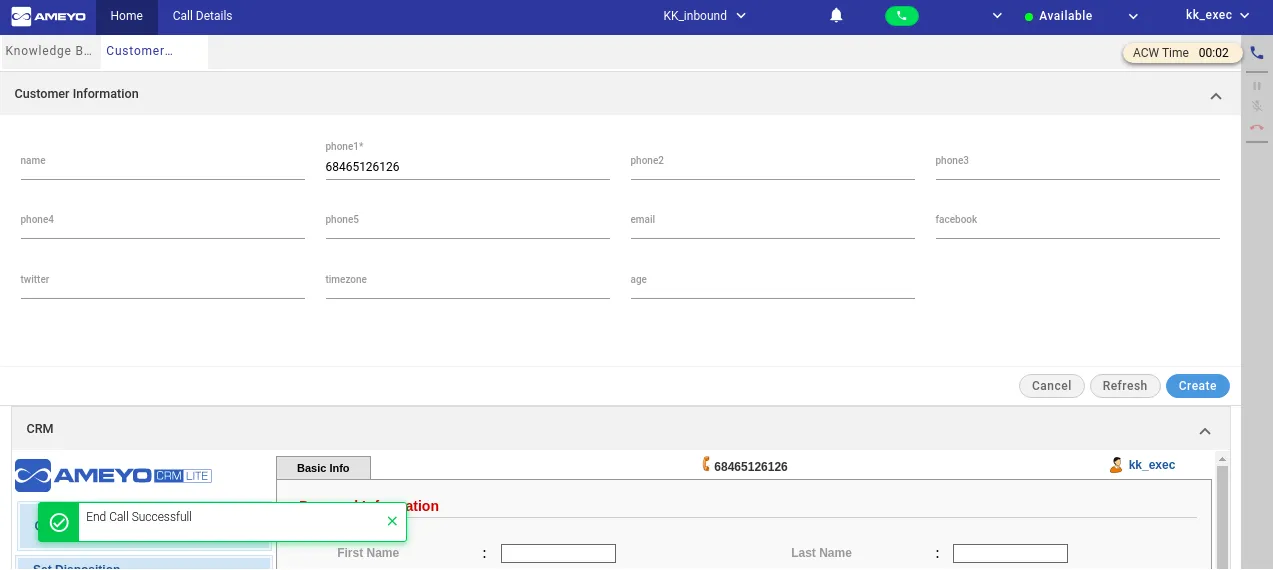
- When Checked → EnabledThe Administrator can check this option to restrict the disposition of calls in the Telephony Panel. The call cannot be disposed of from Telephony panel. The call has to be disposed of from the CRM only. As soon as the call is ended, the telephony panel will not slide out to the left side from the right bar. An error is displayed in the tooltip when the agent tries to dispose of the call from the telephony panel.
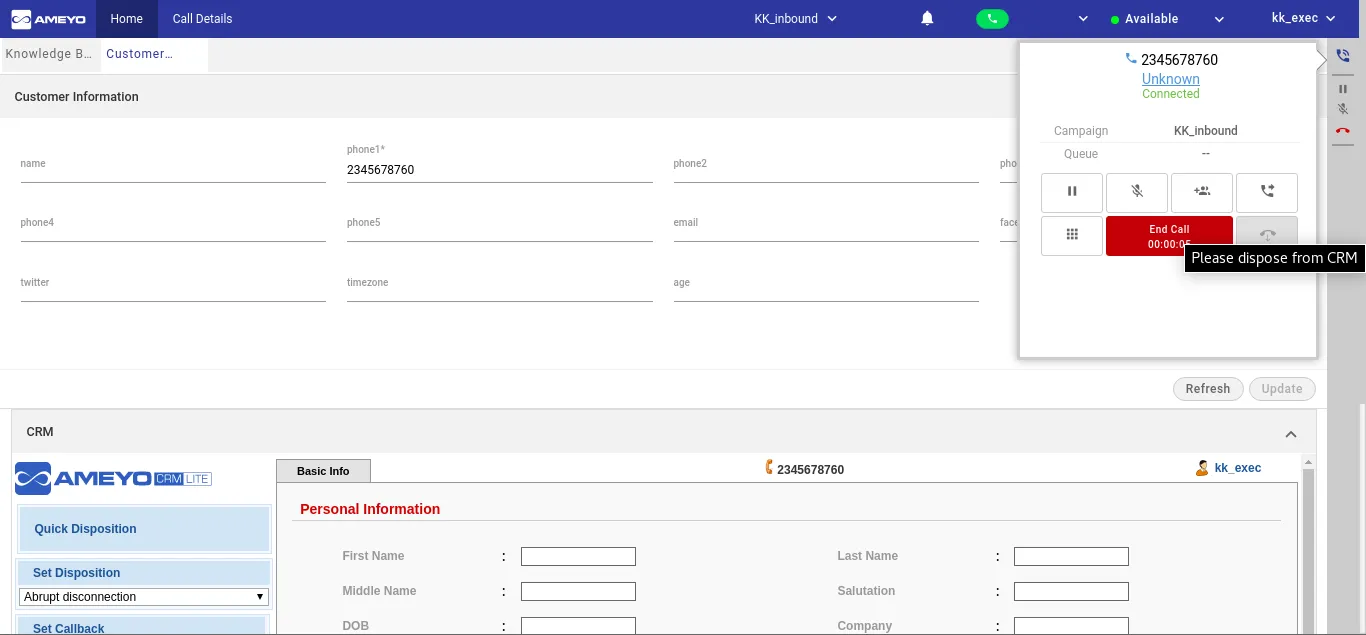
"ACW Timer" is displayed in the tooltip of the phone icon in the right panel after the call disconnection (since the telephony panel is not shown to the agent). When the agent disposes of the call from the CRM, then an inline message is displayed on the page.
Other Impacts if enabled
Dispose and Dial will also be performed through CRM. A REST API is also provided to perform the same.Callback and call notes are understood in the normal disposition operation through the telephony panel only. If the call disposition is disabled from the telephony panel, then API is provided to handle the same while disposing of the call through CRM.
Nodeflow Configuration
"NodeFlow Configuration" lets you upload the nodeflow for the different functions listed herein below.
- Transfer to User
- Manual Dial
- Transfer to Phone
- Confer
- Dispose
- Barge
- Snoop
- Put on Hold
- Resume Talk
- Transfer to Queue
- Callback
- Listen VoiceLog
- Pick Call Dial
- Record to Prompt
- Post Processing
- Whipser
- Pre Processing
- Auto Dial
Dial Profile Settings:
Here, the Administrator can create the dial profiles for the campaigns using the Routing Plans. So, it is necessary to create the Routing Plans first before configuring this tab.
Before creating a routing plan, you have to assign and manage the users, assign the call contexts, and create the queues.
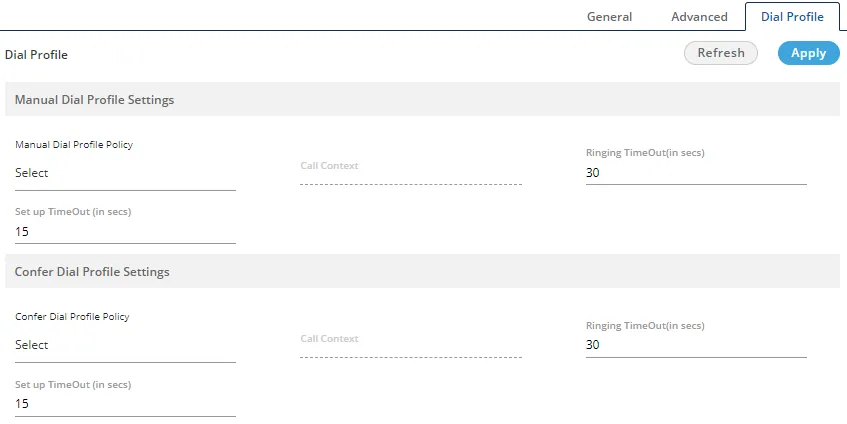
- Perform the following steps to configure the Dial Profile Settings for Manual Dial and Confer Dial (Conference Dial).
- Manual Dial Profile Settings: It lets you configure the settings for Manual Dial Profile. Perform the following steps.
- "Manual Dial Profile Policy" lists the Outbound Routing Policies that you have created in "Routing Tab" → "Outbound Feature Context".
- Ringing Timeout (in secs.): It is the maximum ringing time, after which call gets disconnected if the recipient does not answer the call. Provide a value in seconds for the same. The default value is 30 seconds
- Setup Timeout (in secs.): It is the time required from the initiation of a call till the connection gets established, after which call gets disconnected if the call is not connected. Provide a value in seconds for the same. The default value is 15 seconds
- Confer Dial Profile Settings: It lets you configure the settings for Confer Dial (Dial during Conference) Profile. Perform the following steps.
- "Confer Dial Profile Policy" lists the Outbound Routing Policies that you have created in "Routing Tab" → "Outbound Feature Context".
- Ringing Timeout (in secs.): It is the maximum ringing time, after which call gets disconnected if the recipient does not answer the call. Provide a value in seconds for the same. The default value is 30 seconds
- Setup Timeout (in secs.): It is the time required from the initiation of a call till the connection gets established, after which call gets disconnected if the call is not connected. Provide a value in seconds for the same. The default value is 15 seconds
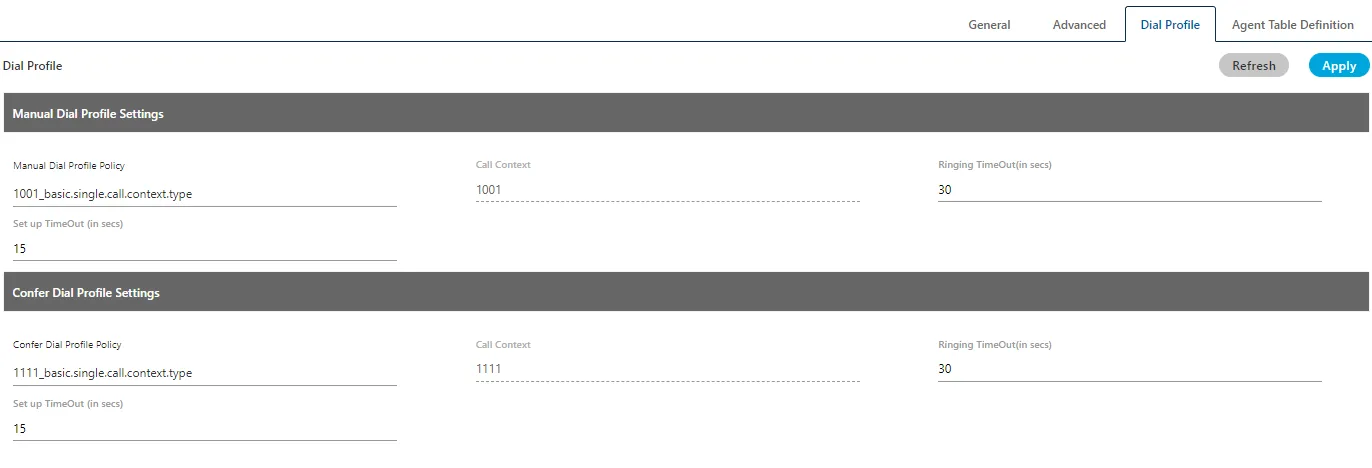
- Click "Apply" to apply the dial profile for any section. Rather, you can click "Refresh" to discard the changes.
When you click apply, the values for Call Context for the selected Policy is populated in "Call Context" column.
- Agent Table Definition:
This tab allows you to select the default Agent Table Definition for the campaign and assign the users to the selected Agent Table Definition.
- Users
Here, you can assign and unassign the users to this campaign.
- Queues
Here, you can create and manage the queues.
- Default Working
Here, you can select the users who will be logged in to this campaign, by default, and will not receive the prompt to select the campaign.
- Customers
Here, the administrator can you can apply the Filter or Filter Groups for the campaign. This tab has been explained in "Outbound Campaign Settings".
- Holiday/Office Timings (Licensed Feature)Holiday/Office Timings (Licensed Feature)
Here, you can define the holidays, office hours, and non-working hours for this campaign. This tab has already been explained in "System Configuration".