Call Details
Call Details
Through "Call Details" tab, the agent can view its upcoming callbacks and can also fetch the call history. Itn contains the following two sub-tabs.
- Callbacks
- Call History
Callbacks
This tab shows the callbacks scheduled for the agent at system level (for all campaigns).
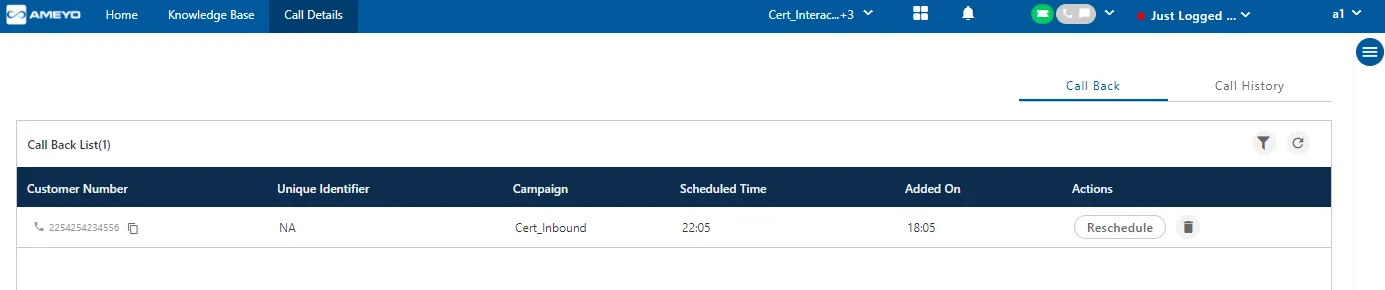
The agent can click "Filter" to apply the filters.
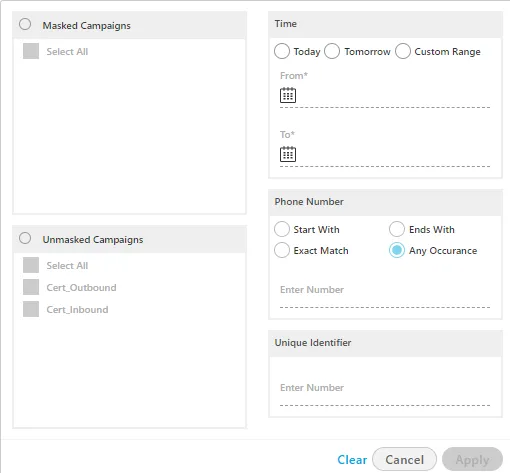
The agent can filter the call details with the following filters.
- Masked Campaign: It contains the list of the campaigns in which masking is enabled. If the agent is not assigned in the masked campaign then no campaign will be shown in the list.
- UnMasked Campaign: It contains the list of the campaigns in which masking is not enabled. The agent can select multiple campaigns to filter the callbacks lists.
- Time: Provide the time range for which the agent wants to filter the call details. The agent can choose the time from the available following filters.
- Today: It shows all the call-back details of the same day.
- Tomorrow: It shows the scheduled call-back details of the next coming day.
- Custom Range: It shows all the scheduled call-backs of the provided range of the date. Once you select the date, the present time is selected automatically.
- Phone Number: Provide the specific phone number for which the agent wants to filter the scheduled call-back. Following are the filters present to see all the call-backs.
- Start With: It lets you to search the call details of the phone number while providing its initial few digits of the phone number.
- Exact Match: It lets the agent to search the call details of the customer whose phone number is provided as it is.
- Ends With: It lets you to search the call details of the phone number while providing its last few digits of the phone number.
- Any Occurrence: It lets the agent to search for all the details of the phone numbers whose few digits are provided.
- Unique Identifier: If the masking is enabled, then a unique identifier will generate for every callback. The agent can provide this unique identifier to filter the callbacks.
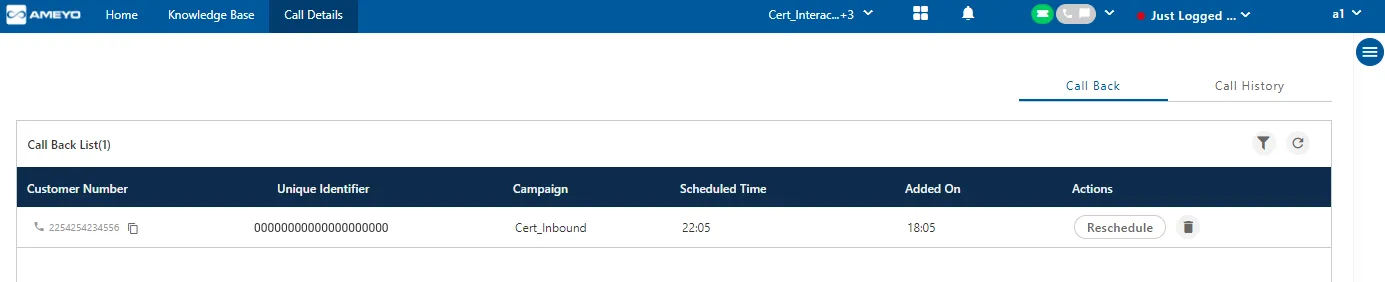
Select the Campaign name, Time of the callback or the phone number to get the list of the callback. Click "Apply" button.
Click "Clear Filter" to clear the filter and to view the default list of all callbacks.
Agent can see only his callback list. The agent is not allowed to watch the other agent's scheduled callbacks.
Click to Dial Callback
There are cases when the agent will not be present at seat at the scheduled callback time or the agent has to call early from the defined time to the customer whose callback is scheduled. In such cases, the agent can click  icon on the callback list to dial the call directly from the callback page. It helps and save the time of the agent.
After clicking a number, the agent will be redirected to "Workbench" tab from "Callback" tab and a CTI pop-up is displayed. If the call is ongoing, then an error message will be displayed when the agent clicks on the number to dial it. As soon as a number is dialed in "Callback" tab through Click to Dial or another method, it will be removed from Callback list even if it was dialed before its scheduled time.
If the customer name is not filled or left blank, then at the time of the callback the telephony panel will display "UNKNOWN" as the customer name.
Reschedule Callback
Agent can reschedule the date and time of his callbacks at any time. Perform the following steps to reschedule the callback.
- Select the callback from the list of the callbacks.
- Click
 button.
- A pop-up comes up in which you have to provide the date and time of the callback.
- Enter the date in "dd:mm:yyyy" format.
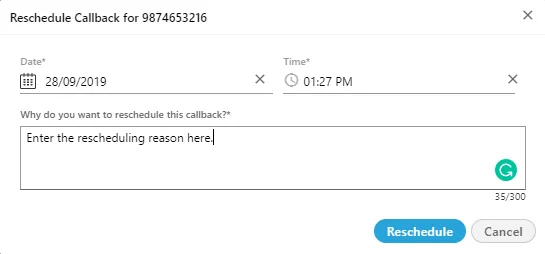
- Select the Time from the clock and then click "OK" button.
- Enter the reason for which you are rescheduling the call.
- Click "Reschedule" button.
The call is successfully rescheduled. The agent can check the same from the callback list.
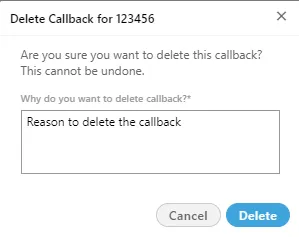
Delete Callback
Click  icon to delete the scheduled callback.
A pop-up comes up in which you have to enter the reason. Reason is mandatory to enter, otherwise the callback will not delete. Click "Delete" button to delete the file otherwise click "Cancel".
Call History
Call History Tab shows the history of calls made or received by the agent.
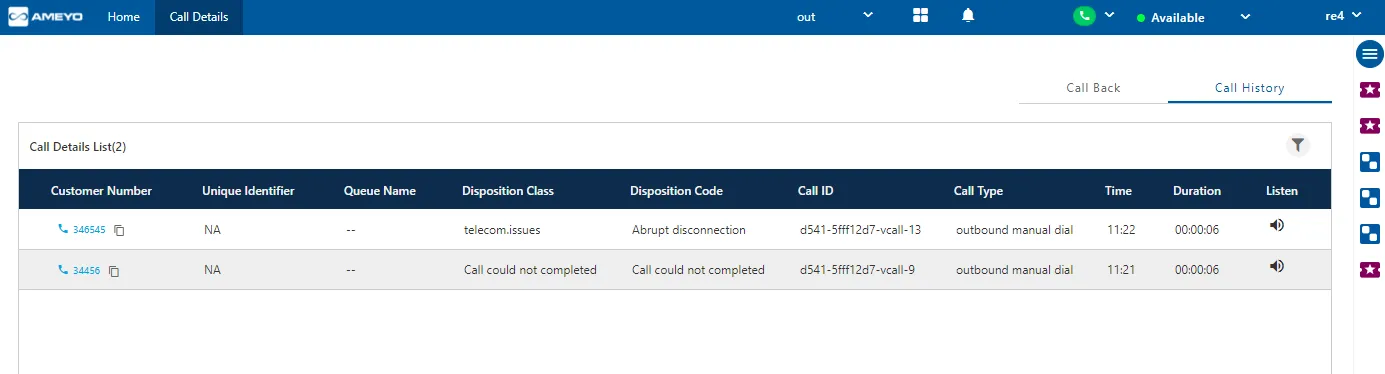
Call History is shown in terms of the following attributes.
- Customer Number: It shows the customer number on which call was made or from which call was received.
- Unique Identifier: If the masking is enabled in a campaign then a unique identifier will generate and show in this column for the respective call.
- Queue Name:It shows the queue name in which call was received.
- Disposition Class: It shows the disposition class with which the respective call was disposed.
- Disposition Code: It shows the disposition code with which the respective call was disposed and used by the agent.
- Call ID: It shows the Id of the call. Every call has its unique Id.
- Call Type: It shows the type of the call.
- Time: It shows the date and time at which the inbound call came or at which the outbound call was dialed.
- Duration: It shows the total call duration of the respective call.
- Listen: It shows the voice recording of the call. For connected calls, recording is played and agent can listen to that call and also he can download that voice log by clicking on (download) symbol, For, non-connected logs, it will not play any recording.

The agent can download the voicelogs of the searched phone number from the listen pop-up. Click the download icon and the pop-up to save the voicelog will come.
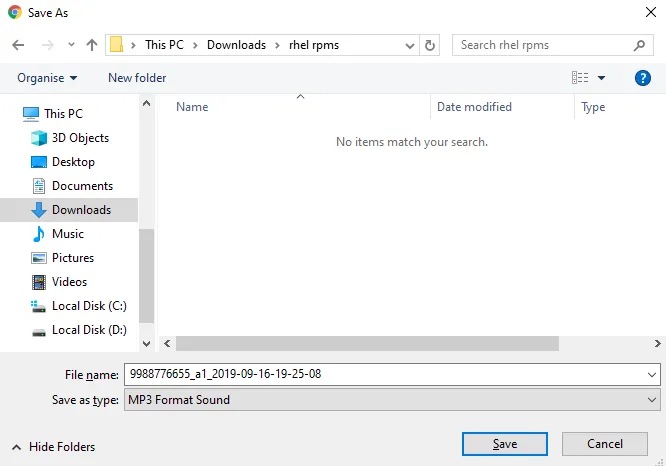
Provide the download location and you may change the name of the downloading file as well from here. The default name of the voicelog is the phone-number of the customer followed by the agent name and the time of the call.
The downloading pop-up depends upon the browser's settings.
Copy Phone Number
The agent can copy the phone number of the customer. Click  icon to copy the phone number of the customer. After copying the phone number the agent can paste the copied phone number in the telephony panel to make a call.
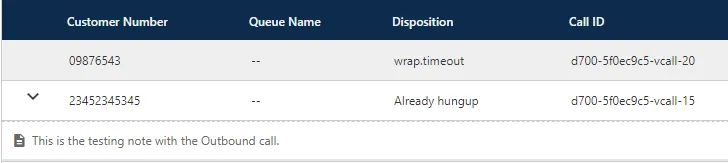
Call Notes
The notes which are given by the agent at the time of the calls are known as call notes. The agent can view these notes along with the details of that call. Click  icon to view the call notes of that call.
The agent can filter for the calls in which the call notes are given through filters option.
Click-to-Dial Feature
Click to Dial feature on this tab allows the supervisor to make a call instantly with just a click.
The CTD (Click to Dial) icon is displayed with the phone number in "Call Details". The User can click this icon to dial the number manually. Once clicked, the CTI Pop-up is displayed. If the User is already on a call, then the error is displayed.
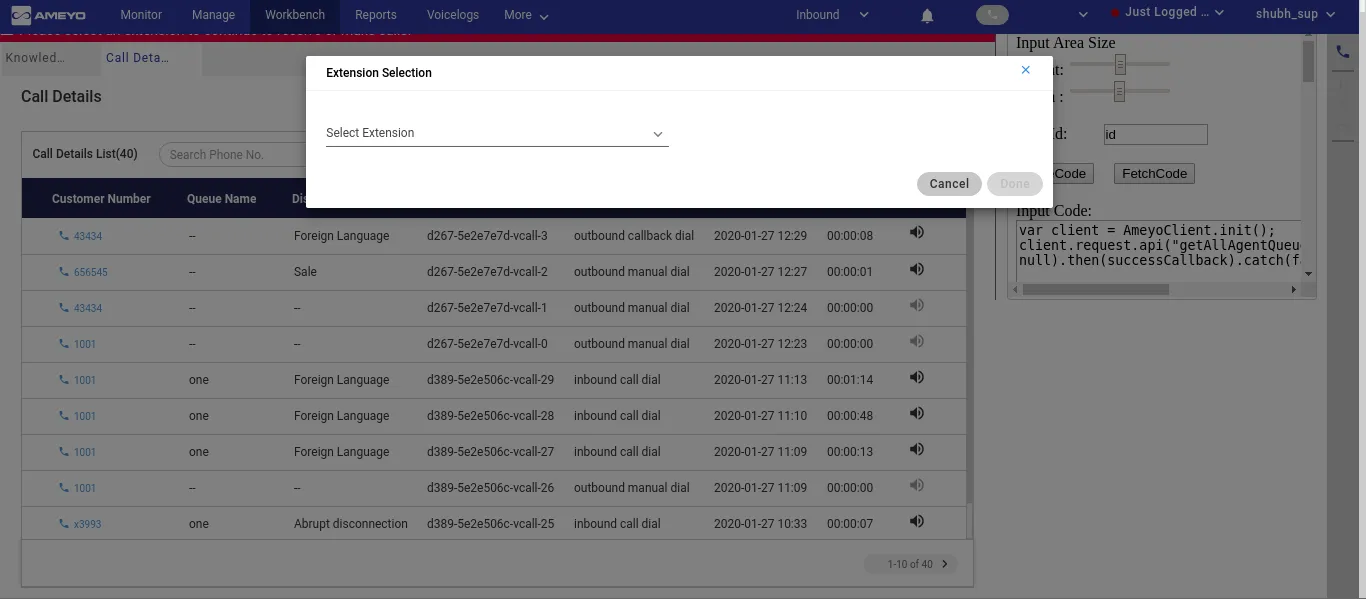
If the User is on "Call Details" page of Workbench and has not selected the extension, then the modal to select the extension appears during click to dial.
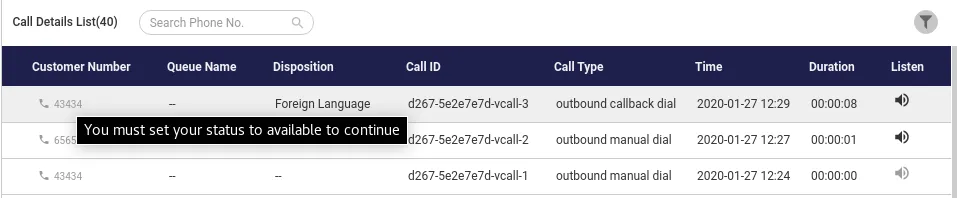
If the User is not available, then the following error message is displayed during click to dial.
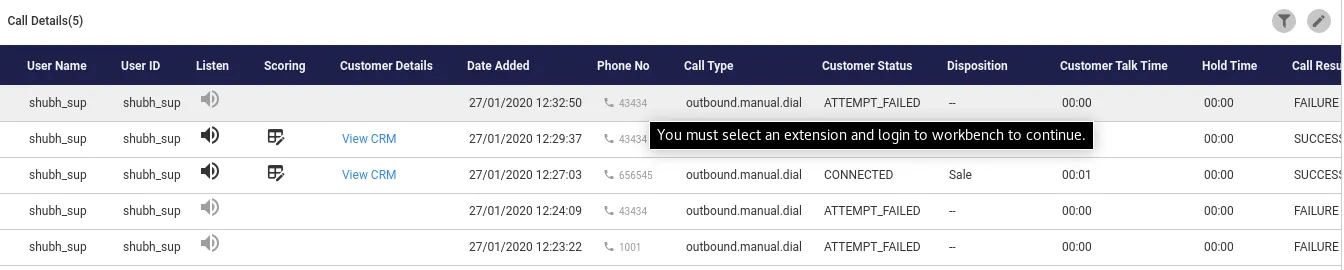
If the Supervisor has neither selected the extension nor logged on to the Workbench, then the following error message is displayed during click to dial.
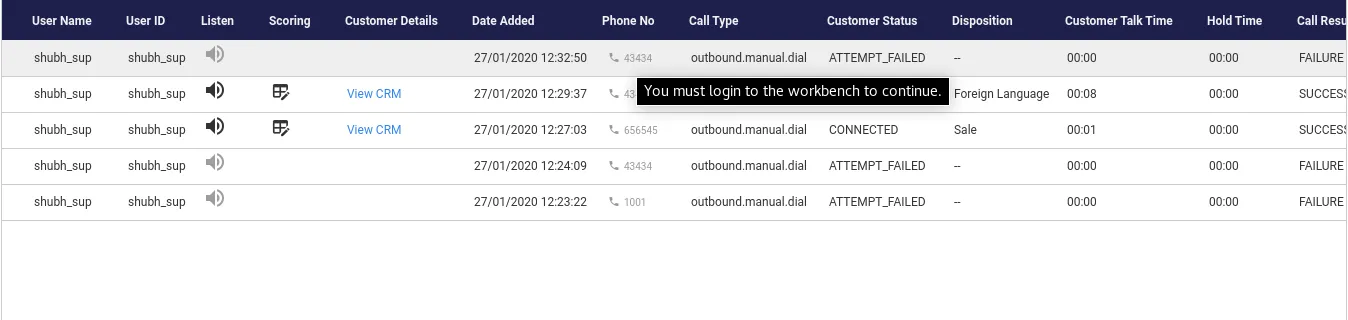
If the Supervisor has selected the extension but not logged on to workbench, then the following error message is displayed during click to dial.
- If the current extension of the agent is busy, then disable the CTD/show error.
- A call will be added to the call details page if the agent uses click to dial functionality.
Filter
The agent can click "Filter" button to filter the list of call history.
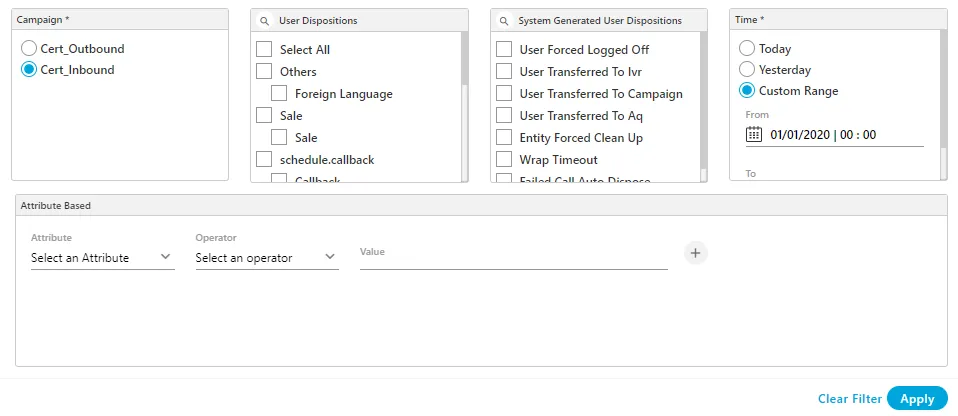
Select the filter and click "Apply". Click "Clear Filter" to clear the filter and to view the default list of callbacks.
The agent can filter the call details with the following filters.
- Campaign: Select the campaign from which the agent wants to filter the call details. It contains only those campaigns in which the agent is assigned.
- User Disposition: Select the user disposition for which you want to filter the call detail history.
- System Disposition: Select the system generated disposition for which you want to filter the call detail history.
- Time: Provide the time range for which the agent wants to filter the call details. The agent can choose the time from the available following filters.
- Today: It shows all the call-back details of the same day.
- Tomorrow: It shows the scheduled call-back details of the next coming day.
- Custom Range: It shows all the scheduled call-backs of the provided range of the date. Once you selected the date, the present time is also selected as the default time.
- Attribute Based: Agent can select the attribute based upon the defined filterable field in the table creation. Perform the following steps to filter through attribute based filters.
- Select the campaign in which attribute based filter, that is, the filterable fields are mapped.
- Now, in attribute based filter section, select the attribute type, which is the column name which is mapped as filterable field in campaign by the administrator.
- Select the operator type through which you want to filter the calls. It contains the following three operators.
- Contains: It filter the calls which contains the provided input in their values.
- Equals: Selecting "Equals" as the operator will filter the calls which have the exact match to the applied content.
- Not Equals: Selecting "Not Equals" as the operator will filter the calls which do not have the match to the applied content.
- Starts with: It will filter those content, in which the entered attribute is starts with.
- Ends with: It will filter those content, in which the entered attribute is ends with.
- Now, enter the value for which you want to filter the calls in the values column.
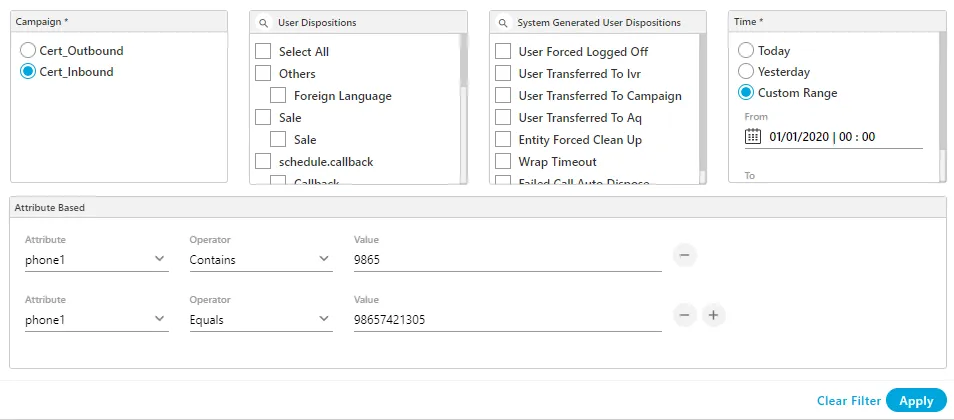
You can provide multiple attributes to search the content, by clicking "+" icon, or click "-" icon to delete the provided attribute based filter.