Mapping Policies Tab
This tab's appearance changes based on what you selected in System Settings > User Mapping Policy. It's where you define the specific mappings.
IP Multiple User Call Leg Details Provider (Licensable)
If this option is selected in "User Mapping Policy" in "System Settings" tab, then the following screen is displayed here.
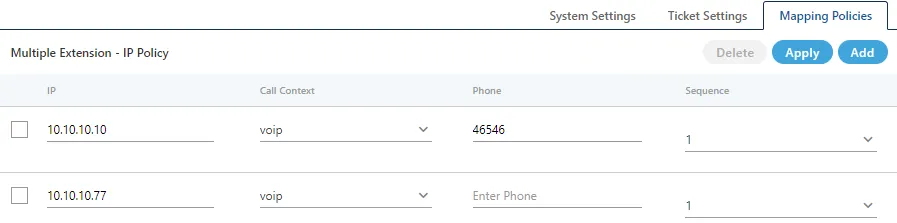
It is IP-based Multiple Extension Policy, which allows the Administrator to assign multiple extensions to an IP Address. The Administrator has to perform the following the steps.
- Click on "Add" button.
- Enter the IP Address.
- Select the Call Context.
- Enter the Phone number (extension).
- Select the Sequence.
- Click on "Apply" button.
To delete any existing mapping, select the same and click on "Delete" button.
User ID Mapped Call Leg Details Provider (Licensable)
If this option is selected in "User Mapping Policy" in "System Settings" tab, then the following screen is displayed here.
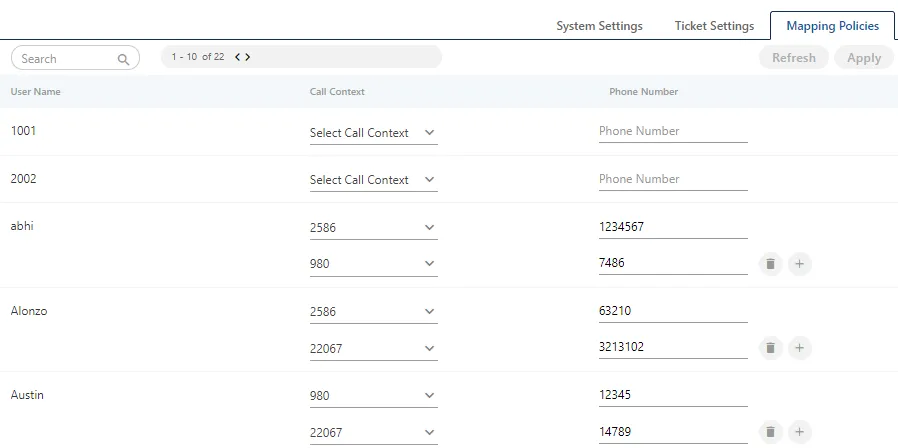
It is currently in tabular format. Call Contexts and Phone Numbers are displayed for every user. Here, the Administrator can select the default call context and provide the number. If the user has been assigned multiple extensions, "+" icon is displayed with the phone number. The Administrator can click it and define multiple extensions. During logon, by default, these users will be assigned their respectively selected extensions and will not be asked to select the extensions.
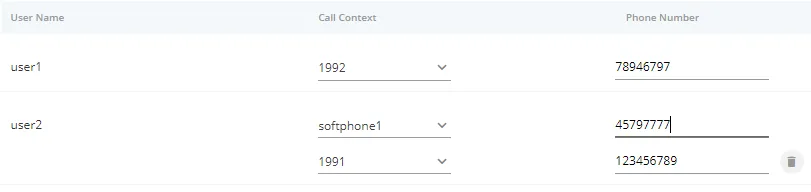
After this configuration, when the agent (after logon to the system) selects the campaign in which the defined call context has been assigned to it, the agent will be logged on with the provided extension and it will not get the option to select other extensions. For example, user1 has been assigned 1992 call context and 78946797 phone number. Now, user1, at the time of logon to the system, user1 (after selecting relevant campaign) will be logged on automatically at 1992 Call Context and 78946797 phone number.
The Phone Number can be edited in the Mapping Policy.
If a user is logged on to the Ameyo Toolbar Integration in a third-party application, then the user can use up to three extensions for the following call types simultaneously.
- inbound.call.dial
- outbound.auto.dial
- outbound.manual.dial
- transferred.to.campaign.dial
- outbound.callback.dial
However, this feature does not work simultaneously for the following call types in multiple extensions.
- click.to.call.dial
- outbound.auto.preview.dial
- outbound.manual.preview.dialing
User ID Based Call Leg Details Provider (Licensable)
It is preferred to use this policy in case of WebRTC only. While using it, you have to configure WebRTC also. Please refer to the following document.
Reference Document: WebRTC Manual
If this option is selected in "User Mapping Policy" in "System Settings" tab, then the following screen is displayed here. It is useful when you have multiple voice resources and you want to map users to these voice resources.
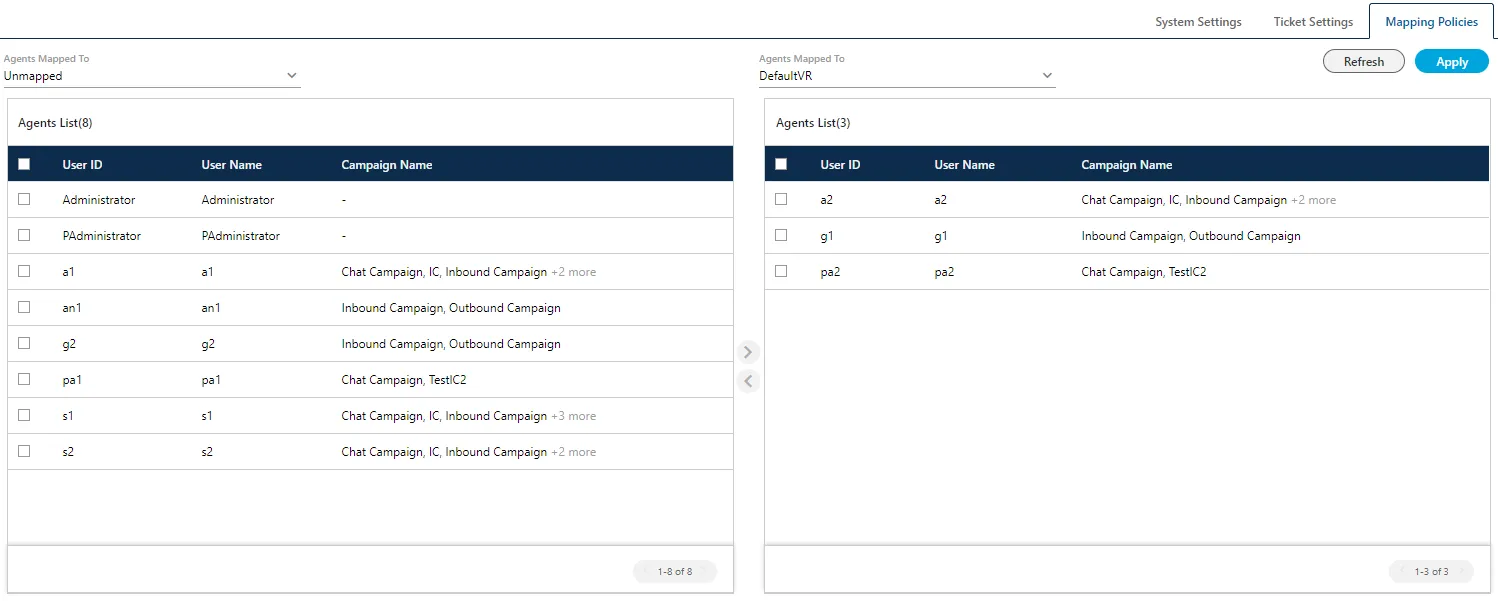
The Administrator can select the users and map them to the available Voice Resources. This interface is divided into the two sections - Left Section and Right Section. The Administrator can map the unmapped users to a voice resource. Moreover, the Administrator can move the users between voice resources.
Perform the following steps.
- Select the voice resource or "Unmapped" in "Agent Mapped To" drop-down menu of the Left Section. If you have added only one voice resource, it will show "Unmapped" option only. In the Left Section, the users will be listed as per the selected option.
- Select the voice resource in "Agent Mapped To" drop-down menu of the Right Section.
- Select the users in the Left Section. You can click the checkbox given on top to select all users. You can also search for the user names in the provided search box.
- Click on forward navigation button to add the selected users
To unassign the users from a Voice Resource, select the voice resource in "Agent Mapped To" drop-down menu to list the users mapped to the selected voice resource. Now, select the users in the Right section and click on backward navigation icon
Manual User Call Leg Details Provider (Licensable)
If this option is selected in "User Mapping Policy" in "System Settings" tab, then the following screen is displayed here.
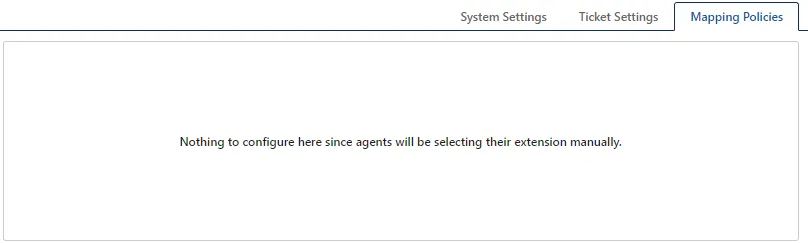
Here, the Administrator has to perform no action. The Agents will select the extensions on their own.
IP user call leg details provider (Licensable)
If this option is selected in "User Mapping Policy" in "System Settings" tab, then the following screen is displayed here.
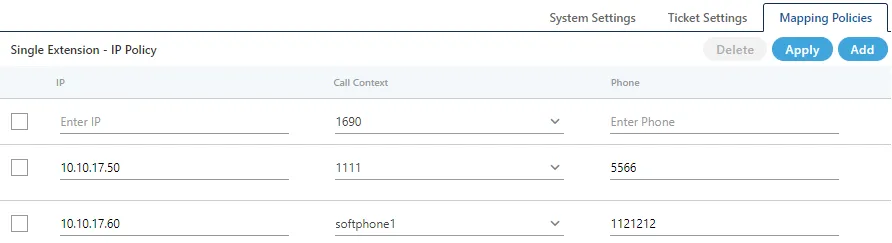
It is an IP-based Single Extension Policy, which allows the administrator to define the Single Extension Policy for an IP Address.
- Click on "Add" button.
- Enter the IP Address.
- Select the Call Context.
- Enter the Phone number (extension).
- Click on "Apply" button.
To delete any existing mapping, select the same and click on "Delete" button.