PACE (Pro Active Connect Enhancer)
Overview
PACE (Pro Active Connect Enhancer) is a software module designed to add intelligence to the outbound dialing process. It works in conjunction with the Predictive Dialer to optimize lead selection and improve productivity.
Unlike standard dialing modes that may simply iterate through lists, PACE analyzes transaction history and customer profiles to define a smarter contact strategy. By categorizing customers based on past behavior and identifying the best time slots to call, PACE effectively "adds brains" to the dialing process, ensuring agents connect with the right customers at the right time.
How it Works
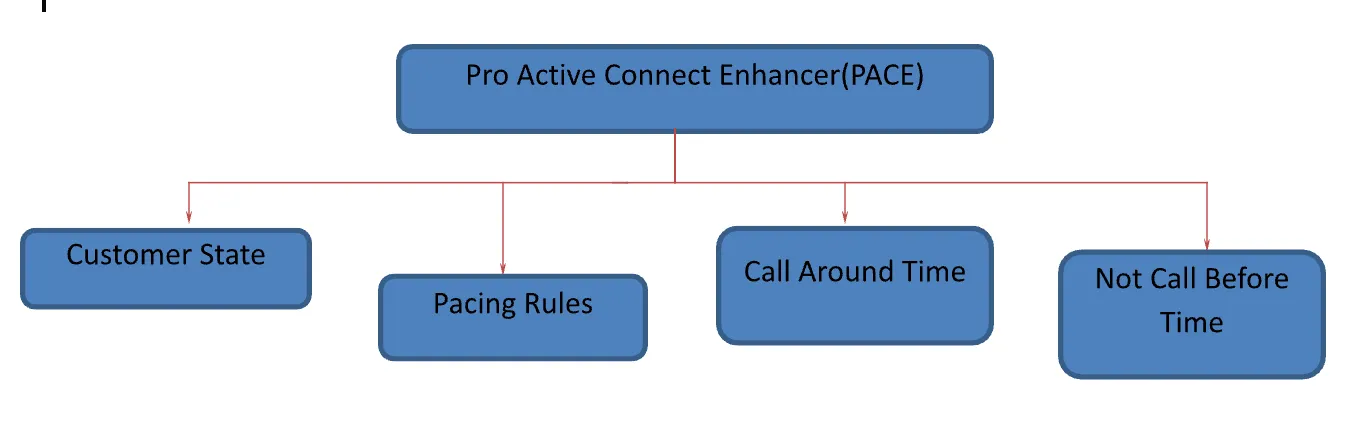
PACE functions by implementing an intelligent dialing strategy based on four core parameters as shown in the image below:
Prerequisites
- Predictive Dialer: PACE is not a standalone dialing mode; it works in conjunction with the Predictive Dialer module.
- Package Licensing: Features are subject to the opted package and may require add-ons or upgrades.
Use Cases
- High-Value Lead Prioritization: Using Customer State, a sales team can ensure that leads marked as "Closure" or "Interested" are dialed before "Fresh" leads, increasing conversion potential.
- Automated Retry Management: Using Call Around Time (CAT), a campaign can automatically recycle "Busy" numbers after a set delay (e.g., 2 hours) without manual agent intervention.
- Customer Experience Optimization: Using Not Call Before (NCB), businesses can respect customer time preferences, reducing the nuisance of calls at the "wrong time" and improving brand perception.
Usage Instructions / Configurations
At Administrator level:
Administrators can configure PACE using the following logic blocks:
The States and Rules tabs in Process Settings are designed to integrate PACE (ProActive Connect Enhancer) with the contact center system. PACE acts as a customer provider, and together with Ameyo’s Predictive Dialer, it forms the complete PACE Solution. PACE maintains the customer cache from which the dialer picks records for outbound calls.
PACE is used when customer behavior patterns are known in advance. Based on this behavior analysis, specific rules can be created to optimize call strategies and improve overall productivity.
1. Customer State (Prioritization) -State Tab in Process Settings (Licensable)
This feature categorizes customers into groups (States) based on user behavior and each state can be assigned a specific dialing percentage.
- Logic: A dialing priority is assigned to each state. Customers in a state with a higher assigned percentage/priority are dialed first.
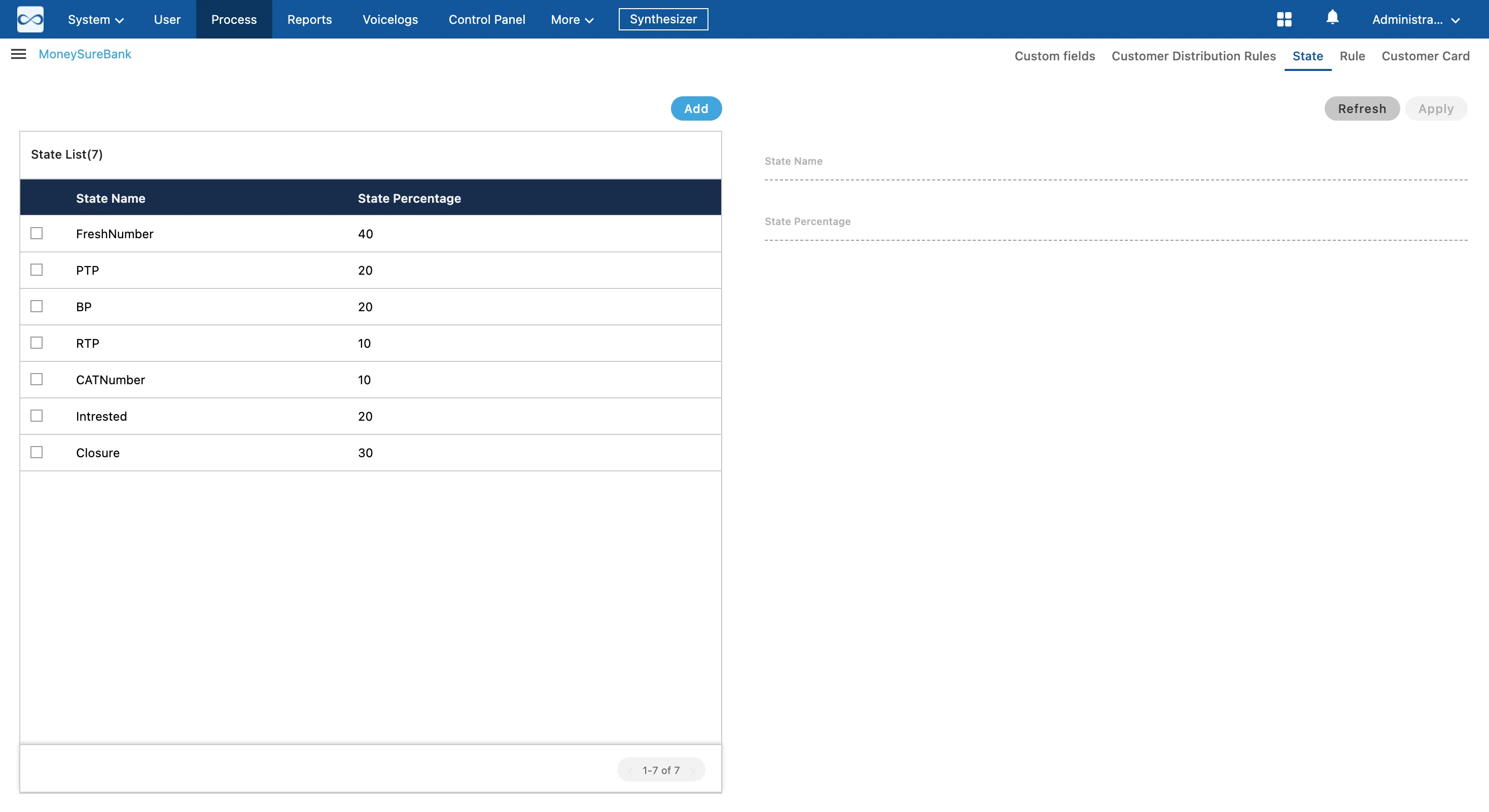
- Example Configuration: You can define states such as "FreshNumber" (40%), "Closure" (30%), or "PTP" (Promise to Pay - 20%) to ensure high-value leads are prioritized.
To activate PACE, ensure that “PACE Based Customer Provider” is selected in the settings of a Parallel Predictive Campaign.
Administrator Screen:
"State" Tab in Process Settings allows you to create the states and assign the Dialing Percentage to each state.
Add a State
To create a new state:
- Click Add in the State tab.
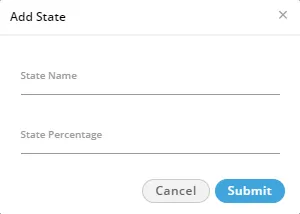
- In the pop-up window, enter the State Name.
- Specify the Dialing Percentage for the state.
- Ensure the total percentage across all states does not exceed 100.
- Create multiple states as needed, distributing up to 100% among them.
Default States
You must have to create the following three default states to enable the PACE even if you assign zero to very less dialing percentage to them.
- freshNumber: It is a group of fresh numbers.
- catNumber: It is a group of numbers for which CAT (Call Around Time) is set. Call Around Time is the preferred time duration (such as during office hours 10 AM to 7 PM) of a customer to contact for any communication.
- ns: It is a group of numbers for which CAT (Call Around Time) is not set.
Modify a State
To modify an existing state:
- Select the state from the list to display its details in the right section.
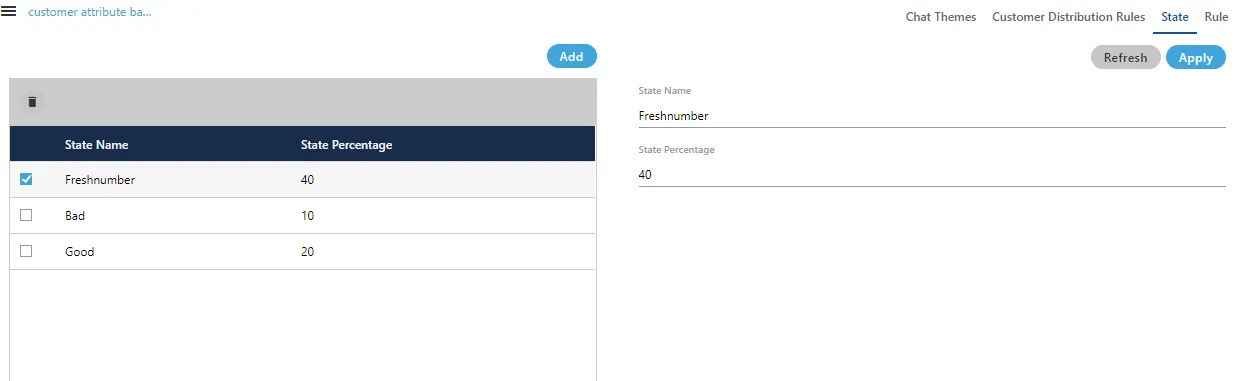
- Update the State Name or State Percentage as required.
Make sure that total percentage in all states should not exceed 100%.
- Click Apply to save the changes, or Refresh to discard them.
Delete a State
The Deleted State cannot be restored. If a state is being used in PACE and Predictive Dialling, then the deletion of that state will impact the functioning of PACE and Predictive Dialing.
To delete a state:
- Select the state you wish to remove.
- Click the Delete icon.
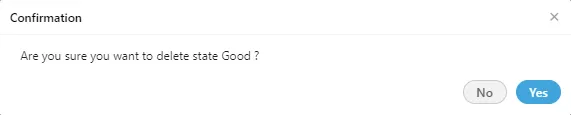
- Review the warning message displayed.
- Click Yes to confirm and permanently delete the state.
2. Pacing Rules -- Rule Tab for PACE in System Settings (Licensable)
Pacing rules control the order of dialing by applying custom dispositions and call parameters. There are four types of rules available:
- Simple Rule: Configures multiple attempts and retry times for specific system dispositions.
- Timer Rule: Analyzes call activity within a specific time window to determine patterns.
- Upload Rule: Assigns tags to contacts during the list upload process, allowing PACE to behave differently based on the assigned tag.
- Complex Rule: Allows for custom rules defined using JavaScript for specific, advanced use cases.
Rule Tab in System Settings allows the Administrator to create the rule for the PACE.
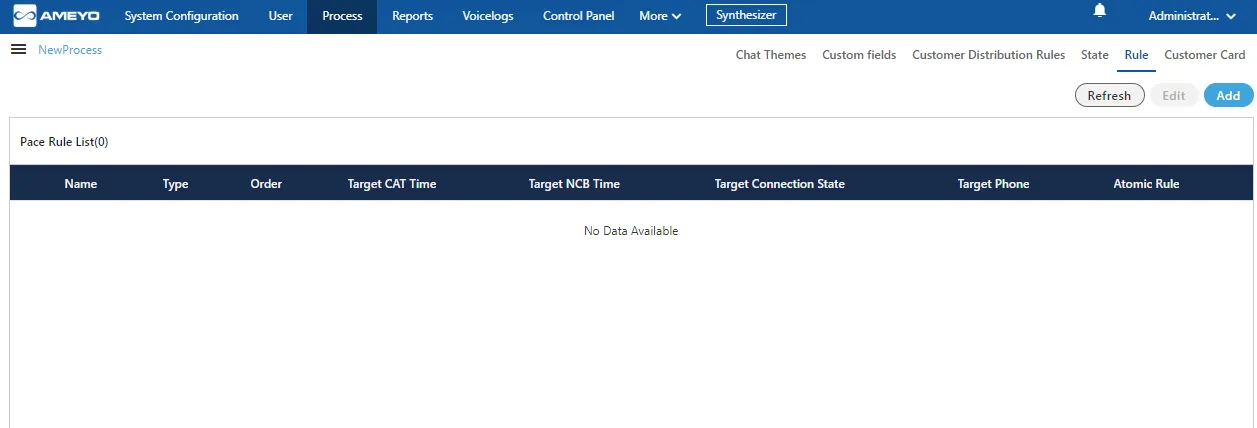
Add a PACE Rule
Perform the following steps to add a PACE Rule.
- Click "Add" to add a PACE Rule using the following pop-up
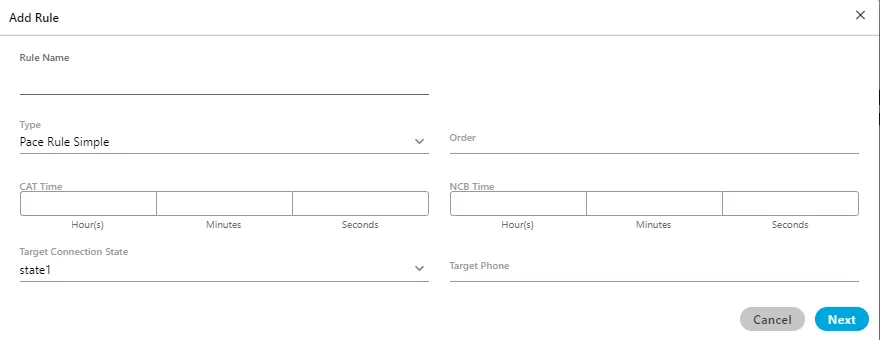
- Provide a name for the rule.
- Provide the order of execution in numbers.
- (Optional)CAT Time: Provide the target CAT (Call Around Time) in HH:MM:SS format. The call will be made to the customers only during this time.
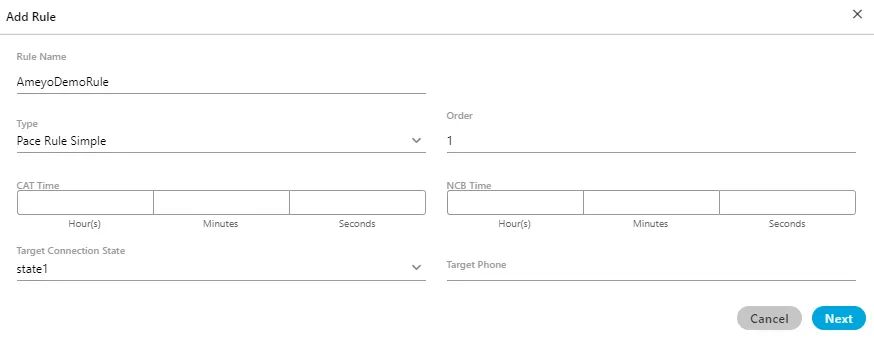
Suppose a case where three different PACE states such as "state1", "state2", and "state3" have been created. After calling, the customer (say C1) is moved to from "state1" to "state2". If the PACE rule is applied again on the same customer (C1), then the customer will move from "state2" to "state3". But, if the Administrator wants to change the state of the customer (C1) back to "state1" from "state2" or "state3", then the Administrator has to create the rule and provide "0" (zero) values in both CAT and NCB fields.
Instead of adding zero as value, these fields should remain blank to decrease the unnecessary manual inputs.
To meet this requirement, the CAT and NCB fields in the PACE rules have made optional fields instead of being mandatory. (*) symbol with these fields have also been removed.
- If you want to set the Time before which no call should be made to the customers, then enter this NCB (Not to Call Before) Time in HH:MM:SS format.
- Except "freshNumber", "catNumber", and "ns", you can select a customized state upon which the rule will be applied.
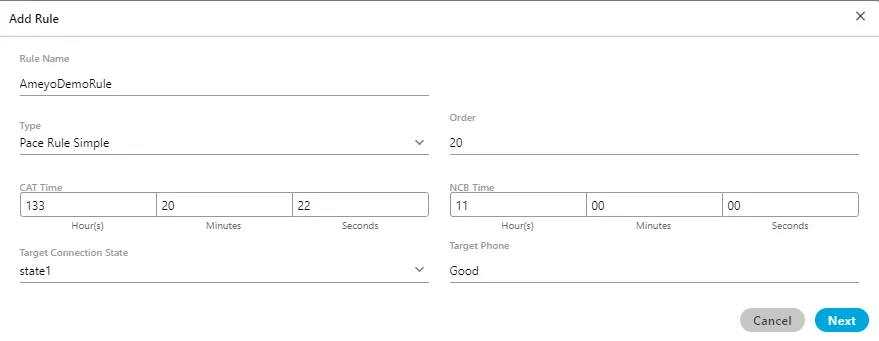
- Provide the Target Number.
- Click "Next" to proceed to the next page, which lets you add the rule conditions.
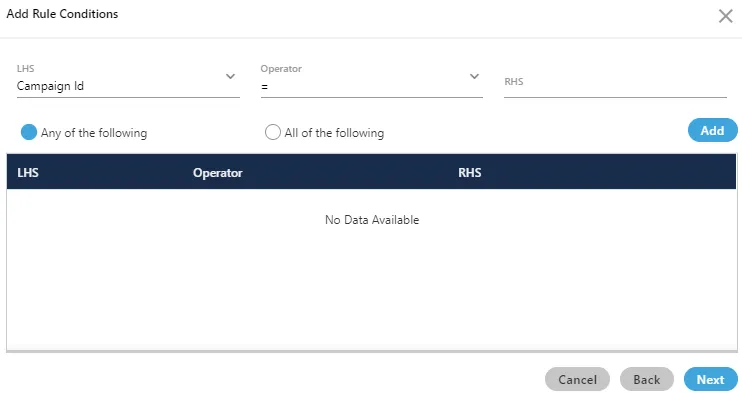
Here, you have to add a condition for the rule.
- In "LHS" drop-down menu, select any of the following values.
- System Disposition
- Disposition Code
- Disposition Class
- Last Status
- Last Disposition
- Last Dialed Time
- CAT Time
- NCB Time
- Connection State
- Campaign ID
- Select any of the following operators.
- =
- <>
- <=
- >=
- Provide the corresponding value for any selected "LHS" condition in "RHS" text field.
- Click "Add" to add the rule.
- You can add multiple rules here. To manage them, you can select any of the following options.
- Any of the following: Select this option to run the rule when any of the selected conditions are matched.
- All of the following: Select this option to run the rule only when all of the selected conditions are matched.
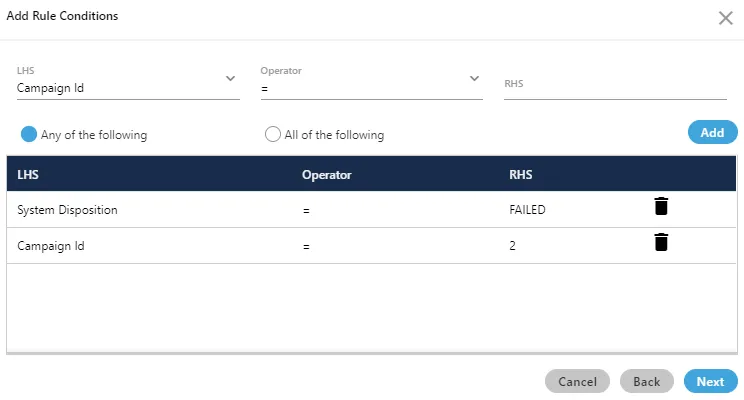
You can click on delete icon to delete any rule.
- Click "Next" to go to the next page, where the action can be selected.
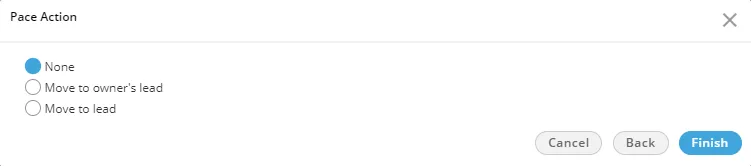
15.You can select any of the following actions here.
- None: Select it not to perform any action on the state (group of numbers), which meets the pre-selected conditions.
- Move to owner's lead: Select it to move the state (group of numbers) to the owner's lead, which meets the pre-selected conditions.
- Move to lead: Select it to move the state (group of numbers) to the lead, which meets the pre-selected conditions. If selected, it shows a drop-down menu that lets you select the lead to which the numbers can be moved.
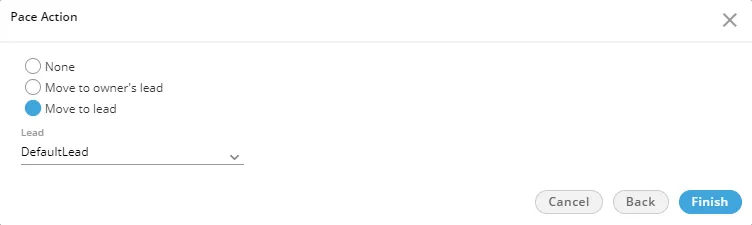
- Click "Finish" to create the rule.You can create multiple rules by performing these steps.

Modify a PACE Rule
Perform the following steps to modify a PACE Rule.
- Select a PACE Rule which you want to modify, and click "Edit" button.
- The information of the selected rule is visible on the same modal which was used to create the rule.
- Here, you can change the State Name and the State Percentage as well.
Delete a PACE Rule
Perform the following steps to delete a PACE Rule
- Select the PACE Rule.
- Click "Delete" button present on the top right corner to delete the PACE Rule. It shows the following pop-up.

- Click "OK" to delete the Rule, else Click "Cancel" to cancel the seletion process.
3. Call Around Time (CAT)
CAT is a re-dial strategy designed to maximize connects.
- Logic: It sets a specific duration after which a number should be re-dialed if the previous attempt failed (e.g., "Busy" signal).
- Example: If a call is "Busy" at 11:00 AM and CAT is set to 2 hours, the system will automatically re-dial that number around 1:00 PM.
4. Not Call Before (NCB) Time
NCB ensures compliance and improves customer experience by preventing calls at inappropriate times.
- Logic: Based on previous interaction history, the system determines specific times when a customer prefers to be called. PACE ensures the dialer does not "throw" the call to the customer until that specific time period has passed.
Benefits
- Maximize Customer Connects: Smarter algorithms lead to a higher number of connected calls.
- Optimize Agent Productivity: Ensures agents spend time talking to prospective customers rather than dialing or waiting.
- Reduced Telecom Costs: Proactive strategy reduces wasted dial attempts.
- Smarter Contact Strategy: Enables configuration based on customer segmentation and interaction history.
- Reduced Nuisance Calls: Prevents calling customers at inconvenient times, reducing negative feedback.
Limitations & Considerations
- Dependency: PACE is a software module that must be used with the Predictive Dialer; it does not function as a standalone dialing mode.
- Licensing: Availability of specific PACE features is subject to the commercial package and may require add-on costs.