Table Definition
In this tab, you can create, edit, and delete table definitions.
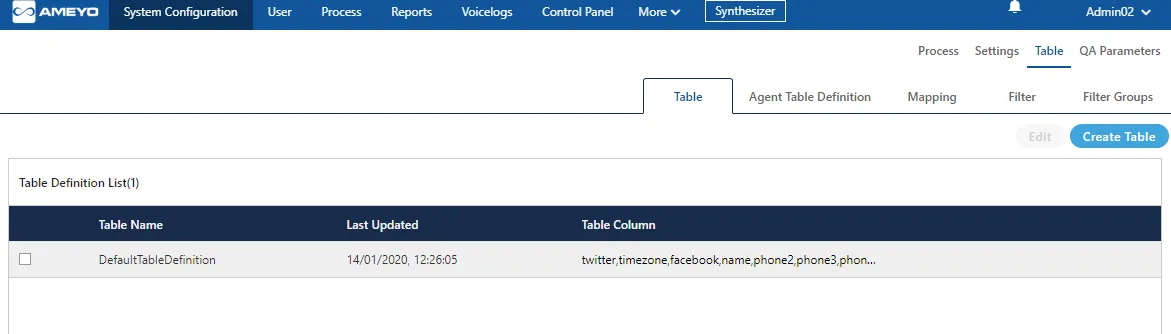
After creating the table definitions here, you can use "Mapping" tab to create the mapping and "Filter" tab to create the filters.
Create Table Definition
To create a new data table, follow these steps:
- Click the Create Table button. A pop-up window will appear.
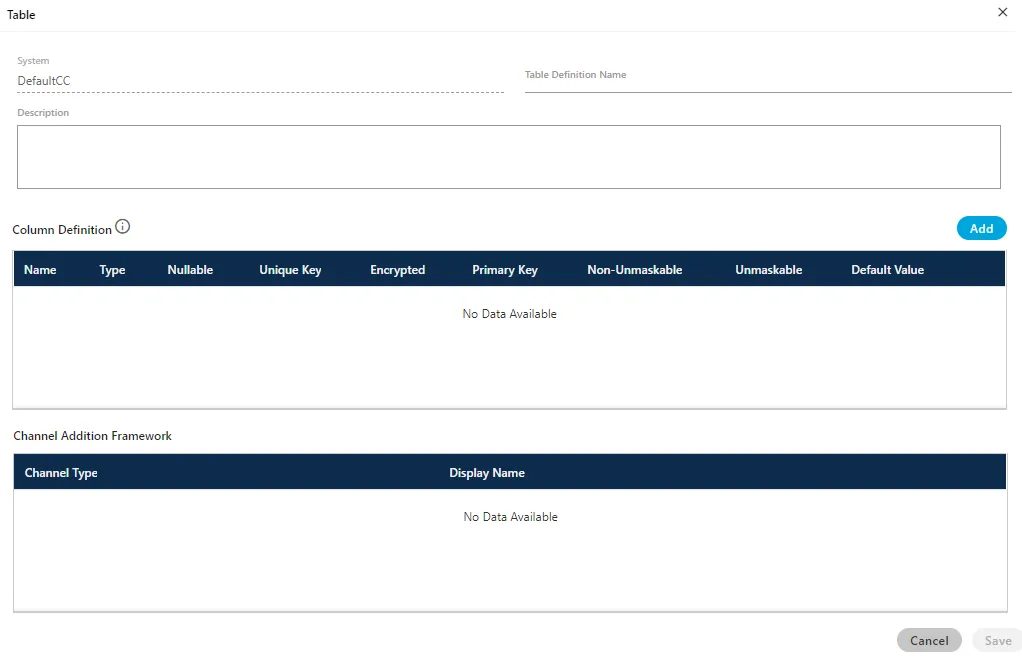
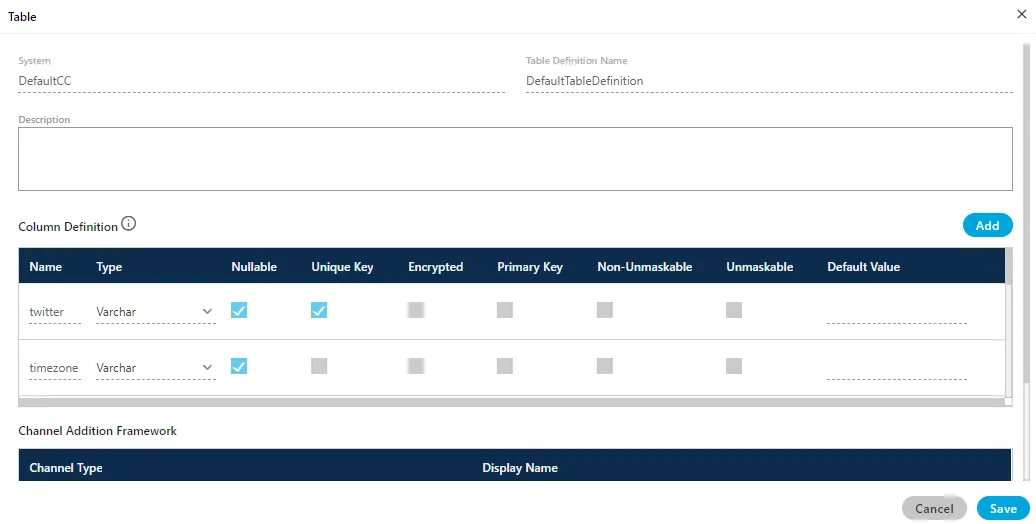
- Provide the following details:Following is a screenshot of a table containing different columns.
A. System: This contains the system ID which is taken by default.
B.Table Definition Name: Enter the name of the table. Only the underscore (_) is allowed as a special character; other special characters are not permitted.
C. Description: Enter a description for the table.
D. Column Definition: Perform the following steps to add a column.
- Click Add to add a column. A new row will appear.
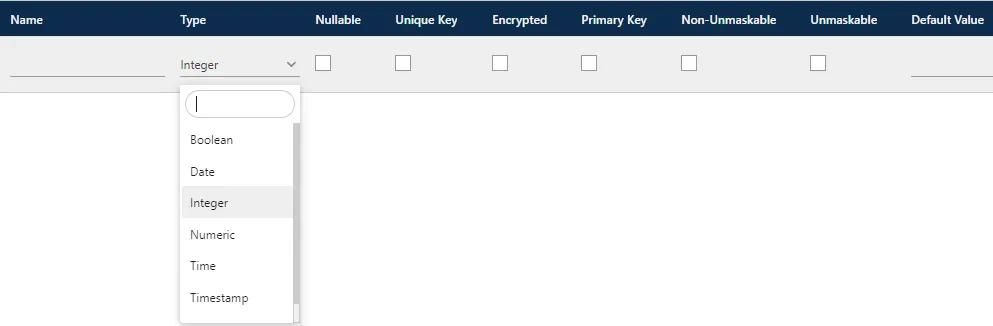
- Provide values for the column fields:
- Name: Column name to be provided. You can use only "_" (underscore) as a special character while providing a name for a Column. Other special characters are not allowed.
- Type: Select any of the following options to specify the type of input received in this column.
- Integer: Select it to accept only whole numbers. It will not accept the decimals.
- Numeric: Select it to accept the numbers including decimals.
- Boolean: Select it to accept only two values that are "true" and "false".
- Varchar: Select it to accept the alphabets with numbers.
- Date: Select it to accept the date.
- Time: Select it to accept the time.
- Timestamp: Select it to accept the timestamp.
- Nullable: Select it to let any cell in the column to remain blank. If unchecked, it will be mandatory to enter some value in the cell.
- Unique Key: Select it to let the column accept only unique values in its cells.
- Primary Key: Select it to make the column primary.
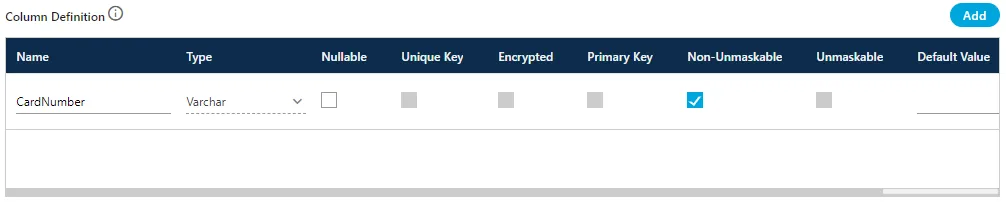
- Non-Unmaskable (Licensable): It provides the option to mask the values stored in a field.
The feature to unmask the already masked values will not be provided. So, use this feature consciously.
All or only important fields can be masked. If the Administrator selects a field to be maksed, then whatever data will be stored in this field will be masked at User Interface of the entire Ameyo System, in Customer Manager API, and at the backend, in the databases of PostgreSQL. For example, the data will be masked in AmeyoRefresh and CustomerProspect tables. Except the last 4 characters, all characters in the data will be masked with "X" letter such as XXXXXX1234.
If you are modifying an existing Table Definition or creating a new one in an already existing Ameyo Setup, only the new data will be masked in the field selected for masking, however, the old data will not be masked.
Perform the following steps to enable the masked Data Processor
- Execute the following query to verify whether the maskDataPreProcessor is available or not.
- Execute the following query to enable the maskDataPreProcessor if it is not available.
- Run the following query.
It is configurable that how many digits of the data has to be masked or unmasked from starting and how many digits has to be masked or unmasked from the end.
Suppose the card number of 10 digits has to be masked. If it is configured that first 5 digits will be unmasked and the last 5 digits will be unmasked, then the complete number will remain unmask.
If you select "Masked" for a field, then it cannot be "Primary Key" and "Unique Key". Also, default value of "Type" for a Masked field will be "VARCHAR" and it cannot be changed.
There may be some cases arise when you have to disable the mask data fields. In this case, run the following query to disable the Mask Data Field.
- Unmaskable:If selected, then the values of this field will not mask.
- Default value: Enter the default value that will be displayed in all cells of this column.
You can add multiple columns using the same steps.
Following is a screenshot of a table containing different columns.
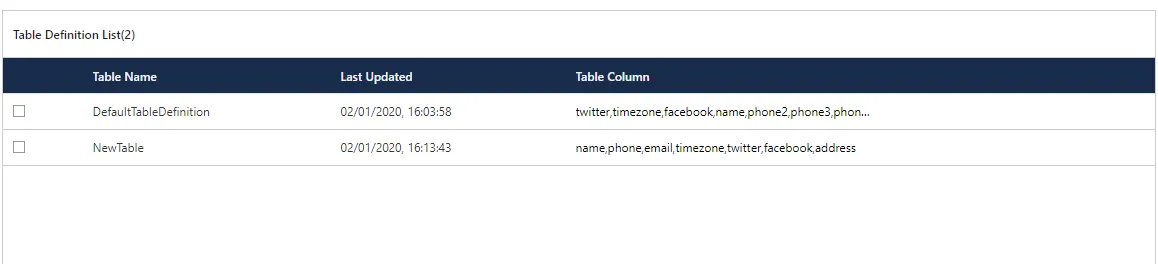
Click "Save" to create a table. Following screenshot shows a newly created table.
Modify Table Definition
Perform the following steps to edit the table.
- Select a table and click "Edit".
- You can change the following fields here.You cannot modify or delete the columns. Also, you cannot modify the column properties such as name, type, Nullable, unique key, primary key, or default value.
- Add new column: You can add the new columns in the table definitions. Click "Add" button to add the new column. A blank row is added at the bottom of the table. Here you can define the properties of the table column.
- Table Definition Name: Change the name of the table.
- Description: Change the description.
You cannot modify or delete the columns. Also, you cannot modify the column properties such as name, type, Nullable, unique key, primary key, or default value.
- Click "Save" to save and apply the changes.Click "Cancel" to cancel the changes.
Delete Table Definition
Perform the following steps to delete a table.
- Select the table and click "Delete". It shows the following warning message.

- Click "Yes" to delete the selected table. You can click "No" to not delete the table.