Table Mapping
This tab lets you edit and delete the default existing table column mappings. You can also create, modify, and delete the custom table column mappings.
Click "Select Table Definition" drop-down menu to select the table definition, in which you want to create, edit, and delete the table column mappings.
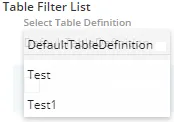
The default table column mappings are available only in "DefaultTableDefinition".
Create Table Mapping
Administrator needs to follow below steps to create a new mapping.
- Click"Create New Mapping" button. Following pop-up named "Create Table Mapping Wizard" is displayed on the screen
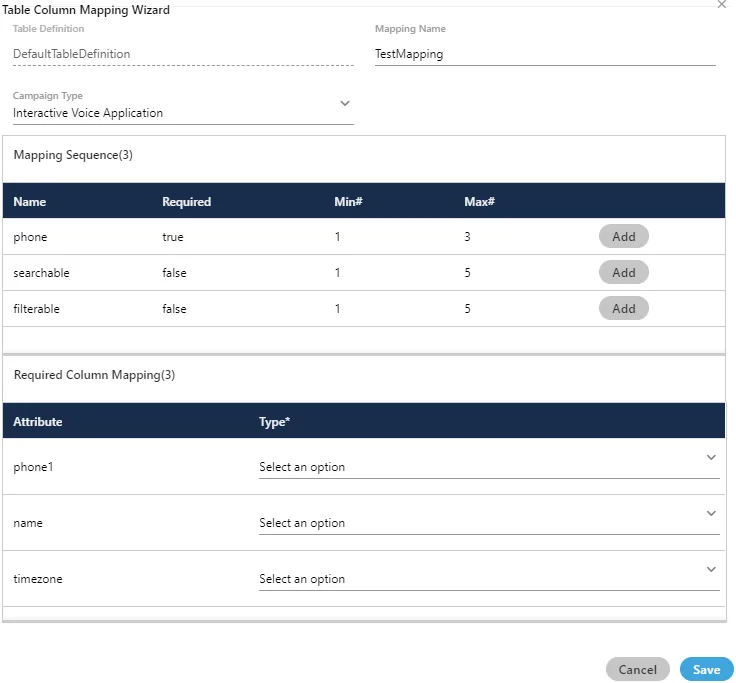
- Administrator needs to fill the following details in order to create a new mapping.
- Mapping Name :Provide a mapping name.
- Campaign Type :Select the Campaign type from the provided drop-down. It contains the following options.
- Interactive Voice Application
- Outbound Voice Campaign
- Interaction Campaign
- Parallel Predictive Voice Campaign
- IVR Campaign
- Voice Blast Campaign
- Chat Campaign
- Mapping Sequence :By default, the following two mapping sequences are displayed here.
- Searchable (Licensable: 5 to 10 fields): It lets you add the searchable and optional columns in the mapping. It is not necessary to create the searchable fields. Through this feature the column on which the searchable field is applied, the column becomes searchable, means a search bar appears on the column which allows the user to search for any of the data.
- Buy the license to increase the number of searchable fields. After purchasing the license, run the following query.
- INSERT INTO system_configuration_parameter(name,type,value,default_value) VALUES ('maxSearchableFieldsAllowed','Integer','<number_of_searchable_fields>','<number_of_searchable_fields>');
The maximum number of searchable fields (after both license and configuration) is 10. After purchasing licenses, perform the configuration to increase the number of fields, if any step missed then number of fields will not increase. Contact either Marketing Department or Services Team of Ameyo.
- Phone (Licensable: 5 to 50 fields): It lets you add the mandatory columns in the mapping. It is mandatory for the user to fill these columns.
- Buy the license to increase the number of phone fields. After purchasing the license, run the following query.
The maximum number of phone fields (after both license and configuration) is 50. After purchasing licenses, perform the configuration to increase the number of fields, if any step missed then number of fields will not increase. Contact either Marketing Department or Services Team of Ameyo.
- ilterable: It lets you add the filterable columns in the mapping. The user can leave these columns blank. Through this feature the administrator now have another filter field through which he can filter for the required voicelogs.
- Buy the license to increase the number of filterable fields. After purchasing the license, run the following query.
The maximum number of filterable fields (after both license and configuration) is 10. After purchasing licenses, perform the configuration to increase the number of fields, if any step missed then number of fields will not increase. Contact either Marketing Department or Services Team of Ameyo.
- You have to click "Add" for a Mapping Sequence to add its column.You cannot edit or delete the column mappings here.
- Attribute : User can select the attributes for the added column mappings. It has the following options.
- timezone
- name
- phone1
- phone2
- phone3
- phone4
- phone5
- Type: You have to select the types of these attributes for the added column mappings.
Following screenshot shows the sample table mapping for a custom "Test1" table definition.
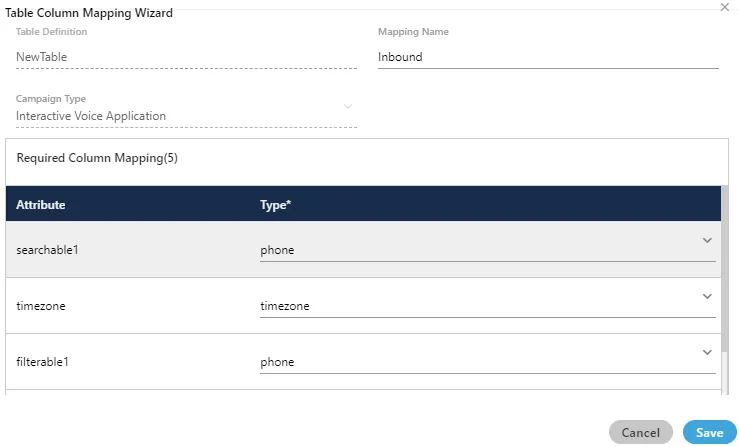
Click "Save" to create the table mapping.
Alternatively, you can click "Cancel" to discard the changes.
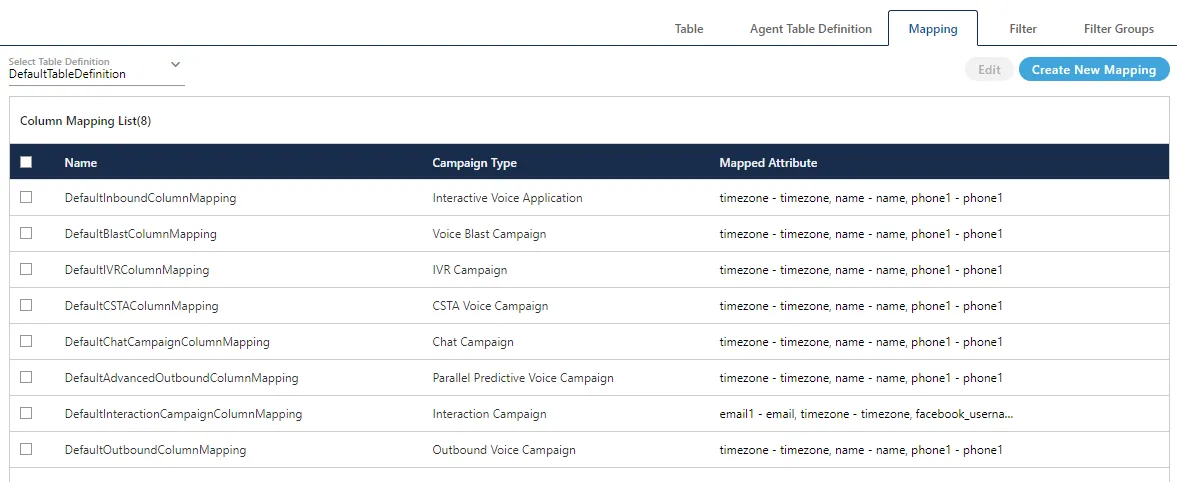
Following screenshot shows two newly created table mappings.
Modify Table Mapping
Perform the following steps to edit a table mapping.
- Select the table definition in "Select Table Definition" drop-down menu. The mappings of selected definition are displayed.
- Select a table and click "Edit".
- You can change the following fields here.
- Mapping Name: Change the name of the mapping.
- Mapping of Attributes: You can change the mapping of attributes.
- Click "Save" to save and apply the changes.
You cannot change the table definition name and campaign type. Attributes cannot be added, edited, or deleted.
Delete Table Column Mapping
Perform the following steps to delete a table column mapping.
It is recommended not to delete the default table column mappings available in the default table definition (DefaultTableDefintion).
- Select the table definition in "Select Table Definition" drop-down menu.
- Select the mapping and click "Delete". It shows the following warning message.

- Click "Yes" to delete the selected mapping. You can click "No" to not delete the mapping.