"Manage Contacts" Tab in Lead Management
Here, the Supervisor can manage the contacts in a lead. Click "Fetch Lead" button to fetch the leads and see them here.
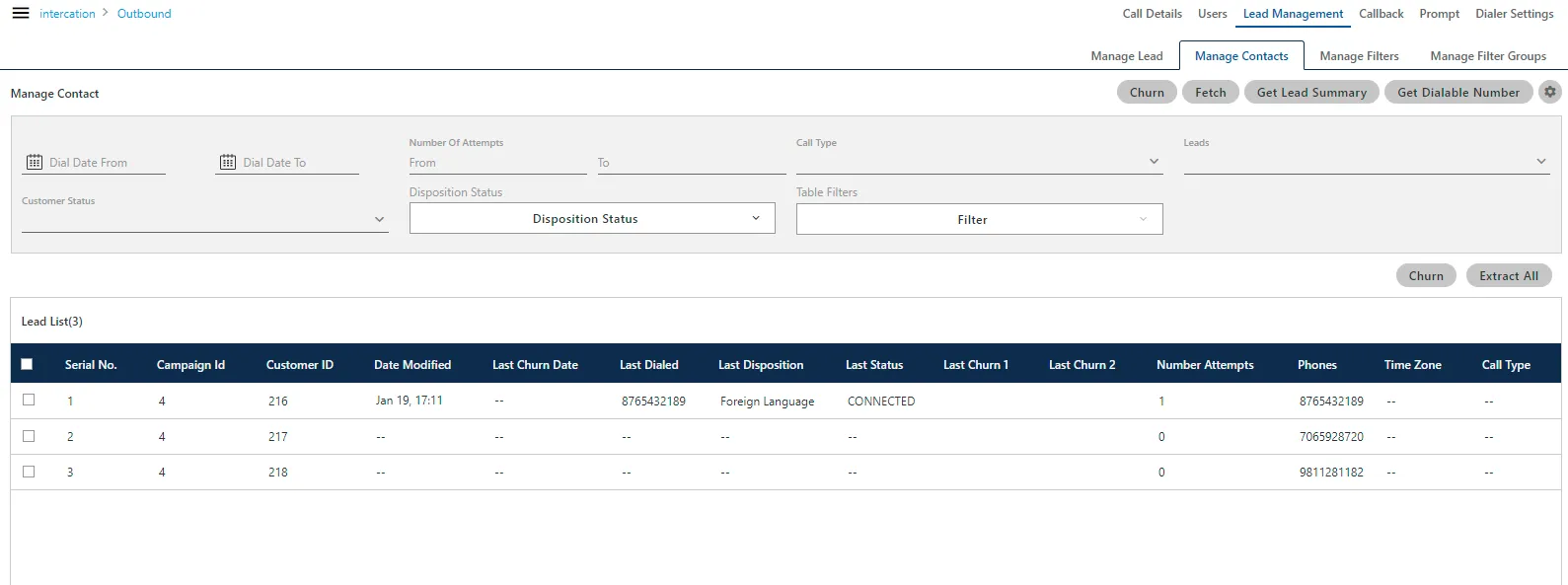
Here, Supervisor can perform the following operations.
Churn the Leads
The Supervisor can churn the lead, that is, can set the status of records as "Not Tried". So, the churned records can be redialed by dialer.
- Click "Churn" button. It shows a pop-up.
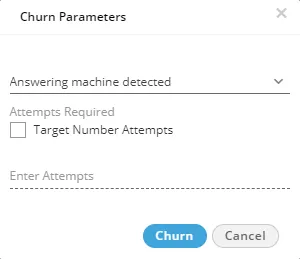
- Now, select the target customer status (status of records which needs to be churned) from the following drop down list.
- Answering Machine Detected :When a number is detected by the Answering Machine, and then it gets disconnect.
- Attempt to make a call failed: :When the attempt failed due to any of the reason, and it disconnects.
- Call attempt was unsuccessful:Those numbers which do not dial from the Ameyo or the attempt did not perform.
- Call was dropped:When the call disconnects in between before the customer could answer to it.
- Customer hangup:When the customer disconnects the call without answering it
- Customer not tried till now:Those numbers which have not been tried or they still left for the call attempt.
- Customer was connected to an Agent:Those numbers which successfully connected with the numbers.
- No answer from Customer:When the customer connects on the call with the Agent, but there is no reply received from the Customer.
- Number temporary failure:If the number is out of reach or there is a temporary down status for the number by the network provider.
- Provider failure:If the number does not connect due to provider failure.
- Provider temporary failure:: If the number does not connect due to the Provider failure but this issue remains for some time or temporary.
- SIT intercept: If the number disconnected or the number of the customer has been changed.
- SIT reorder:If the number dialed has fewer digits than usual or it has incomplete digits.
- SIT No-Circuit:If all the circuits of the network are busy
- SIT Vacant:If the number does not assigned to any of the queue.
- User busy:If all users are busy to take the call of the customer and the customer disconnects the call.
- Wrong number:If the dialed number is wrong.
- Specify the number of target attempts. It is the number to which the total tried count rests. For example, if a number is tried 10 times, and the target attempt provided is 4, then after churning the tried count of that number will be marked as 4.
- Click "Churn" to churn the numbers.
Churning of Lead Lists based upon the Filter Groups
The Supervisor can click "Group Filters" drop-down menu to use the filter groups in churning.
For example, There are scenarios where the supervisor needs to churn the leads based on the Filter Groups. For example, there is a collection process and the lead has been uploaded with details like customer’s phone number, location and amount. If it is found that the connectivity with the customers in location A is more efficacious, then the supervisor can churn the leads for that particular location. Similarly, if it is noticed that the connectivity to the phone numbers starting with ‘98’ is more effective, then a Filter Group for the same can be added and the supervisor can churn the lead based on the phone number.
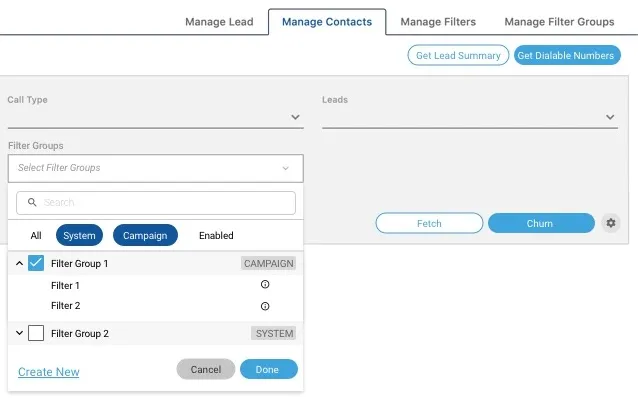
The Supervisor can click "Create New" link to create a new filter group.
The Supervisor can click "System" tab in this modal to display the system-level filters.
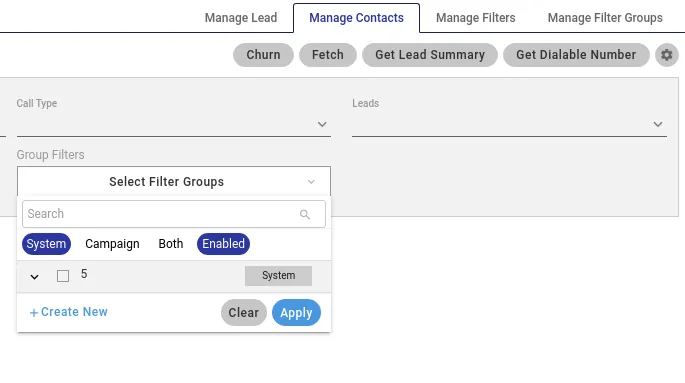
The Supervisor can click "Campaign" to display the campaign-level filters. If "Enabled" is also clicked, then the enabled filer groups will be displayed.
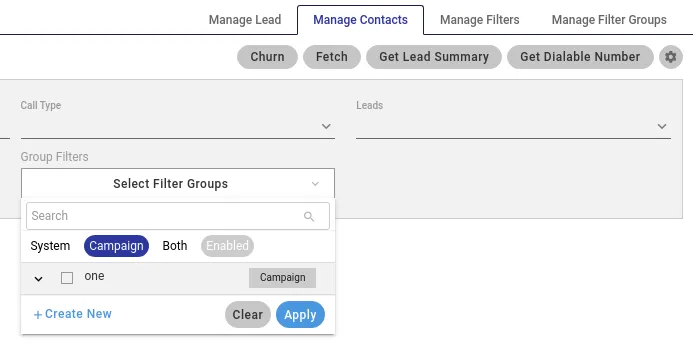
The Supervisor can click "Both" to view both System-level and Campaign-level Filter Groups.
The supervisor is able to fetch, churn, or extract the contacts from the Lead Management tab. But earlier, while fetching the contacts according to the provided criteria only 1000 contacts were fetched at a time irrespective of the total count that matches the criteria. Due to this, the supervisor had to extract the contacts again and again. Thus, there it was required to select all the contacts matching the criteria. Now, the supervisor can select all contacts that matches the criteria. It will help the supervisor to select all contacts and extract, or churn them with one click that matches the criteria. The supervisor can click "Extract All" button to extract all contacts that matches the criteria; "Churn All" button to churn the contacts; and "Delete All" button to delete all contacts that matches the criteia. It will perform the action on all matching contacts present on UI or on server irrespective of the count of 1000.
Churn Exclude Dispositions
Supervisor can click  icon on the top right corner to exclude the dispositions from the churning. It shows the following pop-up.
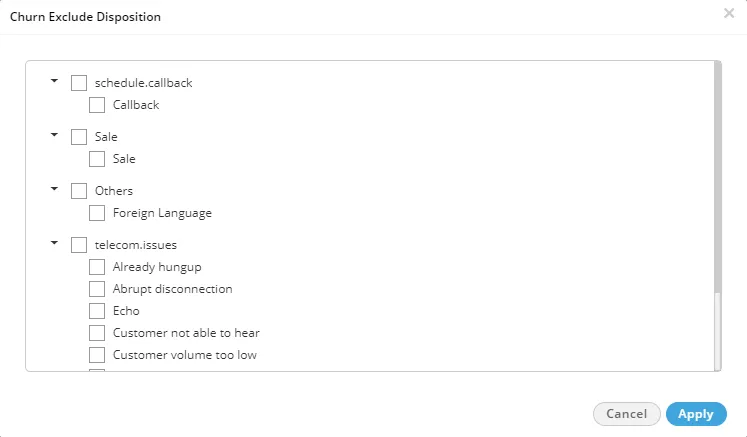
Here, the supervisor can select the desired user disposition parameters that should be excluded from churning. For example, if sale disposition need not be churned then it can be marked as excluded Disposition. Now when user attempts churn process and chooses a target Disposition code, then Ameyo will churn all dispositions except "Sale" which will be excluded from churn.
Get Lead Summary
The Supervisor can fetch the lead summary of selected leads by clicking on "Get Lead Summary" button. It shows a pop-up.
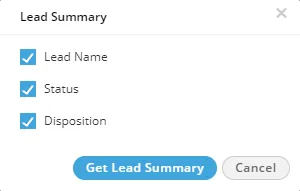
Here, the Supervisor can uncheck the checkbox provided against the headers which are not required or which the supervisor does not wants to see in lead summary (as in lead summary only checked headers will be shown). Lead summary is displayed with the following attributes:
- Lead Name: It shows the lead name.
- Status: It shows the current dialed status of the numbers uploaded in the respective lead.
- Disposition: It shows the user disposition with which contacts have been disposed. It will be visible for connected calls only.
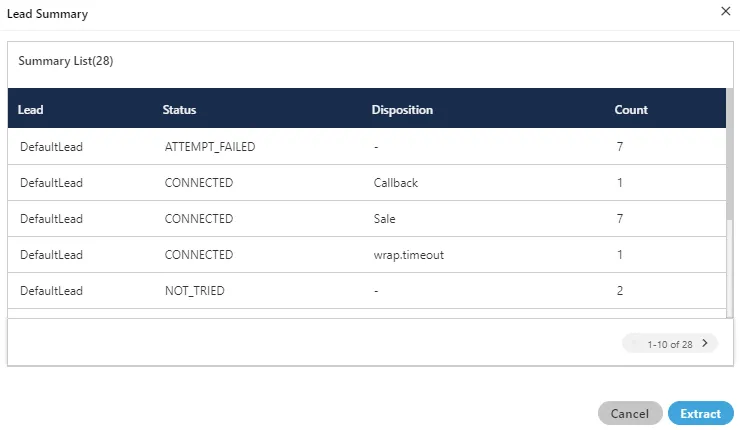
Click "Extract" in this pop-up to save the Lead Summary as a CSV file on the disk. It shows the following dialog box.
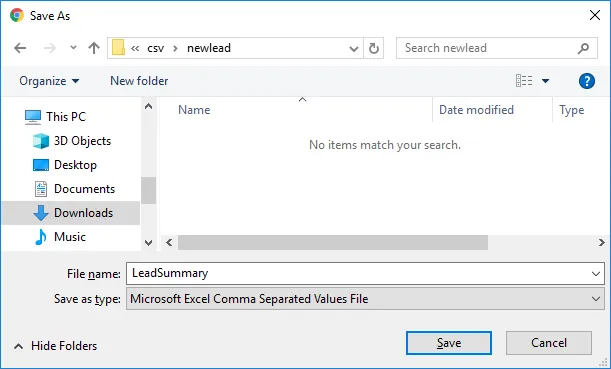
Select the location and provide a name to the file. Click "Save" to save the lead summary as the file.
Get Dialable Numbers
Click "Get Dialable Numbers" to view the list of dialable numbers in the fetched lead. It shows the following pop-up.
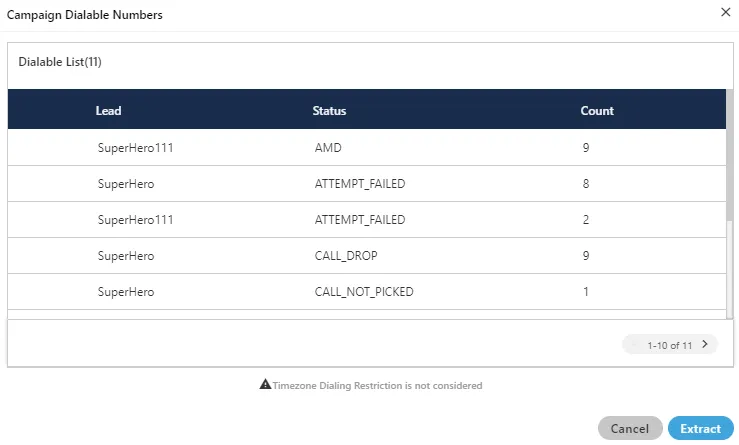
On clicking the button, it shows the status of all the numbers, which are dialed from the lead. Select the lead first and then press the button to fetch the complete status of the lead.
You can click "Extract" to save the list of dialable numbers as CSV file on the disk. On clicking the "Extract button", it shows the following pop-up to confirm the download of the file.
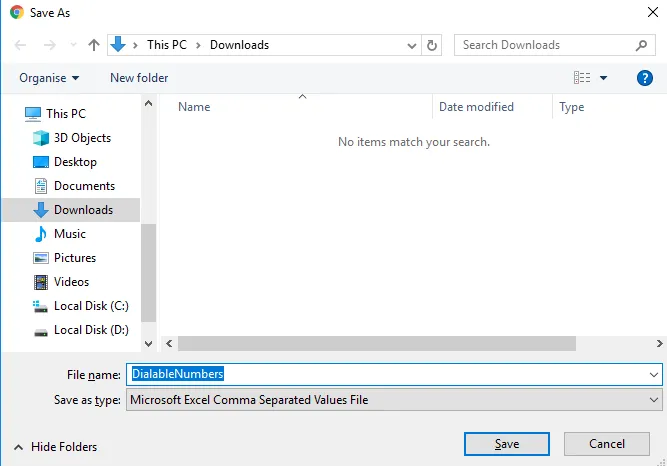
Click "Save" button to download the file. It saves the file with its default name, you can change the file name from here.
The above download option of the file is based upon the downloading settings of the browser. The user can change the settings of the browser from the browser's setting tab at any time.
View and Filter Lead List
The top section lists the filters. The Supervisor can select any of these filters to filter the lead list.
- Dial Date: Select its "From" and "To" dates to list the numbers from the leads dialed between the selected duration.
- Number of Attempts: Select the range of number of attempts.
- Call Type: Select the type of calls to be listed in the lead.
- Auto Dial
- Auto Preview Dial
- Call Back Dial
- Click to Call Dial
- Inbound Dial
- Inbound Dial Customer
- Manual Dial
- Manual Preview Dial
- Pick Call Dial
- Transferred to Campaign Dial
- Leads: Select the leads to list their numbers.
- Customer Status: Select the status of the call for the customer.
- Disposition Status: Select the type of the disposition for which you want to filter the lead.
- Table Filters: Select the table filters. It contains all the filters which are configured. However, the supervisor can create a new table filter as well. Know more...
After applying any of these filters, click "Fetch" to list the numbers of the leads on the screen.
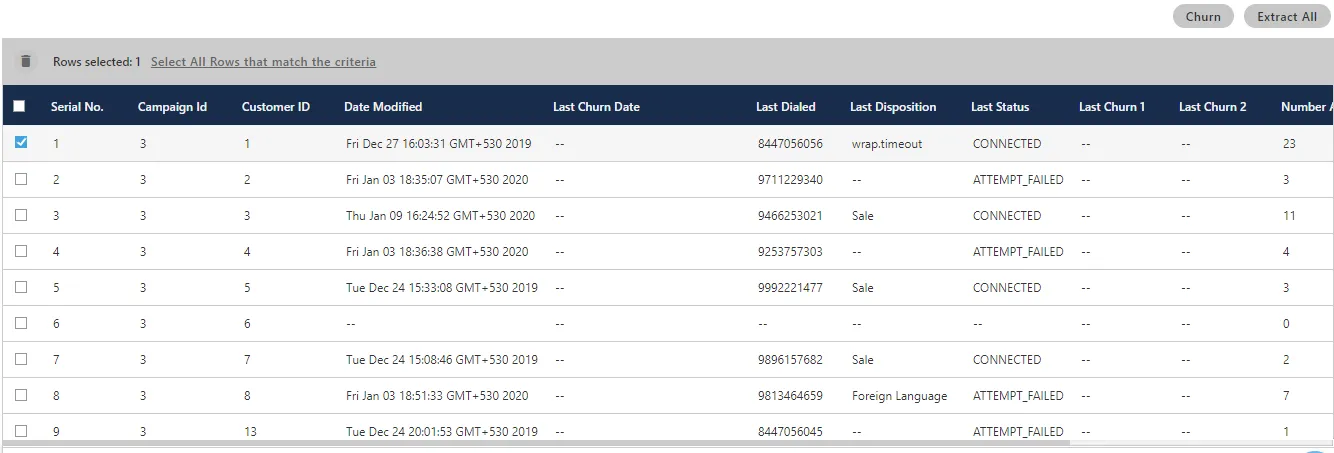
Once the lead is fetched, then the supervisor either can Churn or Extract All the numbers of lead in a CSV file on the system.
The fetched list of contacts contains the following columns
- Serial No.: It shows the serial number of the fetched contacts.
- Campaign Id: It shows the id of the campaign from which the number has been tried for the call.
- Customer ID: It shows the Id of the customer from the lead.
- Date Modified: It shows the date and time of the last modification the call which has been applied.
- Last Churn Date: It shows the last churn date and time of the contact, if the contact is churned before.
- Last Dialed: It shows the number of the customer which is dialed last time. It is used in cases when the alternative number of the customer is dialed, in that case, it shows that alternative number for that customer.
- Last Disposition: It shows the disposition used through which the call has been disposed last time.
- Last Status: It shows the status of the call which is collected at the last time.
- Last Churn 1: If the number has already been churned before, then it shows the status used to churn that number.
- Last Churn 2: If the number has already been churned two or more than two times before, then it shows the last status used to churn that number.
- Number Attempts: It shows the total number of attempts which is tried to connect with the customer over call.
- Phones: It shows the number of the customer, which is used and stored in the lead.
- Time Zone: It shows the time zone of the customer, if it is selected to call.
- Call Type: It shows the type of the call which is used to dial the number of the customer.
Delete Customers: You can delete the customers from here as well. Select the customer and then click the delete icon to remove the customers.