"Manage Filter" Tab in Lead Management
Manage Filter
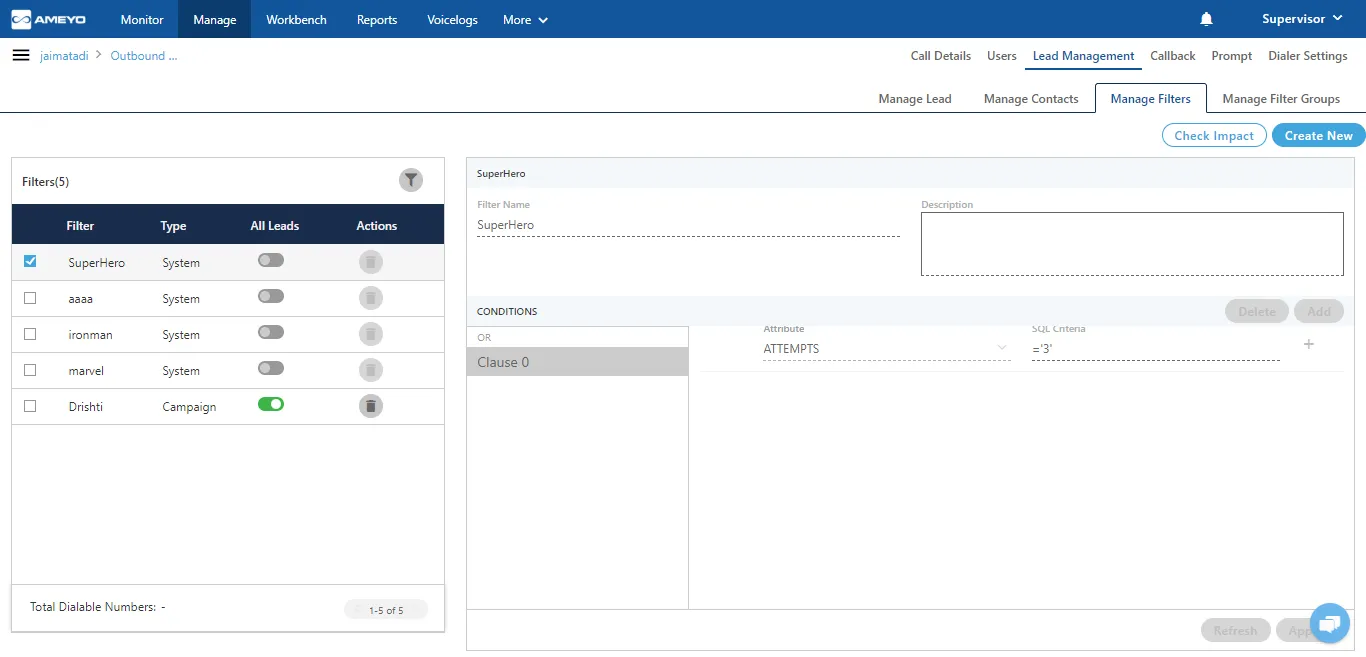
Here, the Supervisor can define the filters to filter the leads. Only the filtered numbers will be dialed and the exclusions will not be dialed. Supervisor can view both Filtered Count and Dialable Count across all leads in a campaign in "Manage Filters" or "Manage Filter Groups" tab.
The System-level and Campaign-level filters can now be assigned or unassigned at the selected lead lists. The Supervisor can enable one filter on one lead and another filter on another lead.
The lead-level and queue-level filters are the licensable features. Contact your administrator for further information.
Here, the filters created at System-level by the Administrator are denoted as "System" in filter type. The Supervisor cannot enable, disable, or delete these system-level filters. The supervisor can perform the operations on his created filters only.
Add Filter
Perform the following steps to add a filter.
- Click "Create New Filter" to create a new filter.
 Figure: Create a Filter
- Filter Name: Provide a name of the filter.
- Filter Type: By default, it will be campaign.
- Description: Enter the description regarding the filter.
- Click "Add" to add a clause. Each clause has a condition to filter the table. It adds a Clause in the left side and add a new row on the right side.
- Perform the following steps to add a condition in a newly added clause.
- In a row, you can select "Attribute" in the drop-down menu. It contains the following options.
- ATTEMPTS
- customerid
- DISPOSITION
- IS_CALLBACK_SCHEDULED
- IS_EXCLUDED_DISPOSED
- LAST_CALL_TYPE
- LAST_CHURN_1
- LAST_CHURN_2
- LAST_DIALED_NUMBER
- LAST_DIALED_NUMBER_1
- LAST_DIALED_NUMBER_2
- LAST_DIALED_NUMBER_3
- LAST_DIALED_NUMBER_4
- LAST_DIALED_TIME
- LAST_USER_ID
- LEAD_ID
- name
- NUMBER_STATUS
- phone1
- phone2
- phone3
- phone4
- phone5
- timezone
- Provide a value for the selected "Attribute" in the cell under "SQL Criteria" column.
- You can click "+" icon on the right side of a row to add a new condition.
Note: To delete a condition, you can click "x" icon on the right side of a row.
- You can click "Add" again to add a new clause. After adding the clause, you can add the condition rows in it.
You can click the clause names in the box located on bottom left side to navigate between the clauses.
- To delete a clause, select it in the box and click "Delete".
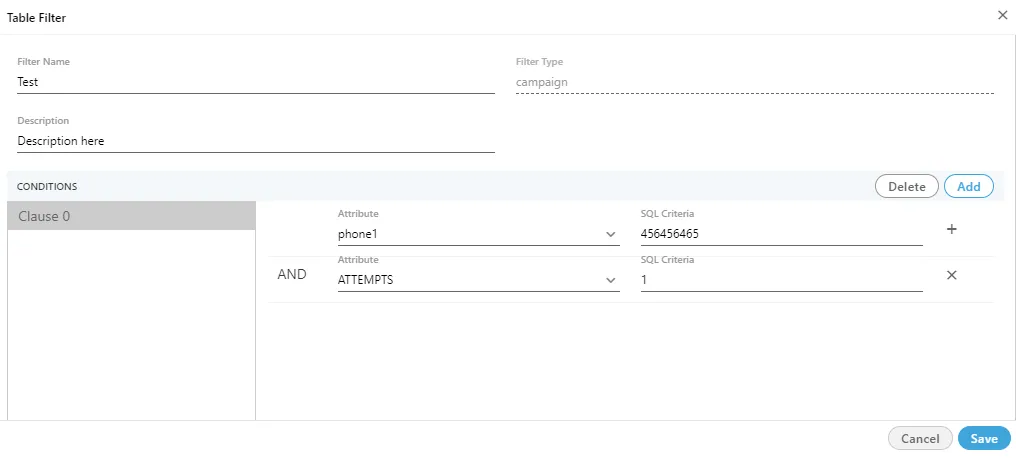
- Following screenshot contains the sample values to create a table filter. Click "Save" button to create the table filter.
Filters
The supervisor can click the  icon to filter the created filter.
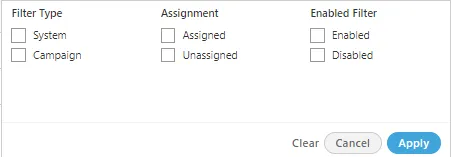
It contains the following filters:
- Filter Types: The supervisor can select for the filter types created for the system level or at the campaign level.
- Assignments: The supervisor can filter for those created filter which are either assigned to any campaign or are not assigned to any campaign.
- Enabled Filter: It allows the supervisor to filter for the enabled or disabled created filters.
Supervisor can select the filters according to his choice and need. Even he is allowed to select any one or multiple filters at same time.
Search
If there is a large list of filters, the Supervisor can use the search box located on the top of left pane to search for the particular filters.
Dialable Numbers
- "Total Dialable Numbers" text is displayed by default in the bottom right corner of the left section that shows the filters.
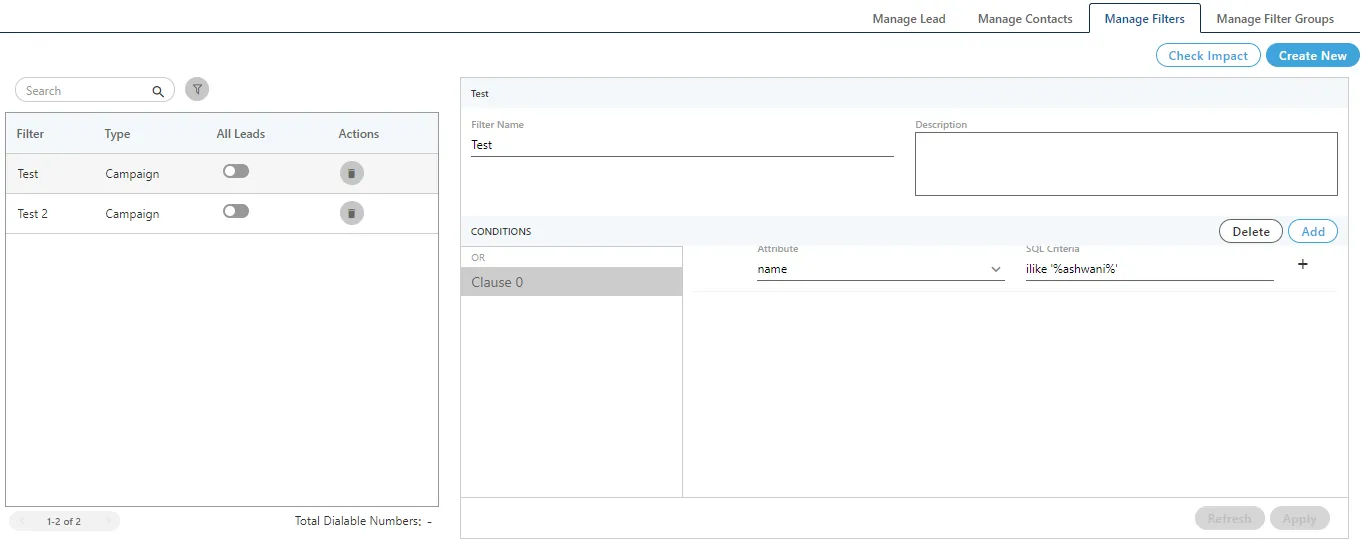
- For the very first time, "Total Dialable Numbers" will remain blank.
- When the Supervisor enable or disable any filter, the total dialable numbers will be displayed. "Test" filter has been enabled to get the total dialable number in the following screenshot.
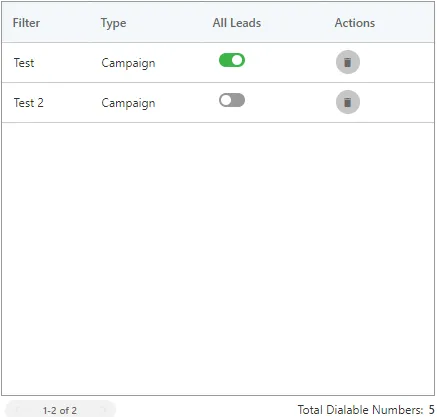
- Whenever the Supervisor enable or disable a filter in the left panel, the count of "Total Dialable Number" changes.
- Click "Check Impact" button to show "Check Impact" pop-up.
- The Supervisor can click "Enabled Only" tab to view the Filtered Count and Dialed Count across the Enabled Leads only in the Campaign.
- The Supervisor can click "All" tab and click "Check Dialable Numbers" to view these counts across all leads in the campaign.
- If a filter has been disabled, then its checkbox will remain blank. If a filter is enabled, then its checkbox will remain selected (but disabled) and a "Get" link will be displayed.
- The Supervisor can click the checkbox for the disabled filter such as "Test" to view the numbers in "Filtered Count" and "Dialable Count" columns. Also, the Supervisor can click "Get" link to get these counts.
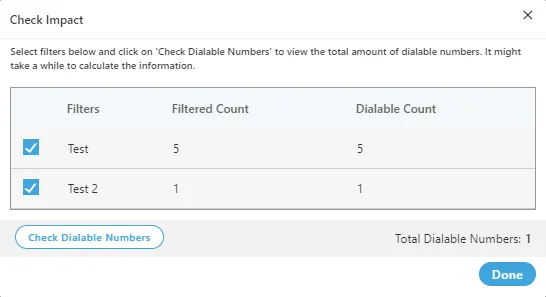
It shows the Dialable Count for every filter separately and total count after enabling or disabling the filters.
- The Supervisor can click"Check Dialable Numbers" to get the Total Dialable Number count after enabling or disabling the filters. Whenever the status of a filter is changed, the Supervisor has to click "Check Dialable Number" button to get the updated dialable number count.
- Click "Cancel" or "Done" to close the pop-up.
Enable / Disable Filter
Supervisor can enable or disable the filter at any time. Click  icon to enable the filter.
- Click
 icon to enable the filter.
- After enabling the filter, switch the tab to the "Manage Lead" in the supervisor "Lead Management" menu to assign these filters to the leads.
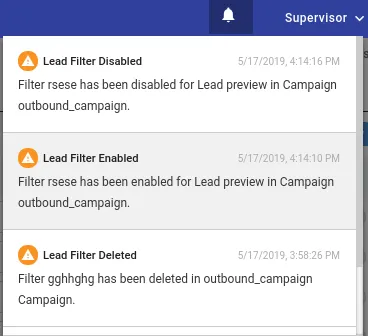
- After enabling or disabling the filter, a notification will be displayed to all the supervisors assigned to the same campaign.
Edit Filter
Select the filter which you want to edit from the list present in the left side of the page.
- Enter the detail which you want to change it in the filter information. After changing the information, click "Apply" button present at the right bottom of the page.
- In the edit option, you can change any information even the filter name as well.
Delete FIlter
Supervisor can delete the filter at any time. Click  icon to delete the filter. After clicking the delete icon, a pop-comes up to confirm the deletion of the filter.
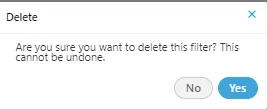
- Click "Yes" button if you are sure to delete the filter, else click "NO" button.
- After deleting the filter makes it to delete permanently from the contact center solution. Once it will be deleted, it can not be retrieved in any manner.