Manage Filter Groups (Licensable)
For a single overview of what filter groups are, system vs campaign scope, Customers tab assignment, mutual exclusion with plain Filters, and the configuration parameters table, see Filter Groups. This page is the Supervisor walk-through: opening Manage Filter Groups, creating and editing groups, fetch order policies, Check impact, and delete.
Go to "Manage Filter Groups" Tab of any Outbound, Parallel Predictive Dialing, and Voice Blast Campaign and switch the tab to "Lead Management" to access the same.
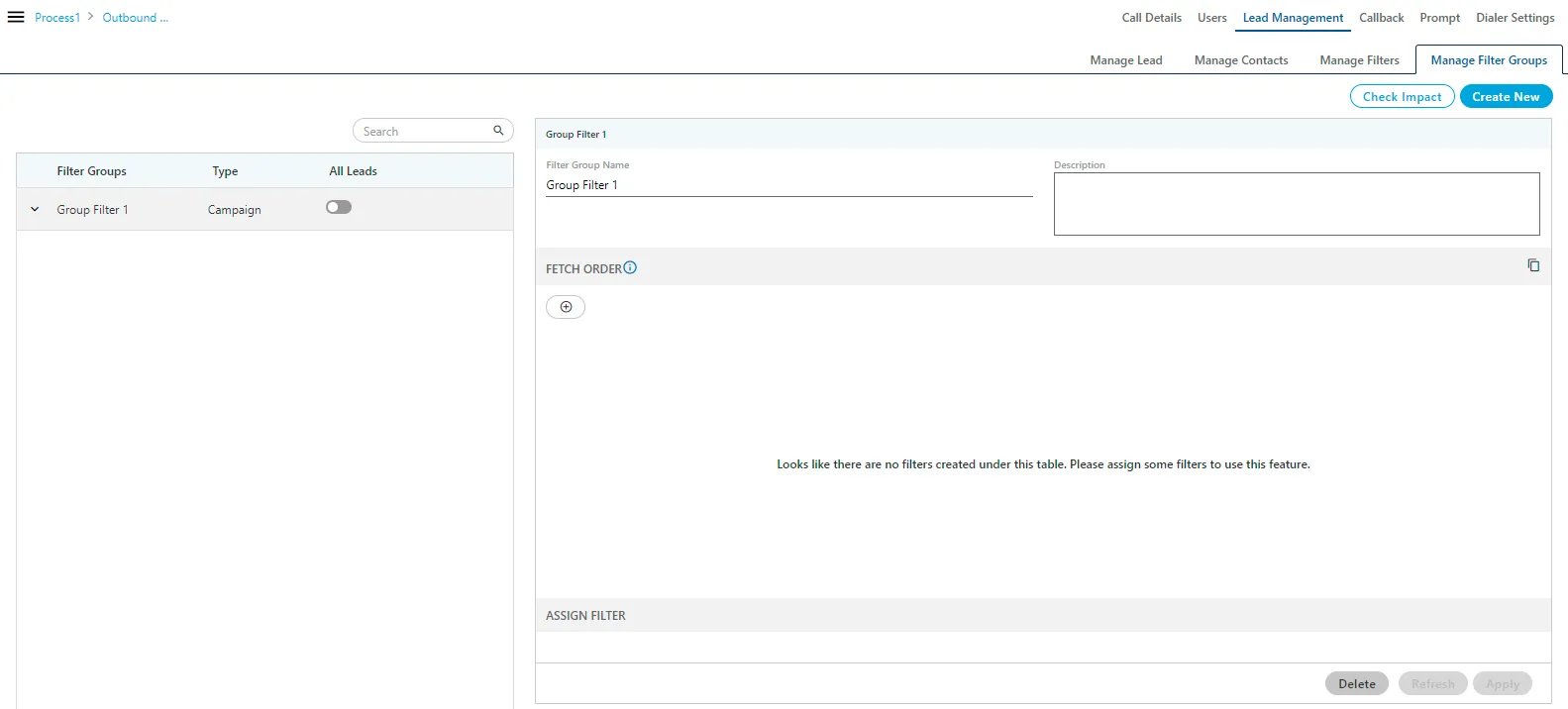
Filter Groups created by the Administrator at System-level are designated as "System" type, whereas, the Filter Groups created by the Supervisor here are designated as "Campaign" type.
The filter groups created by the administrator cannot be deleted in any case from the supervisor console. The Supervisor can perform the following tasks here.
Create New Filter Group
Perform the following steps to create the filter group.
- Click "Create New" button to create a new Filter Group. A pop-up comes up in which you have to enter the following information.
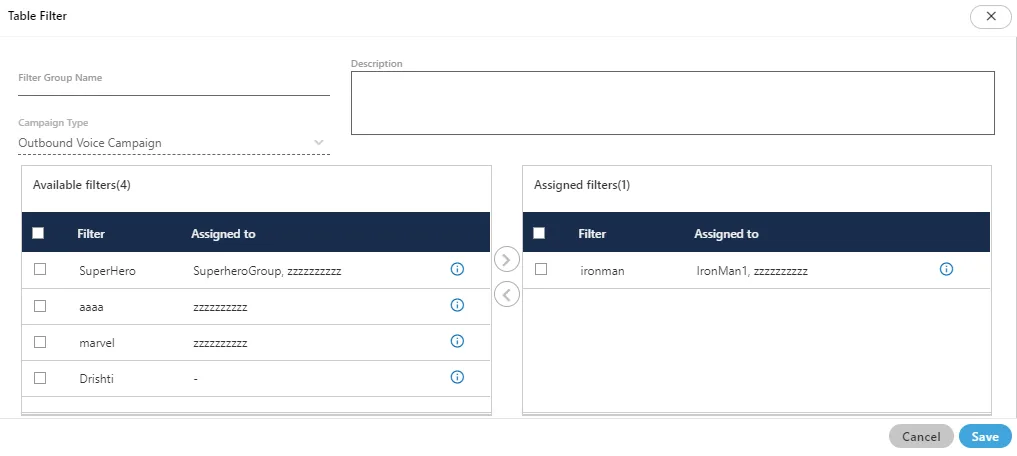
- Provide the following information on the opened pop-up.
- Filter Group Name&#xNAN;: Provide the Name of the "Filter Group".
- Description&#xNAN;: Provide the description of the Filter group.
- Campaign Type&#xNAN;: The campaign type is selected automatically. The campaign which you selected at the time of the Filter group creation is the selected campaign here. You can not change the campaign name.
- Available Filters&#xNAN;: All the filters which are created in the "Manage Filters" tab of Lead Management are shown here. Select the filter and then click
 icon to assign the filter in the group.
You can also search for the filter names in the provided search box.
icon to assign the filter in the group.
You can also search for the filter names in the provided search box.
- Assigned Filters&#xNAN;: It shows the list of the filters which are assigned in the group. You can click
 icon to unassign any filter from the list.
- Click Save" button to save the created filter group.
View the Details of the Group
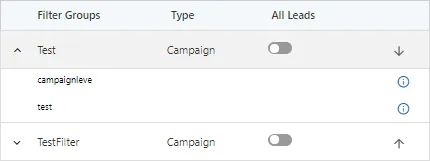
In the left pane, click  icon to view the list of the assigned filters to the created groups.
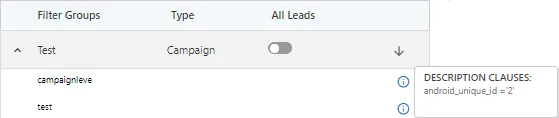
Hover the mouse on "i" icon in front of any of the assigned filter of the opened list of the filter group to see the description of the filter.
Enable or Disable Filter Groups
The Supervisor cannot enable or disable the Filter Groups, which are created at the System-level by the Administrator. However, the Supervisor can enable or disable the filters created by itself. Click  switch to disable a rule and click
  switch to enable a disabled rule.
Change Priority of Filter Groups
Click  icon to prioritize the filter groups. Click up arrow (↑) icon to move a Filter Group up, and click down arrow (↓) to move a Filter Group down. The Filter Group, which is located on top, will be applied first.
Check Impact
Check Impact" provides supervisor with an option to view both Filtered Count and Dialable Count across all leads in a campaign in both "Manage Filters" or "Manage Filter Groups" tabs.
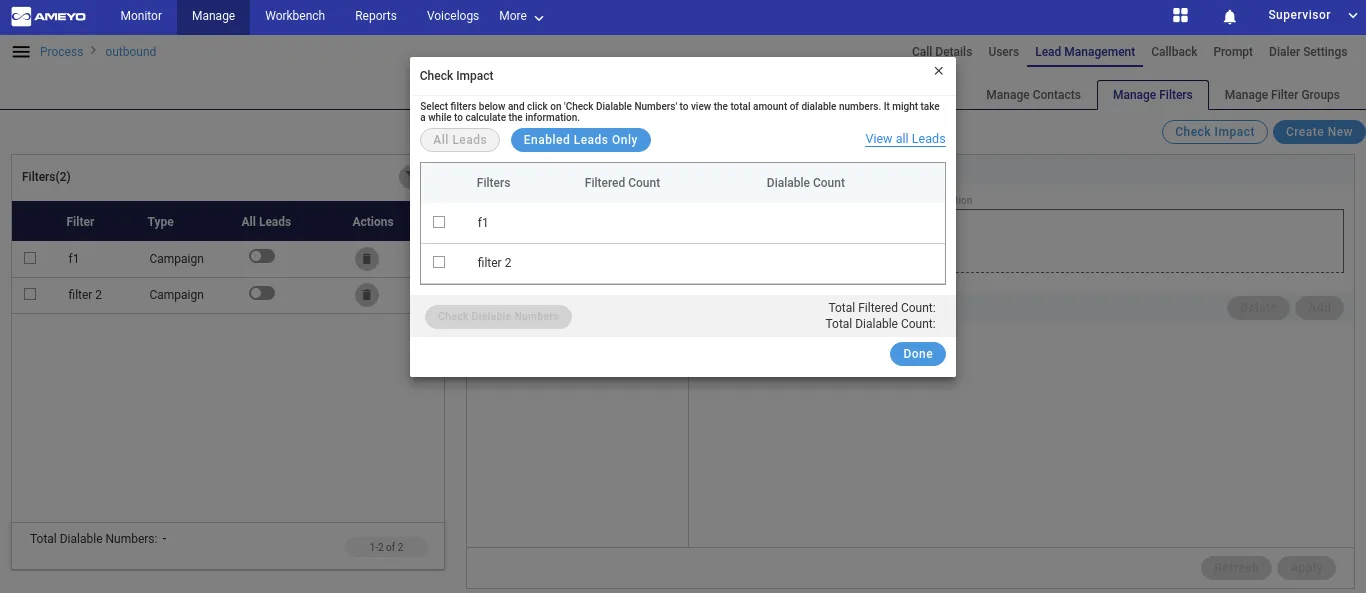
The Supervisor can click "Enabled Only" tab to view the Filtered Count and Dialed Count across the Enabled Leads only in the Campaign.
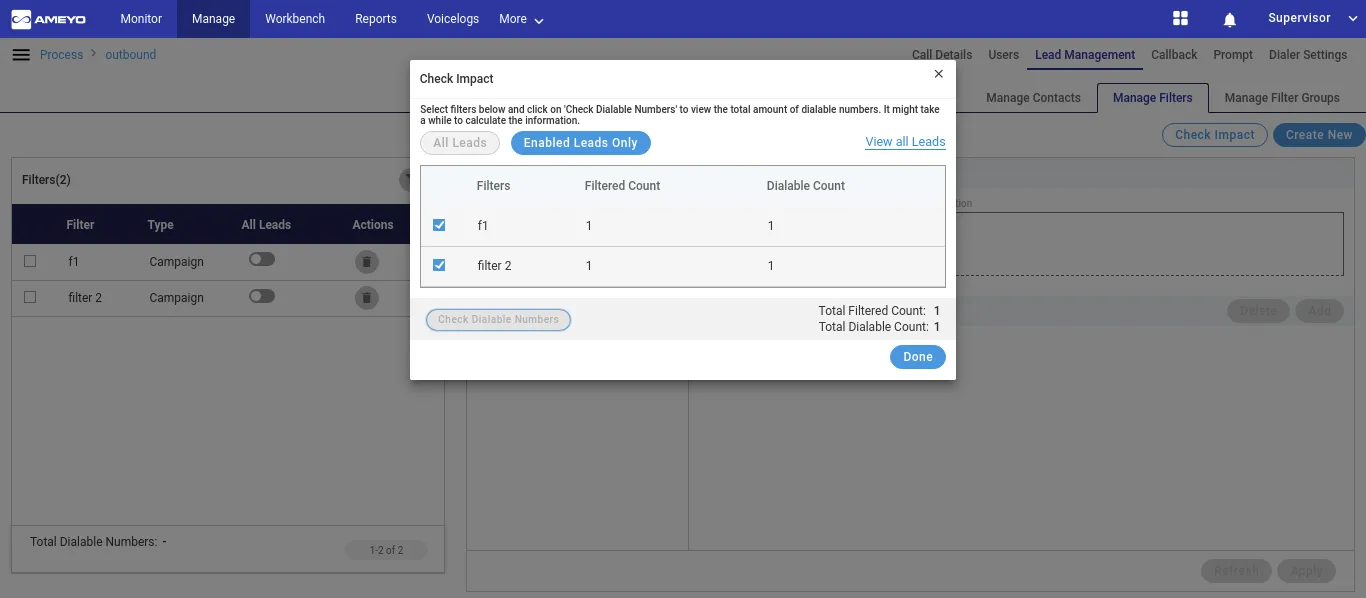
The Supervisor can click "All" tab and click "Check Dialable Numbers" to view these counts across all leads in the campaign.
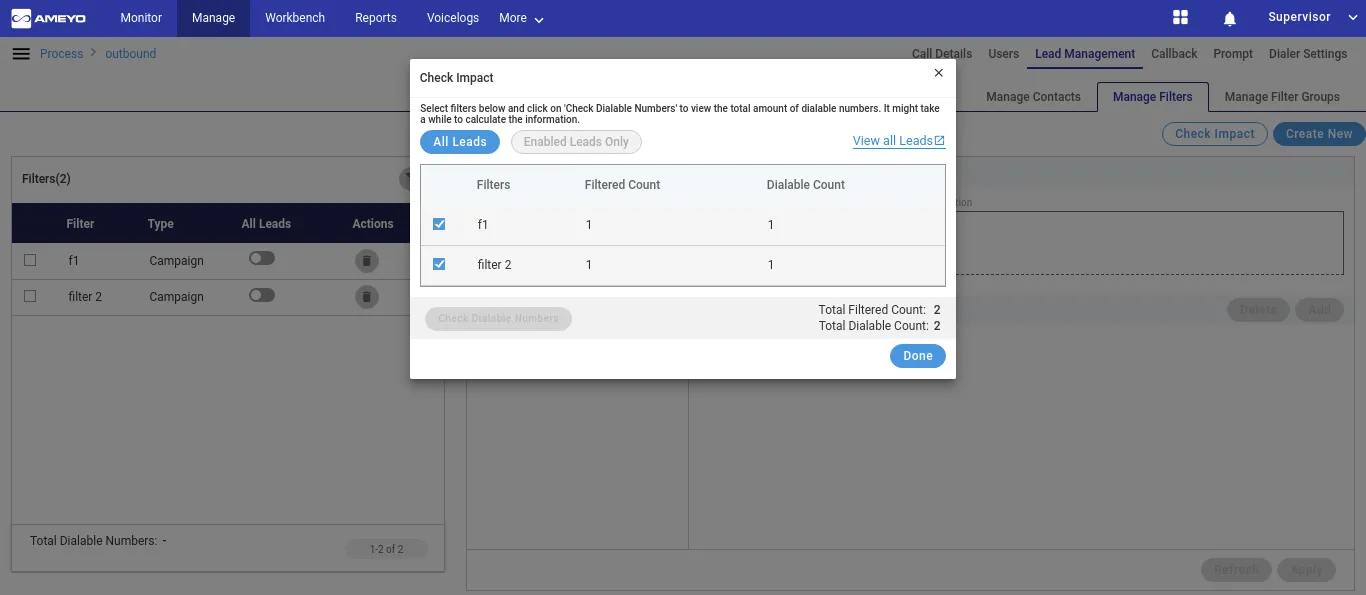
The Supervisor can click "View All Leads" on the top right corner of the modal to view all leads.
- The Supervisor can click"Check Dialable Numbers" to get the Total Dialable Number count after enabling or disabling the filter groups. Whenever the status of a filter group is changed, the Supervisor has to click "Check Dialable Number" button to get the updated dialable number count.
- Click "Cancel" or "Done" to close the pop-up.
Modify a Filter Group
Select a Filter Group to view its details in the right pane.
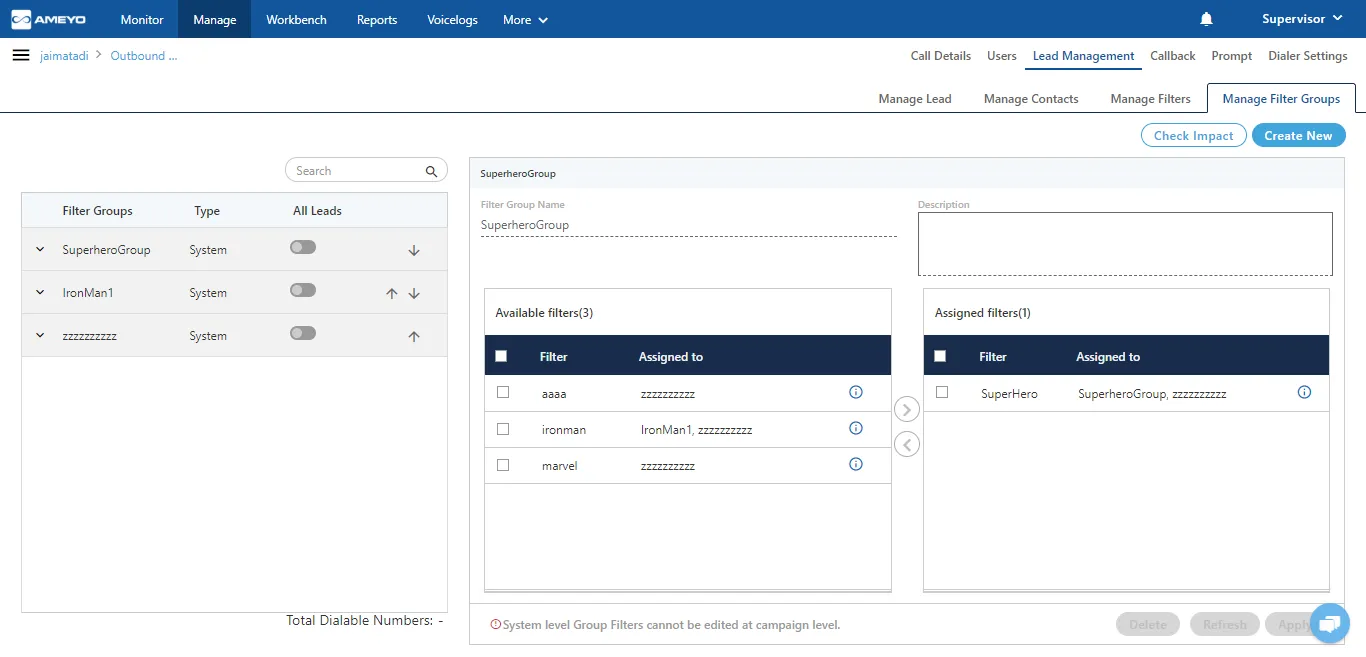
On the opened page, you can change the name, description and assign or unassign the filters to the Filter Group.
After changing the information, click "Apply" button to save the made changes.
Fetch Order Policy in "Manage Filter Groups" at Campaign-level in Supervisor Console (Licensable)
It allows the supervisor of a business to benefit both Filter Groups collectively and Fetch Order Policy. Refer to the following screenshot.
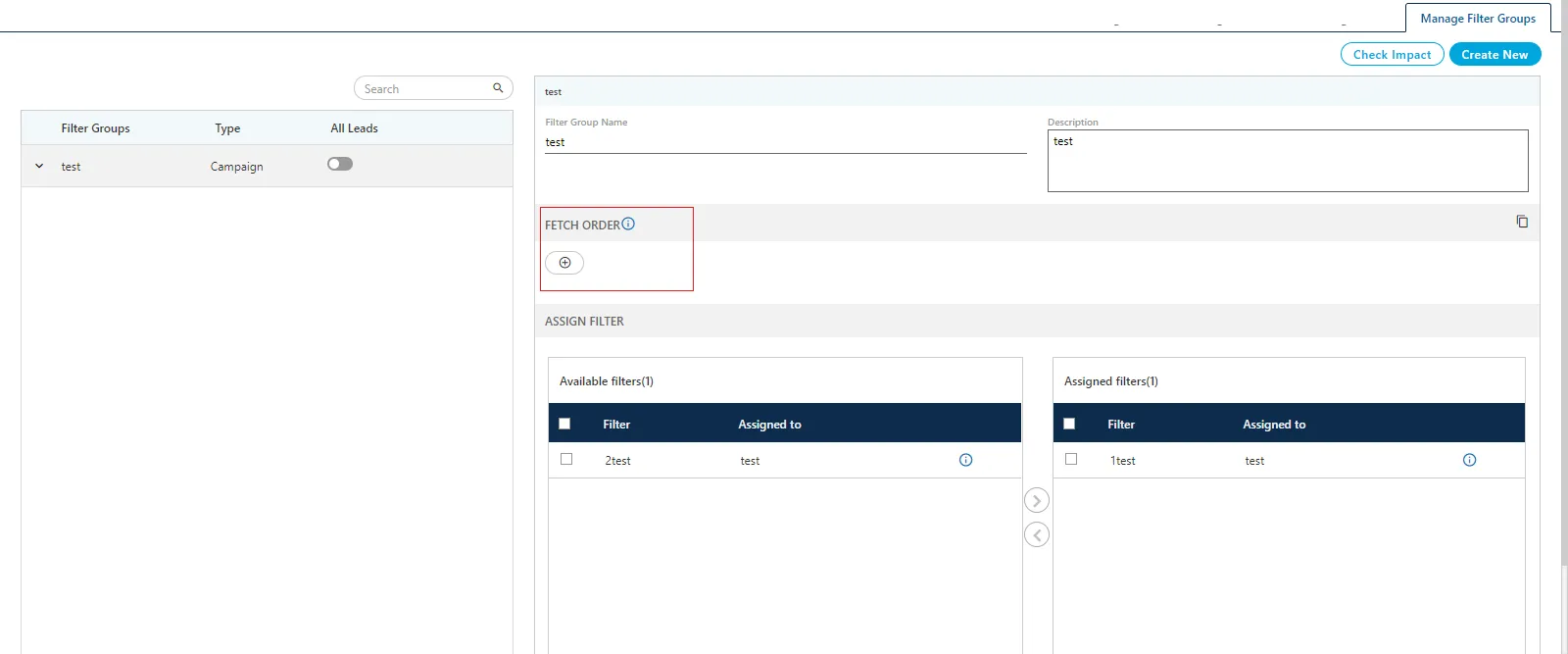
The Supervisor can click "+" icon to add a Fetch Order Policy.
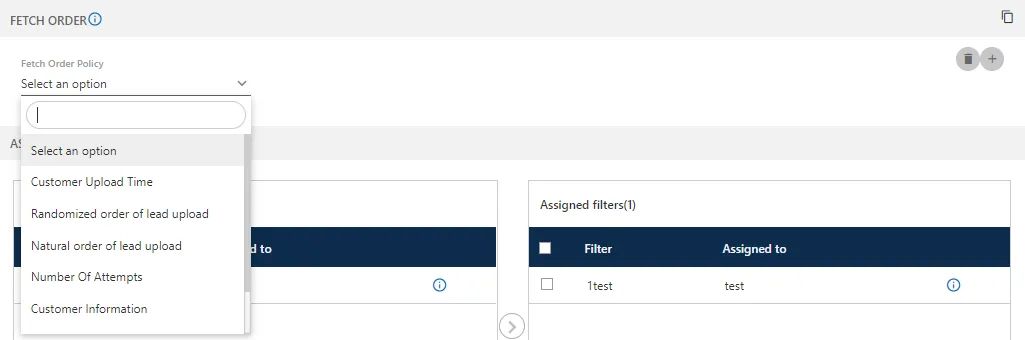
The same Filter Group assigned in the multiple campaigns will have different Fetch Order Policies for each campaign.
Fetch Order Policies
The Supervisor can select a Fetch Order Policy and define its options as per the following.
- Customer Upload Time: The customers to be dialed are selected as per the time of uploading their numbers to the campaign. After selecting it, you can select ascending or descending order of sorting the numbers.

In the ascending order, the customer whose number is uploaded very first will be dialed first, and so on. In descending order, the customer whose number is uploaded very last will be dialed first, and so on.
- Randomized order of lead upload: The customers to be dialed are selected randomly from the lead. The random algorithm to sort the values in the database is used.
- Natural Order of Lead Upload: The customers to be dialed are selected as per the same order as they are originally presented in the CSV file, which was uploaded.
- Number of Attempts: The customers to be dialed are selected as per the number of attempts made to dial their numbers. After selecting it, the administrator can select the Ascending or Descending order.Figure: "Number of Attempts" Fetch Order Policy

- Customer Information: The customers to be dialed are selected as per the ascending or descending order of any customer information field's values. After selecting it, the administrator has to select the customer information field as per which the customers to be dialed has to be selected.
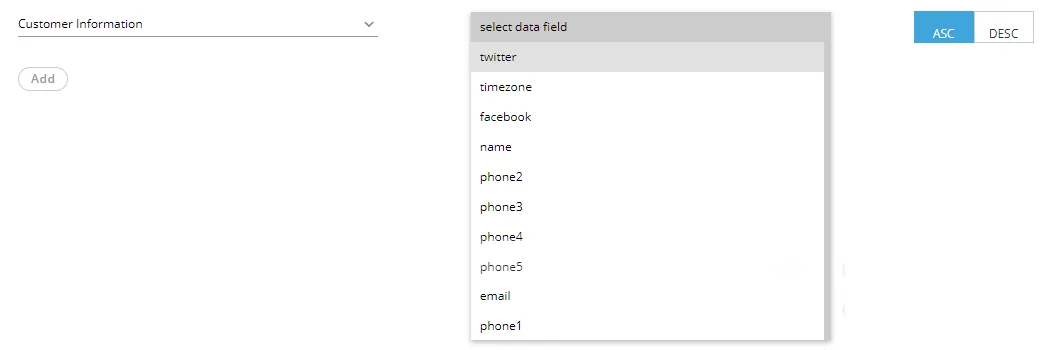
After selecting the field, the administrator can opt for ascending or descending sorting.
- CUSTOM: Here, the Administrator can provide its own customized JavaScript code to create a customized order of selecting the customers to be dialed. Multiple conditions can be mixed using this method.
- User Disposition Retry Time: The customers to be dialed are selected as per the retry time attached to their disposition. After selecting it, the administrator can select the Ascending or Descending order.

In Ascending order, those customers will be dialed first, who has the least disposition retry time. In descending order, those customers will be dialed first, who has the highest disposition retry time.
Click "+" icon again to add another Fetch Order Policy. The Supervisor can apply a maximum of five Fetch Order Policies. Refer to the following screenshot.
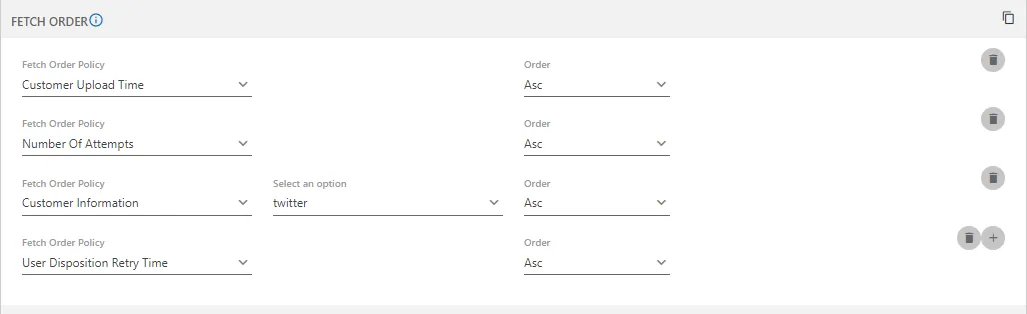
New Information Message
Fetch Order Policies configured in "Filter Group" will override the Fetch Order Policies configured at the Administrator's campaign-level. The information icon also shows the same message when the Supervisor hovers the mouse over it.

Delete a Filter Group
Select the filter group from the left pane and click "Delete" button present at the bottom of the page in the right pane of the details page.

After clicking the "Delete" button, a confirmation pop-up comes up. Click "Yes" to continue the deletion, else click "No" button.
You can use only one tab either "Manage Filters" or "Manage Filter Groups". Both features cannot be used simultaneously.
If the license for the "Filter Group" is activated then the "Manage Filter" tab remains unaccessible or it does not show on the page.