Prompts in a Campaign
This Tab allows you to create the Voice Message Prompts for the campaign. The prompts can be created using the existing voice recordings saved in .wav or .mp3 formats.
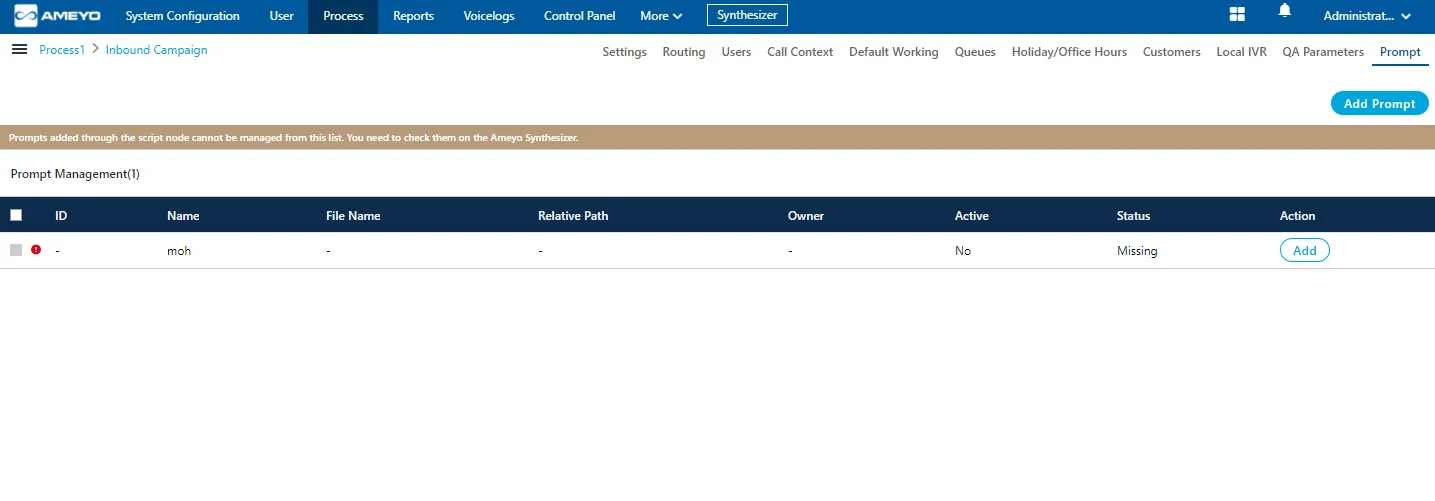
Add a Prompt
Perform the following steps to create a Prompt.
- Click "Add Prompt" button in the top right corner. It shows the following pop-up.
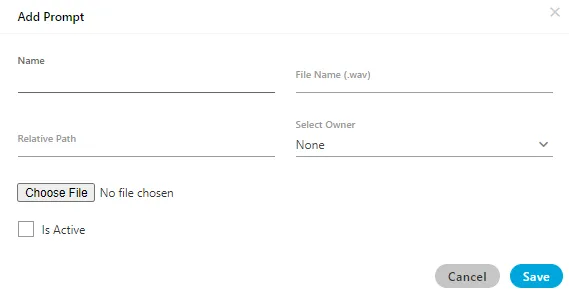
- Provide a name for the prompt.
- Provide a name for the sound file, that you are going to upload.
- Provide a name for a folder, in which the sound file will be stored. This folder will be created on server and if it exists already, the file will be saved into it.
- Click "Choose File" to select the sound file on your disk.
- Check "Is Active" to make this new prompt as Voice Prompt. Else uncheck it to disable it. Following is a screenshot containing sample details.
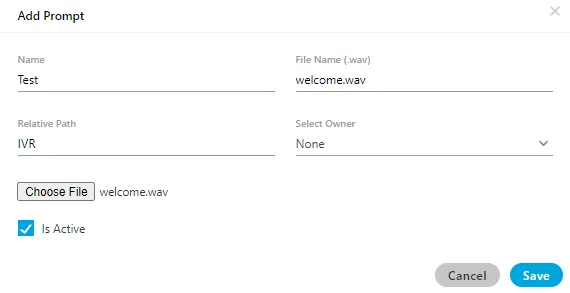
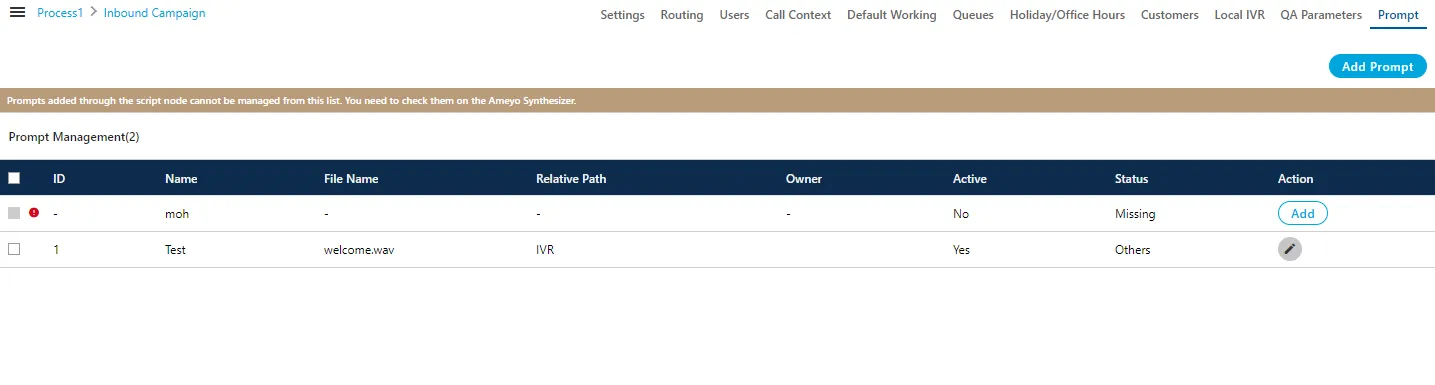
- Click "Save" to create the Prompt message. Rather, you can click "Cancel" to not create a prompt.
You can create multiple prompts using these methods.
Compatibility List
The administrator can upload the prompts in MP3 and Wav format. The following are the supported compatibility list that the administrator can use.
- MP3:
- cbr mp3
- vbr mp3
- 144kbps mp3
- 256kbps mp3
- Wav:
- PCM with any sampling rate (Hz) or bitrate (bits per sample * sampling rate)
- Size: Up to 25 MB only
The call server will play only .wav files with 16-bit sample size, 8000 Hz, and mono-channel. Hence, as soon as you upload the prompt file, it gets converted to a call server compatible format. While adding a prompt, "File Name" field is used to store the prompt with the specified name on the call servers. Hence specify the name with extension .wav. Suppose the Administrator has provided the prompt name as "test", then the system will suffix ".wav" to that prompt name in "File Name" field automatically. If you specify any other extension, then an error message is displayed. This behavior keeps the user experience backward compatible, and the existing users shall not need to learn the usage again.
Edit Prompt
Click "Edit" link under "Action" column header for any prompt to edit it. It shows the following pop-up.
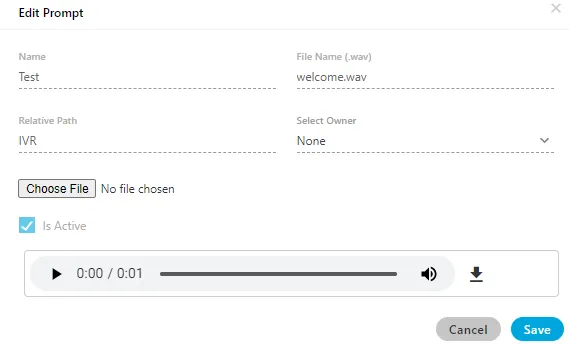
You cannot make any change here. The prompt name, file name, or path (where it is stored) cannot be changed. You can either play the uploaded file or click menu icon to download it.
You can select a prompt and click "Delete" button on top right corner to delete. However, the deleted prompts cannot be restored.
Identification of Missing Prompts
Whenever a customer calls a business, every voice message that is played is known as prompts. But there are some prompts whose voice message file is not present. Such prompts are called missing prompts. These prompts are shown to the user on UI, but they are not useful as their prompt is not uploaded. Thus to identify such prompts, missing prompt icon and status has been introduced in Ameyo.
On the Prompts tab of Administrator and Supervisor, a new status column has been introduced. This column's values show whether the prompt is in use or missing, as shown in the following screenshot.
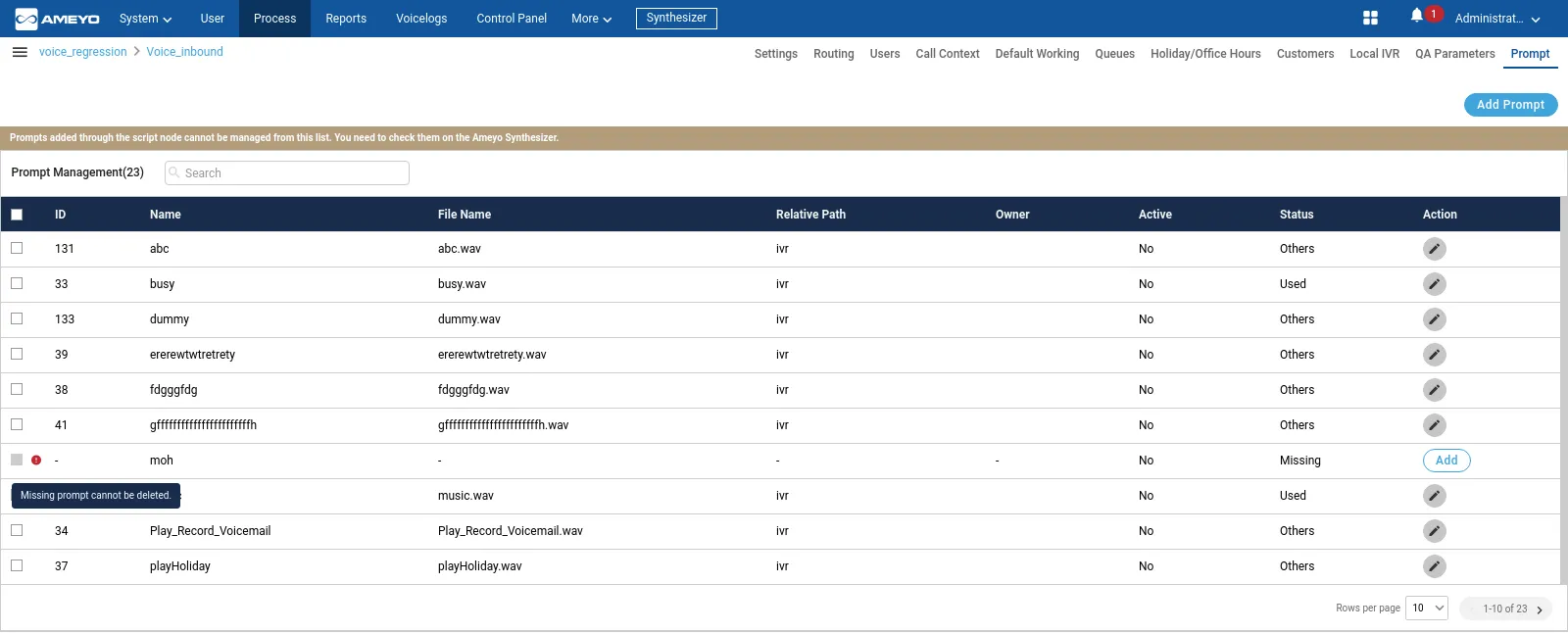
A new status column is introduced, which shows the status of the prompt. The following three status have been used to monitor the prompts:
- Used: It means that the prompt is in use.
- Unused: It means that the prompt is not in use.
- Missing: It means that the prompt voice file is missing, but the prompt is being created.
A visual red dot indentation is present at the front of the missing prompts. The user can also hover over this icon to view the information about the missing prompts.
Non-editable Prompt Name
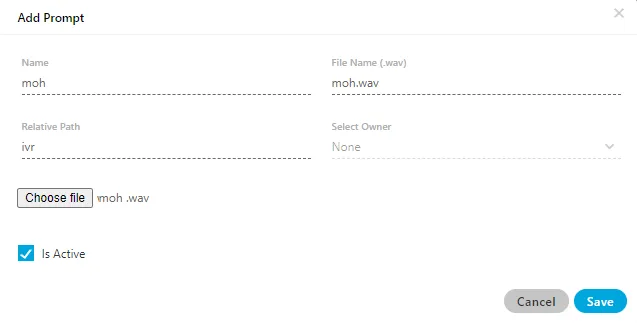
A modal is shown when the user click "ADD" button present in front of the missing prompt. The name textfield of this modal is non-editable, which means that the user is not able to edit the name of the prompt.
Notification for Uploading a Prompt file
If the supervisor uploads the nodeflows to the missing prompt files, then a notification will be sent to the administrator and supervisor at the same time. The following types of notifications will be sent to the administrator and supervisor for uploading the nodeflow file.
- A toast and bell notification is sent to the administrator.
- The supervisor has received a bell notification.
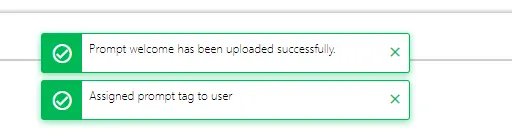
The notification shows the campaign and prompt name in which the nodeflow has been uploaded. The administrator will be redirected to the prompts tab after clicking the notification.
After the creation of the missing prompt, the missing prompt's status will be changed to used/unused accordingly.
The notification will only be sent to the Group Manager and Analyst user roles. They are not able to update or click it.
Missing Prompts are as such not an entity, thus there is no option to delete them.