Supervisor Login
Supervisors access the Ameyo web-based interface to monitor real-time operations and review historical performance data for the campaigns and processes assigned to them.
Accessing the Login Page
To log in to Ameyo, open the URL provided by the Ameyo team (in the following format) in your web browser:
Replace the following placeholders:
Variable | Description |
|---|---|
<PROTOCOL> | Either HTTP or HTTPS |
<HOSTNAME_OR_IP> | The IP address or domain name of the server where the Ameyo application is hosted |
<PORT_NUMBER> | 8888 for HTTP or 8443 for HTTPS |
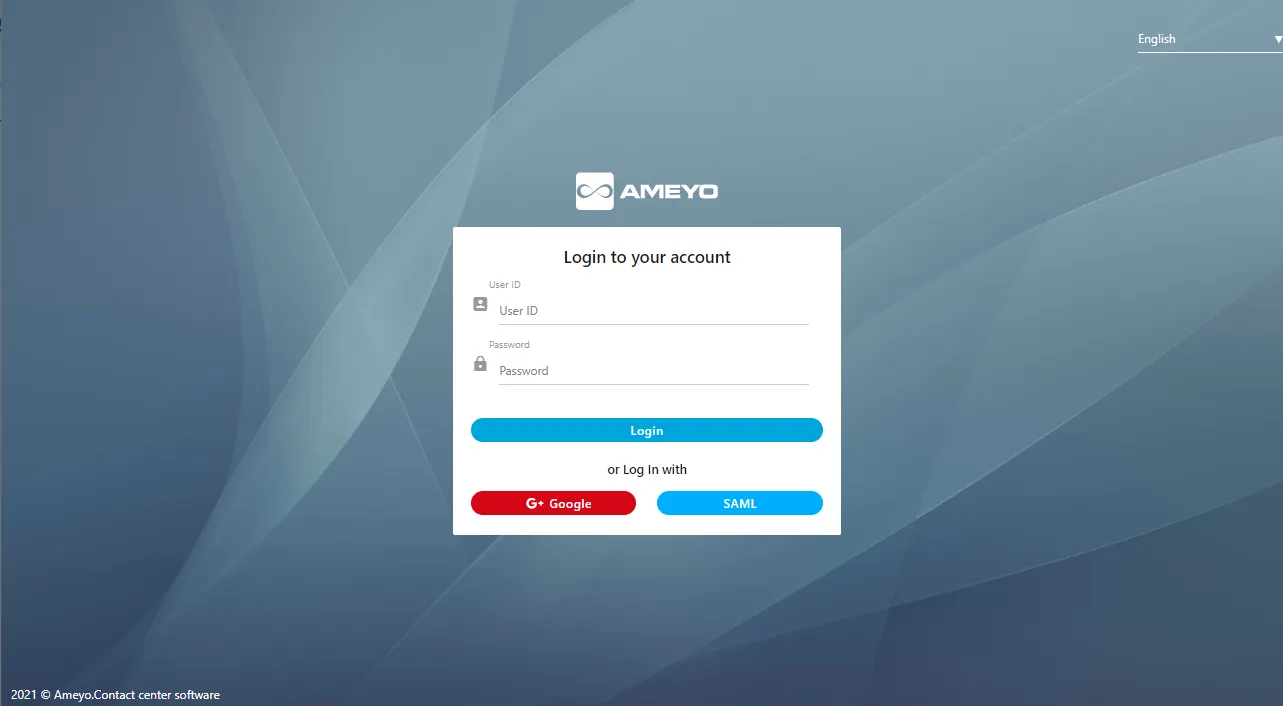
User Login & Single Sign-On (SSO)Login Methods
Supervisors can log in using one of the following methods based on configuration and licensing.
1. Normal Login
- Enter your User ID and Password (provided by the Administrator).
- Click Login to access the Supervisor Console.
2. Login with SAML (Licensable Feature)
Click SAML to log in using your SAML (Security Assertion Markup Language) credentials hosted on your organization’s Identity Provider (IDP).
SAML is an XML-based authentication framework that enables Single Sign-On (SSO) using a trusted third-party identity service, such as Active Directory Federation Services (ADFS).
- Ameyo public cloud supports up to 800–900 concurrent SAML logins.
- For higher concurrency (up to 10,000 simultaneous logins), OAuth-based authentication is recommended.
3. Login with Google (Licensable Feature)
Supervisors can also log in using their Google Account through Single Sign-On (SSO).
In this case, Ameyo credentials are not required — authentication is performed directly via Google.
- Click Google on the login screen.
- Select your Google account to authenticate.
- SAML and Google Authentication are licensable features.
- These must be enabled and configured by the Administrator from the backend.
- If licenses or configurations are not available, these options will not appear on the login screen.
Post-Login Behavior
After successful authentication, the Supervisor Home Page is displayed.
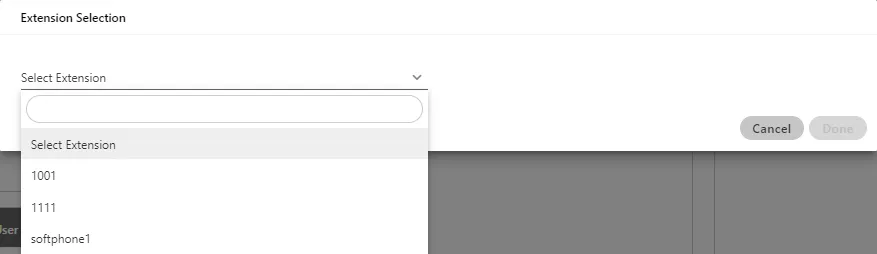
If the Supervisor is assigned to a Voice Campaign, an Extension Selection pop-up will appear before accessing the console.
Selecting an Extension
- From the Select Extension drop-down, choose the desired extension type:
- Softphone
- Physical Phone
- WebRTC
- Softphone is selected, an additional field appears prompting for the Phone Number.

- Enter the number and click Next to proceed.
Licensable Features in Ameyo
Throughout this manual, the term “Licensable” indicates features that require a specific license to be visible and accessible within the user interface.
If the relevant license is not activated, those features will not appear in the Supervisor’s interface.
✅ Summary
Feature | Description |
|---|---|
Normal Login | Log in using standard Ameyo credentials. |
SAML Login | Enterprise SSO using Identity Provider (e.g., ADFS). |
Google Login | SSO using a Google account. |
Licensing | SAML and Google authentication must be licensed and configured. |
Voice Campaign Extension | Supervisors must select an extension before accessing voice campaign features. |