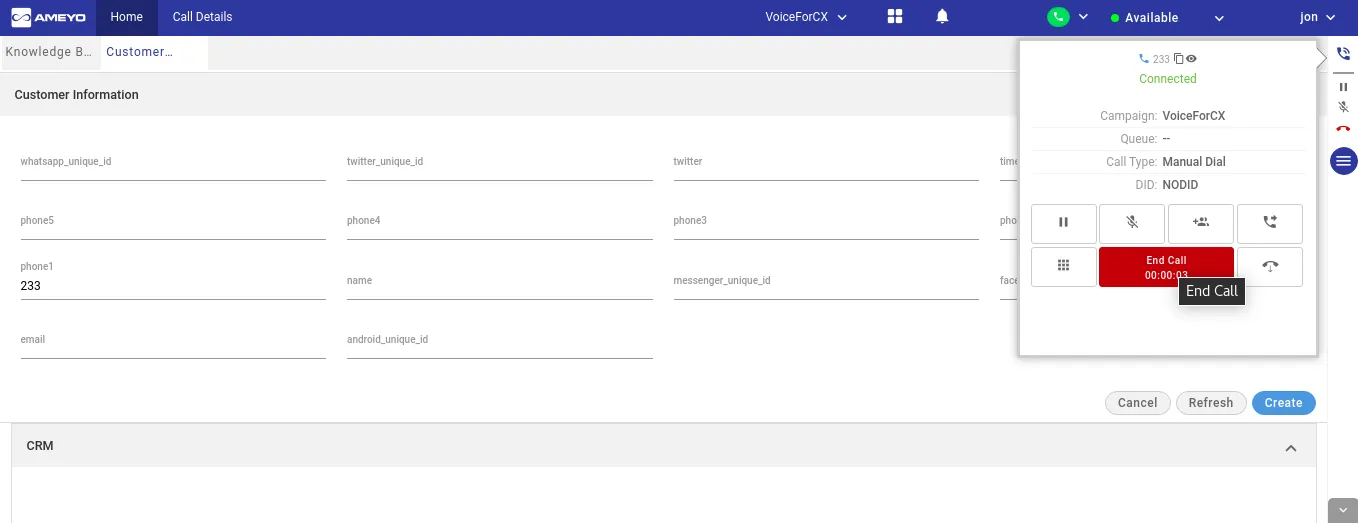
Voice Telephony Panel
All the functionalities of voice telephony panel for supervisor and group manager are similar as that of agent.
There are two types of telephony panels available in Ameyo.
Voice Telephony Panel for Soft-Phone
In order to make a call, the agent has to click  button,a pop-up slides to the left at the top right corner.
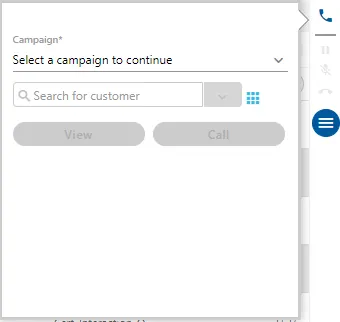
The opened pop-up is the telephony panel for the Soft-Phone, which is used to dial the call to the customers. For the soft-phone selection, the agent has to select the soft-phone extension provided by the organization.
Voice WebRTC Telephony Panel
In order to make a call, the agent has to click button,a pop-up slides to the left at the top right corner.
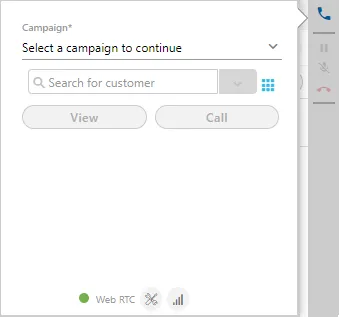
The opened pop-up is the telephony panel for the WebRTC, which is used to dial the call to the customers.
Refer to the following pages.
- Troubleshoot WebRTC Telepony Panel
- Monitor Health of Calls made using WebRTC
Functions on Telephony Panel
- Searchable Fields of Telephony Panel: It is quite normal for the agent to search the information of the customer before making a call. The agent can search the customer through the information which is present with the agent, and if that field is searchable. This feature is configurable and can be configured by the administrator at the time of campaign creation.
- If the agent is staffed in the multiple campaigns, then the agent has to select the campaign in the Telephony Panel first.
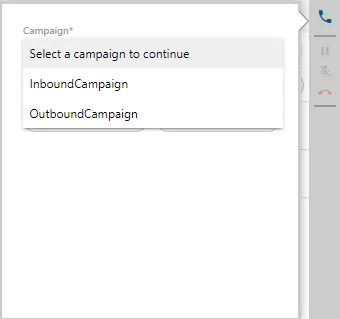
After selecting the campaign, the user can click the search bar in the telephony panel to access the list of searchable fields. By default, only one field can be selected to conduct the search for the typed keywords.
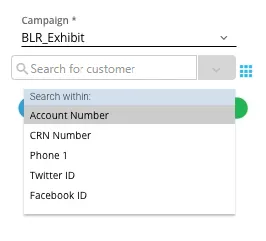
Only the searchable fields set in the data table will be listed here. If the configuration is done at the backend about the searching keywords then the Ameyo User can select the fields in which the search has to be performed.
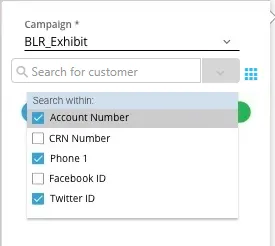
After selecting the fields, the Ameyo User can type any keyword and click "View" or "Call". If multiple customers are found for a single keyword result, then a modal is displayed in which the Ameyo User can select the required customer.
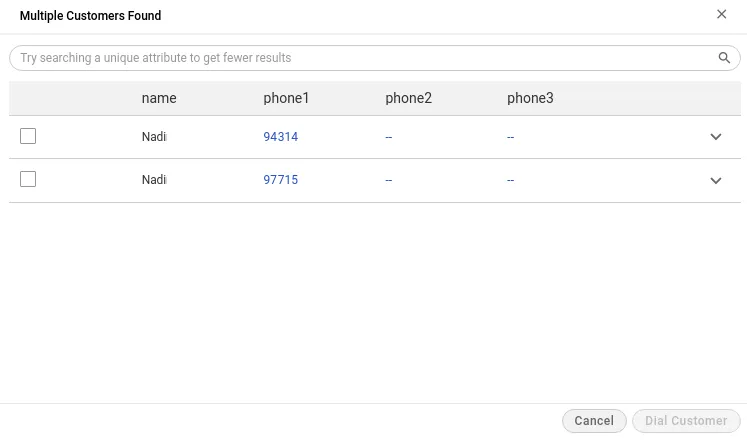
- Click "View" to view the Customer Information page and click "Call" to access "Create and Dial" or Dial Only" options.
- Inbound Call
- Outbound Call
- Call Control Functions
- Attach Tickets with Call
Restrict the Users to dispose the call from Telephony Panel and Allow them to dispose it from CRM only
If the administrator has configured and restrict the disposition of the call from the telephony panel, then the agent will not be able to dispose the call from Telephony Panel. In this case, the agents have to dispose the call through CRM only.
As soon as the call is ended, the telephony panel will not slide out to the left side from the right bar.
When the agent tries to dispose of the call in the telephony panel, then an error message is displayed.
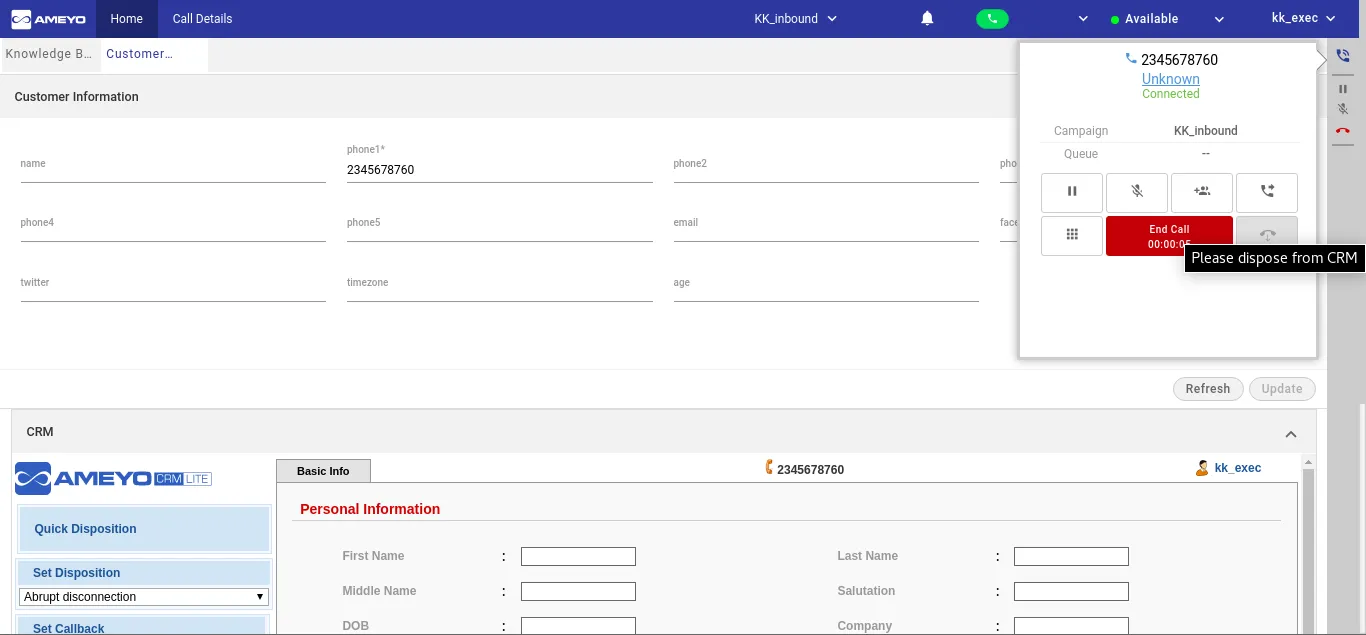
If the disposition is restricted at the telephony panel but can be done at CRM, then the "ACW Timer" is displayed in the tooltip of the phone icon in the right panel after the call disconnection (since the telephony panel is not shown to the agent). When the agent disposes of the call from the CRM, then an inline message is displayed on the page.
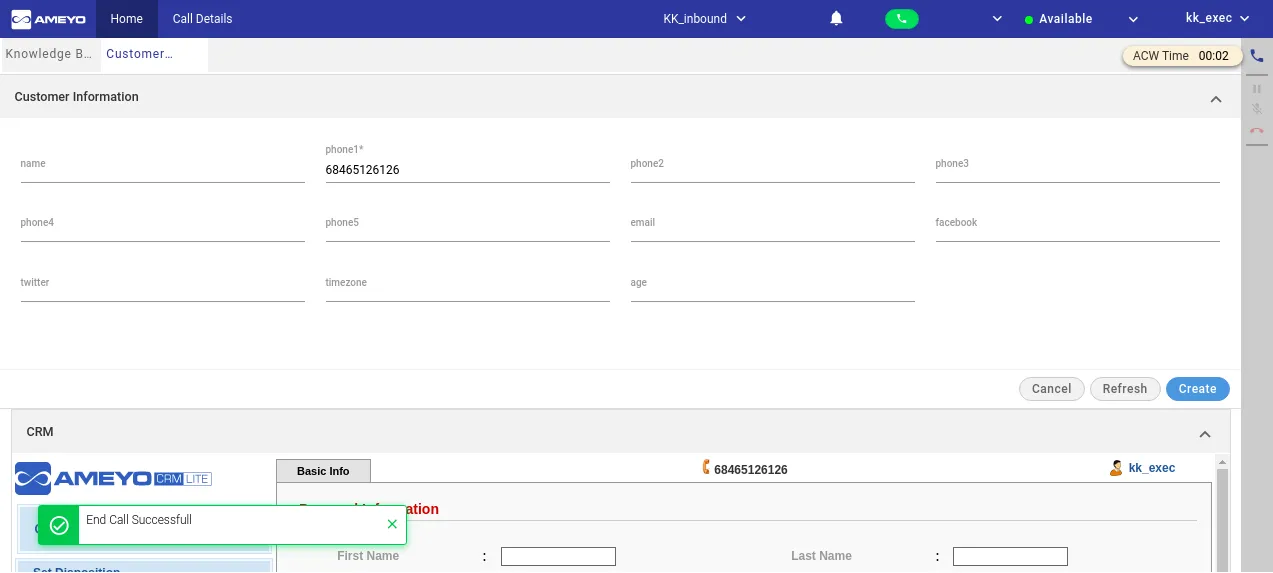
If the disposition is disabled from the telephony panel, then Dispose and Dial will also be performed through CRM.
Callback and call notes are understood in the normal disposition operation through the telephony panel only.
Availability of DID Number in Telephony Panel
The agents of a contact center industry would want to know the destination number (DID) at which the customer made the call. There are possibilities that multiple DIDs are mapped in a single campaign having single or multiple queues. It becomes more important when the agent or customer wants to transfer the call to another user. In such cases, the agent needs to know the DID number. Similarly, the agent would want to know the caller Id / Agent DID assign to the agent in the outbound campaign.
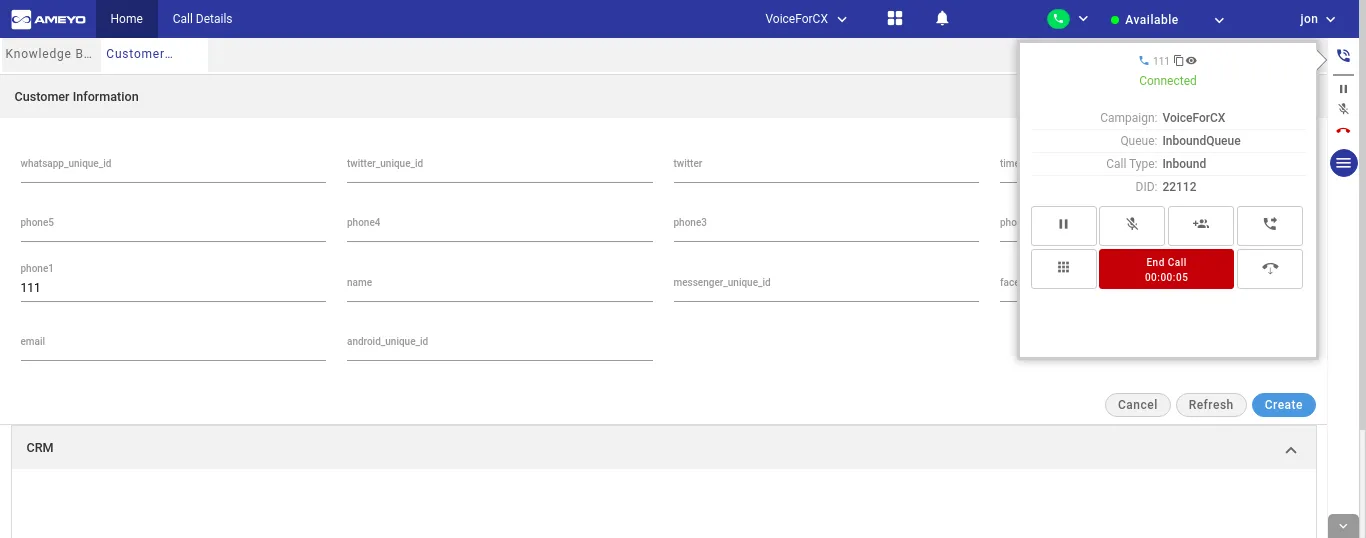
Now, the DID number will be displayed in the telephony panel of the agent. The agent can see the DID number on which the call has been received. It helps the agents to know the destination number at which the customer made the call to reach that campaign and queue.
Outbound Calls: If the agent has initiated an outbound manual dial call, the Caller ID will be displayed on the telephony panel. If there is no Caller ID configured for that campaign, then "NODID" will be displayed. The same scenario applies to the Auto Dial and Callback calls.