Dialing Modes and Settings - Introduction
Overview
Ameyo Outbound Management offers a suite of distinct dialing algorithms designed to optimize agent productivity and campaign efficiency. These modes allow businesses to balance the trade-off between high call volumes and customer context.
By selecting the appropriate dialing mode, operations can automate the dialing process, minimize agent idle time, and ensure that customers are contacted based on specific business logic, past history, or agent skill sets.
Supported Dialing Modes
The system currently supports five primary dialing algorithms. Below is a brief summary of each mode.
- Preview Dialing Allows agents to review the customer profile and lead details before the call is placed.
- Best for: Complex sales, high-value leads, and scenarios requiring pre-call research.
- [Detailed Preview DialingPreview Dialing Documentation]
- Predictive Dialing An efficiency-driven mode that automates dialing to filter out busy signals and voicemails. It uses statistical algorithms to blast calls and connect only live humans to available agents, maximizing productivity.
- Best for: High-volume campaigns and maximizing agent talk time.
- [Detailed Predictive DialingPredictive Dialing Documentation]
- Progressive Dialing A 1:1 automated dialing mode where the system dials one number per available agent. It is best suited for small lead lists or scenarios where call abandonment must be strictly avoided.
- Best for: Small businesses, small lead lists, or high-touch campaigns requiring a 1:1 ratio.
- [Detailed Progressive DialingProgressive Dialing Documentation]
- Parallel Predictive Dialing (PPD) An advanced predictive mode that incorporates target-based and skill-based routing. PPD ensures that calls are not just connected, but connected to the right agent based on campaign granularities.
- Best for: Targeted outbound campaigns and skill-based routing.
- [Detailed Parallel Predictive DialingPPD Documentation]
- PACE (Pro Active Connect Enhancer) A strategic module that uses historical data and customer profiles to determine the optimal time to call. PACE focuses on increasing positive connect rates and reducing the nuisance of unanswered calls.
- Best for: Increasing connect rates and defining intelligent contact strategies.
- [Detailed PACE (Pro Active Connect Enhancer)PACE (Pro Active Connect Enhancer) Documentation]
Dialer Settings
Through this tab, Supervisor can configure Dialer Settings for outbound campaigns. This includes dialing algorithm type, enable AMD and types of AMD etc. In order to undo the required changes before saving, Supervisor can click on "Refresh" button while to save the required changes, Supervisor has to click on "Apply" button.
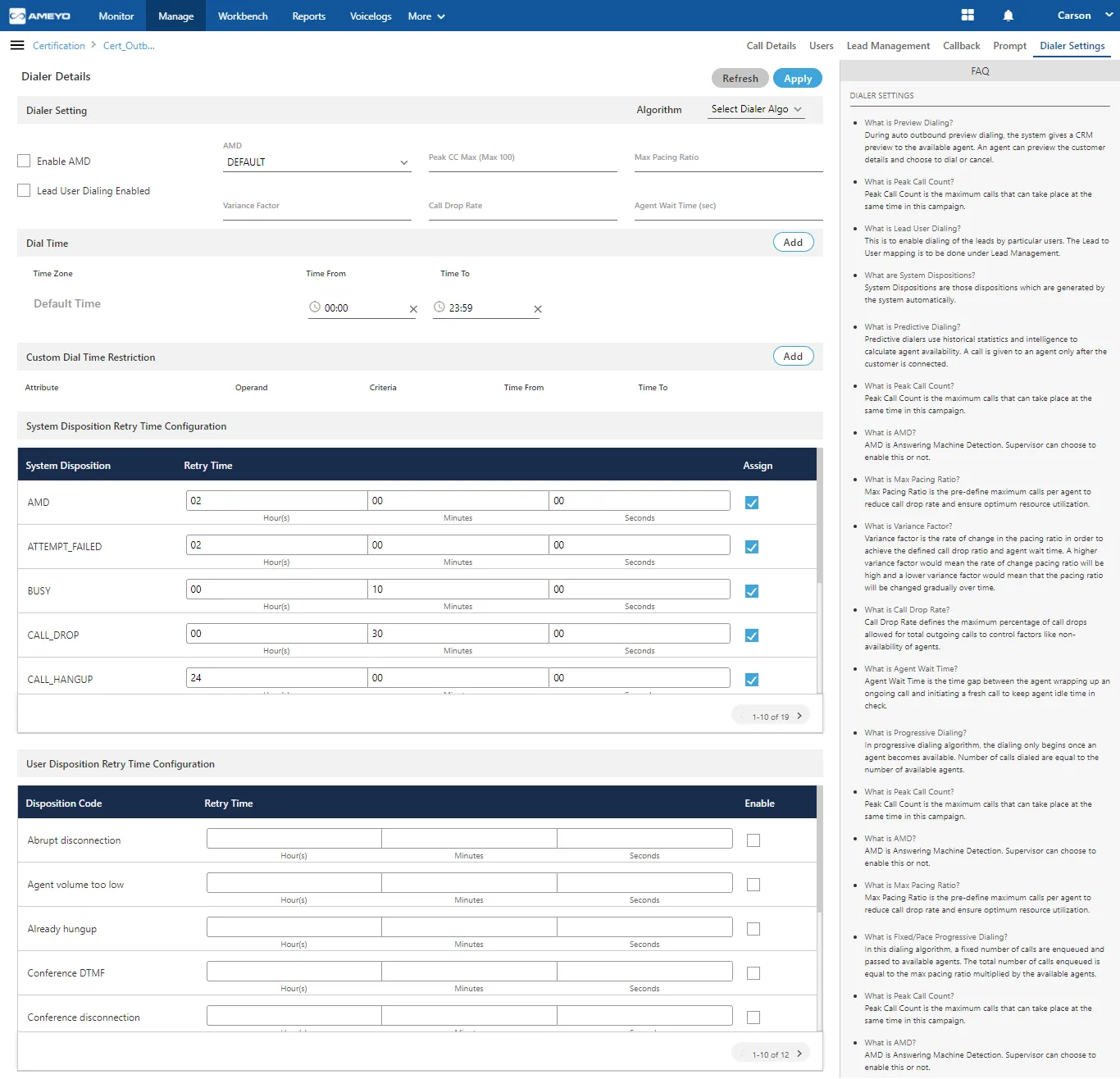
At the right side of the dialer settings page, some of the commonly asked questions about settings are defined. You can refer to those definitions.
Selecting the Right Mode
For a technical breakdown of configuration parameters and algorithm logic for each of the dialer alogorithm, please refer to the specific documentation links given above.
Other dialing functions
Manage Time Zone in "Dial Time"
Supervisor can define the time zone in which dialing needs to be restricted for specific country timezone by clicking on "Add" button.

By default, a Default Time Zone is defined. The Supervisor can specify the default time range that the dialer would refer to.
- Select the timezone from the drop-down and specify the time range (Time from and Time To in hh:mm:ss format).
- Any record can be deleted by clicking the "X" icon.
Custom Dial Time Restriction
This feature is used for limiting the auto-dialing based on several attributes like phone, name and timezone. Custom dial time restriction can be added by clicking on the "Add" button.

You can click "X" icon in the end of the row of a custom time zone to delete it.
Retry Time Settings
Retry Time is the time duration after which the dialer will retry for those numbers, which do not get connected in the first attempt.
System Disposition Retry Time Configuration
Supervisor can configure the retry time for different system dispositions. The Supervisor can also assign the system dispositions to the respective campaign. If the system disposition is not assigned in this tab then the retry time defined for that system disposition will not work.
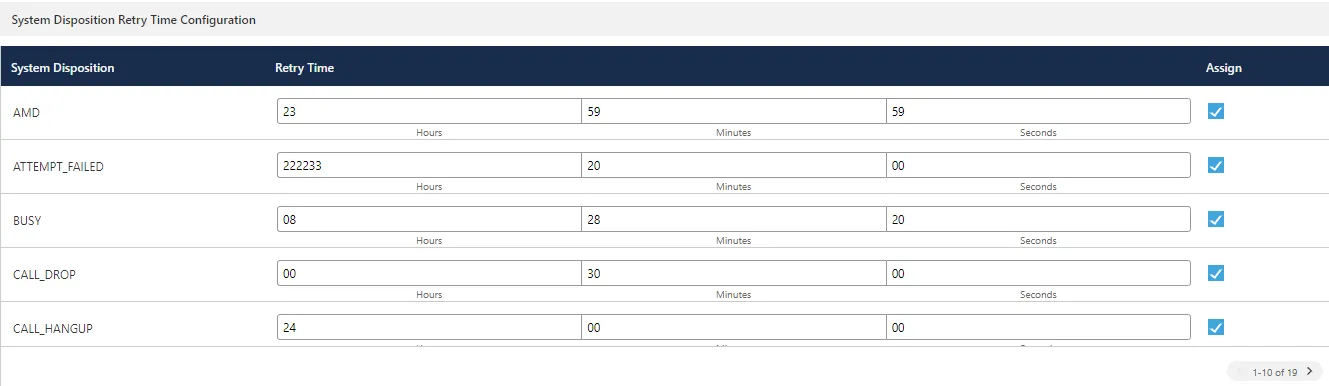
System dispositions will be assigned by checking the assign checkbox of that particular system disposition.
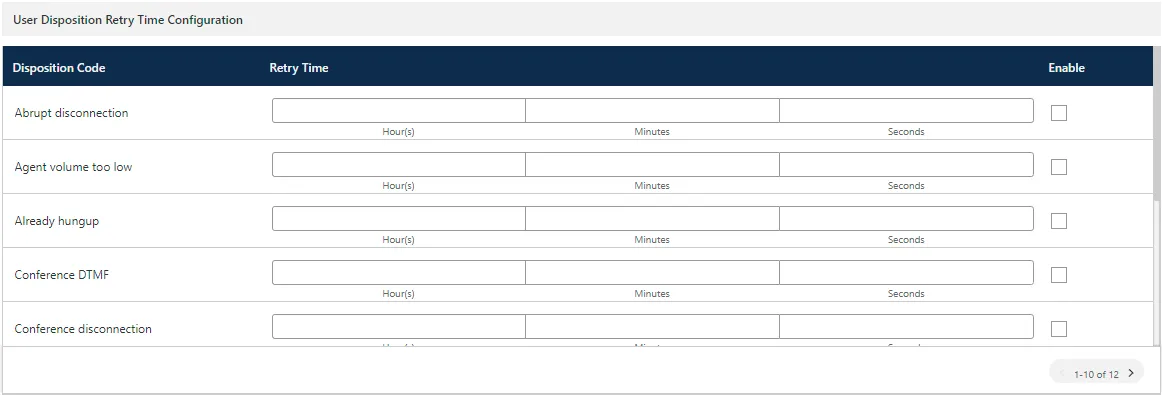
(Licensable) User Disposition Retry Time Configuration
Supervisor can configure the retry time for different user dispositions. Supervisor has to select the dispositions and provide the retry time for each selected disposition