Integrate MoEngage for SMS (Generic SMS Plugin)
Message your customers by sending a single SMS or starting an SMS broadcast using Exotel's generic plugin on MoEngage. To complete the integration and enjoy seamless communication, follow the steps below.
Step 1: Upload your DLT compliance details in Exotel
To send an SMS, the DLT mandate requires the following information. Configure these in the Settings section of your Exotel Dashboard.
- Entity ID - Entity ID is the unique ID provided to your business.
- Sender ID - The Sender ID which will be used to send the SMSes.
- Template ID - Template ID is the unique ID for each transactional or promotional SMS that you wish to use.
- Template Details - Upload the DLT-approved templates for the messages you would like to send to your customers.
- SMS Type - SMS Types are used to classify different types of messages as per the purpose, e.g. transactional, service explicit, service implicit, and promotional.
Step 2: Keep your Exotel Dashboard information handy
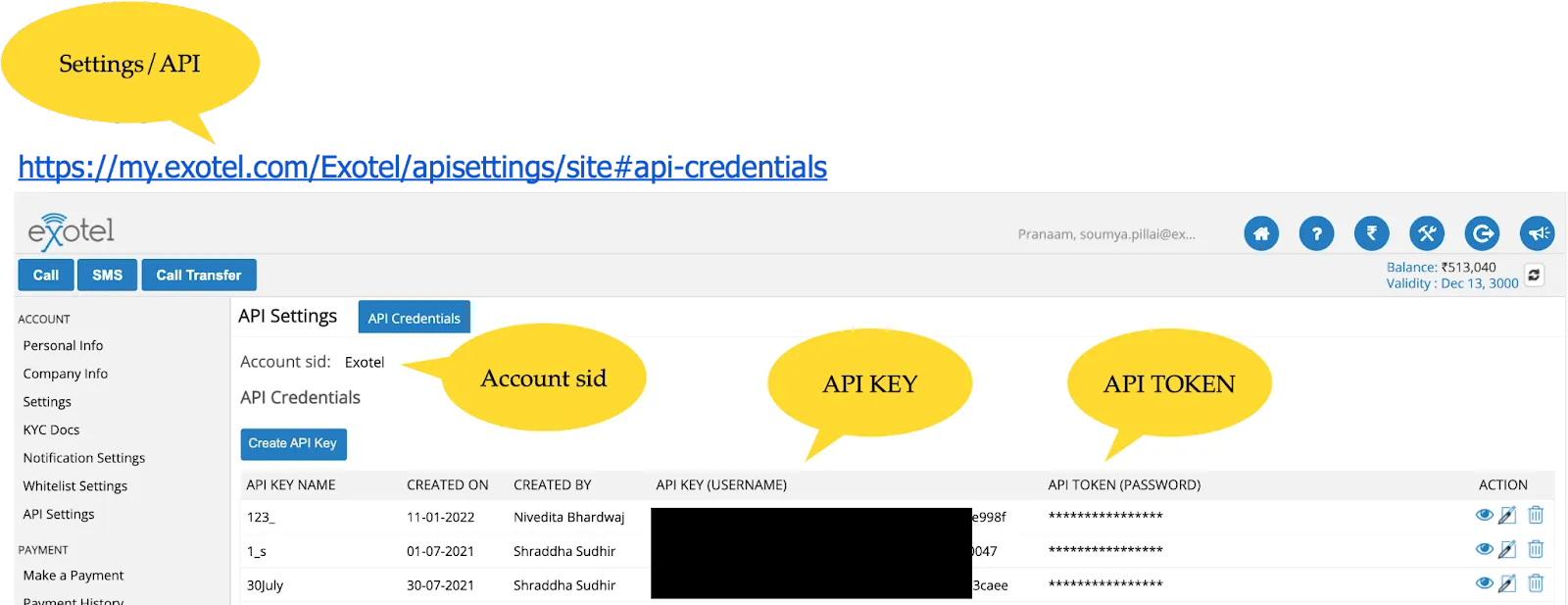
Find your Account SID, API Key, and API Token on Dashboard > SETTINGS: API.
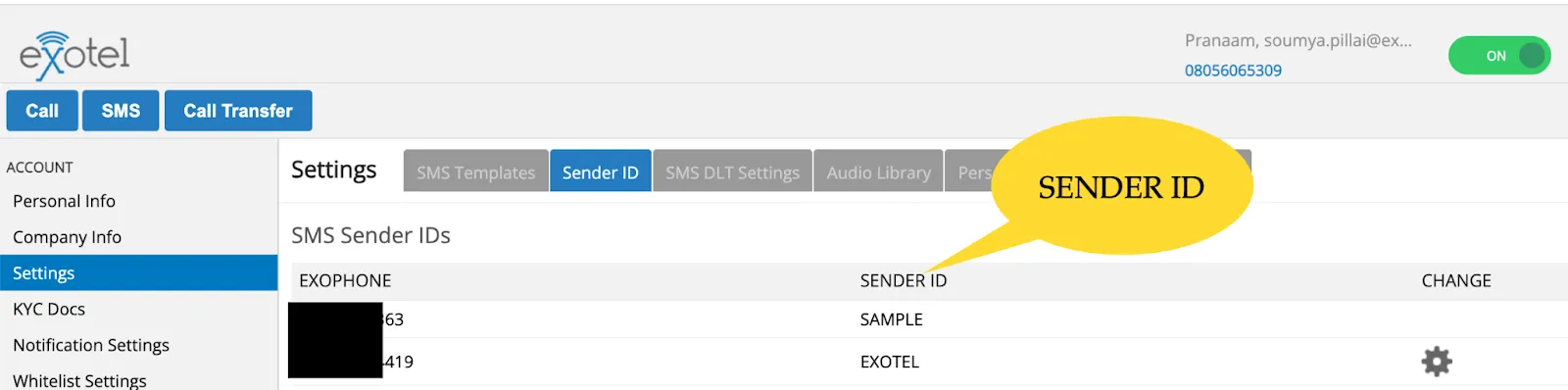
Find your Sender ID on Dashboard > SETTINGS: API > Sender ID.
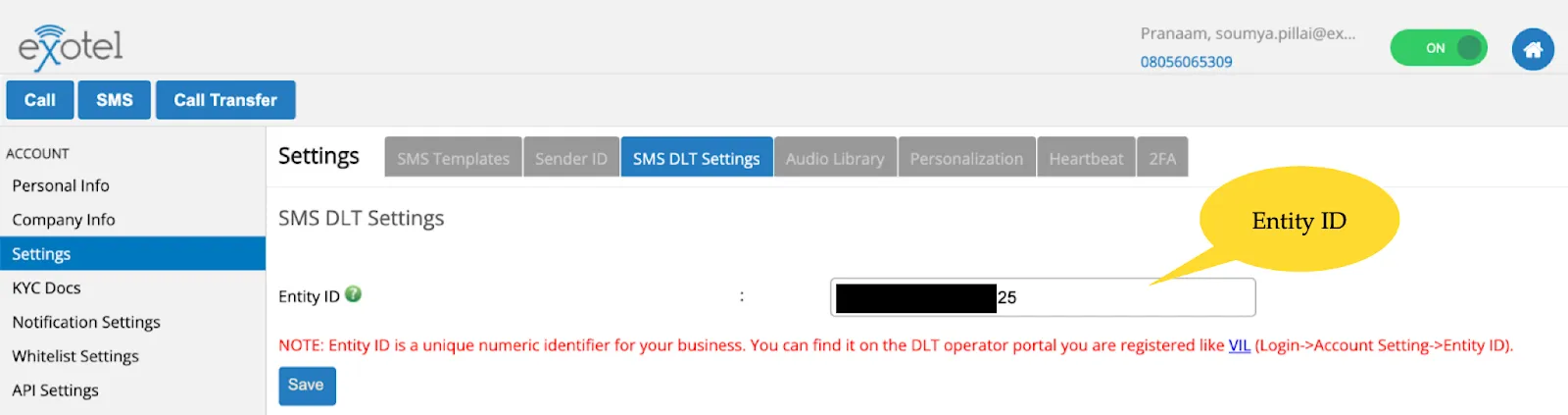
Find your Entity ID on Dashboard > SETTINGS: API > SMS DLT Settings.
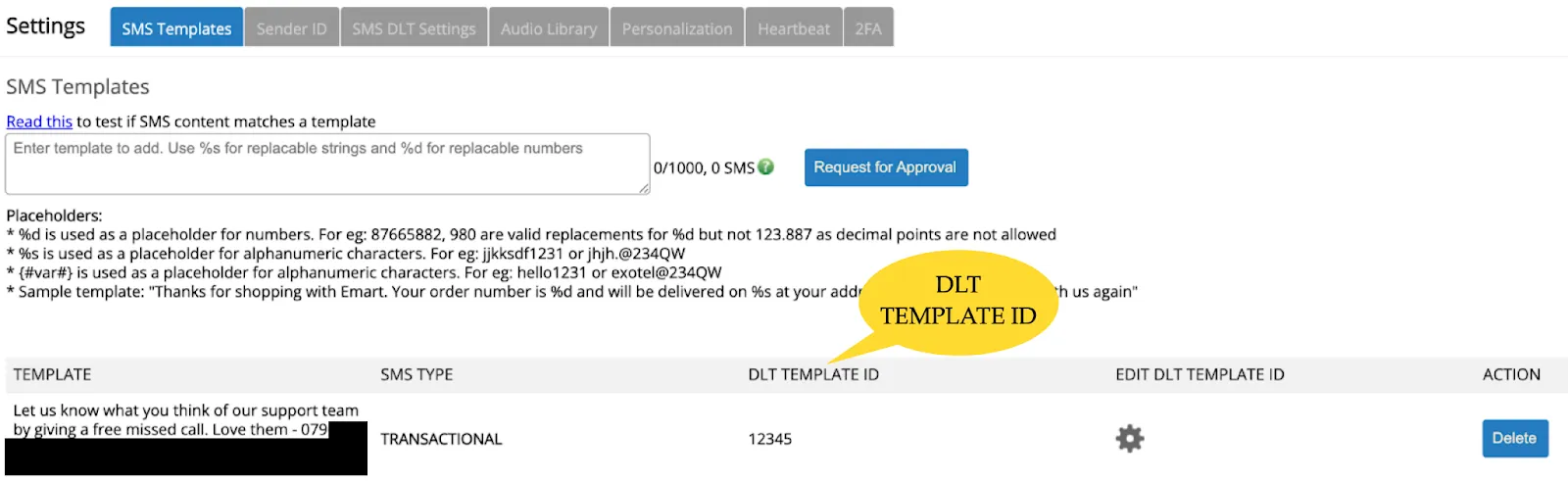
Find your DLT Template ID on https://my.exotel.com/Exotel/settings/site#sms-settings.
Step 3: Configure the connector in MoEngage
On the MoEngage Dashboard, go to Settings > Channel > SMS and Connector.
Click on SMS Connector Config under SMS and Connector Settings. Under Custom connectors, click on Create.
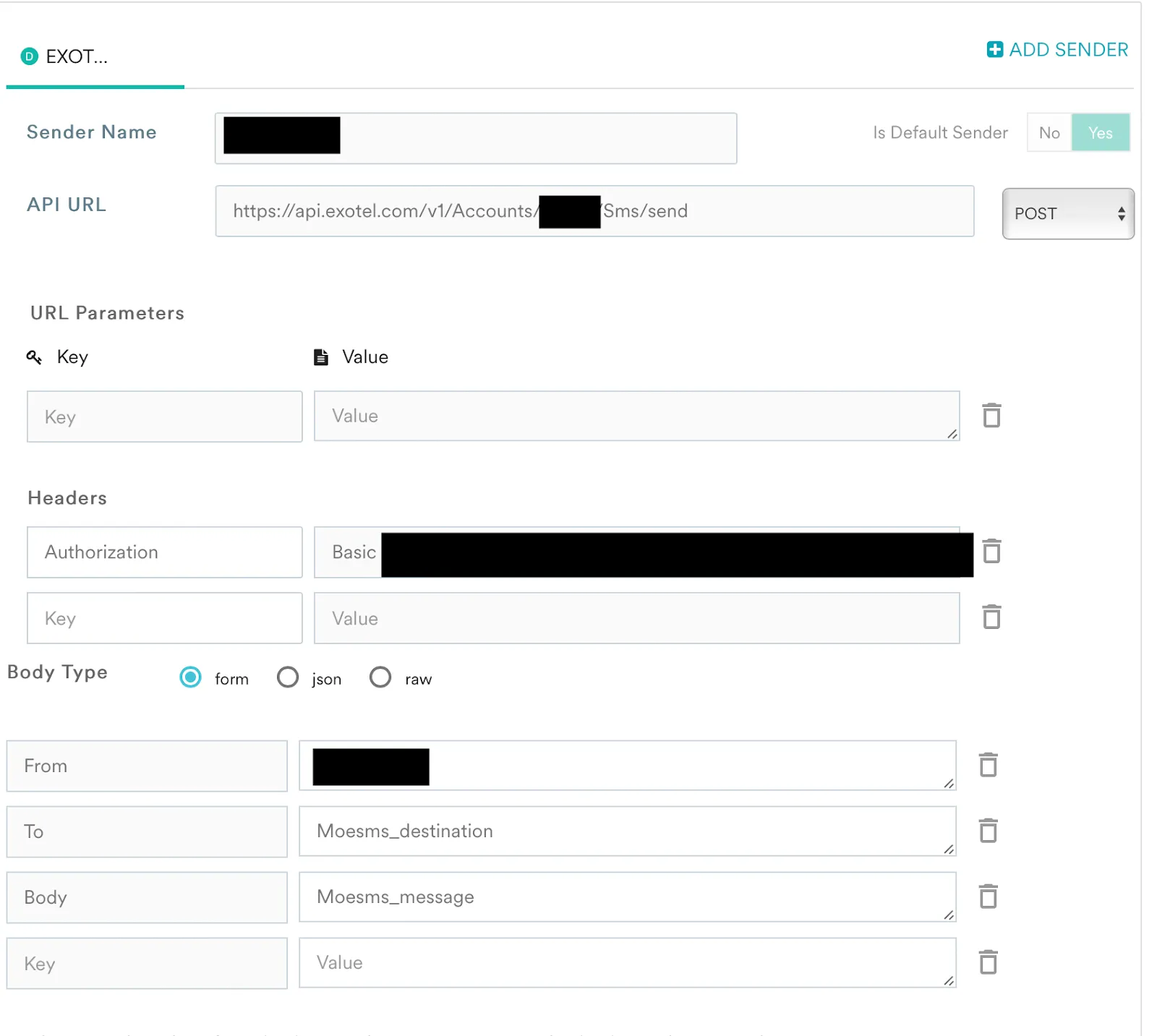
Fill in the requested details.
General Details
- Connector Name - Exotel will be selected here by default.
- Sender Name - write a name for the configuration to uniquely identify it.
- API URL - Enter the below HTTP API endpoint: https://<subdomain>/v1/Accounts/<your_sid>/Sms/send.json
- Replace <subdomain> with api.exotel.com. If you access Exotel via my.exotel.com, enter api.in.exotel.com. If you access Exotel via my.mum1.exotel.com.
- Replace <your_sid> with your Account's SID (refer to Step 2 for this).
- Select the API type as POST from the dropdown.
URL Parameters
- Keep URL parameters empty for this configuration.
Headers
- Key - Authorization
- Value - Add the 64-bit encoded token here. You can follow the below methods to access the 64-bit token:
Option 1
- Login to https://web.postman.co and create an API request.
- Select the method as POST.
- Enter the below HTTP API endpoint: https://<subdomain>/v1/Accounts/<your_sid>/Sms/send.json
- Replace <subdomain> with api.exotel.com. If you access Exotel via my.exotel.com, enter api.in.exotel.com. If you access Exotel via my.mum1.exotel.com.
- Replace <your_sid> with your Account's SID (refer to Step 2 for this).
- Under the Authorization tab, click on Basic Auth.
- Enter the API Key in the Username.
- Enter API Token in Password.
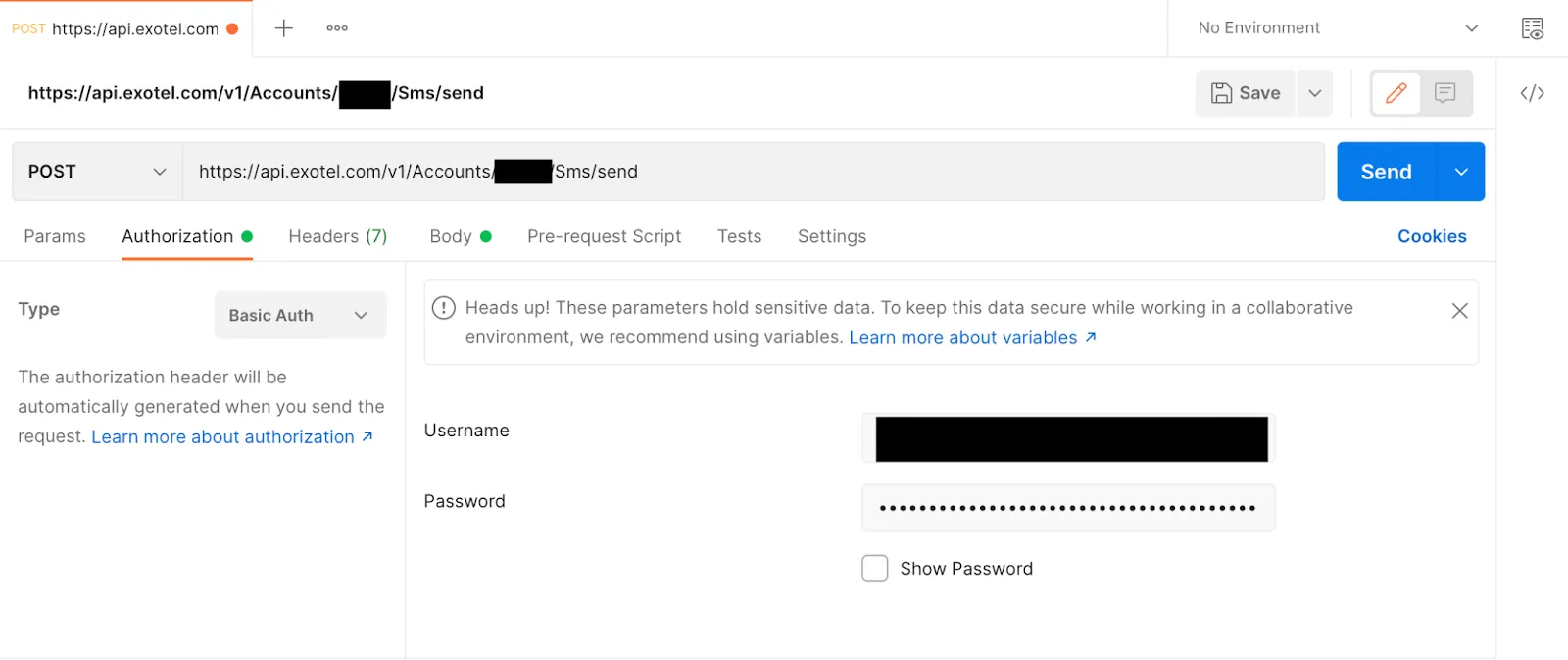
- Click on Send.
- Click on the </> icon which is near the Send button.
- You will see a cURL request with the basic Authorization token. Take the value of the token to use in the MoEngage configuration.
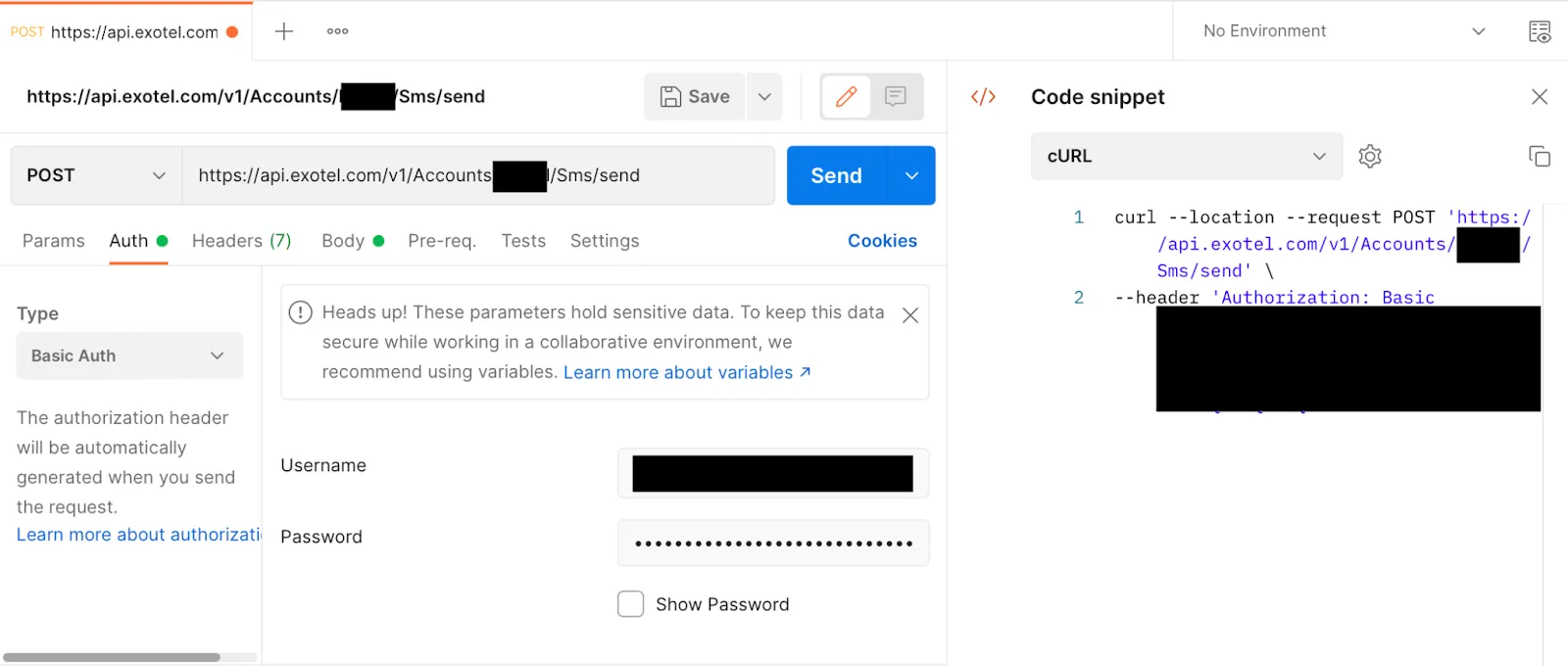
Option 2
Drop an email to [email protected] to get your basic authorization token.
Body Type
- Select "Form" as the body type.
- From - Select the Sender ID to send the SMS from (refer to Step 2 for this).
- To - Customer's number who will be receiving the SMS. Enter Moesms_destination as the value for this field to set up the configuration.
- Body - Body of the SMS which will be sent to the customer. Enter Moesms_message as the value for this field to set up the configuration.
- Key - Keep this field empty for this configuration.
Step 4: Send a test SMS
To ensure that the integration is working as expected, you can send a test SMS by clicking on Send SMS to Test. In the dialogue box presented, enter these details, then hit Send Test.
- Country Code and Mobile number to which you would like to send the message.
- Message: Enter a sample message which you would like to test. Eg - This is a test message powered by Exotel. Report abuse to +918088919888 -Exotel
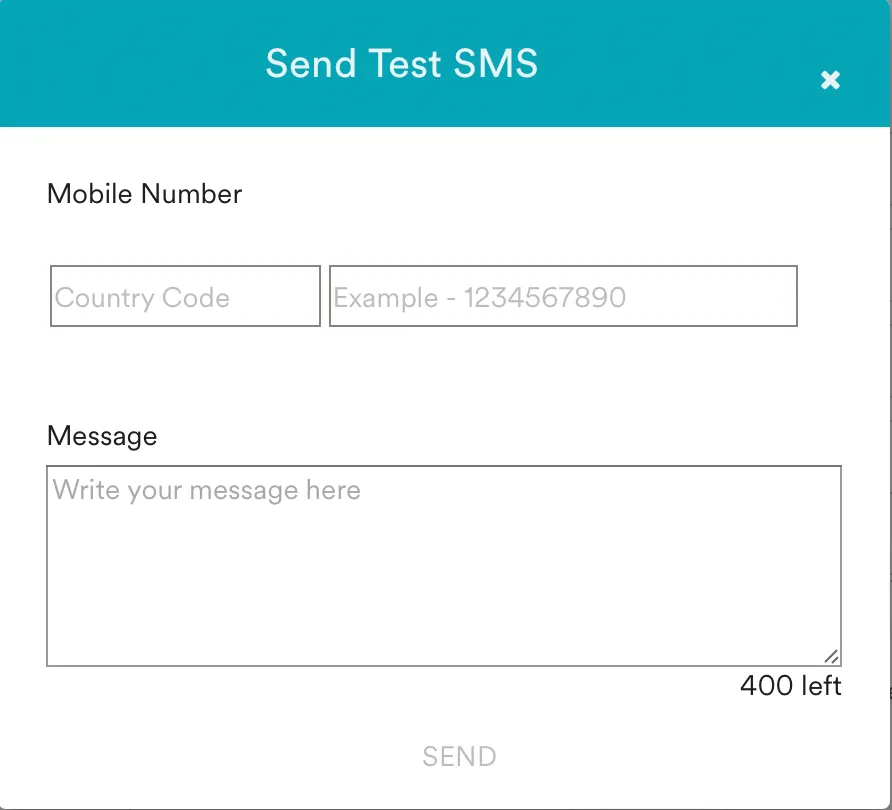
Step 5: Start using the plugin
Now that your SMS plugin is ready, you can use it to send SMS to customers.
Configure delivery callbacks
Once the SMS configuration is saved, you would be able to configure delivery callbacks which would push the SMS delivery information to MoEngage from the Exotel side.
These callbacks would be used to display the SMS campaign success and details about the SMS deliverability with delivery percentage and errors.
Step 1: Configure the delivery callback URL. Follow the below steps:
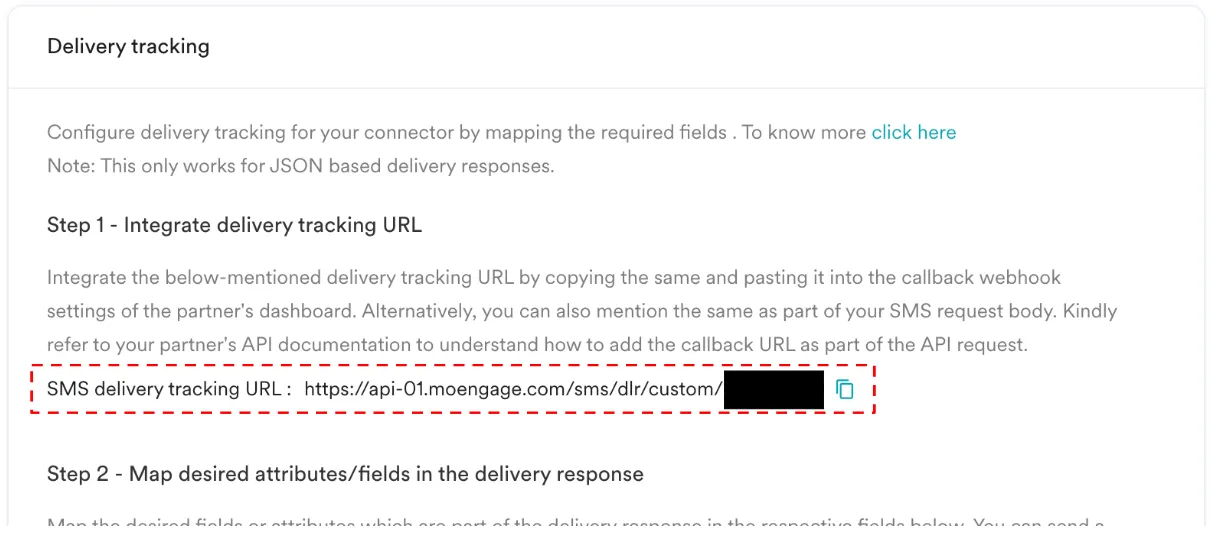
- Click on Delivery tracking.
- Copy the SMS delivery tracking URL as shown below:
- Click on +KV pair under Body type.
- Enter StatusCallback in the Key and paste the delivery tracking URL copied in step 2 above in the value field.
Step 2: Map desired attributes/fields in the delivery response.
- You can either map the fields from the delivery response or map the fields manually by choosing the desired option. This mapping helps MoEngage to understand the custom connector's delivery response.
- We prefer you use the map fields via delivery response.
- To map the fields from the delivery response:
- Click Send Test SMS.
- Choose the country code and mobile number to which you want to send the test SMS and add a test message.
- Click Send. Once you receive a success message, you can see the following message on the Dashboard. It may take up to 15 minutes to receive the delivery callback information. Once MoEngage receives this information, it will be shown in the Dashboard.
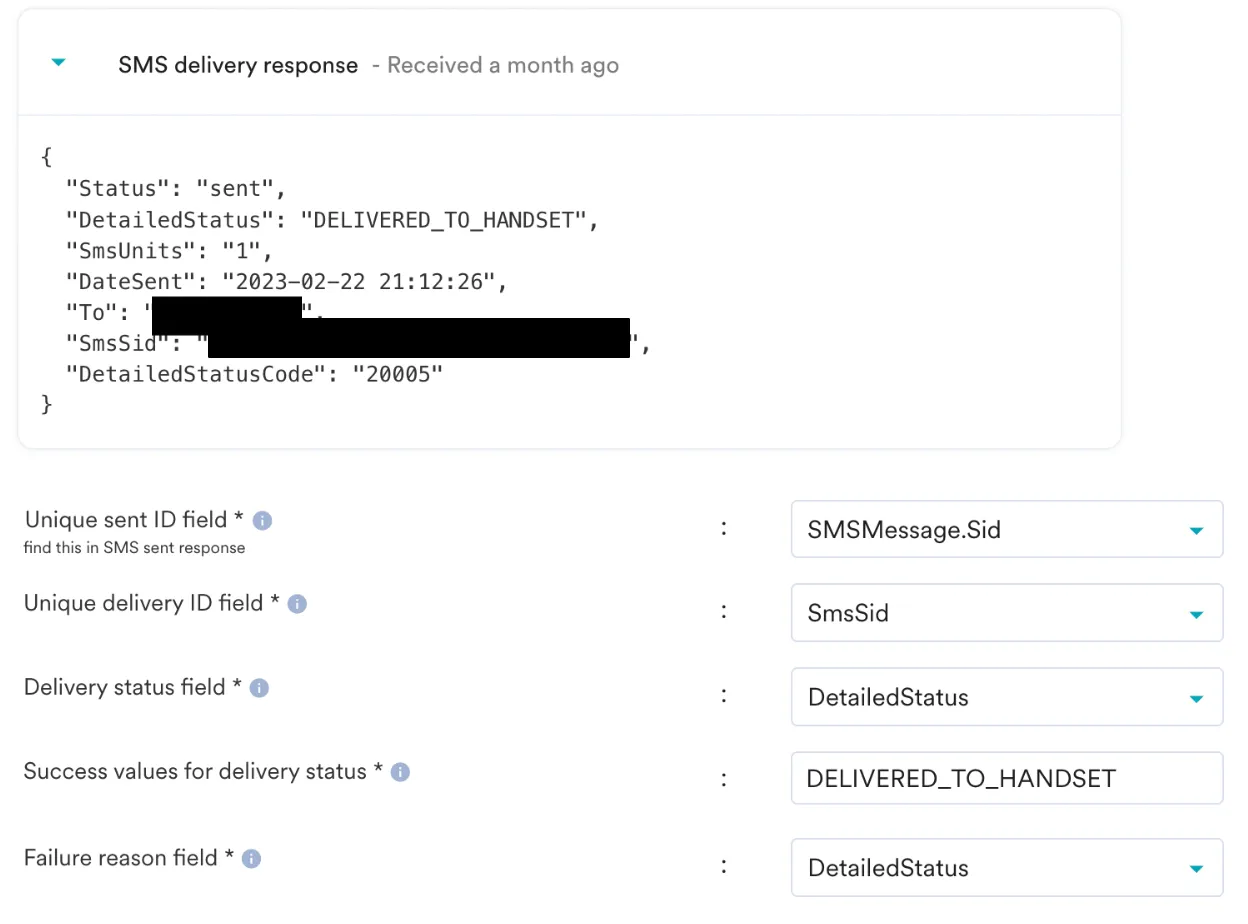
- You can map the fields from this response. The dropdowns are auto-populated with the field names parsed from the delivery response. The first image shows a sample SMS delivery response, and the image below shows the auto-population of the dropdowns from this response for mapping on the Dashboard.
- In case you are not able to receive the response automatically, please check your API URL; it must contain ".json" at the end. For example: https://<subdomain>/v1/Accounts/<account_sid>/Sms/send.json
- Select the callback fields as below:
Field | Value |
|---|---|
Unique sent ID field * | SMSMessage.Sid |
Unique delivery ID field * | SmsSid |
Delivery status field * | DetailedStatus |
Success values for delivery status * | DELIVERED_TO_HANDSET |
Failure reason field * | DetailedStatus |
- Refer to the below screenshot for mapping the fields:
- Once the above is done, test the settings by creating a test campaign and observe the campaign performance from the Campaigns tab under Engage.
Create a campaign by referring to Create SMS Campaign – User Guide and choosing the Configuration created in Step 3 as the provider.
You can also refer to Configure SMS Custom Connector – User Guide for more details on configuring the SMS connector.
Please connect with the MoEngage team to set up throttling (eg - 100 RPM) for the SMS connector to make sure the campaign runs successfully. Refer to Push Throttling – User Guide for more details.
Need help?
If you have any questions or concerns, please connect with us using the chat widget on your Exotel Dashboard or WhatsApp us on 08088919888.