Add documents to your agent's knowledge base
Your agent can answer questions from your own documents: product guides, FAQs, policies or price lists. Upload them to the agent's knowledge base and the agent uses them to answer callers.
Before you start
- Where it lives: Agents → open an agent → Edit agent → Knowledge base tab.
- File types: doc, xlx, pdf and txt.
- File size: up to 100 MB per file.
- Tip for better answers: use clear headings and short sections. Remove pages that callers will never ask about.
Upload a document
- Open your agent and click Edit agent.
- Click the Knowledge base tab.
- Click Add or Update Resource.
- Under Name, choose the knowledge base to add to. To start a new one, type a name in Enter Name for your Knowledge Base and click New.
- Drag your file into the box, or click Browse.
- Click Train.
- The document appears in the list. Status shows its progress and Last trained shows when it was last trained.
- Click Save and rollout.
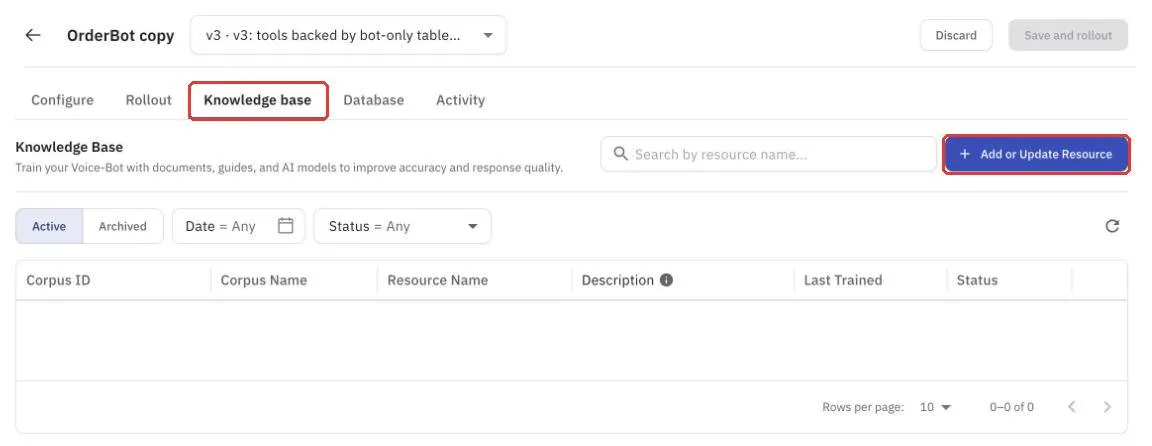
Figure 1 — The Knowledge base tab in edit mode.
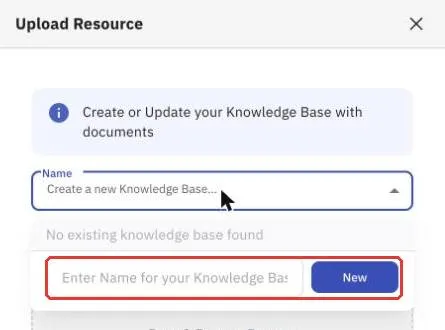
Figure 2 — Name a new knowledge base.
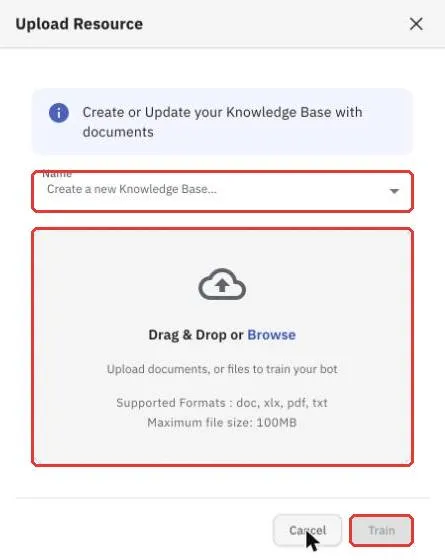
Figure 3 — Choose the knowledge base, add a file, then click Train.
Update a document
When your document changes, upload the new version to the same knowledge base:
- Click Add or Update Resource.
- Under Name, choose the existing knowledge base.
- Add the updated file and click Train.
Find documents
- Type in Search by resource name to find a file.
- Use Date and Status to filter the list.
- Click the Archived tab to see documents you have archived.
FAQ
Why can't I see Add or Update Resource? You must be in edit mode. Click Edit agent first.
How do I check the agent uses my document? Test the agent with a question your document answers. See Test your agent by chatting with it.
Can two agents share one knowledge base? Not yet. Each agent has its own knowledge base.