Set a time limit for calls
Some calls run far longer than they should: a caller who keeps talking, a line left open, or a conversation going in circles. You can set a maximum call length for your voice agent. When a call reaches it, the agent can say a short closing line and then hang up.
Before you start
- Where it lives: Agents → open an agent → Edit agent → Configure → Call handling.
- Default: off. Calls have no time limit unless you turn this on.
- Range: from 0.1 to 20 minutes. When you turn the limit on, it starts at 20 minutes.
- Changes are versioned: saving creates a new version. See Save changes safely and roll out a new version.
Turn on the time limit
- Open your agent and click Edit agent.
- In Configure, click Call handling.
- Turn on Enable max call duration.
- In Max call duration (minutes), enter the longest a call may last, for example 5.
- In Leave a message, type what the agent should say before it hangs up. You can use up to 200 characters. Leave it blank and the call ends without a message.
- Click Save and rollout.
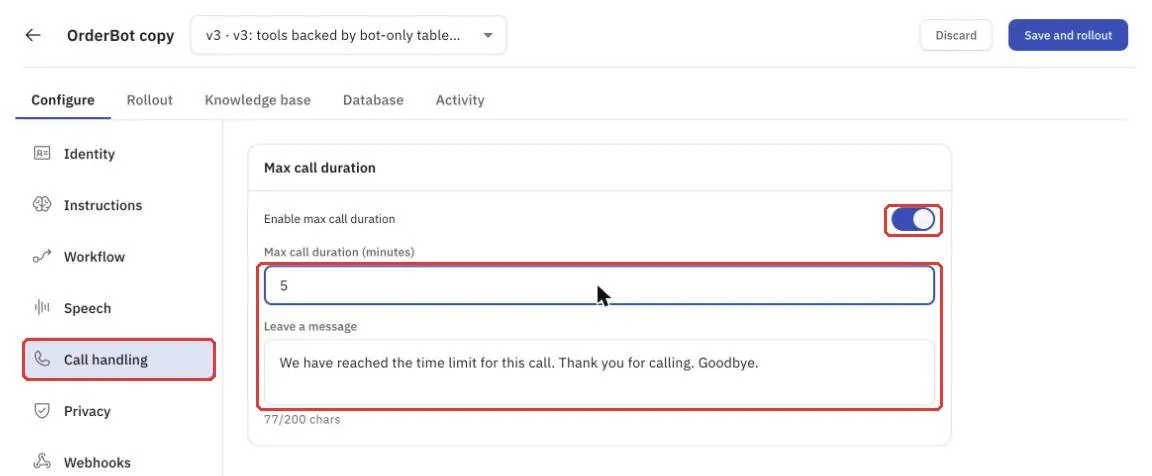
Figure 1 — Turn on the limit, set the minutes and add a closing message.
Tip: pick a limit well above your normal call length. Check Avg duration on the Rollout tab to see how long your calls usually last.
Write a good closing message
Keep it short and polite, and tell the caller what to do next. For example:
- "We have reached the time limit for this call. Thank you for calling. Goodbye."
- "I need to end this call now. Please call us again or visit our website for more help."
FAQ
Does the limit apply to calls already in progress? No. Only calls on the new version use the new limit.
Can I set a limit longer than 20 minutes? Not from the console. 20 minutes is the highest value you can enter.
What happens if I leave the message blank? The call ends without a message when the limit is reached.
Can I turn the limit off later? Yes. Turn off Enable max call duration and click Save and rollout.