New Flow Builder
The new Flow Builder is a full-screen editor for your call flows. It shows the whole flow as one map, lets you add a step anywhere in the flow, and opens quickly even on accounts with many ExoPhones.
It edits the same flows as the classic editor. Calls work the same way whichever editor you use, and you can switch between the two at any time.
Open a flow in the new Flow Builder
- Go to App Bazaar and scroll to Custom Apps.
- Next to the flow you want to edit, click Try new.
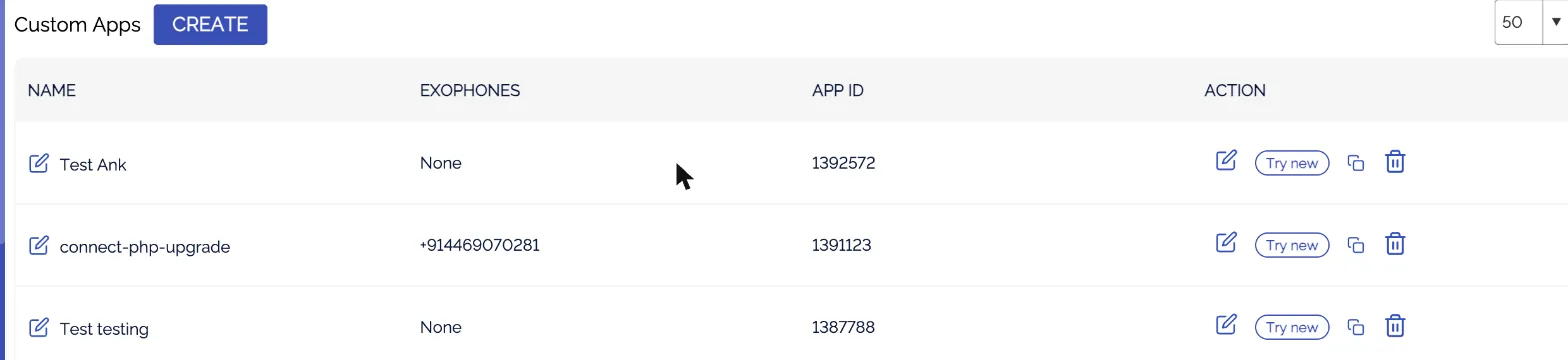
To go back to the classic editor, click Close and use the Edit icon next to the flow.
See the whole flow
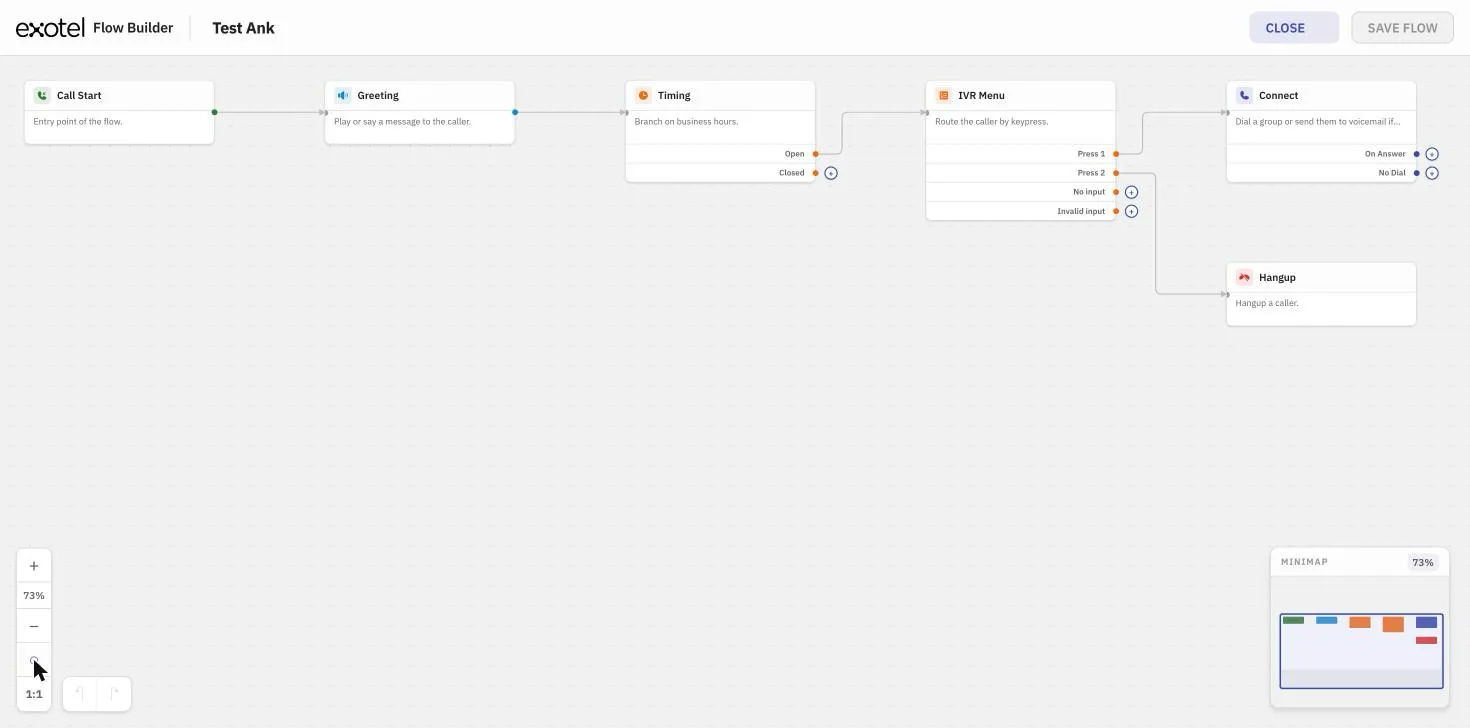
Each applet is a card, and lines show where the call goes next. Applets with more than one outcome, such as IVR Menu, Timing and Connect, have a separate branch for each outcome (for example Press 1, Press 2, No input, Invalid input).
Use the controls at the bottom left to:
- Zoom in (+) and out (−)
- Fit the whole flow to the screen (⊙)
- Return to actual size (1:1)
Drag the canvas to move around. The Minimap at the bottom right shows where you are in a large flow.
Add an applet
In the middle of a flow: hover over the line between two applets and click +. The new applet is placed between them and everything after it stays connected. Click × on the line to remove the connection.
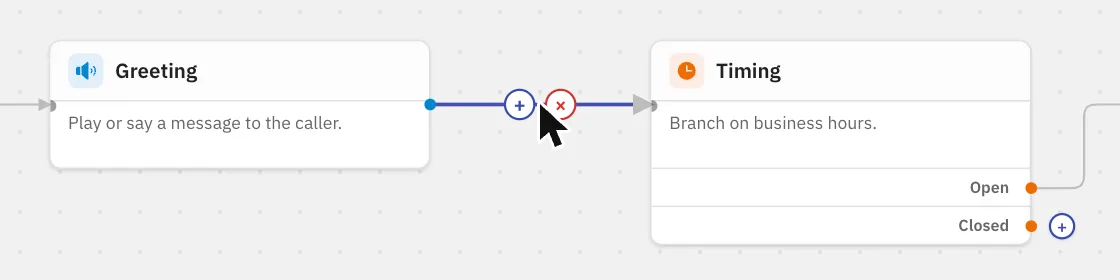
At the end of a branch: click the + next to any branch that isn't connected yet, such as "Closed" on a Timing applet.
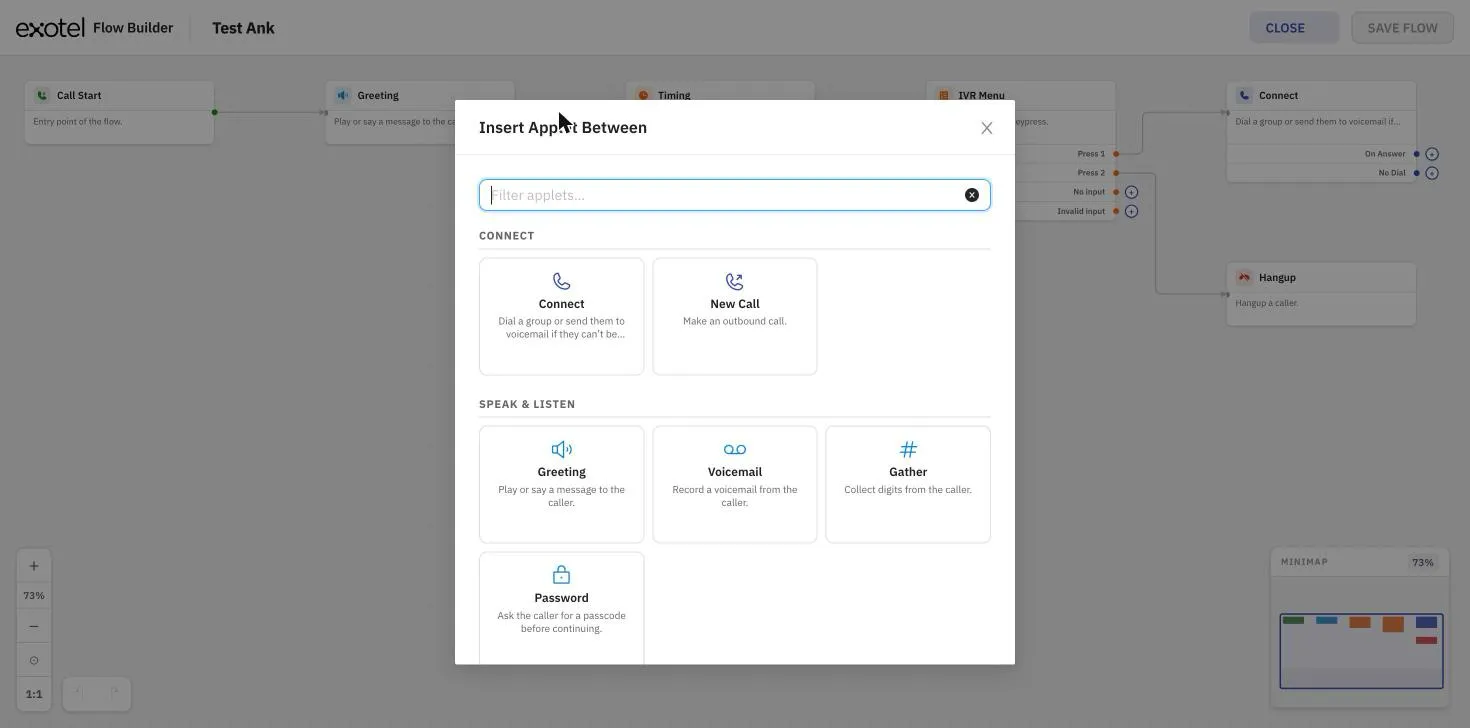
The applet picker groups applets by what they do: Connect, Speak & Listen, Route, Messaging, Lists and Integrations. Type in Filter applets to find one quickly.
Configure an applet
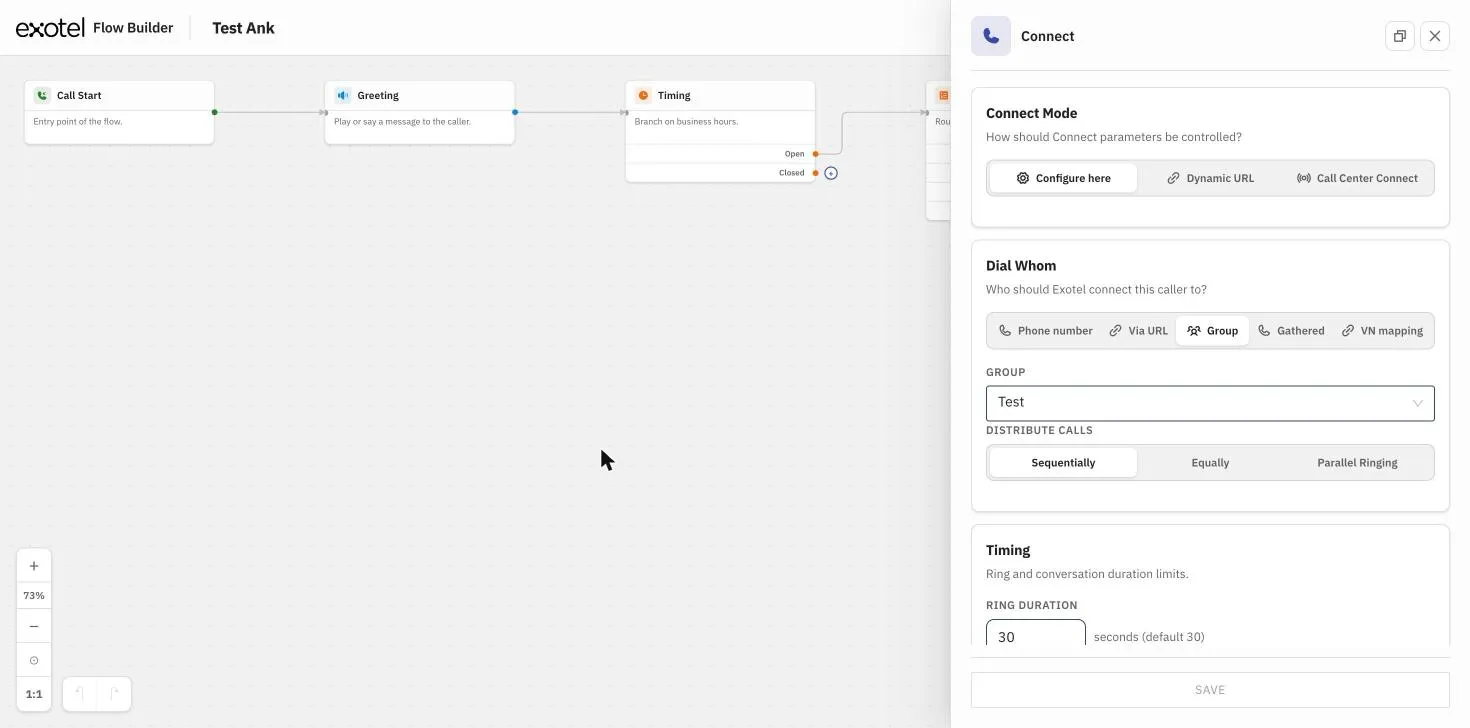
Double-click an applet to open its settings in a panel on the right. Settings are written in plain language, and advanced options are folded away until you need them. For example, in the Connect applet you'll find Sticky Agent, If All Agents Are Busy, Agent Popup, Outgoing Caller ID and Announcements During the Call under their own headings.
When you choose a group, ExoPhone, recording or flow, start typing to search for it. You can play a recording before you choose it.
Click Save in the panel to apply your changes.
An applet that still needs setting up shows a warning icon on its card.
Other things you can do
- Copy an applet: use the copy icon on the applet's card to copy it on its own, or together with everything after it.
- Undo and redo: use the arrows next to the zoom controls.
- Delete an applet: use the × on the applet's card.
Save your flow
Click Save Flow at the top right. You'll see "Flow saved" when it's done. The same checks run as in the classic editor, so if something is missing, you'll be told what to fix before the flow is saved.
If you click Close with unsaved changes, you'll be asked before they're discarded.
Watch a short video
Video to be attached.