C.O.D. Verification
Cash on Delivery (COD) has been a major growth driver for the e-commerce industry. However, it also introduces operational risks such as cancellations, fake orders, and failed deliveries. Reducing COD-related losses is therefore a key focus area for most e-commerce businesses.
With Exotel’s automated COD verification, you can confirm the legitimacy of COD orders before dispatch — reducing failed deliveries and optimizing operational costs.
Advantages
- Reduce No-shows An automated call is triggered to the customer before delivery to confirm their availability and willingness to receive the order.
- Avoid First Attempt Failures On the day of delivery, an automated IVR call checks whether the customer is available. Customers can confirm or reschedule deliveries via keypad input. The input is relayed to your CRM or backend system in real time.
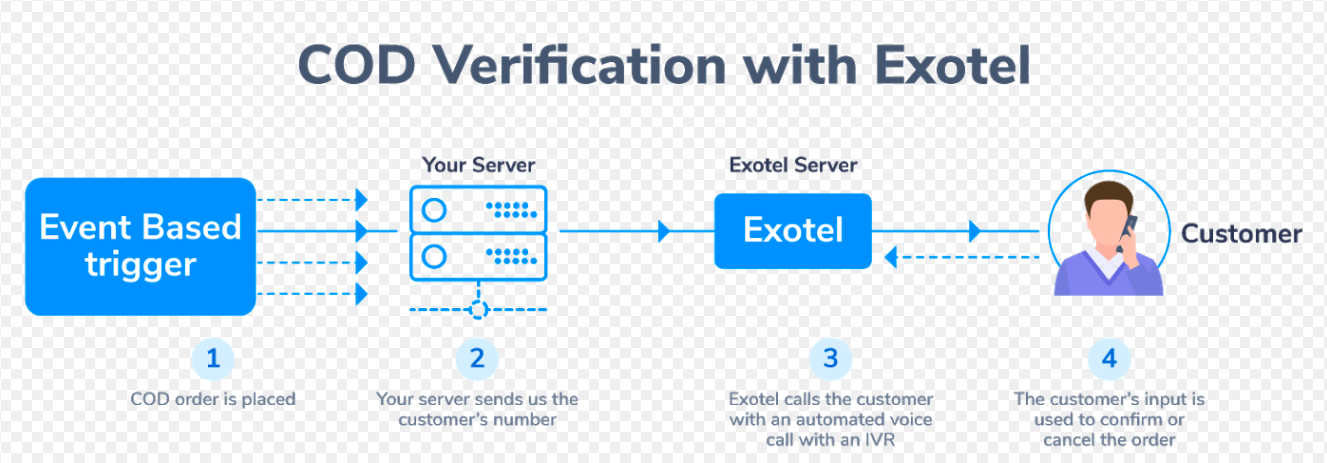
Implementation Steps
1. Automated Call Trigger on COD Order
When a COD order is placed, your system can trigger an automated verification call to confirm the order and customer number.
2. Send Details to Exotel
Your server sends the customer number and call flow details to Exotel via API.
3. Exotel Initiates the Call
Exotel automatically calls the customer with a pre-defined IVR flow to confirm the order.
4. Capture Customer Input
Based on customer input (e.g., Press 1 to confirm, Press 2 to cancel), your CRM can mark the order status as verified, canceled, or pending.
API Implementation
Exotel API to Connect a Call to a Flow
https://<your_api_key>:<your_api_token>@<subdomain>/v1/Accounts/<your_sid>/Calls/connectThis API first calls the From number, and once the recipient answers, connects them to the call flow (applet) you’ve created in the system — for example, a landing app with IVR or greeting logic. An HTTP POST request is made to the above endpoint.

API Credentials
Navigate to API Settings in your Exotel Dashboard and retrieve:
- Account SID
- API Token
- API Key
For details, see: How to find my API Key, API Token, Account SID, and Subdomain?

Mandatory Parameters
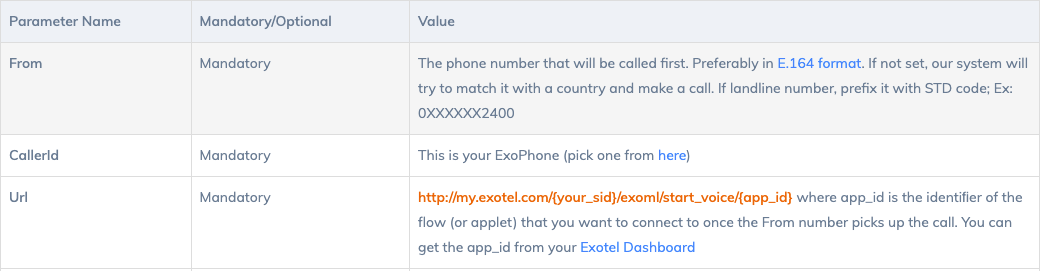
Detailed documentation for all parameters is available here: https://developer.exotel.com/api#call-customer
The call flow referenced in the API must be created in your Exotel Dashboard: https://my.exotel.com
Sample Call Flow
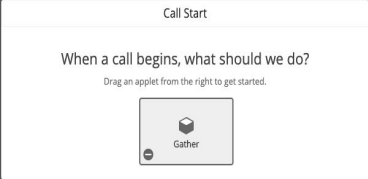
- Go to App Bazaar → Create Flow → Enter Flow Name
- Use the following applets in sequence:
Applets to Use
- Gather — captures customer keypad input
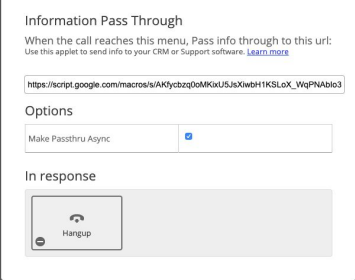
- Passthru — sends input data to your server via webhook
- Hangup — ends the call gracefully
Steps:
- Drag and drop the Gather Applet – digits entered will be recorded and stored.
- Drag and drop the Passthru Applet – link it to your webhook URL.
- Add the Hangup Applet at the end of the flow.
- Save the flow.
Assign an Exophone to the newly created flow:
Implementing COD Verification with Google Sheets
To simplify data collection, you can integrate Exotel with Google Sheets using a simple Apps Script.
Steps
- Open a new Google Sheet.
- In Script Editor, paste the following code.
- Deploy the script as a web app and copy the web app URL.
- Use this URL as the Passthru webhook in your Exotel flow.
Sample JavaScript Code

Replace:
- ID → the Sheet ID from the Google Sheets URL
- SHEET_NAME → the name of the sheet where you want to store data

Deploy the Script
When deploying:
- Project Version: Enter a version name
- Execute as: Me (your email)
- Who has access: Anyone, even anonymous
- Click Deploy to get your web app URL
Use this webhook URL in the Passthru Applet in your Exotel call flow.