Exotel's VoIP Softphone
Unlock the power of voice communication with Exotel’s VoIP SoftPhone.
Experience seamless and crystal-clear voice communication with Exotel’s cutting-edge VoIP SoftPhone, designed to enhance your calling experience. It supports both inbound and outbound (click-to-call) functionality, and you can also dial a number manually.
By following these steps, you can effortlessly enhance your Exotel Dashboard experience—leveraging IP-PSTN intermix for powerful and flexible communication. Your end customers won’t notice any change; they’ll continue to make and receive calls on their regular PSTN devices (e.g., mobile phones).
Benefits of IP-PSTN Intermix
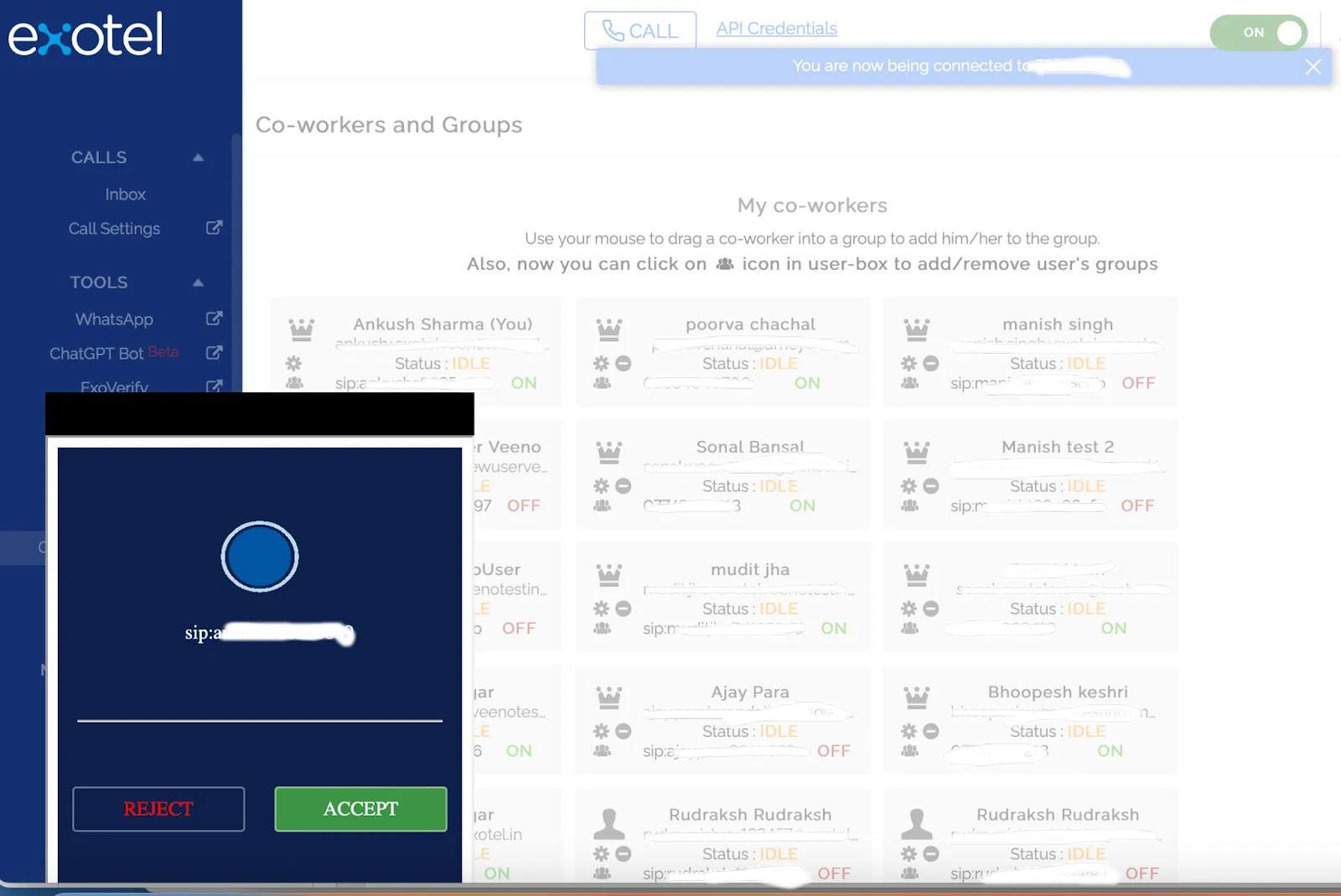
- UI Widget for Calling The widget for incoming and outgoing calls appears on the dashboard, showing options to accept or reject calls, along with hold and mute buttons.
- Switch Between IP and PSTN Devices Users can toggle between IP and PSTN calling modes based on their network availability using a simple toggle button.
- On-Call Status, Callbacks & Call Details All call details are displayed post-call for easy review and analysis.
- Mobility and Flexibility With IP-PSTN intermix, users can make and receive calls from anywhere with an internet connection—ideal for remote or distributed teams.
- Business Continuity In the event of outages or disruptions, IP-PSTN intermix ensures reliable backup connectivity.
Onboarding Process
Follow these steps to enable and configure IP-PSTN VoIP calling on your account.
Prerequisites
To enable IP-PSTN, you must complete the following steps:
1. New Services Agreement
To comply with Indian telecom regulations, Exotel’s VoIP services are operated under Veeno Communications Pvt. Ltd., which holds a Unified License for Virtual Network Operation (UL-VNO). A new Services Agreement must be signed with Veeno Communications Pvt. Ltd. Your Exotel Account Manager or point of contact will assist with this process.
2. New Account Creation (Even for Existing Customers)
Due to regulatory requirements, you’ll need a new account under the Veeno entity to use VoIP calling. Existing Exotel Techcom accounts cannot host VoIP services. Your Account Manager will help create this account.
3. New KYC Registration (Bangalore, Mumbai, Hyderabad only)
In addition to the four standard KYC documents, VoIP accounts require an extra Customer Acquisition Form (CAF). The CAF is supported directly in the Exotel Dashboard under KYC → Document Upload.
KYC must be completed separately for each city. The following documents must be re-submitted for each new city:
- Address proof (for the city from where numbers are to be purchased)
- Customer Acquisition Form (CAF)
For document upload instructions and KYC guidelines, refer to this article: /business-phone-system/kyc-verification
4. Purchase New Exophones (Virtual Numbers)
Virtual numbers can only be purchased in regions where KYC is complete. Currently, KYC and number purchase are available only for Bangalore.
For details on procuring Exophones, refer to: /business-phone-system/purchase-exophone
5. Call Flow Creation or Migration
After the new account and virtual numbers are ready, create new call flows for inbound scenarios.
- Reference: How to Create or Edit a Call Flow
If you want to reuse existing call flows, they must be migrated.
- Reference: Transfer Call Flows Between Accounts
Once created or migrated, link the virtual numbers to their respective call flows so that customer calls follow the correct routing path.
Using IP-PSTN on the Exotel Dashboard
- Log in to your Exotel Dashboard and confirm your PSTN device to enable both IP-PSTN and PSTN-PSTN calling.
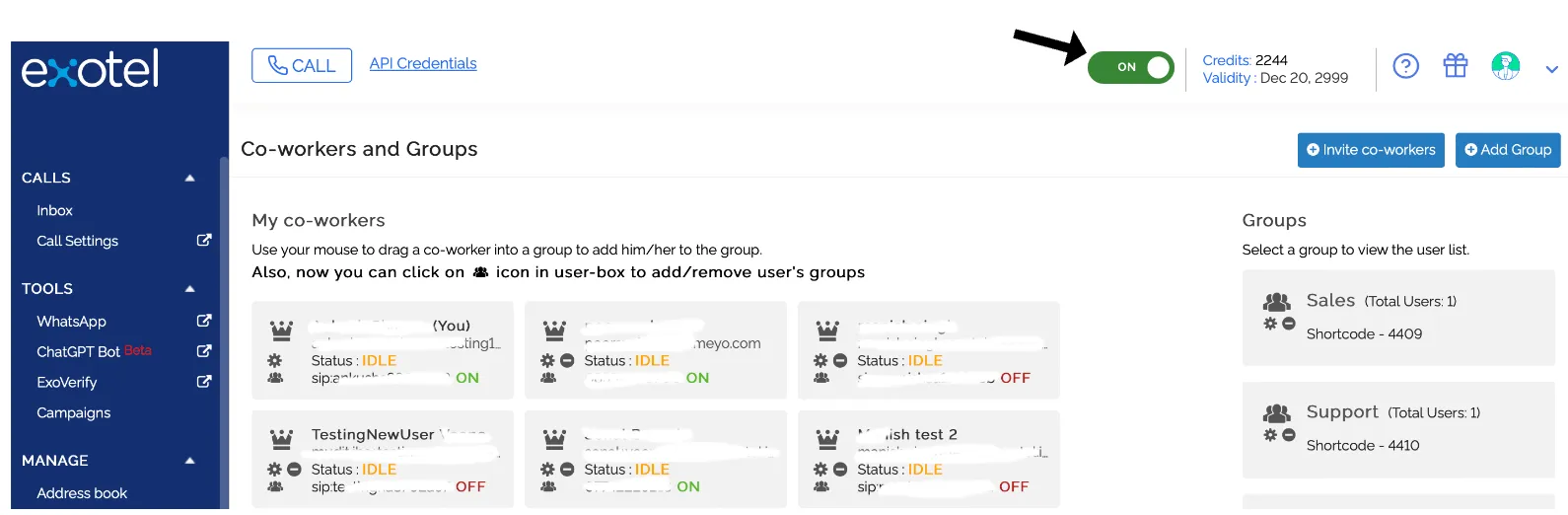
- Activate yourself by toggling the VoIP switch as shown below:
- To make a call, click the Call button. You can switch between IP and PSTN calling modes as required.

- When the IP toggle is enabled, enter a number or name in the “Type a Number/Name” field and click Call. The first leg of the call will ring on your web browser.
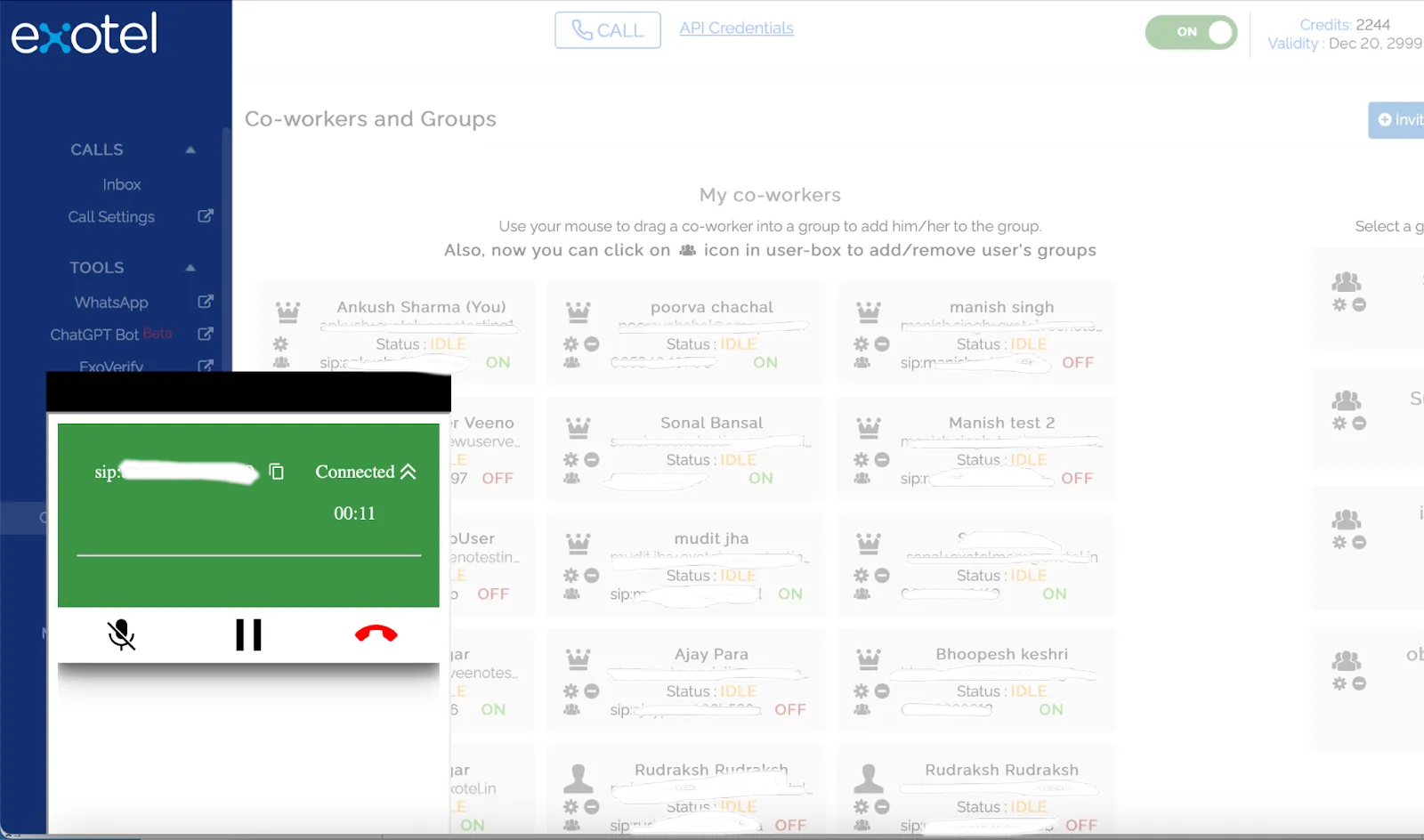
- After accepting the call, you’ll see options to manage it:
- Mute: Mutes your microphone.
- Hold: Places the call on hold.
- Disconnect: Ends the call.
- Recordings and call details are available in the Inbox.
- PSTN calls remain unchanged — continue using them as usual.
- When making an IP-PSTN Intermix call with multiple browser tabs open:
- The call pop-up appears in all tabs.
- After accepting, the pop-up remains only in the active tab.
- The active tab is locked for call duration; other tabs remain usable.
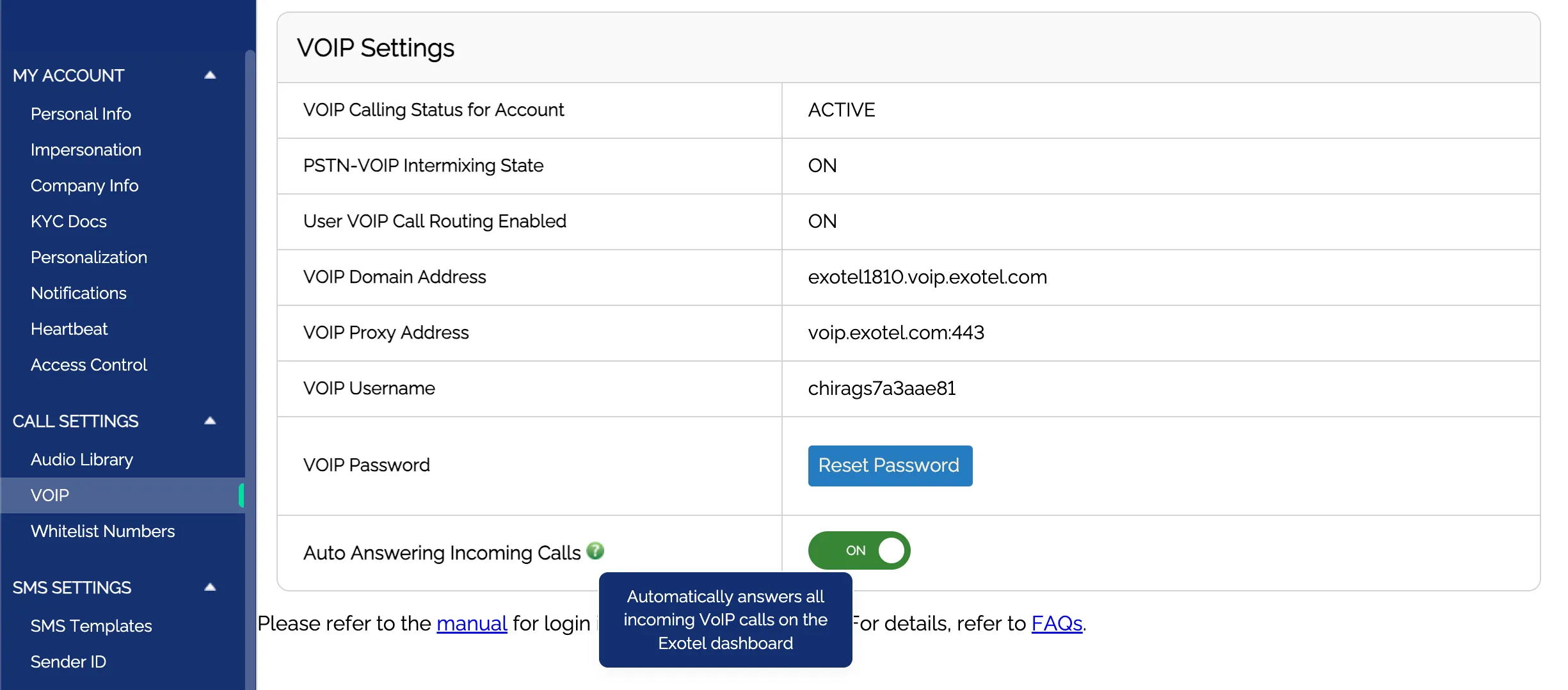
- Enable Auto Answer: When enabled, all incoming VoIP calls for agents are automatically answered on the Exotel Dashboard. (This does not apply to CRM dashboards like SFDC, LSQ, etc.) This setting is OFF by default and can be managed by all admins.
Pricing
IP-PSTN intermixing is available only with the Unlimited Calling Plan on a fixed per-user, per-month basis. Contact your Exotel Account Manager to understand pricing details for your organization.
FAQs
1. Do I need to sign a new MSA for VoIP calling? Yes. Exotel’s VoIP services operate under Veeno Communications Pvt. Ltd. (holder of the Pan-India UL VNO license). Hence, a new MSA must be signed between your organization and Veeno.
2. Do I need a new account for VoIP calling? Yes. All customers—including existing ones—must create a new Veeno account. Existing Exotel Techcom accounts cannot host VoIP services due to regulatory restrictions.
3. How do I create an account under Veeno? During the alpha phase, account creation is assisted by the Exotel Account Management team. Post-alpha, it will follow the standard onboarding process for new customers.
4. Can I use my existing virtual numbers (Exophones) for VoIP? No. New numbers must be purchased under the Veeno account. Existing numbers from non-Veeno accounts cannot be reused.
5. Can I migrate existing IVRs or call flows? Yes. The Exotel team will assist in migrating IVRs and call flows from your existing account to the new Veeno account.
6. What are the prerequisites for starting VoIP calling? Users must log in with valid credentials. Once logged in, the SIP device will appear active and can be toggled on or off.
7. How can I stop making or receiving VoIP calls? Toggle off the SIP Calling button in the dashboard.
8. What if VoIP calls fail due to poor network connectivity? You can switch to PSTN calling using the toggle. Your mobile device will act as the primary calling device.
9. How reliable is IP-PSTN compared to traditional networks? IP-PSTN offers high-quality voice and reliability, though it depends on internet stability and network conditions.
10. What happens if I refresh the dashboard during an active call? Refreshing will prompt a confirmation. If you proceed, the ongoing call will disconnect. Avoid refreshing while calls are active.
Contact us
For questions or support, write to [email protected].
Watch a short video
Making and taking calls on the softphone