How can I segregate reports per Agent/Group?
3 min
In order to get group/agent wise reports:-
Step 1: Download the report
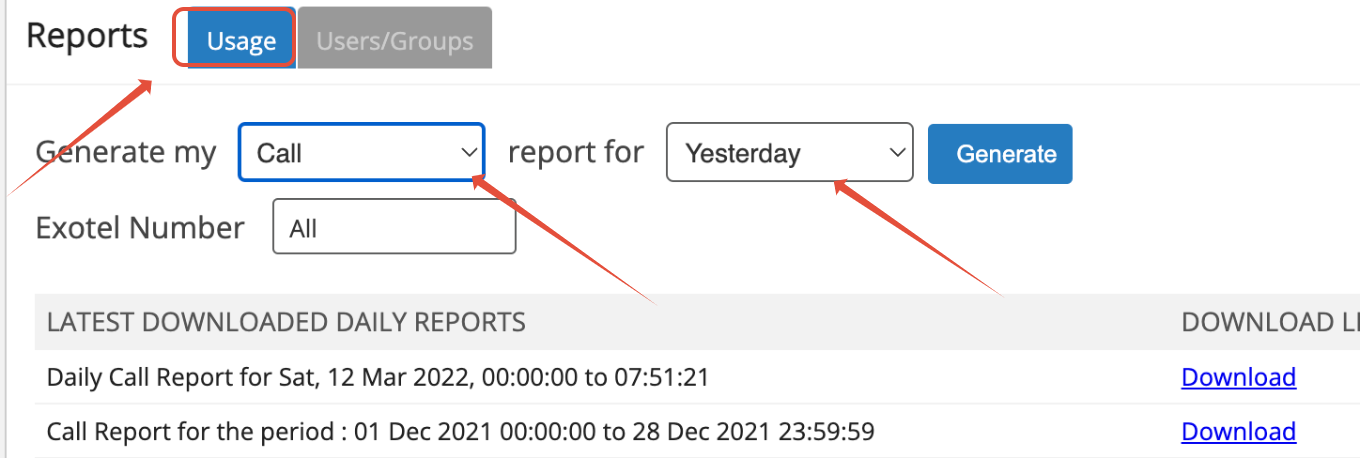
- Please login into your Exotel account
- On the left panel, under the ADMIN section, you will notice Reports tab
- Please click on the "Reports" tab
- Generate the report by choosing the options either “Call/SMS” depending upon your requirement
- The report is generated as a CSV file
- Open the CSV file
- In headers you will fill find the below options
Id |
|---|
Direction |
Type |
ExotelNumber |
From |
FromName |
To |
ToName |
Status |
StartTime |
EndTime |
Direction |
Price |
RecordingUrl |
Price Details |
GroupName |
FromCircle |
To Circle |
Leg1 Status |
Leg2 Status |
ConversationDuration |
AppID |
AppName |
Digits |
DisconnectedBy |
Step 2: Use Excel/Google Sheet for create Co-worker/Group wise report
- You can now Select the data by performing “Ctrl+A” and choose insert on top of the CSV / Excel sheet,
- Select Pivot table and click “ok”
- You will now be redirected to the pivot table page “new sheet” and the above headers are populated in the pivot table fields, depending upon the necessity you can design & view the report
- Ex: In this case, you would like to view reports for sales & Customer Support option – (The groups you have created in co-workers & groups)
- Return to the CSV/Excel, in the pivot table sheet, please select “Group name” from the Pivot table fields and drag-drop that in “Rows” & “Columns”
- You will now the report in the below style
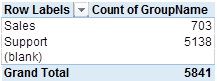
- The above report indicates that Sales has received 703 calls and Support has received 5138 calls
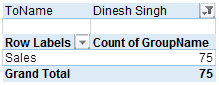
- Similarly if you would like to further refine the report on agent-based, please select “ToName” from the Pivot table fields and drag-drop that in “filters”. Thereby you can view the below report