How to Fix Image & Location Capture Errors During KYC Verification
If your KYC link shows a location error, or an error that it could not take your photo, follow the steps below for your device and browser.
Step 1: Identify Your Issue
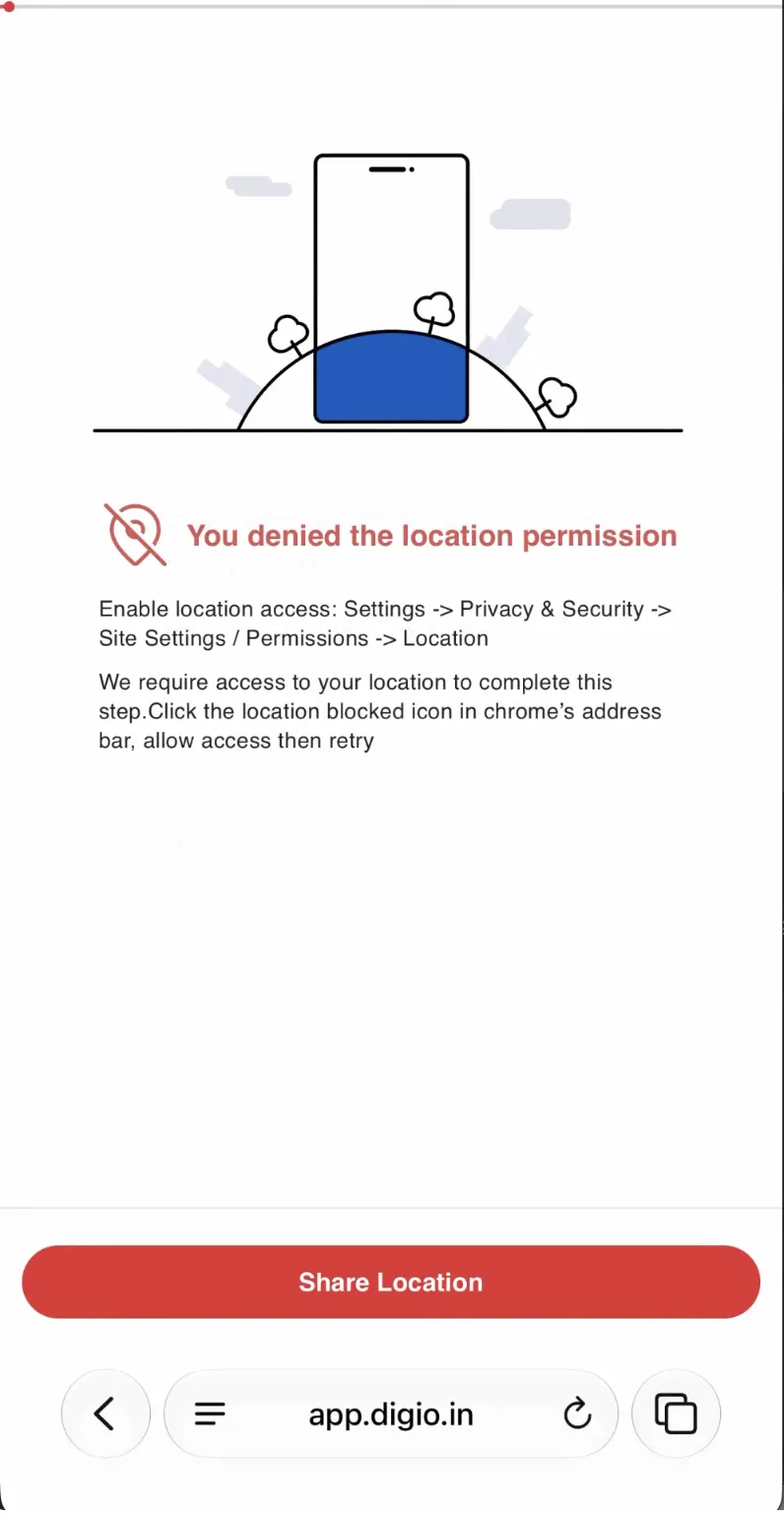
"Location permission not provided" — no pop-up appeared Go directly to Step 2 for your device/browser.
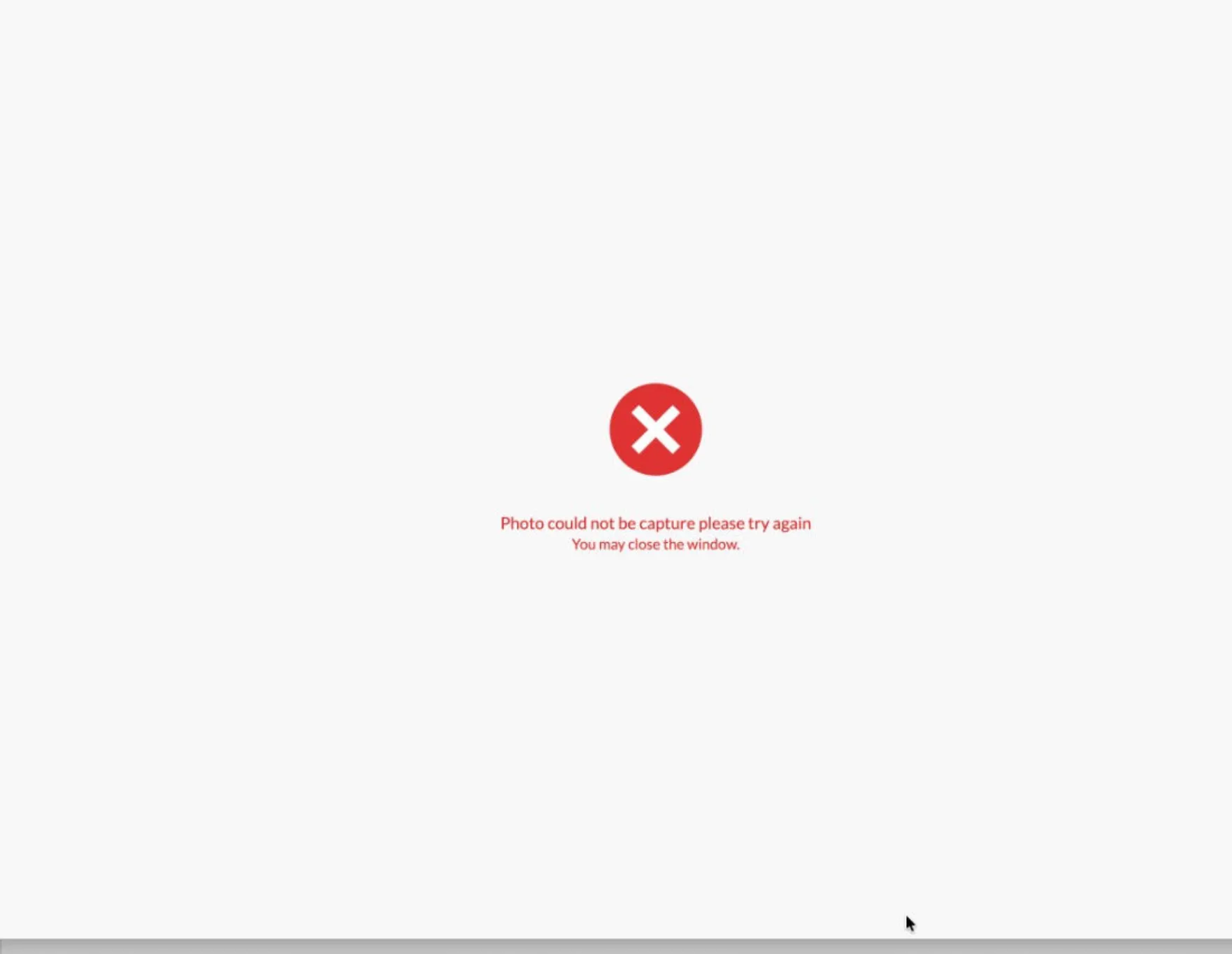
"Could not take photo" error
- Cancel the current KYC request.
- Start a new KYC from the PAN entry step.
- Follow Step 2 below before continuing, so the new attempt doesn't hit the same block.
Step 2: Enable Location Permission
iPhone / iPad — Safari
If you tapped "Deny" when asked for location:
- Tap the page-settings icon in the Safari address bar (the "aA" button or the three-line icon, bottom-left).
- Under "Allow ext.digio.in to access," find Location (shows "Deny").
- Tap it and select Allow.
- When the system popup appears, tap Allow.
- Tap the blue checkmark to close the panel.
- Tap Share Location on the page to retry.
Tip: If Camera also shows "Deny," switch it to "Allow" at the same time to avoid a second block during the selfie step.
If Location doesn't appear in the site-settings panel:
- Open Settings → Safari.
- Scroll to "Settings for Websites" → Location.
- Find ext.digio.in and set it to Allow or Ask.
- Return to Safari and reload the page.
If Location Services are off for your device:
- Open Settings → Privacy & Security → Location Services.
- Turn Location Services ON.
- Make sure Safari Websites is set to "While Using the App" or "Ask Next Time".
- Return to Safari and reload the page.
iPhone / iPad — Chrome
- Open Settings → Chrome.
- Tap Location → set to "While Using the App" or "Ask Next Time".
- Return to Chrome and reload ext.digio.in.
- Tap Allow when prompted.
If you previously blocked location for the site: in Chrome, tap ⋯ → Settings → Content Settings → Location, and remove the block for ext.digio.in.
Android — Chrome
Quick fix:
- Tap the lock/tune icon in the address bar next to ext.digio.in.
- Tap Permissions (or Site settings).
- Change Location from "Block" to "Allow".
- Reload the page and tap Allow when prompted.
Via Chrome settings:
- Tap ⋮ → Settings → Site settings → Location.
- Make sure the top toggle is ON.
- If ext.digio.in is under "Blocked," tap it and change to Allow.
- Reload the page.
If Location is off on your device:
- Open device Settings → Location → turn ON.
- Under "App permissions" → Chrome, set to "Allow" or "Ask every time".
- Return to Chrome and reload the page.
Android — Samsung Internet
- Tap ☰ → Settings → Sites and downloads → Site permissions.
- Tap Location and set to "Allow" or "Ask." Remove any block on ext.digio.in.
- Confirm device Location is ON (Settings → Location).
- Reload ext.digio.in and grant permission when prompted.
Desktop — Chrome
Quick fix:
- Click the lock/tune icon left of the URL.
- Change Location from "Block" to "Allow".
- Reload the page.
Full method:
- Go to chrome://settings/content/location.
- Under "Not allowed to see your location," find ext.digio.in and remove it (trash icon).
- Reload the page and click Allow when asked.
On Mac, also check System Settings → Privacy & Security → Location Services → Chrome is allowed.
Desktop — Safari (Mac)
- Safari menu → Settings (or Preferences) → Websites tab → Location.
- Find ext.digio.in and set it to "Allow" or "Ask".
- Confirm System Settings → Privacy & Security → Location Services → Safari is enabled.
- Reload the page.
Desktop — Microsoft Edge
- Click the lock icon next to ext.digio.in.
- Click Permissions for this site (or Site permissions).
- Set Location to "Allow".
- Reload the page.
Alternative: go to edge://settings/content/location and remove ext.digio.in from the Block list.
Desktop — Firefox
- Click the lock icon in the address bar.
- Click "Connection secure" → "More information" → Permissions tab.
- Under "Access Your Location," uncheck "Use Default" and select Allow.
- Close the dialog and reload the page.