Partnership Firm
Use this guide to complete business verification (KYC) for a Partnership Firm. You confirm your PAN and select your entity type. Then you upload your Partnership Deed and select a GST number. Finally, you send a verification link to an authorised signatory.
The process takes about 3 to 5 minutes. All screenshots show masked data. Your screens show your own firm details.
Before you start
Keep these items ready:
- The firm PAN (10 characters).
- The registered Partnership Deed as a PDF, JPG, or PNG. The maximum file size is 10 MB.
- The GST number for billing, if the firm is registered for GST. If not, keep your GST exemption proof ready (PDF, JPG, or PNG, maximum 10 MB).
- The mobile number or email address of an authorised signatory. This person must have legal authority to sign for the firm, for example a managing partner.
Note: The portal reads the firm name, address, and partners from your Partnership Deed. Upload a clear copy so the portal can read it.
Step 1 of 3: Confirm the PAN
- Sign in to the Exotel portal. In the left menu, go to My Account > Company Info.
- Click Start Business Verification. If an earlier verification is saved, click Continue where you left off.
- On the Verify your PAN screen, enter the 10-character firm PAN in the PAN Number field.
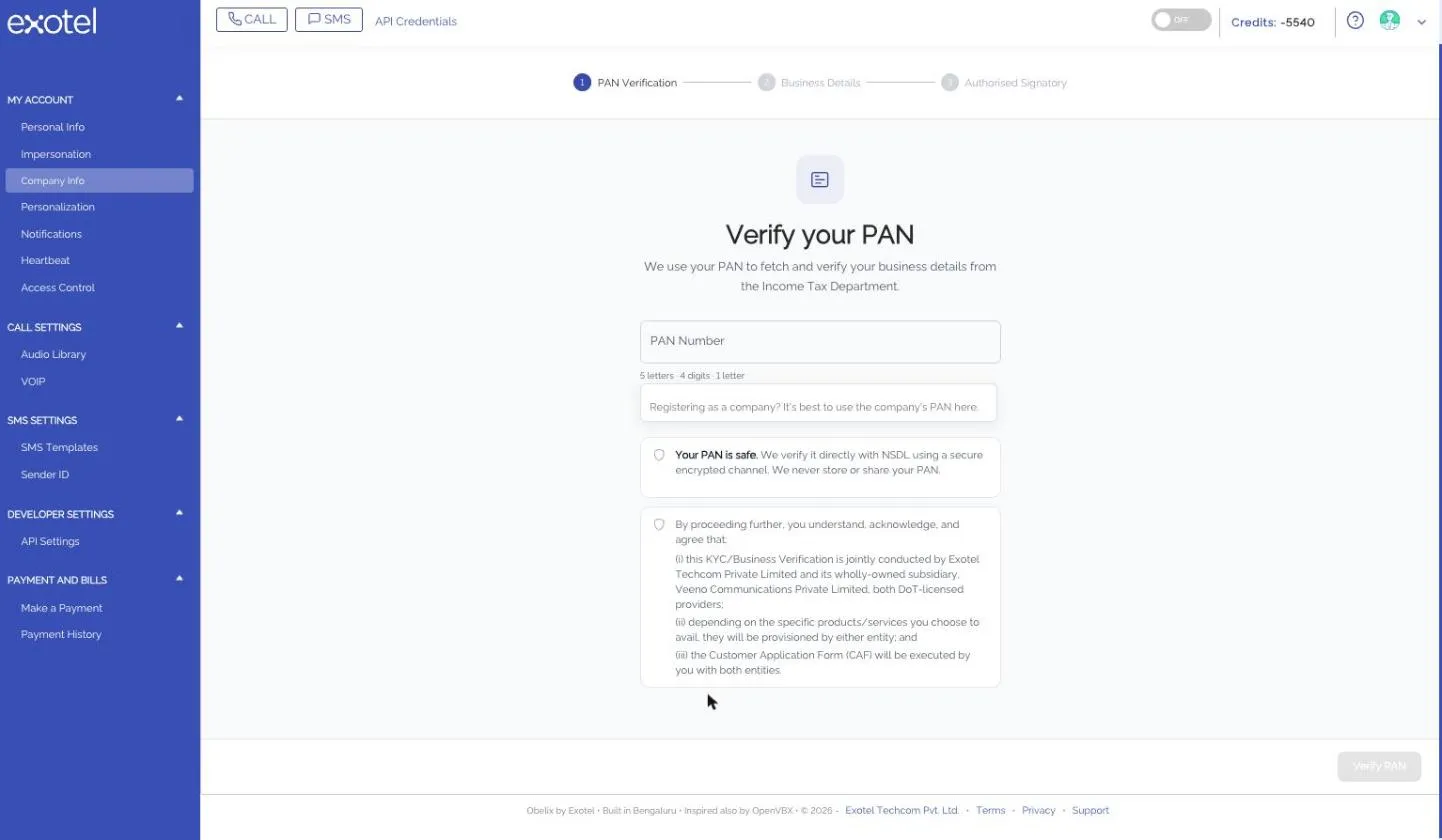
- Read the PAN safety notice and the consent notice below the field, then click Verify PAN.
- Check the firm name on the Is this your business? screen. The entity type shows firm.
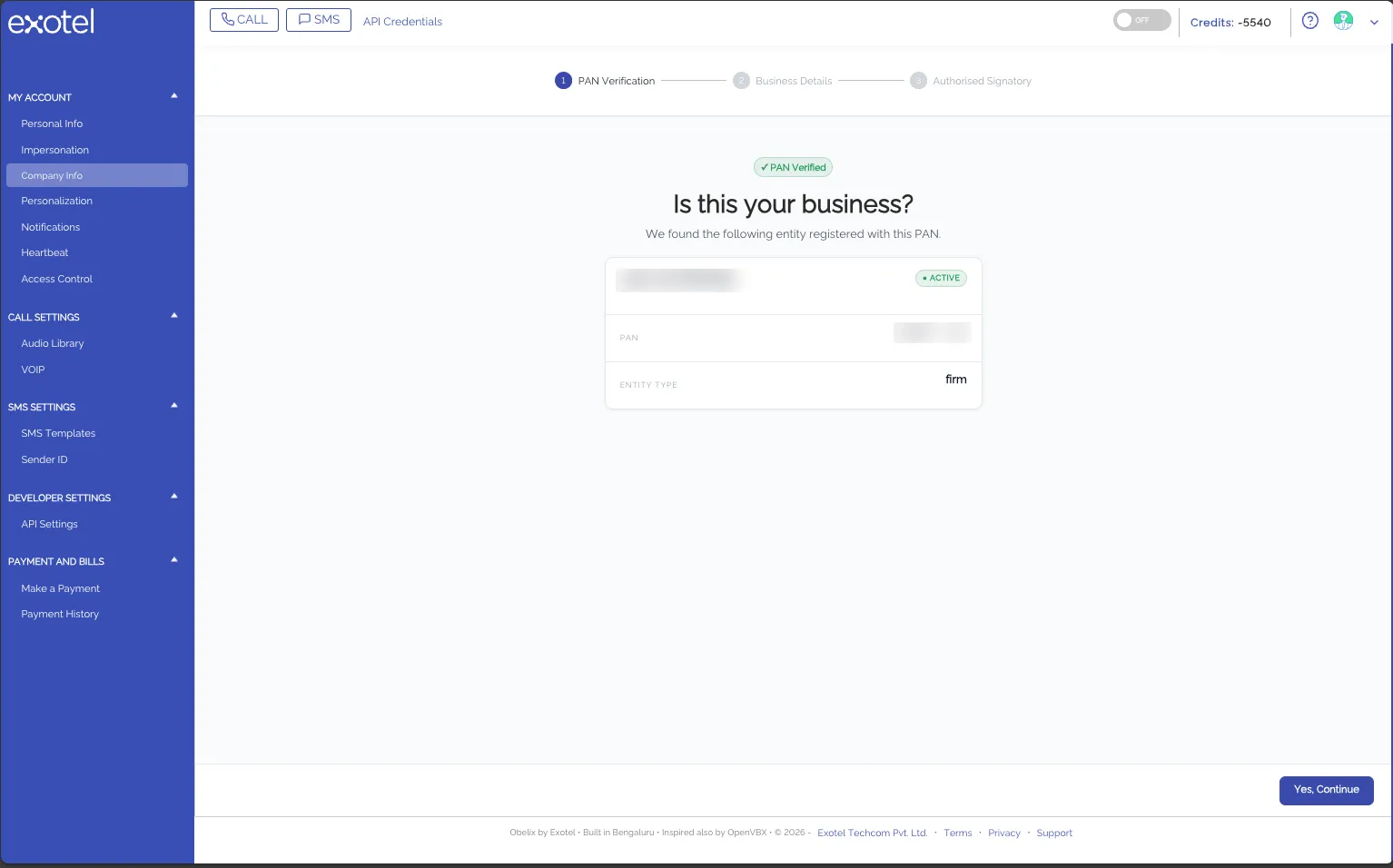
- If the name is correct, click Yes, Continue.
Step 2 of 3: Confirm the business details
Select the entity type
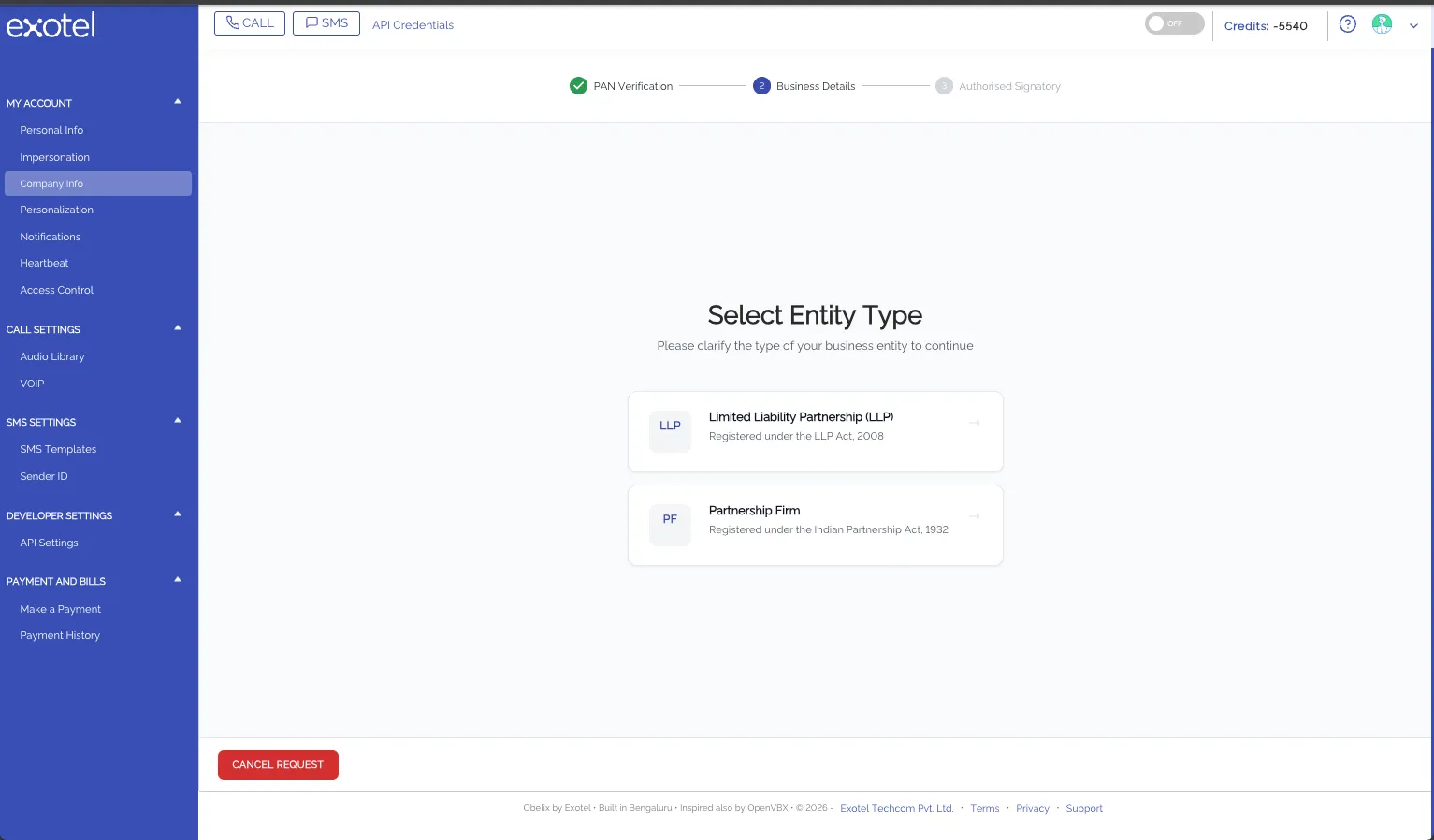
Caution: Do not select Limited Liability Partnership (LLP) for a Partnership Firm. That option is for LLPs registered under the LLP Act, 2008.
- On the Select Entity Type screen, click Partnership Firm.
Upload the Partnership Deed
- On the Upload Partnership Deed screen, click the upload area and select your deed. Use a PDF, JPG, or PNG file. The maximum file size is 10 MB.
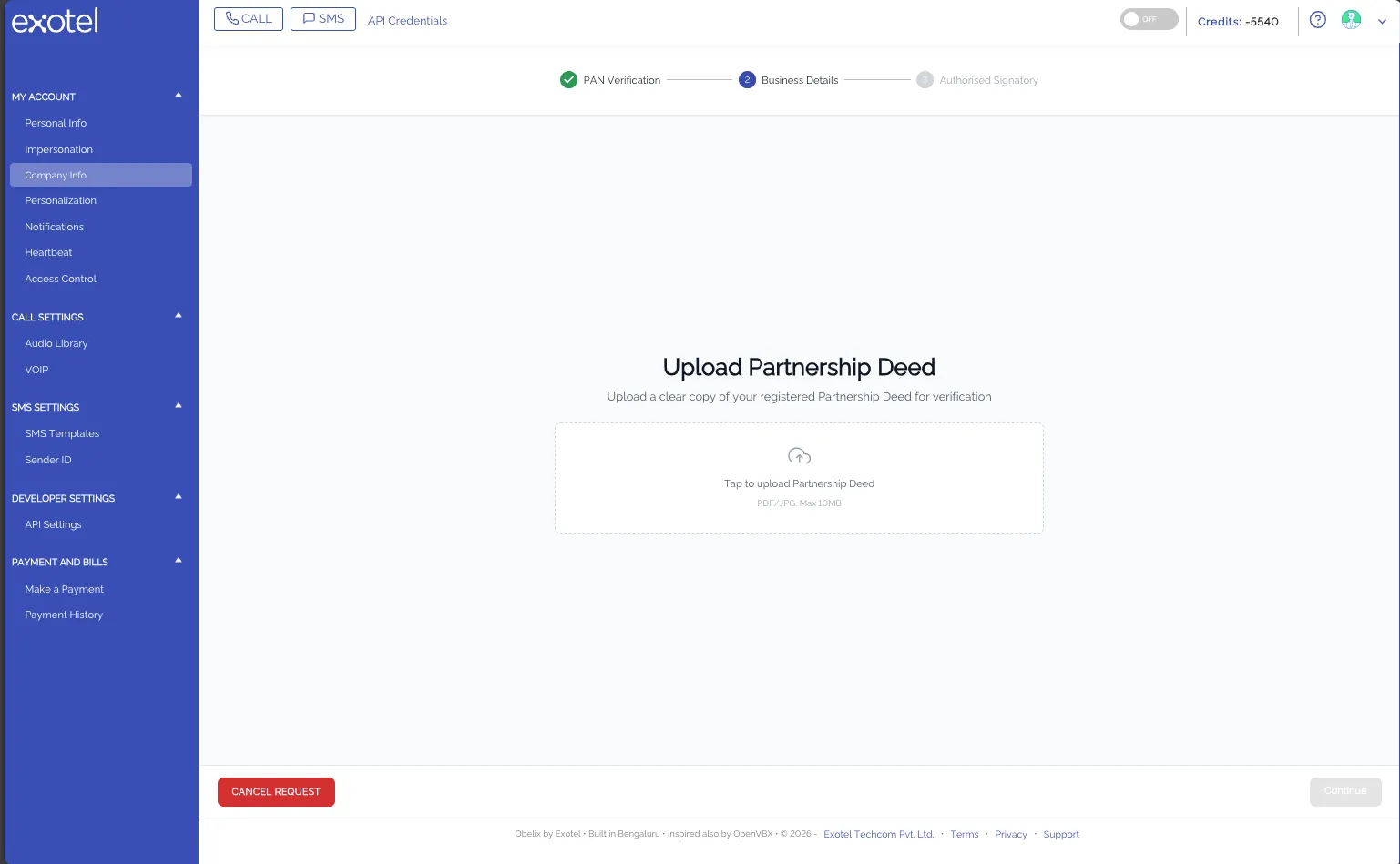
- Wait while the portal reads the deed. The portal shows the trade name, address, state, pincode, and the partners it found.
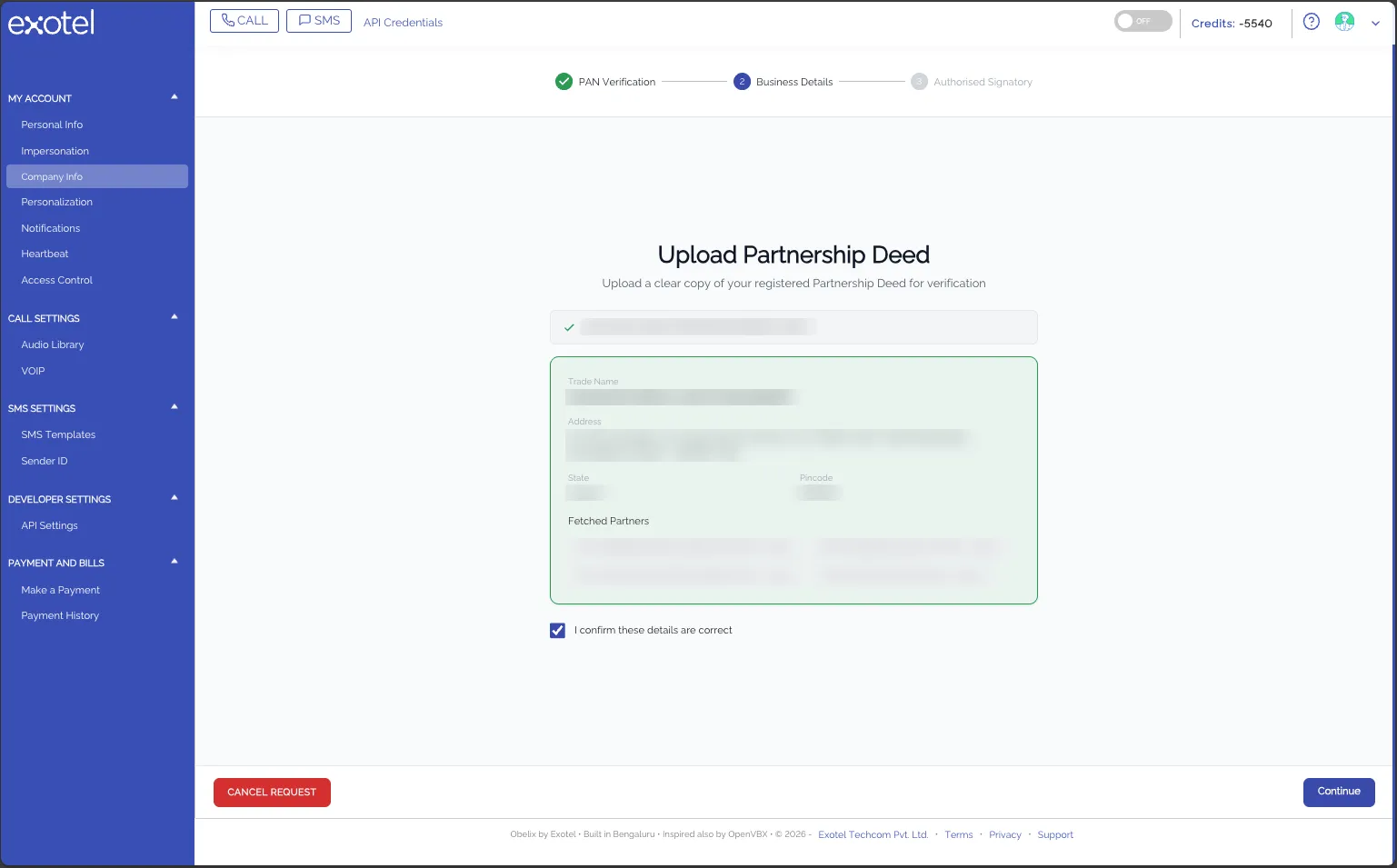
- Check the details. You cannot edit them here.
- Select I confirm these details are correct.
- Click Continue.
Select the GST number
- On the Billing Details screen, select the GSTIN for this account's billing. Each GSTIN shows its state and an Active label. To see more GSTINs, click + more GSTINs.
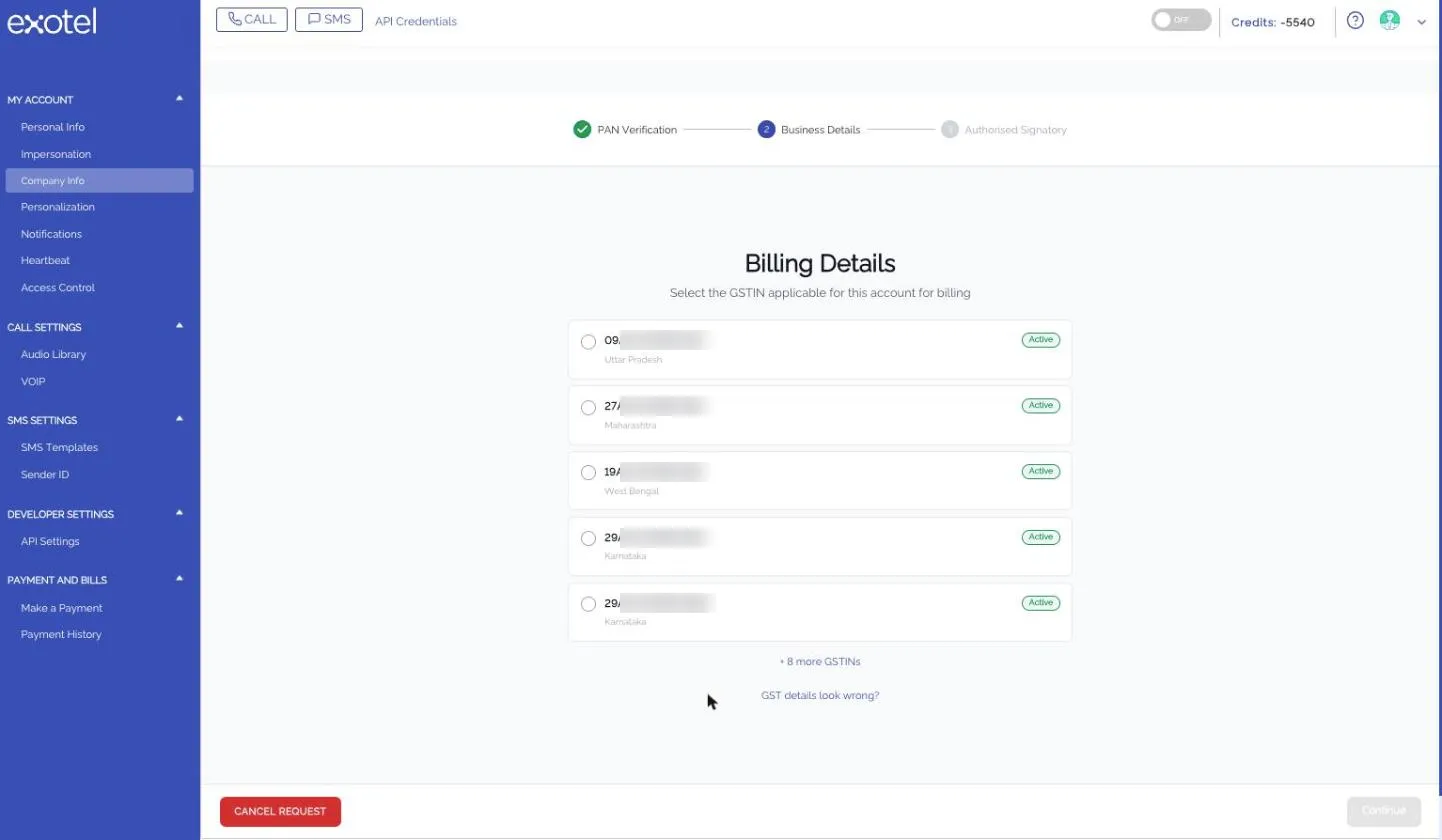
- Click Continue.
If the portal finds no GST numbers
If no GSTIN is registered for the PAN, the Billing Details screen shows the message "No registered GSTINs found for this entity. Please upload exemption certificate."
- Upload your GST exemption proof as a PDF, JPG, or PNG. The maximum file size is 10 MB. Click the upload area, or drag the file onto it.
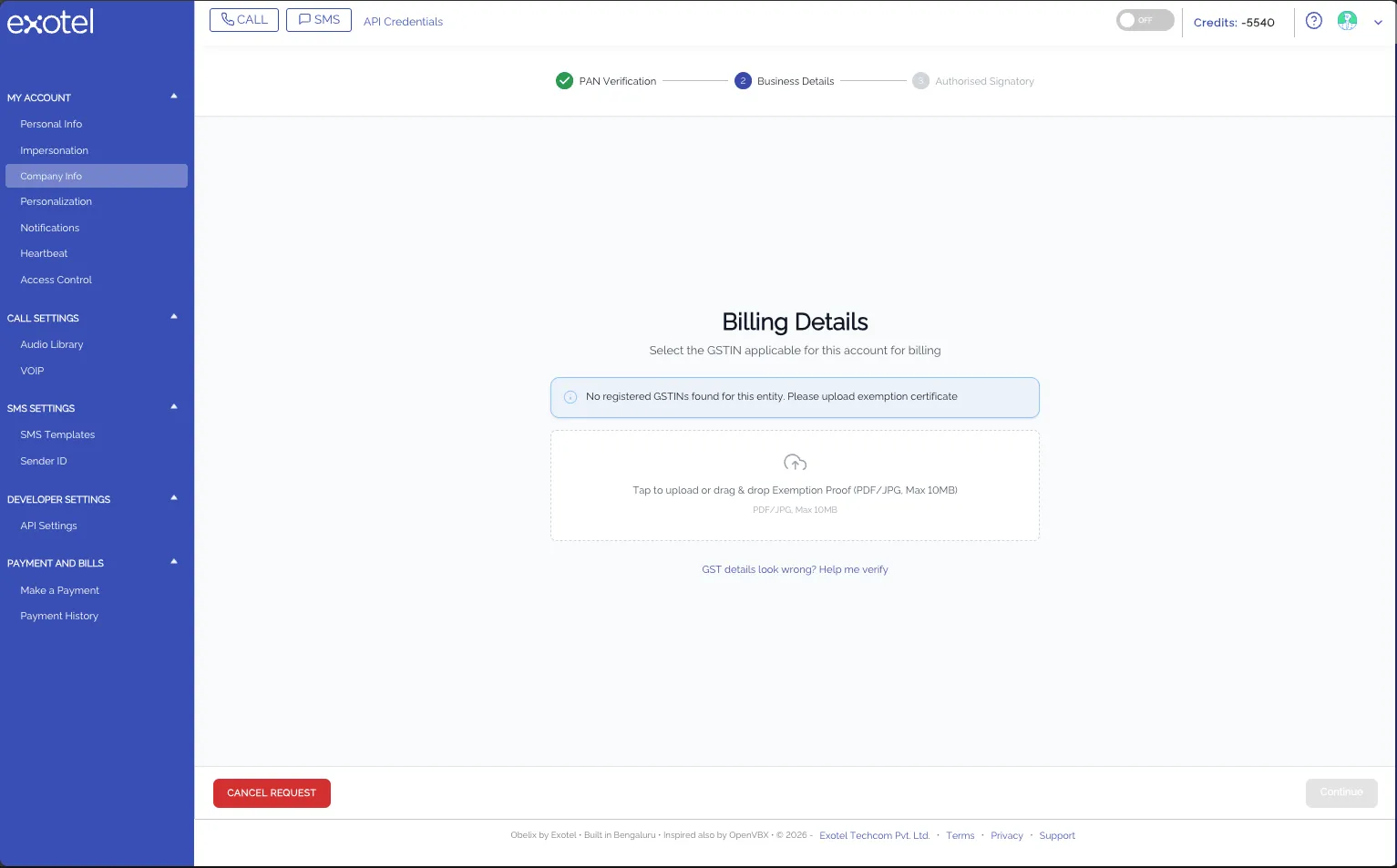
- Click Continue.
Note: If the GST details are wrong, click GST details look wrong? Help me verify to ask for help.
Step 3 of 3: Send the verification link
Caution: Send the link only to a person who is authorised to complete KYC for the firm. When you send the request, you confirm that the person is authorised.
- On the Authorised Signatory screen, find the person who will complete the verification. The portal lists the partners from your Partnership Deed.
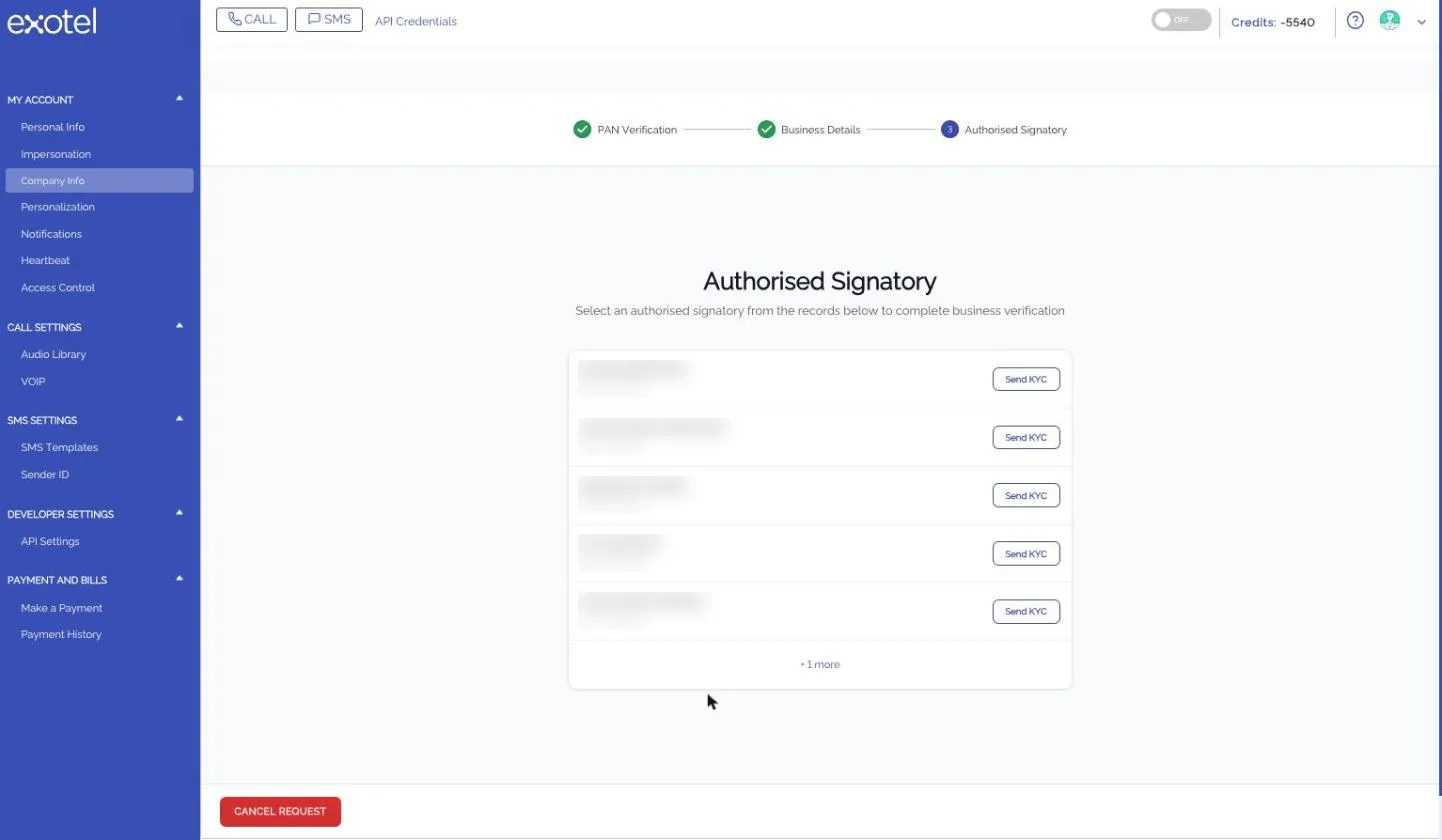
- Click Send KYC next to the name.
- Enter a mobile number, an email address, or both. You need at least one.
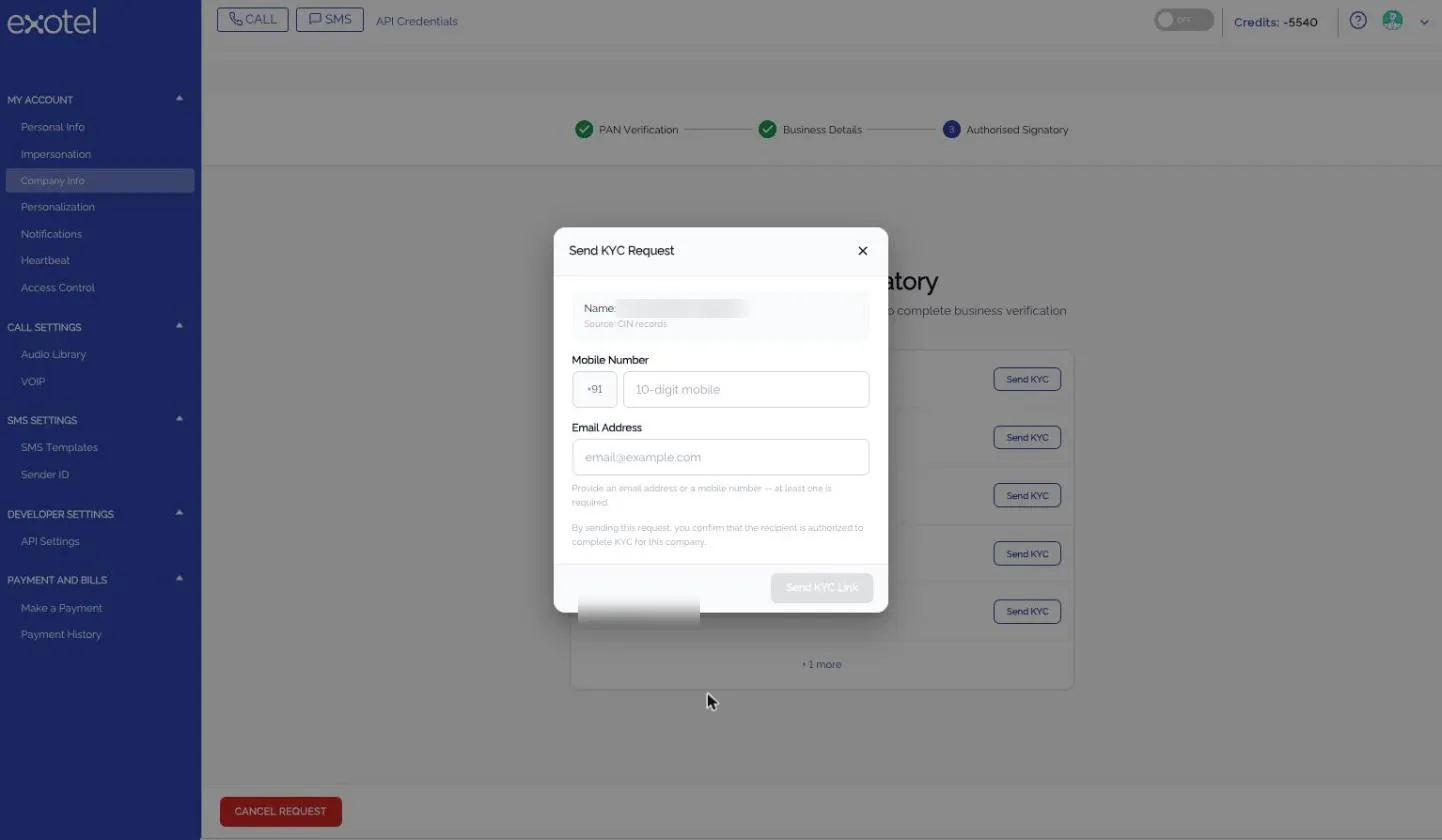
- Click Send KYC Link.
The signatory receives the link by SMS, email, or both. The signatory completes the verification without signing in to your Exotel account.
Troubleshooting
Message or situation | Cause | Action |
|---|---|---|
"Enter a valid 10-character PAN" | The PAN format is incorrect. | Check the PAN and enter it again. |
"This PAN is inactive in tax records" | The PAN is deactivated. | Click Help Me Verify. |
"File must be under 10 MB" | The deed file is too large. | Compress the file or scan it at a lower resolution. |
"Please upload a PDF, JPG, or PNG" | The file format is not supported. | Convert the file to a supported format. |
The portal cannot read the deed | The scan failed. | Enter the details manually. |
"No GST numbers found for this PAN" | No GST registration is linked to the PAN. | Upload your GST exemption proof. |
A PAN or GST service is unavailable | The government service is temporarily down. | Click Try Again. After 3 failed tries, click Help me verify. |
Your progress is saved. You do not need to start again. For other help, click Help me verify. The onboarding team contacts you within 24 hours.
Next steps
After you send the link, the Company Info page shows the verification status. See KYC Verification Indian Accounts for the status descriptions.