After you send the verification link
After you send the verification link to your authorised signatory, the Company Information page shows the status of your request. Use this page to see what each status means and what to do next.
CAUTION: Do not click Restart KYC unless you must. It clears all data you entered, and you cannot get the data back.
What each status means
Status | What it means | What you do |
|---|---|---|
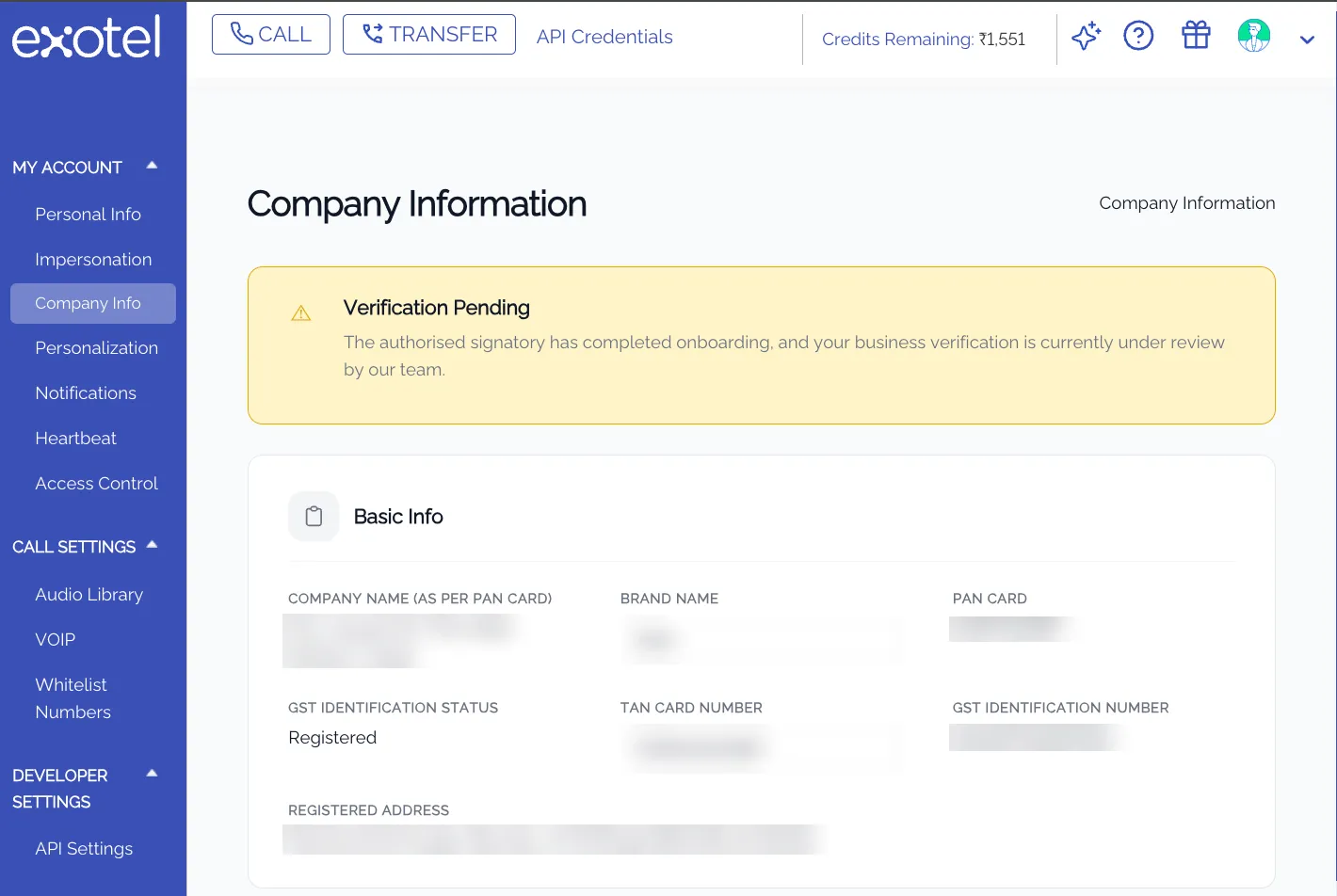
Verification Pending | The verification link is sent. Your authorised signatory has not completed verification. | Ask the authorised signatory to complete the verification link. If they cannot see it, click Resend Link. |
Our compliance team is reviewing and will approve your request | The authorised signatory has signed with eSign. Your request waits for approval from our compliance team. | No action needed. See Which entities are approved automatically. |
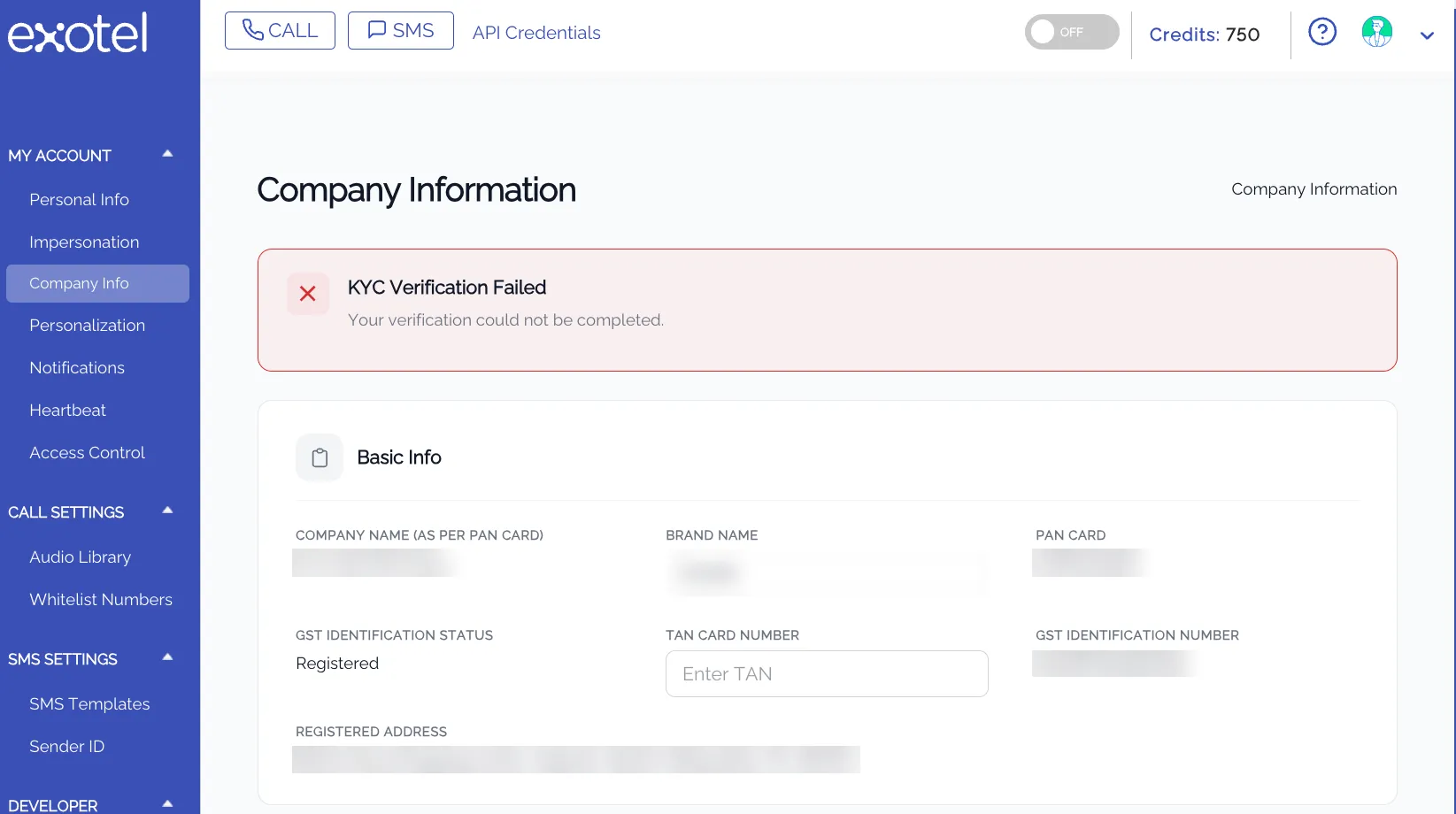
KYC Failed | Our compliance team rejected the request after review. | Click Restart KYC and verify again. |
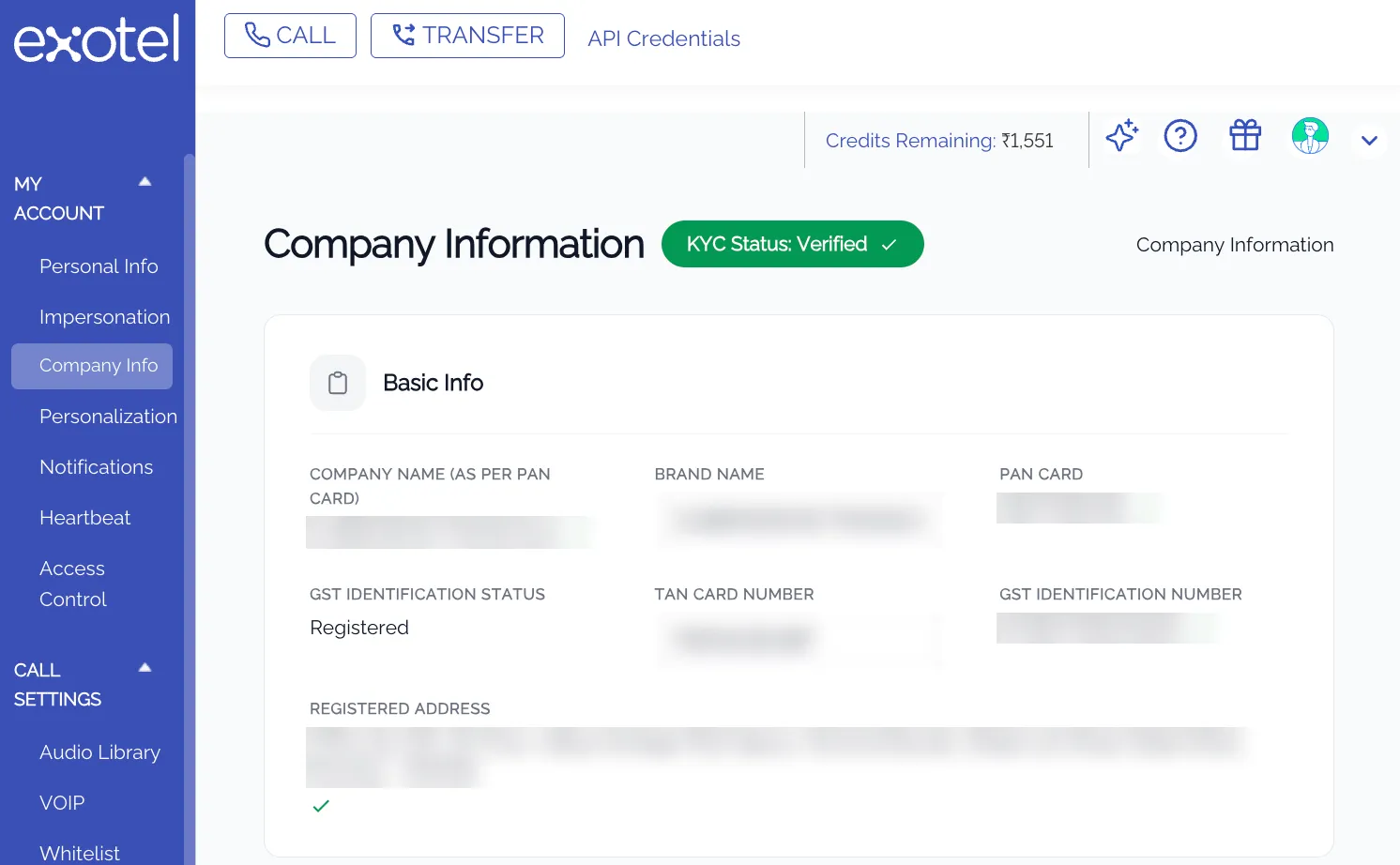
Verified | Verification is complete. | No action needed. |
Verification Pending:
KYC Verification Failed:
KYC Status: Verified:
Which entities are approved automatically
After the authorised signatory signs with eSign, approval depends on your entity type.
Entity type | After the authorised signatory signs |
|---|---|
Private or Public Limited Company | Approved automatically |
LLP | Approved automatically |
Partnership Firm | Reviewed by our compliance team |
Sole Proprietorship or Individual | Reviewed by our compliance team |
Trust, HUF or other entity | Reviewed by our compliance team |
Choose Resend Link or Restart KYC
Your situation | What to do |
|---|---|
The authorised signatory did not receive the link | Click Resend Link. |
You selected the wrong authorised signatory | Click Resend Link and send it to a different authorised signatory. If other details must change, click Restart KYC. |
You entered the wrong PAN | Click Restart KYC. |
You selected the wrong company | Click Restart KYC. |
You want to change the authorised signatory after approval | Click Help me verify. The onboarding team contacts you within 24 hours and makes this change. |
Resend the link if the authorised signatory did not get it
- Ask the authorised signatory to check the spam or junk folder.
- Check that the mobile number and email address you entered are correct.
- Click Resend Link on the Company Information page. You can update the contact details before you resend.
Fix a status that stays on Verification Pending
If the authorised signatory has not completed the verification link, click Resend Link. If the authorised signatory is not available, click Restart KYC and choose a different authorised signatory.
Get help
Click Help me verify at any step. The onboarding team contacts you within 24 hours.